
Contact Form 7 templates make it simple to create professional, functional contact forms on your WordPress site without coding. Whether you need a basic inquiry form or a complex multi-step layout, these templates save time and boost user engagement.
If you’ve ever built a website, you know how important it is to have a reliable way for visitors to reach you. That’s where contact forms come in—and if you’re using WordPress, there’s one plugin that stands out above the rest: Contact Form 7. But even the best tools can feel overwhelming at first. That’s why Contact Form 7 templates are such a game-changer. They give you ready-made, professional-looking forms that you can install in seconds—no coding required.
Imagine launching a new service page and needing a consultation request form by tomorrow. Instead of building it from scratch, you grab a pre-designed template, tweak a few fields, and embed it with a shortcode. Done. These templates aren’t just about speed—they’re about consistency, usability, and making sure your site looks polished from day one. Whether you run a blog, an online store, or a local business, having a clean, functional contact form builds trust and encourages engagement.
Key Takeaways
- Easy Setup: Contact Form 7 templates allow you to deploy forms quickly using shortcodes and drag-and-drop builders.
- Highly Customizable: Modify fields, styling, and behavior with simple shortcodes and CSS tweaks.
- Spam Protection: Built-in integration with reCAPTCHA and Akismet helps keep your inbox clean.
- Mobile-Friendly: All templates are responsive by default, ensuring a smooth experience on any device.
- Extensible with Add-ons: Enhance functionality using popular plugins like Flamingo for message storage.
- Free and Open Source: Contact Form 7 is free to use, with a large community and extensive documentation.
- Perfect for Beginners and Pros: Whether you’re new to WordPress or a seasoned developer, templates simplify form creation.
Quick Answers to Common Questions
What is a Contact Form 7 template?
A Contact Form 7 template is a pre-designed form layout that uses shortcodes to create functional contact forms on WordPress sites. It includes fields like name, email, and message, and can be customized easily.
Do I need to code to use Contact Form 7 templates?
No. While the plugin uses shortcodes, you don’t need to write code. You can copy and paste templates, then adjust fields using simple text-based shortcodes.
Can I style Contact Form 7 templates?
Yes. You can add custom CSS to change colors, fonts, spacing, and layout. Use class attributes in your form fields to target them in your stylesheet.
Are Contact Form 7 templates mobile-friendly?
Yes. All forms are responsive by default and work well on smartphones, tablets, and desktops.
How do I prevent spam in Contact Form 7?
Enable reCAPTCHA in the plugin settings and consider using the Akismet plugin for additional spam filtering.
📑 Table of Contents
What Are Contact Form 7 Templates?
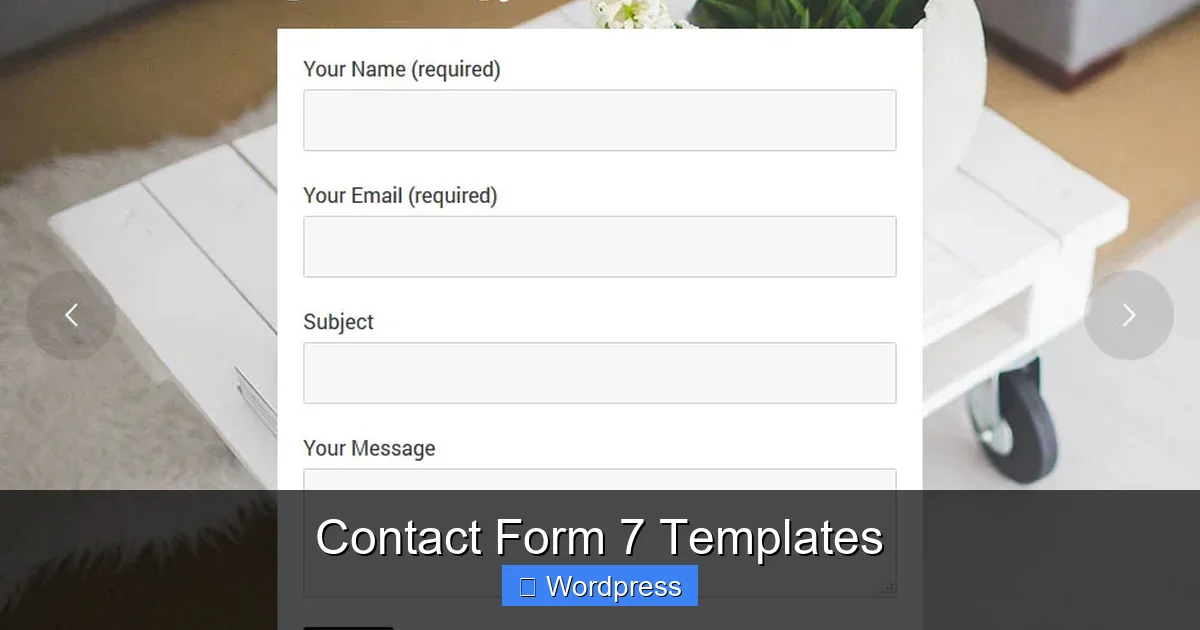
Contact Form 7 templates are pre-configured form layouts designed to work seamlessly with the Contact Form 7 plugin—one of the most popular contact form plugins for WordPress, with over 5 million active installations. These templates come with predefined fields like name, email, subject, and message, but they can be easily customized to fit your specific needs.
Unlike generic form builders that lock you into a visual editor, Contact Form 7 uses a simple shortcode-based system. This means you can copy and paste a template’s code directly into a page, post, or widget area. The plugin then renders the form exactly as designed. Templates often include advanced features like file uploads, dropdown menus, checkboxes, and conditional logic—all configured and ready to go.
One of the biggest advantages of using templates is consistency. If you manage multiple forms across your site—like a contact page, a job application, and a newsletter signup—templates ensure they all follow the same structure and design principles. This not only looks more professional but also makes maintenance easier down the line.
Why Use Contact Form 7 Templates?
Visual guide about Contact Form 7 Templates
Image source: sliderrevolution.com
You might be wondering: “Can’t I just create a form from scratch?” Technically, yes—but templates offer several compelling benefits that make them worth your time.
Save Time and Effort
Building a contact form from scratch means configuring each field, setting up validation rules, styling the layout, and testing for responsiveness. With a template, all of that is already done. You can have a fully functional form live in under five minutes. This is especially helpful for busy site owners, marketers, or developers who need to launch quickly.
Ensure Best Practices
Many templates are built by experienced developers who follow web standards and UX best practices. This means your form will include proper labels, error messages, and accessibility features—things that are easy to overlook when starting from zero. A well-structured form increases completion rates and reduces user frustration.
Easy Customization
Just because a template is pre-made doesn’t mean it’s rigid. Contact Form 7 uses simple shortcodes like [text* your-name] for required text fields or [email* your-email] for email inputs. You can easily add, remove, or rearrange fields to match your branding or workflow. Want a “Company Name” field? Just insert [text your-company]. Need a dropdown for service types? Use [select* service “Consulting” “Design” “Support”].
Mobile-Responsive by Default
All Contact Form 7 templates are designed to work on mobile devices. The plugin outputs clean HTML that adapts to different screen sizes, so your form looks great on phones, tablets, and desktops. No extra coding needed.
Popular Types of Contact Form 7 Templates
Visual guide about Contact Form 7 Templates
Image source: reinspirit.com
Not all contact forms are created equal. Depending on your website’s purpose, you’ll want a template that matches your goals. Here are some of the most commonly used types:
Basic Contact Form
This is the classic “get in touch” form. It typically includes fields for name, email, subject, and message. It’s perfect for blogs, portfolios, and small business sites. Most templates come with this layout out of the box, and it’s the easiest to set up.
Job Application Form
If you’re hiring, a job application template can include fields for resume upload, cover letter, position applied for, and availability. These forms often use file upload shortcodes like [file resume] and integrate with email notifications so you never miss a candidate.
Event Registration Form
Planning a webinar, workshop, or conference? Use a registration template with fields for attendee name, email, ticket type, and special requests. You can even add checkboxes for dietary preferences or session choices.
Newsletter Signup Form
While many sites use dedicated email marketing plugins, a simple newsletter signup can be built with Contact Form 7. Just add an email field and a submit button, then connect it to your email service using an integration plugin.
Multi-Step Form
For longer forms—like quote requests or surveys—multi-step templates break the process into manageable chunks. These use JavaScript or third-party add-ons to create a wizard-like experience, reducing form abandonment.
How to Install and Use Contact Form 7 Templates
Visual guide about Contact Form 7 Templates
Image source: codeboxr.com
Getting started with Contact Form 7 templates is straightforward. Here’s a step-by-step guide:
Step 1: Install Contact Form 7
Go to your WordPress dashboard, navigate to Plugins > Add New, and search for “Contact Form 7.” Click “Install Now” and then “Activate.” Once activated, you’ll see a new “Contact” menu in your admin sidebar.
Step 2: Choose or Create a Template
Contact Form 7 comes with a default contact form template. To use it, go to Contact > Contact Forms. You’ll see the default form with pre-filled fields. You can edit this directly or create a new form by clicking “Add New.”
To use a custom template, copy the form code (usually provided as plain text with shortcodes) and paste it into the “Form” tab of your new or existing form. For example:
[text* your-name placeholder "Your Name"]
[email* your-email placeholder "Your Email"]
[text your-subject placeholder "Subject"]
[textarea your-message placeholder "Your Message"]
[submit "Send"]
Step 3: Configure Email Settings
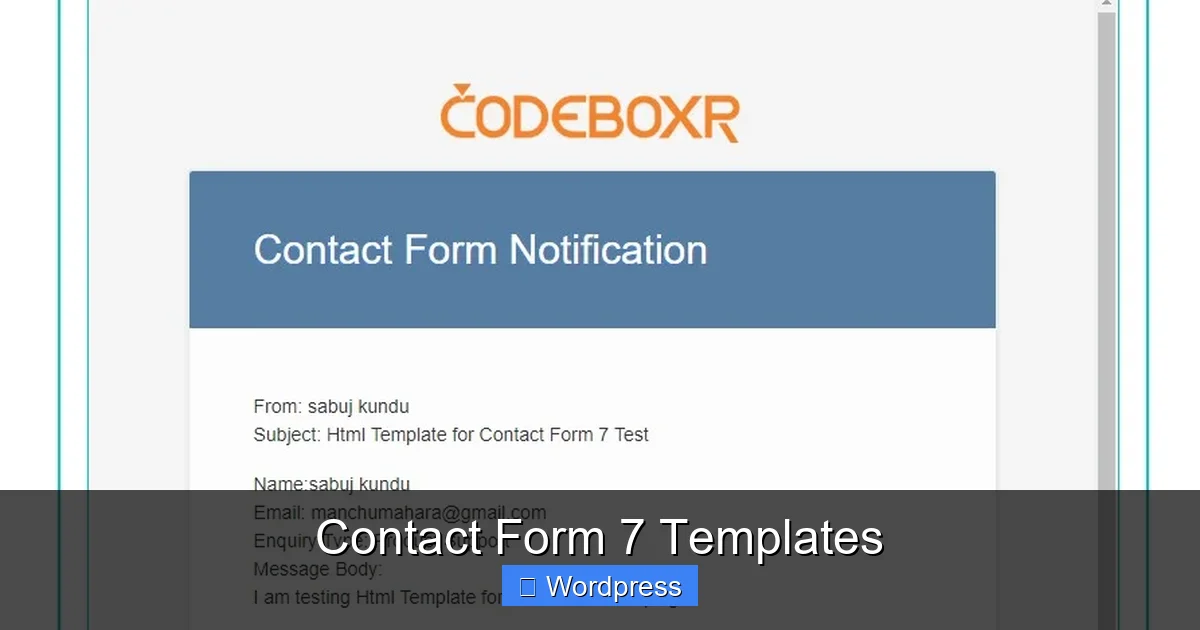
Go to the “Mail” tab to set up where form submissions are sent. Enter your email address in the “To” field. You can also customize the subject line and message body using form field tags like [your-name] and [your-email].
Step 4: Embed the Form
Once your form is ready, copy the shortcode (e.g.,
Step 5: Test and Optimize
Always test your form before going live. Submit a test message to ensure it arrives in your inbox. Check for errors, spam filtering issues, or layout problems on mobile devices.
Tips for Customizing Contact Form 7 Templates
While templates give you a strong starting point, customization is where you can really make your form shine.
Style with CSS
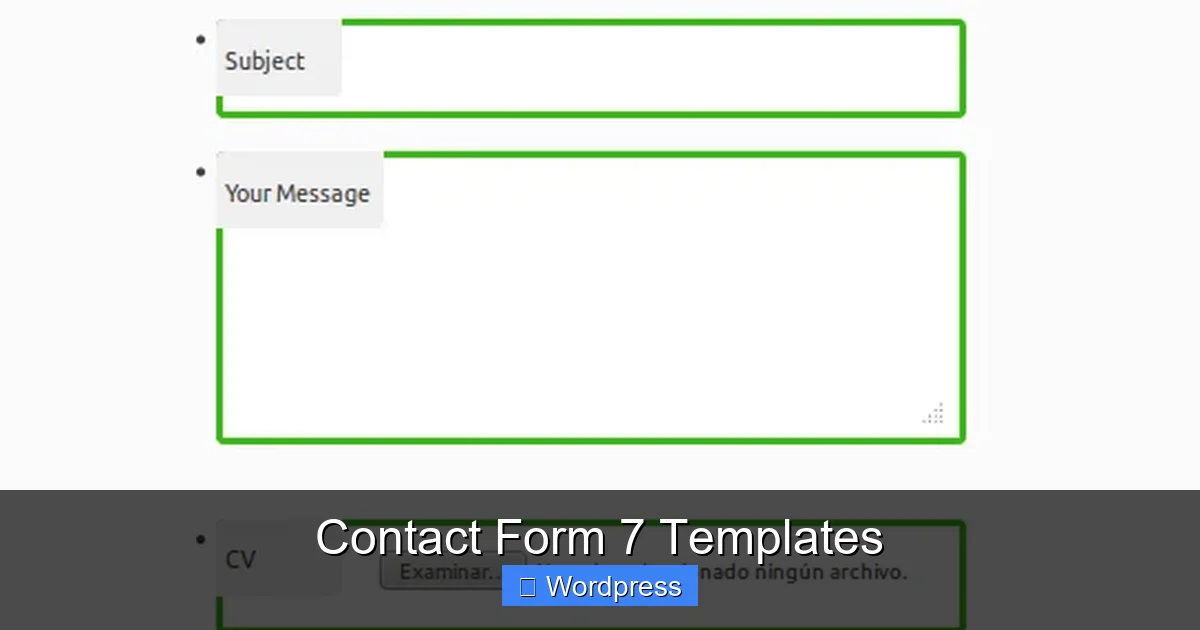
Contact Form 7 outputs clean HTML, making it easy to style with custom CSS. Add classes to your form fields using the “class” attribute, like [text your-name class:custom-input], then target those classes in your theme’s stylesheet or the WordPress Customizer.
Add Spam Protection
Enable reCAPTCHA in the plugin settings to block bots. You can also use the Akismet plugin for additional spam filtering. Both integrate seamlessly with Contact Form 7.
Use Conditional Logic (with Add-ons)
While Contact Form 7 doesn’t support conditional fields natively, plugins like “Conditional Fields for Contact Form 7” let you show or hide fields based on user input. For example, show a “Company Name” field only if the user selects “Business” from a dropdown.
Store Submissions with Flamingo
By default, Contact Form 7 only sends emails. To save submissions, install the free Flamingo plugin. It stores all form entries in your WordPress database, so you can view, search, and export them later.
Common Mistakes to Avoid
Even with templates, it’s easy to run into issues. Here are a few pitfalls to watch out for:
- Forgetting to update email settings: If you clone a template, double-check the “Mail” tab to ensure submissions go to the right address.
- Overloading the form: Too many fields can scare users away. Stick to only what’s necessary.
- Ignoring mobile testing: Always preview your form on a phone to ensure buttons and fields are easy to tap.
- Not using spam protection: Without reCAPTCHA or Akismet, your form could get flooded with spam.
- Using outdated templates: Make sure any third-party template you use is compatible with the latest version of Contact Form 7.
Conclusion
Contact Form 7 templates are a powerful, flexible solution for anyone using WordPress. They save time, ensure consistency, and help you create professional forms that actually get results. Whether you’re collecting leads, accepting job applications, or just giving visitors a way to say hello, these templates make the process simple and stress-free.
With easy customization, built-in spam protection, and full mobile support, there’s little reason not to use them. And thanks to the plugin’s widespread use, you’ll find tons of free templates, tutorials, and community support online. So the next time you need a contact form, skip the guesswork—grab a template, tweak it to fit your needs, and get back to growing your site.
For more tips on building effective contact pages, check out our guide on how to create a contact page that converts.
Frequently Asked Questions
Can I use Contact Form 7 templates on multiple sites?
Yes, Contact Form 7 is free and open source, so you can use its templates on as many WordPress sites as you like. Just install the plugin on each site.
Do Contact Form 7 templates work with page builders?
Yes. You can embed Contact Form 7 shortcodes in page builders like Elementor, WPBakery, or Gutenberg using HTML or shortcode widgets.
How do I save form submissions?
Install the free Flamingo plugin. It stores all Contact Form 7 submissions in your WordPress database for easy access and management.
Can I add file uploads to a template?
Yes. Use the [file] shortcode in your form template to allow users to upload files like resumes or images.
Is Contact Form 7 secure?
Contact Form 7 is secure when used properly. Always enable spam protection, keep the plugin updated, and avoid exposing sensitive data in form fields.
Where can I find free Contact Form 7 templates?
You can find free templates on the official Contact Form 7 website, WordPress forums, GitHub, and various WordPress tutorial blogs.