This guide walks you through adding Google Tag Manager (GTM) to your WordPress site step by step—no coding required. You’ll learn how to set up GTM, install it via plugin or manually, and verify it’s working correctly.
Key Takeaways
- Google Tag Manager simplifies tracking: Manage analytics, ads, and scripts from one dashboard without editing code.
- Two main installation methods: Use a plugin for beginners or add the code manually for more control.
- Proper placement matters: The GTM container code must go in the and right after the opening tag.
- Test before going live: Always use GTM’s preview mode to confirm tags fire correctly.
- Keep your site fast: Avoid adding too many tags at once, which can slow down page load times.
- Works with any theme: Whether you use Astra, Divi, or a custom theme, GTM integrates seamlessly.
- Enhances SEO and marketing: Track user behavior to improve content, conversions, and ad performance.
Why Add Google Tag Manager to WordPress?
If you run a WordPress website, you probably want to track visitor behavior, run ads, or measure conversions. But adding tracking codes directly to your theme files can be messy—and risky. That’s where Google Tag Manager (GTM) comes in.
GTM lets you manage all your tracking scripts—like Google Analytics, Facebook Pixel, or Hotjar—from a single interface. No more digging through theme files or worrying about breaking your site. It’s safer, faster, and more flexible.
In this guide, you’ll learn how to add Google Tag Manager to WordPress using two proven methods: a plugin (easiest) and manual code insertion (best for developers). By the end, you’ll have GTM running smoothly and ready to deploy your first tag.
Prerequisites: What You’ll Need
Before we start, make sure you have:

Visual guide about How to Add Google Tag Manager to WordPress
Image source: cdn.learnwoo.com
- A Google account (to access Google Tag Manager)
- Access to your WordPress admin dashboard
- FTP or file manager access (only if installing manually)
- Basic familiarity with WordPress (no coding skills required for the plugin method)
Step 1: Create a Google Tag Manager Account
First, you need a GTM account. If you already have one, skip to Step 2.

Visual guide about How to Add Google Tag Manager to WordPress
Image source: simonpointer.com
Sign Up for Google Tag Manager
- Go to tagmanager.google.com.
- Click Create Account.
- Enter an Account Name (e.g., your website name).
- Choose your Country.
- Click Next.
Set Up a Container
- Enter a Container Name (usually your site’s domain, like “mywebsite.com”).
- Select Web as the target platform.
- Click Create.
- Accept the Terms of Service.
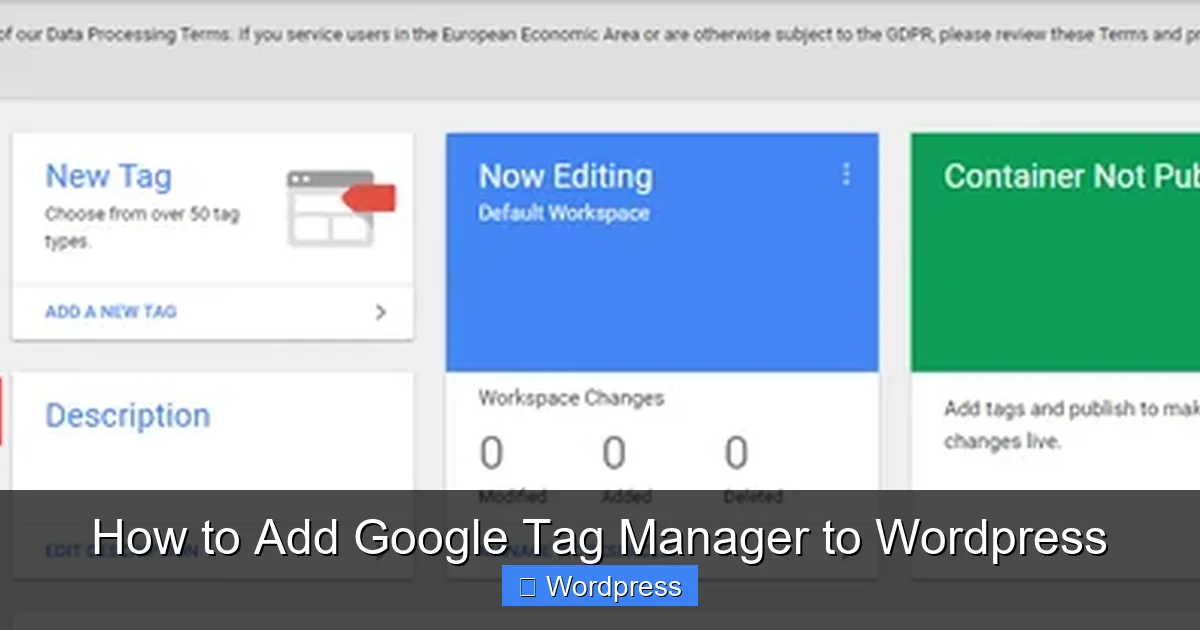
Once created, you’ll see your GTM dashboard. Keep this tab open—you’ll need the container code soon.
Step 2: Get Your GTM Container Code
After creating your container, GTM will show you two code snippets. These must be placed in specific locations on your WordPress site.
Visual guide about How to Add Google Tag Manager to WordPress
Image source: wppluginsify.com
Copy the Two Code Snippets
- In your GTM dashboard, click Admin (bottom left).
- Under Container, click Install Google Tag Manager.
- You’ll see two boxes:
- First snippet: Goes in the
<head>section. - Second snippet: Goes immediately after the opening
<body>tag.
- First snippet: Goes in the
- Copy both snippets. Keep them handy—you’ll paste them into your WordPress site next.
Tip: Never modify these codes. Just copy and paste them exactly as shown.
Step 3: Install Google Tag Manager on WordPress (Plugin Method)
The easiest way to add GTM to WordPress is using a plugin. This method works with any theme and requires no coding.
Install the “Insert Headers and Footers” Plugin
- In your WordPress dashboard, go to Plugins > Add New.
- Search for Insert Headers and Footers by WPBeginner.
- Click Install Now, then Activate.
Paste the GTM Code
- Go to Settings > Insert Headers and Footers.
- Paste the first GTM snippet (the one for
<head>) into the Scripts in Header box. - Paste the second GTM snippet (for
<body>) into the Scripts in Body box. - Click Save.
That’s it! GTM is now active on your site. The plugin automatically injects the code on every page.
Note: This method is beginner-friendly and works with themes like Astra, GeneratePress, or even custom themes. If you’re using a page builder like Elementor, this still applies—no extra steps needed.
Step 4: Install Google Tag Manager Manually (Advanced)
If you prefer full control or your theme doesn’t support plugins well, you can add GTM code manually. This method involves editing theme files.
Access Your Theme Files
- In WordPress, go to Appearance > Theme File Editor.
- On the right, find and click header.php.
- Look for the
<head>section—usually near the top. - Paste the first GTM snippet right after the opening
<head>tag. - Click Update File.
Add the Body Snippet
- In the Theme File Editor, open header.php again (or footer.php if your theme uses a different structure).
- Find the opening
<body>tag. - Paste the second GTM snippet immediately after it.
- Click Update File.
Warning: Editing theme files can break your site if done incorrectly. Always back up your site first. If you’re using a child theme, edit the child theme’s files to avoid losing changes during updates.
For more on managing themes safely, check out our guide on how to update a WordPress theme without losing customizations.
Step 5: Verify GTM Is Working
Don’t assume it’s working just because you pasted the code. Always test it.
Use GTM Preview Mode
- Go back to your GTM dashboard.
- Click Preview (top right).
- Enter your website URL and click Start.
- A new tab will open showing your site with a debug panel at the bottom.
- If you see “Container loaded successfully,” GTM is installed correctly.
Check with Google Tag Assistant
- Install the Google Tag Assistant Legacy Chrome extension.
- Visit your website.
- Click the Tag Assistant icon in your browser.
- It should confirm that GTM is firing.
If you see errors, double-check that both snippets are in the correct locations and that no caching plugin is blocking them.
Troubleshooting Common Issues
Even with careful setup, things can go wrong. Here’s how to fix the most common problems.
GTM Not Loading
- Cause: Caching plugin or server cache.
- Fix: Clear your cache (plugin, browser, and server). Use GTM Preview mode to bypass cache.
Code Appears in Wrong Place
- Cause: Theme structure varies.
- Fix: Use a plugin like “Insert Headers and Footers” instead of manual editing. It handles placement automatically.
Tags Not Firing
- Cause: Triggers not set up correctly in GTM.
- Fix: Go to your GTM workspace, check tag triggers, and use Preview mode to debug.
Site Breaks After Manual Edit
- Cause: Syntax error in theme file.
- Fix: Restore from backup or re-upload the original
header.phpfile via FTP.
For more on safe theme management, read our article on how to apply a WordPress theme without errors.
Best Practices for Using GTM on WordPress
Now that GTM is installed, use it wisely to avoid slowing down your site or collecting bad data.
- Start small: Add one tag at a time and test it.
- Use naming conventions: Name tags clearly (e.g., “GA4 – Page View”).
- Enable built-in variables: In GTM, go to Variables > Configure and enable common ones like Page URL and Click Classes.
- Schedule regular audits: Review your tags monthly to remove unused ones.
- Don’t overload: Too many tags can hurt page speed. Use a fast, SEO-optimized theme to balance performance.
Conclusion
Adding Google Tag Manager to WordPress doesn’t have to be complicated. Whether you use a plugin or manual code, GTM gives you powerful control over your tracking scripts—without touching a single line of theme code.
By following this guide, you’ve set up GTM correctly, verified it’s working, and learned how to avoid common pitfalls. Now you’re ready to deploy Google Analytics, Facebook Pixel, or any other tag with confidence.
Remember: always test in Preview mode, keep your site fast, and update your tags regularly. With GTM, you’re not just tracking data—you’re building smarter marketing decisions.