This guide walks you through the complete process of how to design a WordPress page, from selecting the right theme to using page builders like Elementor. You’ll learn best practices for layout, styling, and responsiveness—even if you’re a beginner.
Key Takeaways
- Choose a responsive WordPress theme: Your theme sets the foundation for your page design. Pick one that’s mobile-friendly and customizable.
- Use a page builder like Elementor: Drag-and-drop tools make designing pages easy without coding. Elementor is popular and beginner-friendly.
- Plan your layout before building: Sketch a wireframe or outline sections like header, content, and footer to stay organized.
- Optimize images and media: Large files slow down your site. Compress images and use modern formats like WebP.
- Test across devices: Always preview your page on mobile, tablet, and desktop to ensure it looks great everywhere.
- Keep design consistent: Use matching fonts, colors, and spacing throughout your site for a professional look.
- Update and maintain your theme: Regular updates fix bugs and improve security. Learn how to update themes safely.
Introduction: Why Learning How to Design a WordPress Page Matters
Whether you’re launching a blog, business site, or portfolio, knowing how to design a WordPress page gives you full control over your website’s look and feel. WordPress powers over 40% of the web, and its flexibility allows anyone—even beginners—to create stunning, functional pages without hiring a developer.
In this guide, you’ll learn every step needed to design a professional WordPress page from scratch. We’ll cover choosing the right theme, using visual page builders, structuring content, and ensuring your page works perfectly on all devices. By the end, you’ll have the confidence to build beautiful, high-performing pages on your own.
Step 1: Choose the Right WordPress Theme
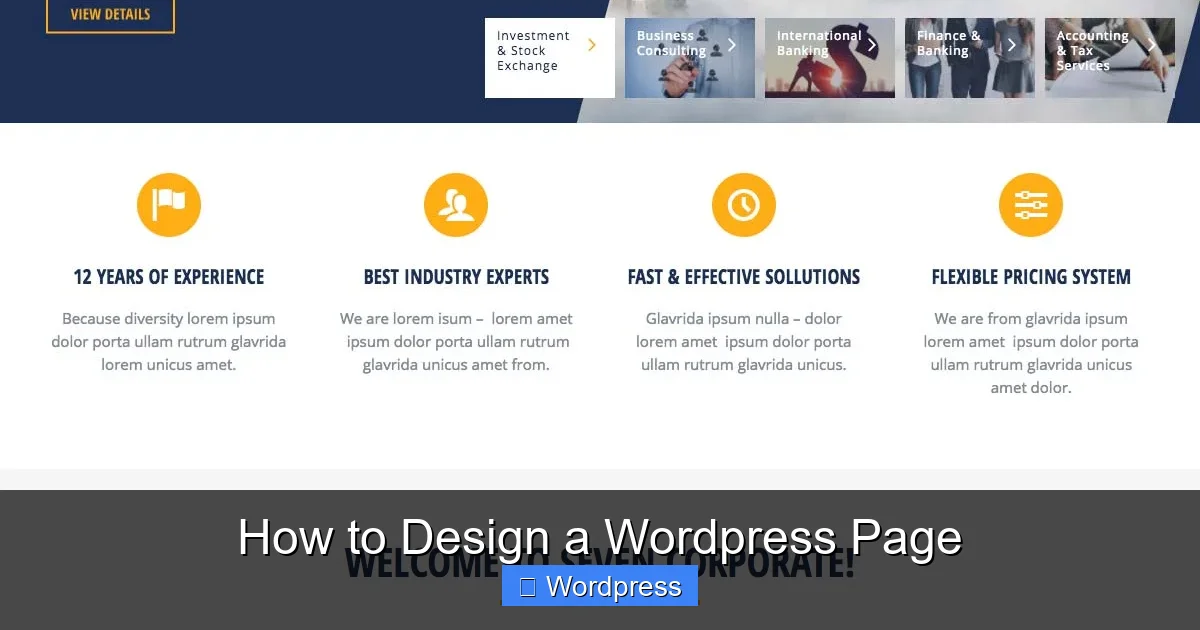
Your theme defines your site’s overall style and layout. A good theme is responsive, fast, and easy to customize. Here’s how to pick the best one:
Visual guide about How to Design a WordPress Page
Image source: abtasty.com
Look for Responsive Design
Make sure your theme adapts to mobile, tablet, and desktop screens. Most modern themes are responsive, but always check the demo on different devices.
Check Customization Options
Some themes offer built-in customizers with color pickers, font settings, and layout controls. Others require plugins. Themes like Astra, GeneratePress, and Hello Elementor are great for beginners.
Verify Compatibility with Page Builders
If you plan to use Elementor or another drag-and-drop builder, choose a lightweight theme that works well with it. The Hello Elementor theme is a top choice for this.
Install and Activate Your Theme
Go to Appearance > Themes > Add New in your WordPress dashboard. Search for your chosen theme, click “Install,” then “Activate.” If you’re using a premium theme, upload the .zip file instead.
Tip: Always test a new theme on a staging site first. If something goes wrong, you can easily deactivate the theme and switch back.
Step 2: Install a Page Builder Plugin
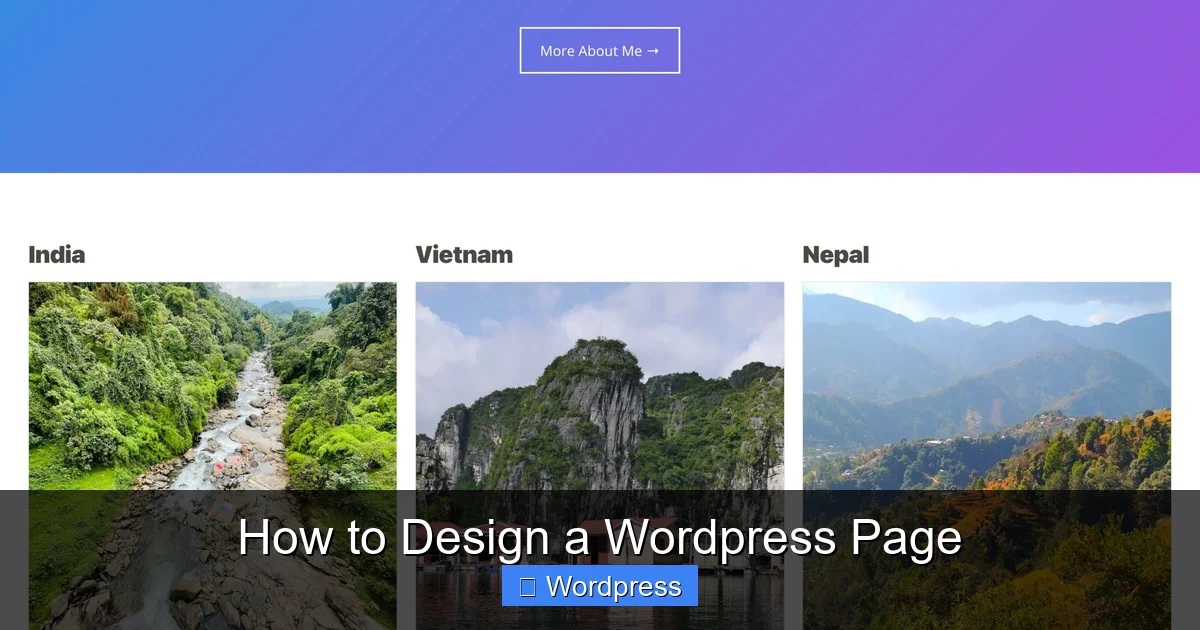
While WordPress has a built-in block editor (Gutenberg), a page builder gives you more design freedom. Elementor is the most popular option.
Visual guide about How to Design a WordPress Page
Image source: developer.wordpress.org
Install Elementor
Go to Plugins > Add New, search for “Elementor,” and click “Install Now” followed by “Activate.”
Start with a Template or Build from Scratch
Elementor offers pre-designed templates for landing pages, about pages, and more. Click “Edit with Elementor” on any page to begin. Choose a template or start with a blank canvas.
Use the Drag-and-Drop Interface
Add sections, columns, and widgets by dragging them from the left panel. Common widgets include headings, images, buttons, and text boxes. Simply click to edit content and style.
Pro Tip: Use Elementor’s “Navigator” to see your page structure and easily reorder sections.
Step 3: Structure Your Page Layout
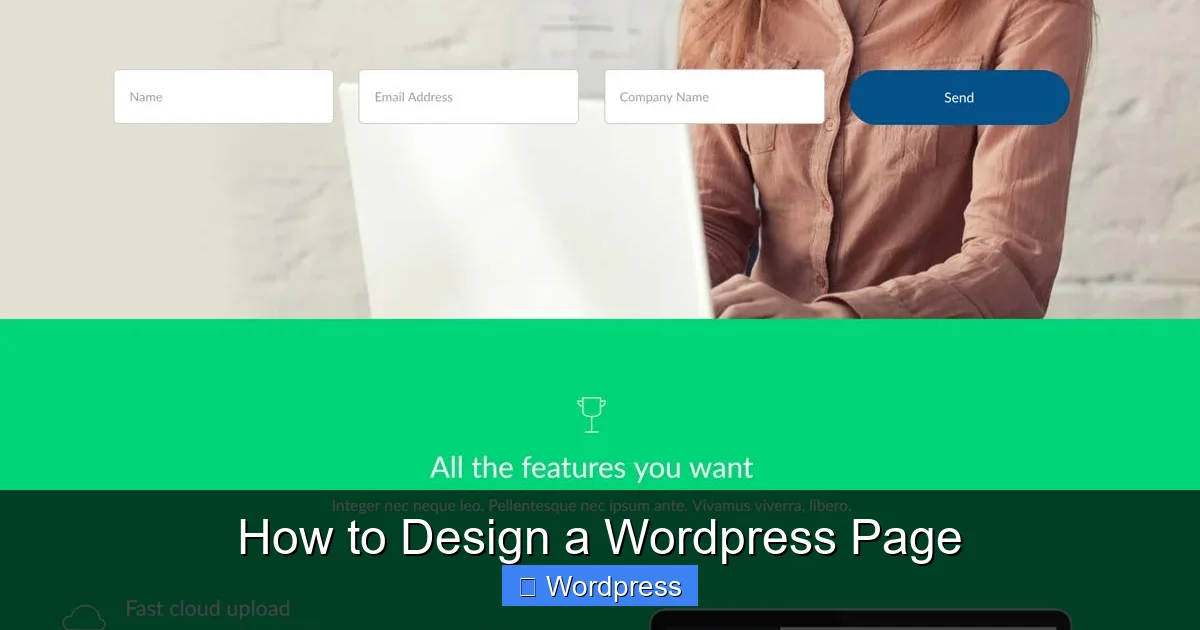
A well-structured page improves user experience and SEO. Follow this basic layout:
Visual guide about How to Design a WordPress Page
Image source: abtasty.com
Header Section
Include your logo, site title, and navigation menu. Most themes auto-generate this, but you can customize it in Elementor using the “Site Identity” widget or a custom header template.
Hero Section
This is the first thing visitors see. Use a large background image, a bold headline, and a clear call-to-action (CTA) button. For example: “Get Started Today” or “Download Our Free Guide.”
Content Sections
Break your content into short sections with headings, images, and bullet points. Use columns to compare features or showcase services side by side.
Call-to-Action (CTA)
Place CTAs throughout your page—after key points or at the end. Use contrasting colors to make buttons stand out.
Footer
Add links to important pages, social media icons, and contact info. Keep it simple and clean.
Step 4: Customize Colors, Fonts, and Spacing
Consistent styling makes your page look professional. Here’s how to get it right:
Set a Color Scheme
Choose 2–3 primary colors and use them for buttons, headings, and accents. Avoid too many colors—stick to a cohesive palette.
Pick Readable Fonts
Use one font for headings and another for body text. Sans-serif fonts like Open Sans or Roboto are clean and modern. Set font sizes: 24–32px for headings, 16–18px for body text.
Adjust Spacing and Padding
Give elements room to breathe. Use Elementor’s margin and padding controls to add space between sections. Aim for at least 40–60px between major sections.
Bonus: Use Elementor’s “Global Fonts” and “Global Colors” to apply styles site-wide and save time.
Step 5: Add and Optimize Images
Images grab attention, but they can slow down your site if not optimized.
Use High-Quality, Relevant Images
Choose photos that match your message. Free stock sites like Unsplash and Pexels offer great options.
Compress Images Before Uploading
Use tools like TinyPNG or ShortPixel to reduce file size without losing quality. Aim for under 100KB per image when possible.
Use WebP Format
WebP images are smaller and load faster than JPEG or PNG. Many WordPress plugins (like Smush) can convert images automatically.
Add Alt Text
Describe each image with alt text for accessibility and SEO. For example: “Woman working on laptop in home office.”
Step 6: Make Your Page Mobile-Friendly
Over 50% of web traffic comes from mobile devices. Your page must look great on small screens.
Use Elementor’s Responsive Mode
Click the mobile icon in Elementor to preview and edit your page for mobile. Adjust font sizes, hide unnecessary elements, and stack columns vertically.
Test on Real Devices
Use your phone or tablet to view the live page. Check that buttons are tappable, text is readable, and images load quickly.
Avoid Fixed-Width Elements
Don’t set exact pixel widths on containers. Use percentages or let Elementor handle responsive sizing automatically.
Step 7: Add Interactive Elements
Engage visitors with dynamic features:
Buttons and Links
Style buttons with hover effects (e.g., color change on mouseover). Link to other pages, forms, or external sites.
Forms
Use plugins like WPForms or Elementor’s form widget to collect emails or feedback. Keep forms short—only ask for essential info.
Videos and Sliders
Embed YouTube videos or use image sliders to showcase products. But don’t overdo it—too many moving parts can distract users.
Troubleshooting Common Issues
Even experienced designers run into problems. Here’s how to fix common ones:
Page Looks Different on Frontend
This often happens due to caching. Clear your browser cache and any caching plugins (like WP Super Cache). Also, check if your theme has custom CSS conflicting with Elementor.
Images Not Loading
Make sure the image URL is correct and the file wasn’t deleted. If using a CDN, purge its cache.
Mobile Layout Broken
Use Elementor’s responsive controls to adjust padding, font size, or hide elements on mobile. Avoid fixed heights that don’t scale.
Theme Update Broke Your Design
Always back up your site before updating. If a theme update causes issues, you can set a default theme temporarily while you fix the problem.
Conclusion: Design with Confidence
Learning how to design a WordPress page opens up endless possibilities for your website. With the right theme, a powerful page builder like Elementor, and attention to detail, you can create pages that are both beautiful and functional.
Remember to plan your layout, optimize media, test on all devices, and keep your design consistent. And don’t forget to keep your themes updated for security and performance.
Now it’s your turn—log in to WordPress, pick a theme, and start building. Your perfect page is just a few clicks away.