Broken links hurt your site’s SEO and frustrate visitors. This guide shows you step-by-step how to find and fix broken links in WordPress using free plugins, manual methods, and best practices to keep your site running smoothly.
Key Takeaways
- Use a plugin like Broken Link Checker: Automatically scans your site for broken internal and external links and lets you edit or unlink them easily.
- Manually check high-traffic pages: Review your homepage, contact page, and popular posts to catch broken links early.
- Update permalinks after content changes: Changing post URLs without redirects creates broken links—always set up 301 redirects.
- Monitor external links regularly: Websites you link to may change or go offline, so periodic checks are essential.
- Set up custom 404 pages: Improve user experience by guiding visitors when they hit a broken link.
- Avoid editing database directly unless experienced: Manual database fixes can break your site if done incorrectly.
- Prevent future broken links: Use descriptive anchor text, test new links before publishing, and schedule regular audits.
Introduction: Why Fixing Broken Links Matters
Broken links—those that lead to pages that no longer exist—are more than just annoying. They hurt your website’s search engine ranking, increase bounce rates, and damage your credibility. Whether you run a blog, an online store, or a business site, keeping your links working is essential for both users and SEO.
In this guide, you’ll learn how to fix broken links in WordPress using simple, effective methods. We’ll cover plugin-based solutions, manual checks, and preventive strategies so you can maintain a clean, professional website. By the end, you’ll know exactly how to find, fix, and prevent broken links—no technical expertise required.
Step 1: Use a Broken Link Checker Plugin
The easiest way to find broken links is with a dedicated plugin. These tools scan your entire site automatically and alert you to any issues.
Visual guide about How to Fix Broken Links in WordPress
Image source: areweconnected.com
Install and Activate Broken Link Checker
Go to your WordPress dashboard, then:
- Navigate to Plugins > Add New.
- Search for “Broken Link Checker.”
- Click Install Now, then Activate.
Configure the Plugin Settings
After activation, go to Settings > Broken Link Checker. Here, you can adjust how often the plugin scans your site. For most users, the default settings work well, but you may want to:
- Set the scan interval to daily for active sites.
- Limit scanning to published posts and pages to save server resources.
- Enable email notifications so you’re alerted when broken links are found.
Review and Fix Detected Links
Once the scan completes, go to Tools > Broken Links. You’ll see a list of all broken links, including:
- The page or post where the link appears.
- The URL that’s broken.
- The link text (anchor text).
For each broken link, you have three options:
- Edit the link: Update the URL if the content has moved.
- Unlink: Remove the hyperlink but keep the text.
- Mark as not broken: If the link is temporarily down but expected to return.
Pro tip: Always test the new URL in your browser before saving changes to ensure it works.
Step 2: Manually Check Key Pages
While plugins are great, they may miss links in custom code, widgets, or themes. That’s why it’s smart to manually review important pages.
Visual guide about How to Fix Broken Links in WordPress
Image source: duplicator.com
Focus on High-Traffic Areas
Start with pages that get the most visitors:
- Homepage
- Contact page
- Popular blog posts
- Navigation menus
- Footer links
How to Test Links Manually
Open each page in your browser and click every link. Watch for:
- 404 “Page Not Found” errors.
- Redirects to unrelated content.
- Slow-loading or blank pages.
If you find a broken link, note the page and URL. Then, go back to the WordPress editor for that page and update or remove the link.
Example: If your “About Us” page links to a team member’s profile that no longer exists, either update the link to a current profile or remove it entirely.
Step 3: Fix Broken Links Caused by Content Changes
One common cause of broken links is changing a post or page URL without setting up a redirect. This often happens when you update permalinks.
Update Permalinks Carefully
When editing a post, avoid changing the permalink unless necessary. If you must change it:
- Before publishing, copy the old URL.
- After updating, install a redirect plugin like Redirection.
- Set up a 301 redirect from the old URL to the new one.
Use Redirects to Preserve SEO
A 301 redirect tells search engines that the content has moved permanently. This passes most of the SEO value to the new page and prevents 404 errors for visitors.
To set up a redirect with the Redirection plugin:
- Go to Tools > Redirection.
- Enter the old URL in the “Source URL” field.
- Enter the new URL in the “Target URL” field.
- Click Add Redirect.
This ensures anyone clicking the old link—whether from search results, social media, or another site—lands on the correct page.
Step 4: Monitor External Links
External links (to other websites) can break without warning. A site you linked to last year might be offline today.
Schedule Regular External Link Checks
Use the Broken Link Checker plugin to scan external links weekly or monthly. You can also use free online tools like:
- Google Search Console (under “Links” and “Coverage” reports)
- Dead Link Checker (deadlinkchecker.com)
Decide Whether to Keep or Remove External Links
If an external link is broken:
- Replace it: Find an updated or alternative source.
- Remove it: If no good replacement exists.
- Add a disclaimer: For academic or reference content, note that the link was valid at the time of writing.
Example: If you linked to a government report that’s been archived, update the link to the new location or cite the archive version.
Step 5: Set Up a Custom 404 Page
Even with the best efforts, some broken links will slip through. A custom 404 page helps visitors find what they’re looking for instead of leaving your site.
Create a Helpful 404 Page
Go to your WordPress theme editor or use a page builder to design a 404 page that includes:
- A friendly message (“Oops! This page isn’t here.”)
- A search bar
- Links to popular pages or categories
- Your site’s main navigation
You can also use plugins like 404page to easily customize your 404 template without coding.
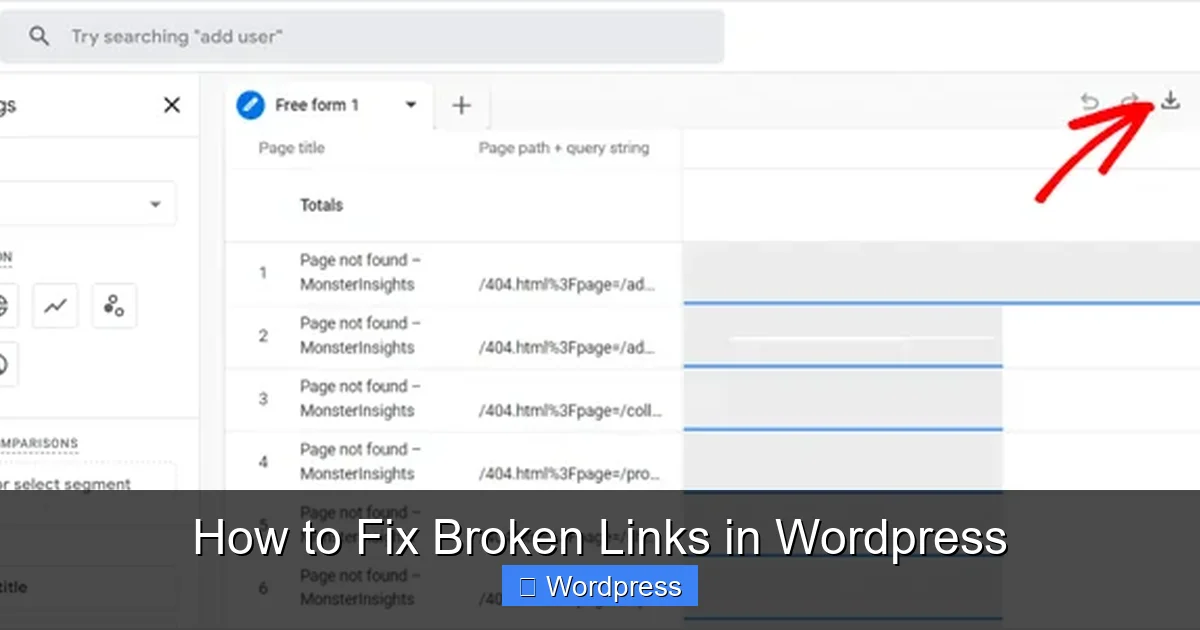
Bonus tip: Track 404 errors using Google Analytics or your hosting dashboard to identify recurring broken links.
Troubleshooting Common Issues
Sometimes, fixing broken links isn’t straightforward. Here’s how to handle common problems:
Plugin Conflicts
If the Broken Link Checker plugin slows down your site or stops working, try:
- Deactivating other plugins temporarily.
- Switching to a default theme (like Twenty Twenty-Four) to test.
- Using a lighter alternative like WP Link Status.
Database Errors
Never edit the WordPress database directly unless you’re experienced. A wrong change can crash your site. If you suspect database issues, restore from a backup or contact your host.
Links in Custom Code or Themes
If links are hardcoded in your theme files, use the WordPress Theme Editor (Appearance > Theme File Editor) to locate and update them. For safety, always back up your site first.
For more on managing themes safely, see our guide on how to update a WordPress theme without breaking your site.
Conclusion: Stay Proactive to Prevent Broken Links
Fixing broken links in WordPress doesn’t have to be overwhelming. With the right tools and habits, you can keep your site clean, fast, and user-friendly. Start by installing a broken link checker plugin, then make regular audits part of your maintenance routine.
Remember: broken links hurt your SEO and frustrate visitors. But by following this guide, you’ll not only fix existing issues but also prevent new ones. Keep your content updated, use redirects wisely, and always test your links before publishing.
For advanced users who prefer not to use plugins, check out our detailed tutorial on how to fix broken links in WordPress without a plugin. And if you’re dealing with 404 errors, learn more in our article on troubleshooting 404 errors in WordPress.
Now go give your site a link health check—your visitors (and Google) will thank you!