
CLS (Cumulative Layout Shift) is a key Google ranking factor that measures visual stability. This guide walks you through identifying and fixing CLS issues in WordPress using proven techniques like setting image dimensions, optimizing fonts, and minimizing dynamic content shifts.
Key Takeaways
- Understand what CLS is: CLS measures unexpected layout shifts during page load. A low score means better user experience.
- Use Google tools to diagnose CLS: Tools like PageSpeed Insights and Chrome DevTools help pinpoint layout shift culprits.
- Set width and height attributes on images: Always define image dimensions in HTML to reserve space and prevent shifts.
- Optimize web fonts and loading: Use font-display: swap and preload critical fonts to reduce invisible text flashes.
- Avoid injecting content above existing content: Dynamic ads, banners, or popups can cause sudden layout changes—load them responsively.
- Leverage lazy loading wisely: Use native lazy loading for offscreen images but ensure placeholders maintain layout stability.
- Test after every change: Re-run performance tests to confirm improvements and avoid new layout shifts.
How to Fix CLS Issue in WordPress
If your WordPress site feels jumpy when loading—text suddenly moves, buttons shift, or images push content down—you’re likely dealing with a high Cumulative Layout Shift (CLS). This frustrating experience isn’t just annoying for users; it also hurts your SEO. Google includes CLS as part of its Core Web Vitals, a set of metrics that directly impact search rankings.
The good news? Most CLS issues in WordPress are fixable with a few strategic tweaks. In this guide, you’ll learn exactly how to fix CLS issue in WordPress, step by step. Whether you’re using a page builder like Elementor, a popular theme, or custom code, these solutions will help stabilize your layout and boost performance.
What Is CLS and Why Does It Matter?
CLS measures how much visible content shifts around during the loading process. A shift happens when an element that was already displayed changes its position—usually because something loaded above or beside it. For example, an image loading late might push down a paragraph of text, causing a user to accidentally click the wrong button.
Google considers a CLS score under 0.1 as “good,” between 0.1 and 0.25 as “needs improvement,” and above 0.25 as “poor.” High CLS leads to poor user experience, higher bounce rates, and lower rankings—so fixing it is essential.
Step 1: Diagnose Your CLS Problem
Before fixing anything, you need to know where the problem lies.
Use Google PageSpeed Insights
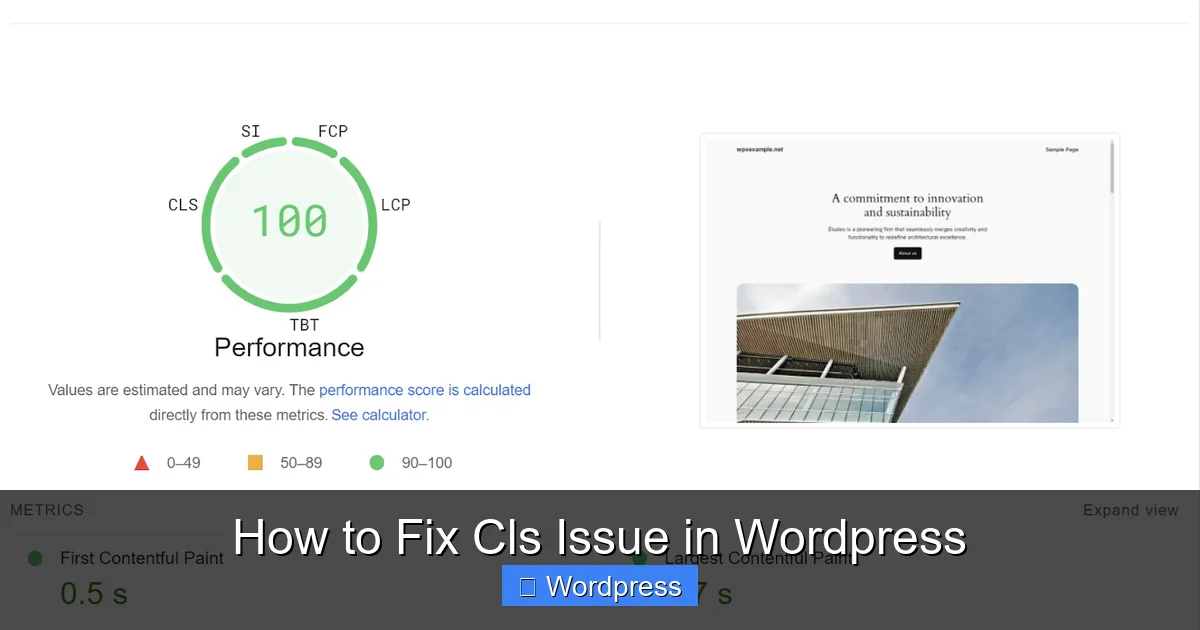
Go to PageSpeed Insights and enter your site URL. Under the “Origin Summary” and “Field Data” sections, check your CLS score. The tool will also highlight specific elements causing layout shifts—like images, ads, or iframes.
Visual guide about How to Fix Cls Issue in WordPress
Image source: wpx.net
Use Chrome DevTools
Open your site in Chrome, right-click, and select “Inspect.” Go to the “Performance” tab, start recording, and reload the page. After it finishes, look for “Layout Shifts” in the timeline. Click on a shift event to see which element moved and why.
Check Real User Data with Google Search Console
In Google Search Console, go to “Core Web Vitals” under “Experience.” This shows real-world CLS data from actual visitors. If many pages show poor CLS, prioritize fixes across your site.
Step 2: Fix Image-Related Layout Shifts
Images are the #1 cause of CLS in WordPress. When an image loads without defined dimensions, the browser doesn’t know how much space to reserve, so content jumps when the image appears.
Set Width and Height Attributes
Always include width and height attributes in your <img> tags. For example:
Visual guide about How to Fix Cls Issue in WordPress
Image source: wpx.net
<img src="example.jpg" width="600" height="400" alt="Example">
Modern browsers use these values to calculate the aspect ratio and reserve space, even before the image loads.
Use CSS to Maintain Aspect Ratio
If you’re using responsive images, add this CSS to prevent distortion:
img {
  max-width: 100%;
  height: auto;
}
This ensures images scale properly while keeping their reserved space intact.
Lazy Load Images Properly
WordPress 5.5+ includes native lazy loading. Make sure it’s enabled by checking your <img> tags for loading="lazy". Avoid third-party lazy load plugins unless necessary—they can sometimes cause more shifts if not configured correctly.
Step 3: Optimize Font Loading
Web fonts can cause invisible text (FOIT) or flash of unstyled text (FOUT), leading to layout shifts when the final font loads.
Use font-display: swap
In your @font-face rule, add font-display: swap:
@font-face {
  font-family: 'CustomFont';
  src: url('custom-font.woff2') format('woff2');
  font-display: swap;
}
This tells the browser to use a fallback font immediately and swap in the custom font once it’s loaded—reducing layout shifts.
Preload Critical Fonts
Add this to your theme’s functions.php or use a plugin like WP Rocket:
function preload_custom_fonts() {
  echo '<link rel="preload" href="' . get_template_directory_uri() . '/fonts/custom-font.woff2" as="font" type="font/woff2" crossorigin>';
}
add_action('wp_head', 'preload_custom_fonts');
This loads key fonts faster, minimizing the chance of text reflow.
Step 4: Avoid Injecting Content Above the Fold
Dynamic content like ads, popups, or banners loaded via JavaScript can push down existing content, causing major layout shifts.
Reserve Space for Ads and Widgets
If you use Google AdSense or other ad networks, wrap ads in a container with a fixed height:
<div class="ad-container" style="min-height: 250px;">
  <!-- Ad code here -->
</div>
This reserves space so the page doesn’t jump when the ad loads.
Delay Non-Essential Scripts
Use plugins like Autoptimize or Perfmatters to defer JavaScript execution. This prevents third-party scripts from altering the layout before the page is fully stable.
Avoid Popups on Page Load
If you must use popups, trigger them after a delay (e.g., 5 seconds) or on user interaction (like scrolling or exiting). Sudden popups are a major CLS offender.
Step 5: Optimize CSS and Animations
Poorly written CSS can cause elements to shift during rendering.
Avoid Animations That Change Layout
Use transform and opacity for animations instead of properties like width, height, or top, which trigger layout recalculations.
.fade-in {
  opacity: 0;
  transform: translateY(10px);
  transition: opacity 0.3s, transform 0.3s;
}
Minify and Combine CSS
Use a plugin like Autoptimize or WP Rocket to minify and combine CSS files. Fewer HTTP requests mean faster rendering and less chance of layout shifts.
Step 6: Test and Monitor Your Fixes
After making changes, always retest your site.
Re-run PageSpeed Insights
Check if your CLS score improved. Look for new warnings or regressions.
Use Lighthouse in Chrome DevTools
Run a Lighthouse audit (in the “Lighthouse” tab of DevTools) for a detailed breakdown of performance, accessibility, and best practices—including CLS.
Monitor Over Time
Use Google Search Console to track CLS over weeks. If scores worsen, a new plugin or theme update might be the cause.
Troubleshooting Common CLS Issues
Problem: CLS persists after all fixes
Check for third-party embeds (YouTube, social widgets) that load asynchronously. Wrap them in containers with fixed dimensions.
Problem: Theme or plugin causing shifts
Switch to a default WordPress theme like Twenty Twenty-Four temporarily. If CLS improves, your theme is the culprit. Consider updating your theme or contacting the developer.
Problem: Mobile CLS is worse than desktop
Mobile layouts are more sensitive to shifts. Use responsive units (like vw or %) and test on real devices or Chrome’s device emulator.
Conclusion
Fixing the CLS issue in WordPress isn’t just about chasing a good Google score—it’s about creating a smoother, more trustworthy experience for your visitors. By setting image dimensions, optimizing fonts, avoiding dynamic content shifts, and testing rigorously, you can dramatically reduce layout instability.
Remember, even small improvements matter. A CLS score under 0.1 won’t just help your SEO—it will keep users engaged and reduce frustration. Start with the biggest offenders (usually images and fonts), use the right tools to measure progress, and keep your site lean and fast.
With these steps, you’re well on your way to a stable, high-performing WordPress site that both users and search engines will love.