This guide walks you through how to fix WordPress 404 errors using proven methods like resetting permalinks, checking .htaccess files, and troubleshooting themes or plugins. Whether you’re a beginner or experienced user, you’ll find clear, actionable steps to restore your site’s functionality quickly.
Key Takeaways
- Reset Permalinks: Often, simply refreshing your permalink structure in WordPress settings fixes 404 errors caused by broken URL routing.
- Check .htaccess File: A corrupted or missing .htaccess file can break page links—restoring it with default WordPress rules usually resolves the issue.
- Deactivate Plugins: Conflicting plugins may interfere with page loading—disable them one by one to identify the culprit.
- Switch to Default Theme: Theme-related issues can cause 404s—temporarily activating a default theme like Twenty Twenty-Four helps isolate the problem.
- Verify File Permissions: Incorrect server file permissions may prevent WordPress from accessing pages—ensure directories are set to 755 and files to 644.
- Update WordPress Core: Outdated installations may have bugs—keeping WordPress updated reduces the risk of unexpected errors.
- Use Reliable Hosting: Poor hosting configurations can lead to persistent 404s—consider switching if problems continue after troubleshooting.
How to Fix WordPress 404 Error
If you’ve ever clicked a link on your WordPress site only to be greeted by a frustrating “404 Page Not Found” message, you’re not alone. The WordPress 404 error is one of the most common issues website owners face—and fortunately, it’s usually easy to fix. In this guide, you’ll learn exactly how to fix WordPress 404 error messages using simple, effective techniques that work for beginners and advanced users alike.
Whether the error appears on all pages, just certain posts, or after making changes to your site, we’ll walk you through each possible cause and solution. By the end, you’ll know how to restore your site’s navigation, improve user experience, and keep search engines happy.
What Causes a WordPress 404 Error?
Visual guide about How to Fix WordPress 404 Error
Image source: fastcomet.com
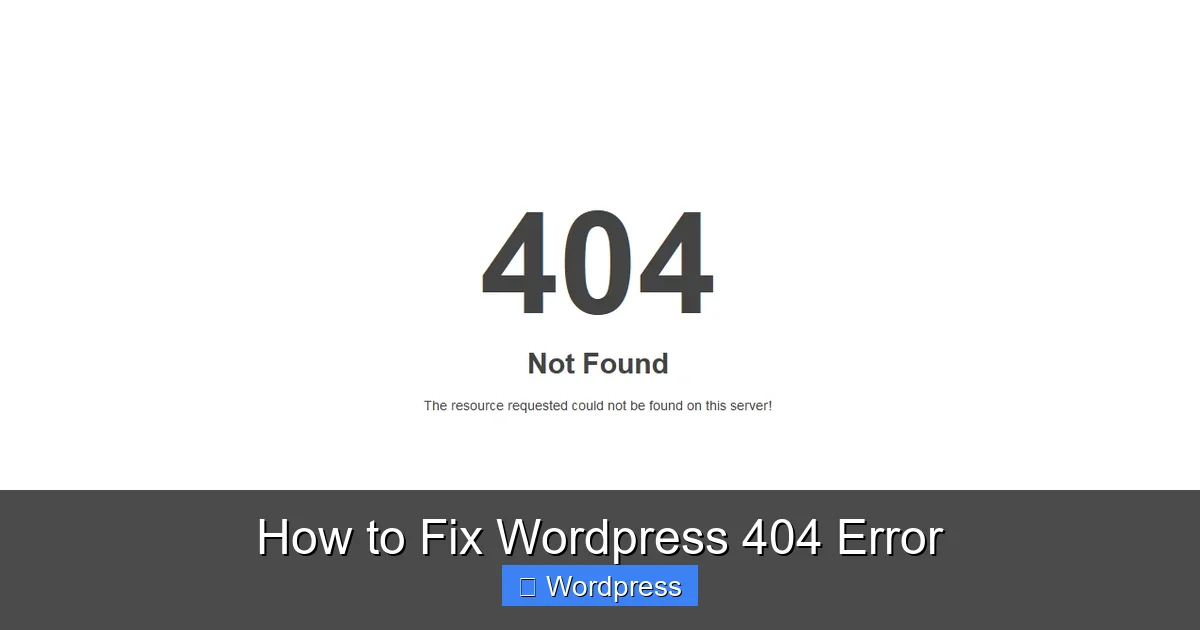
Before diving into fixes, it helps to understand why 404 errors happen. A 404 error means the server can’t find the requested page. Common causes include:
- Broken or outdated permalink settings
- Corrupted .htaccess file
- Plugin or theme conflicts
- Deleted or moved content without redirects
- Incorrect file permissions on the server
- Server misconfigurations (especially on shared hosting)
Most of these issues are fixable without technical expertise—just follow the steps below.
Step 1: Reset Your Permalinks
Visual guide about How to Fix WordPress 404 Error
Image source: fastcomet.com
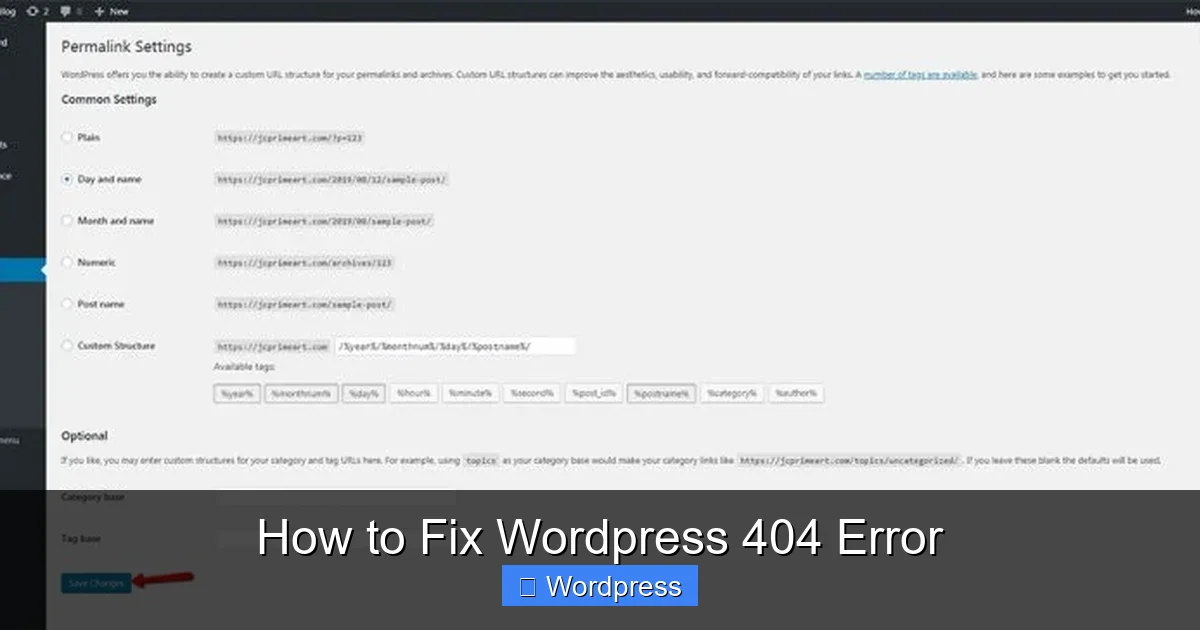
One of the quickest and most effective ways to fix a WordPress 404 error is to reset your permalink structure. WordPress uses permalinks to create clean, readable URLs (like yoursite.com/blog/post-title), but sometimes this system gets disrupted.
How to Reset Permalinks
- Log in to your WordPress admin dashboard.
- Go to Settings > Permalinks.
- You’ll see your current permalink structure (e.g., “Post name”).
- Without changing anything, click Save Changes at the bottom.
This action refreshes the rewrite rules in your .htaccess file and often resolves 404 errors immediately—especially after migrating your site or updating WordPress.
Tip: If you’ve customized your permalink structure, make sure it matches your content strategy. The “Post name” option is recommended for SEO.
Step 2: Check and Fix the .htaccess File
Visual guide about How to Fix WordPress 404 Error
Image source: hostinger.com
The .htaccess file controls how URLs are processed on Apache servers. If it’s missing or corrupted, WordPress can’t route requests properly—leading to 404 errors.
Locate Your .htaccess File
This file is usually in the root directory of your WordPress installation (where wp-config.php is located). Use an FTP client like FileZilla or your hosting file manager to access it.
Restore the Default .htaccess Content
If the file is empty or looks wrong, replace its contents with the standard WordPress rules:
# BEGIN WordPressRewriteEngine On RewriteRule .* - [E=HTTP_AUTHORIZATION:%{HTTP:Authorization}] RewriteBase / RewriteRule ^index\.php$ - [L] RewriteCond %{REQUEST_FILENAME} !-f RewriteCond %{REQUEST_FILENAME} !-d RewriteRule . /index.php [L] # END WordPress
Save the file and refresh your site. This often fixes 404 errors caused by rewrite rule issues.
Note: If you’re on NGINX (common with managed WordPress hosts), .htaccess doesn’t apply—contact your host for server-level rewrite rules.
Step 3: Deactivate All Plugins
Plugins can sometimes interfere with WordPress’s core functionality—including URL routing. A poorly coded or outdated plugin might break permalinks or redirect pages incorrectly.
How to Deactivate Plugins
- Go to Plugins > Installed Plugins in your dashboard.
- Select all plugins and choose Deactivate from the bulk actions menu.
- Click Apply.
Now visit your site. If the 404 error disappears, a plugin was the cause.
Find the Problematic Plugin
Reactivate plugins one by one, checking your site after each activation. When the 404 returns, you’ve found the culprit. Either update, replace, or remove that plugin.
Pro Tip: Keep only essential plugins active. Fewer plugins mean fewer conflicts and better performance.
Step 4: Switch to a Default WordPress Theme
Sometimes, a custom or poorly coded theme can cause 404 errors—especially if it modifies rewrite rules or handles URLs incorrectly.
Temporarily Activate a Default Theme
- Go to Appearance > Themes.
- Activate a default WordPress theme like Twenty Twenty-Four.
- Visit your site to see if the 404 error is gone.
If the error disappears, your original theme is likely the issue. You can either:
- Fix the theme (if you’re comfortable with code)
- Contact the theme developer for support
- Switch to a more reliable theme
For help choosing a fast, SEO-friendly option, check out our guide on the best WordPress theme for SEO and speed.
Step 5: Check File and Folder Permissions
Incorrect file permissions can prevent WordPress from reading or executing necessary files, leading to 404 errors—especially on Linux-based servers.
Recommended Permissions
- Folders: 755
- Files: 644
Use your FTP client or hosting file manager to check and adjust permissions. Right-click on files or folders and look for “File Permissions” or “CHMOD.”
Warning: Avoid setting permissions to 777—it’s a security risk.
Step 6: Update WordPress, Themes, and Plugins
Outdated software can contain bugs that cause unexpected errors—including 404s.
Keep Everything Updated
- Update WordPress core via Dashboard > Updates.
- Update all themes and plugins.
- Remove unused themes and plugins to reduce risks.
If you’ve recently updated and then saw 404 errors, try rolling back the update or checking for compatibility issues.
For safe theme management, learn how to update theme on WordPress without breaking your site.
Step 7: Check for Broken Internal Links
Sometimes, 404 errors appear because internal links point to deleted or renamed pages. This confuses users and hurts SEO.
Find and Fix Broken Links
Use a plugin like “Broken Link Checker” or manually search your content for outdated URLs. Update or remove broken links.
For a plugin-free approach, see our guide on fixing broken links in WordPress without a plugin.
Troubleshooting Advanced 404 Issues
If none of the above steps work, consider these advanced fixes:
Check Your Site URL Settings
Go to Settings > General and verify that both “WordPress Address (URL)” and “Site Address (URL)” are correct. Incorrect URLs can cause redirect loops or 404s.
Review Server Error Logs
Contact your hosting provider or check your control panel for error logs. These logs may reveal server-side issues like missing modules or memory limits.
Disable ModSecurity (Temporarily)
Some hosts use ModSecurity, a web application firewall that can block legitimate requests. If you suspect it’s causing 404s, ask your host to disable it temporarily for testing.
When to Contact Your Hosting Provider
If you’ve tried everything and 404 errors persist, the issue may be server-related. Contact your host and ask about:
- Rewrite module status (mod_rewrite for Apache)
- PHP version compatibility
- Server configuration changes
Managed WordPress hosts like Kinsta or WP Engine often provide better support for these issues.
Conclusion
Fixing a WordPress 404 error doesn’t have to be stressful. In most cases, the solution is as simple as resetting permalinks or deactivating a problematic plugin. By following the steps in this guide—checking permalinks, .htaccess, plugins, themes, and file permissions—you can restore your site’s functionality quickly and confidently.
Remember: regular maintenance, updates, and clean code practices help prevent 404 errors from happening in the first place. Keep your site healthy, and your visitors will stay happy.
For more WordPress tips, explore our guide on understanding 404 errors in WordPress and how they impact your site’s performance.