A WordPress 500 error is a common server issue that makes your site inaccessible. This guide walks you through simple, effective fixes like checking file permissions, disabling plugins, and reviewing error logs to get your site back online.
Key Takeaways
- Check file permissions: Incorrect file or folder permissions can trigger a 500 error—ensure they’re set correctly (644 for files, 755 for folders).
- Disable plugins and themes: A faulty plugin or theme often causes internal server errors—temporarily deactivate them to isolate the issue.
- Review .htaccess file: A corrupted .htaccess file is a common culprit—rename or reset it to restore normal functionality.
- Increase PHP memory limit: Low memory can crash your site—edit wp-config.php to raise the limit to at least 256M.
- Check server error logs: Your hosting provider’s error logs reveal the exact cause—use them to pinpoint and fix the problem.
- Restore from backup: If all else fails, restore your site from a recent backup to revert to a working state.
How to Fix WordPress 500 Error
If your WordPress site suddenly shows a “500 Internal Server Error,” don’t panic. This frustrating message means something went wrong on the server side, but it’s usually fixable with a few targeted steps. In this guide, you’ll learn how to diagnose and resolve the most common causes of the WordPress 500 error—so you can get your site back up and running quickly.
We’ll walk you through practical, beginner-friendly solutions, from checking file permissions to disabling plugins and reviewing server logs. Whether you’re a site owner, developer, or just helping a friend, these steps will help you restore your site with confidence.
What Causes a WordPress 500 Error?
A 500 Internal Server Error is a generic HTTP status code that tells you the server encountered an unexpected condition. Unlike a 404 error (page not found), a 500 error means the server itself failed to fulfill a valid request.
Common causes include:
– Corrupted .htaccess file
– Faulty plugins or themes
– Incorrect file or folder permissions
– Exhausted PHP memory limit
– Syntax errors in wp-config.php
– Server configuration issues
Because the error is vague, troubleshooting requires a systematic approach. The good news? Most 500 errors are caused by user-side issues and can be fixed without contacting your host—though we’ll cover when to reach out too.
Step 1: Check Your .htaccess File
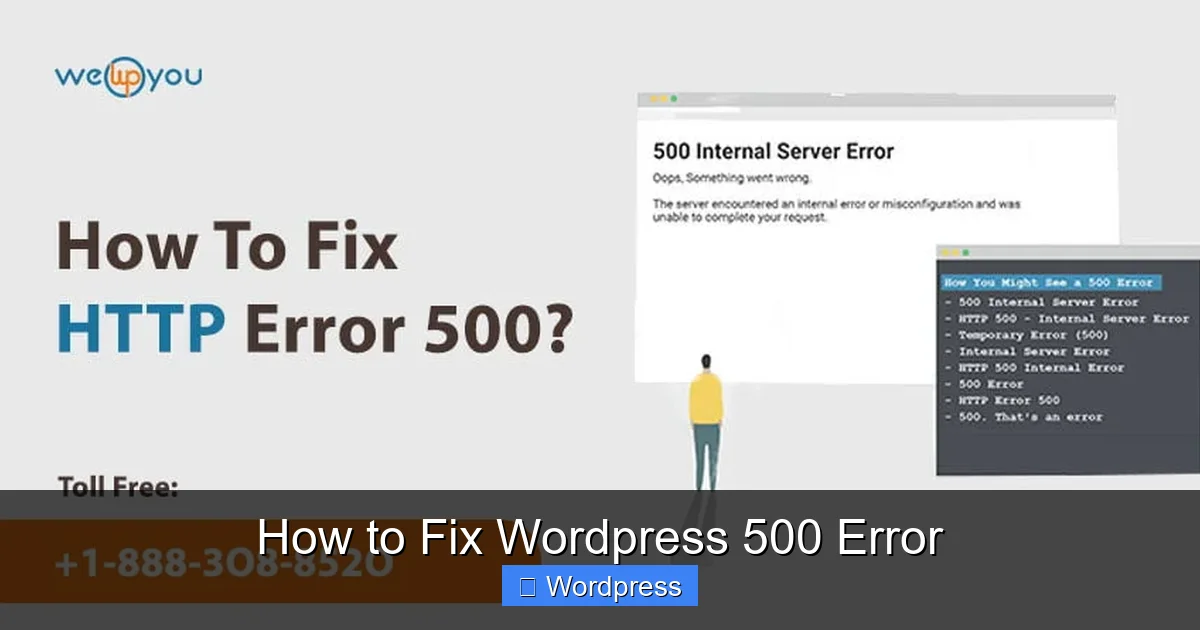
Visual guide about How to Fix WordPress 500 Error
Image source: wewpyou.com
The .htaccess file controls how your server handles requests, especially for URL rewriting and security. If it’s corrupted or misconfigured, it can trigger a 500 error.
How to Reset .htaccess
- Log in to your hosting account via FTP or File Manager (in cPanel).
- Navigate to your WordPress root directory (usually public_html or www).
- Locate the .htaccess file. If you don’t see it, make sure hidden files are visible.
- Rename it to .htaccess_old (this preserves a backup).
- Visit your site. If it loads, WordPress will auto-generate a new .htaccess file.
If your site works after this, the old .htaccess was the problem. You can compare the files later to see what caused the issue.
Restore Default .htaccess (Optional)
If renaming doesn’t help, manually replace the file with the default WordPress rules:
# BEGIN WordPressRewriteEngine On RewriteBase / RewriteRule ^index\.php$ - [L] RewriteCond %{REQUEST_FILENAME} !-f RewriteCond %{REQUEST_FILENAME} !-d RewriteRule . /index.php [L] # END WordPress
Step 2: Disable All Plugins
Visual guide about How to Fix WordPress 500 Error
Image source: licendi.com
Plugins are a leading cause of 500 errors—especially after updates or new installations. A single faulty plugin can crash your entire site.
How to Deactivate Plugins via FTP
- Connect to your site via FTP or File Manager.
- Go to wp-content > plugins.
- Rename the “plugins” folder to “plugins_old”.
- Visit your site. If it loads, a plugin was causing the error.
- Rename the folder back to “plugins”.
- Reactivate plugins one by one to identify the culprit.
Once you find the problematic plugin, either update it, replace it, or contact the developer for support.
Step 3: Switch to a Default Theme
A broken or incompatible theme can also trigger a 500 error—especially after a WordPress update.
How to Change Your Theme via FTP
- Go to wp-content > themes.
- Find your active theme folder (e.g., “mytheme”).
- Rename it to “mytheme_old”.
- WordPress will automatically fall back to a default theme like Twenty Twenty-Four.
- Check if your site loads. If yes, the theme was the issue.
If switching themes fixes the error, consider updating your theme or using a child theme to avoid future conflicts. You may also want to safely deactivate the problematic theme before making changes.
Step 4: Increase PHP Memory Limit
WordPress needs sufficient memory to run. If the limit is too low, you may see a 500 error—especially on resource-heavy sites.
How to Raise the Memory Limit
Edit your wp-config.php file (in the root directory) and add this line above “/* That’s all, stop editing! Happy publishing. */”:
define('WP_MEMORY_LIMIT', '256M');
If that doesn’t work, try adding it to your .htaccess file:
php_value memory_limit 256M
Or contact your host to increase the limit in php.ini.
Step 5: Check File and Folder Permissions
Incorrect permissions can prevent WordPress from accessing essential files, leading to a 500 error.
Correct Permissions
- Files: 644 (readable by all, writable by owner)
- Folders: 755 (executable and readable by all, writable by owner)
How to Fix Permissions via FTP
- Right-click each file or folder in your WordPress directory.
- Select “File Permissions” or “CHMOD”.
- Set files to 644 and folders to 755.
- Apply changes recursively if your FTP client allows it.
Avoid setting permissions to 777—it’s a security risk.
Step 6: Review Server Error Logs
Error logs provide the most accurate clues about what’s causing the 500 error.
How to Access Error Logs
- cPanel: Go to “Metrics” > “Errors” or “Raw Access”.
- DirectAdmin: Look under “Advanced Features” > “Error Page”.
- SSH: Check /var/log/apache2/error.log or /var/log/httpd/error_log.
Look for entries around the time the error occurred. Common messages include:
– “PHP Fatal error”
– “Allowed memory size exhausted”
– “Permission denied”
Use these details to guide your next steps.
Step 7: Restore from Backup
If none of the above works, restoring from a recent backup is your best option.
How to Restore Your Site
- Access your hosting control panel or backup plugin (like UpdraftPlus).
- Locate the most recent backup before the error started.
- Restore files and database.
- Clear your browser cache and test the site.
Always keep regular backups to minimize downtime.
When to Contact Your Hosting Provider
If you’ve tried all steps and the error persists, the issue may be server-related. Contact your host and provide:
– The exact error message
– Steps you’ve already tried
– Relevant error log entries
They can check for server outages, PHP version conflicts, or resource limits.
Preventing Future 500 Errors
Once your site is back online, take steps to avoid recurrence:
– Keep WordPress, themes, and plugins updated
– Use trusted plugins and themes
– Monitor site performance regularly
– Enable automatic backups
– Test updates on a staging site first
Conclusion
A WordPress 500 error is alarming, but rarely permanent. By methodically checking your .htaccess file, disabling plugins, switching themes, and reviewing server logs, you can usually restore your site within minutes. Remember: most 500 errors stem from user-side changes, so always test updates carefully and keep backups current.
With the steps in this guide, you’re equipped to handle this common issue confidently—and get back to managing your site without stress.