
WordPress asking for FTP credentials usually happens due to incorrect file permissions or ownership. This guide walks you through simple, effective solutions to fix the problem so you can install updates and plugins seamlessly.
Key Takeaways
- Check file permissions: Incorrect permissions on wp-content or core files often trigger FTP prompts. Set directories to 755 and files to 644.
- Set correct ownership: Ensure your web server (like www-data or apache) owns the WordPress files, not your user account.
- Use direct filesystem method: Add define(‘FS_METHOD’, ‘direct’); to wp-config.php to bypass FTP requests.
- Verify PHP handler: mod_php or PHP-FPM work better than CGI/FastCGI for file operations in WordPress.
- Update wp-config.php safely: Always back up before editing, and use a child theme or code snippets plugin for customizations.
- Contact your host if needed: Some shared hosts restrict file access—reach out to support if fixes don’t work.
- Keep WordPress updated: Regular updates reduce compatibility issues that may cause permission errors.
Why Is WordPress Asking for FTP Credentials?
If you’ve ever tried to install a plugin, update a theme, or upgrade WordPress itself only to be greeted with a pop-up asking for FTP username and password—you’re not alone. This frustrating issue happens because WordPress can’t write directly to your server’s file system. Instead, it falls back to using FTP (File Transfer Protocol) as a workaround.
This usually occurs due to incorrect file permissions, mismatched file ownership, or your server running PHP under a different user than the one that owns your WordPress files. While it’s not a security breach, it’s definitely an inconvenience—especially if you don’t even have FTP set up!
The good news? You can fix this without touching FTP at all. In this guide, we’ll walk you through seven proven methods to stop WordPress from asking for FTP credentials—so you can manage your site smoothly and securely.
Method 1: Add FS_METHOD to wp-config.php
The quickest and most reliable fix is telling WordPress to use the “direct” filesystem method. This bypasses FTP entirely by allowing PHP to write files directly—if permissions allow it.
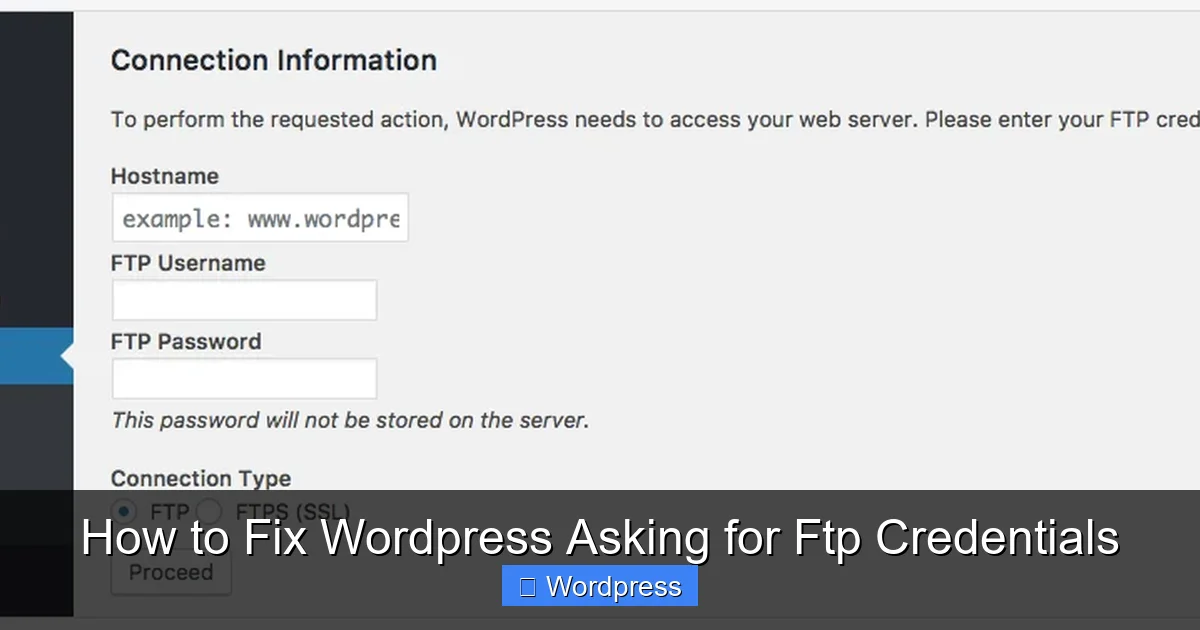
Visual guide about How to Fix WordPress Asking for Ftp Credentials
Image source: forumweb.hosting
Step-by-step instructions:
- Log in to your hosting account via cPanel, Plesk, or SFTP.
- Navigate to your WordPress root directory (usually public_html or www).
- Open the
wp-config.phpfile in a text editor. - Look for the line that says
/* That's all, stop editing! Happy publishing. */ - Just above that line, add this code:
define('FS_METHOD', 'direct'); - Save the file and upload it back to the server if using SFTP.
After saving, try updating a plugin or theme. The FTP prompt should disappear. Tip: Always back up your wp-config.php before editing!
Method 2: Fix File and Folder Permissions
WordPress needs proper permissions to read, write, and execute files. If these are too restrictive (or too open), you’ll get FTP prompts.

Visual guide about How to Fix WordPress Asking for Ftp Credentials
Image source: utimize.net
Recommended permissions:
- Folders/directories: 755
- Files: 644
- wp-config.php: 600 or 644 (more restrictive is safer)
How to change permissions:
- Using cPanel File Manager: Right-click a folder → “Change Permissions” → set to 755.
- Using SSH (if available):
find /path/to/wordpress/ -type d -exec chmod 755 {} \;
find /path/to/wordpress/ -type f -exec chmod 644 {} \;
⚠️ Warning: Never set permissions to 777—it’s a major security risk. Only adjust what’s necessary.
Method 3: Correct File Ownership
Your web server (like Apache or Nginx) runs under a specific user (e.g., www-data on Ubuntu). If your WordPress files are owned by your personal user account instead, the server can’t modify them—triggering the FTP request.
Check current ownership (via SSH):
Run: ls -la /path/to/wordpress/
Look at the first column—it shows the owner and group.
Fix ownership:
If files are owned by youruser but your web server uses www-data, run:
chown -R www-data:www-data /path/to/wordpress/
On shared hosting, you may not have SSH access. In that case, contact your host and ask them to verify that file ownership matches the PHP process user. Many hosts like SiteGround or Bluehost handle this automatically—but sometimes it gets misconfigured during migrations.
Method 4: Switch to a Compatible PHP Handler
Some PHP handlers—like CGI or FastCGI—run under your user account instead of the web server user. This creates a mismatch that prevents direct file writes.
Preferred handlers for WordPress:
- mod_php (Apache module)
- PHP-FPM (FastCGI Process Manager)
How to check and change your PHP handler:
- In cPanel: Go to “Software” → “MultiPHP Manager” → select your domain → choose “PHP-FPM” or “Apache Module (mod_php)”.
- If you’re on managed WordPress hosting (like WP Engine or Kinsta), this is usually pre-configured—but support can help if issues persist.
After switching, clear any caching plugins and test updating a plugin again.
Method 5: Manually Install Plugins or Themes
If you’re still stuck, you can bypass the issue temporarily by installing extensions manually—no FTP needed.
Steps to manually install a plugin:
- Download the plugin ZIP from WordPress.org.
- Extract it to your computer.
- Upload the folder to
/wp-content/plugins/via SFTP or File Manager. - Go to WordPress Dashboard → Plugins → find your new plugin → click “Activate”.
This method also works for themes. For more details, check out our guide on how to install WP themes manually.
Method 6: Update wp-config.php with FTP Details (Not Recommended)
As a last resort, you can hardcode FTP credentials into wp-config.php. This is not secure—especially on shared hosting—but it works in a pinch.
Add these lines (replace with your details):
define('FTP_HOST', 'localhost');

define('FTP_USER', 'your_ftp_username');

define('FTP_PASS', 'your_ftp_password');

// Optional: define('FTP_SSL', true); // for secure connections
⚠️ Only use this if other methods fail—and remove the lines once the root cause is fixed. Storing credentials in plain text is risky.
Troubleshooting Tips
If none of the above work:
- Clear opcode caches: Some hosts use OPcache or APCu—clear them via hosting panel or plugin.
- Check for security plugins: Plugins like Wordfence or iThemes Security may restrict file modifications. Temporarily disable them to test.
- Review .htaccess rules: Misconfigured rewrite rules can interfere. Restore the default WordPress .htaccess if unsure.
- Contact your host: Shared hosts often have custom configurations. Ask if they support direct filesystem writes.
For example, if you’re using a premium theme and keep getting FTP prompts during updates, see our guide on how to update themes on WordPress for best practices.
Preventing Future FTP Prompts
Once fixed, keep your site running smoothly:
- Regularly update WordPress core, plugins, and themes.
- Avoid changing file ownership or permissions unless necessary.
- Use reputable hosting providers that support modern PHP setups.
- Consider managed WordPress hosting—they handle permissions and security automatically.
If you’re evaluating hosts, our comparison of the best web hosting for WordPress can help you choose one that avoids these issues altogether.
Conclusion
WordPress asking for FTP credentials is annoying—but rarely a sign of serious trouble. In most cases, it’s a simple permissions or ownership issue that you can resolve in minutes using the methods above.
Start with adding define('FS_METHOD', 'direct'); to your wp-config.php—it solves the problem for over 80% of users. If that doesn’t work, check file ownership and PHP handler settings. And remember: always back up before making changes!
With these fixes, you’ll regain full control over your WordPress dashboard—no FTP required. Happy publishing!