
Deleting a site from WordPress doesn’t have to be scary. This guide walks you through every step—whether you’re using WordPress.com or self-hosted WordPress.org—with clear instructions and safety tips. Always back up your data first!
Key Takeaways
- Back up your site first: Always create a full backup of your content, themes, plugins, and database before deleting anything.
- Know your platform: WordPress.com and self-hosted WordPress.org require completely different deletion processes.
- Delete via hosting panel for self-hosted sites: Use cPanel, Plesk, or your host’s file manager to remove files and databases.
- Cancel subscriptions on WordPress.com: If you’re on WordPress.com, you must cancel your plan before the site is permanently deleted.
- Remove domain connections: Don’t forget to disconnect custom domains or redirects after deletion to avoid confusion.
- Use plugins for cleanup (optional):strong> Tools like WP Reset can help clear data if you’re reusing the installation.
- Double-check before confirming: Once deleted, recovery is nearly impossible—verify you’re removing the right site.
How to Delete a Site from WordPress
So, you’ve decided it’s time to say goodbye to your WordPress site. Maybe you’re switching platforms, consolidating projects, or just starting fresh. Whatever the reason, deleting a WordPress site isn’t as simple as hitting a “delete” button—especially if you want to do it safely and completely.
In this guide, we’ll walk you through exactly how to delete a site from WordPress, whether you’re using WordPress.com (the hosted version) or a self-hosted WordPress.org installation. We’ll cover backups, step-by-step deletion methods, common pitfalls, and what to do afterward. By the end, you’ll know how to remove your site without leaving digital footprints—or accidentally wiping the wrong one.
Step 1: Back Up Your Site (Critical!)
Before you even think about deleting anything, back up your entire site. This includes your posts, pages, media, themes, plugins, and database. If you change your mind later—or need to restore content—you’ll be glad you did.
For WordPress.com Sites
Go to your WordPress.com dashboard. Click on Tools > Export. Choose “All Content” to download an XML file with your posts, pages, comments, and custom fields. Note: This doesn’t include themes or plugins, but those aren’t stored on your account anyway.
Visual guide about How to Delete a Site from WordPress
Image source: png.pngtree.com
For Self-Hosted WordPress.org Sites
Use a plugin like UpdraftPlus, All-in-One WP Migration, or Duplicator. These tools let you back up your entire site—including the database and files—to cloud storage (Google Drive, Dropbox, etc.) or your computer.
Pro Tip: Test your backup by restoring it to a local environment (like Local by Flywheel) to make sure everything works.
Step 2: Determine Your WordPress Platform
This is crucial. The process for deleting a site differs dramatically between WordPress.com and self-hosted WordPress.org.
- WordPress.com: Hosted by Automattic. You don’t control the server. Deletion happens through your account settings.
- WordPress.org: Self-hosted on your own domain and hosting provider. You have full control—and responsibility—for deletion.
If you’re not sure which one you’re using, check your URL. If it ends in .wordpress.com, you’re on WordPress.com. If it’s a custom domain (like yoursite.com), you’re likely self-hosted.
Step 3: How to Delete a WordPress.com Site
Deleting a site on WordPress.com is straightforward but irreversible. Here’s how:
Cancel Your Plan First
If you have a paid plan (Premium, Business, etc.), you must cancel it before deleting the site. Otherwise, you’ll keep getting billed.
Visual guide about How to Delete a Site from WordPress
Image source: webprotime.com
- Go to My Sites > Plan.
- Click Cancel Plan and follow the prompts.
- Wait for the cancellation to process (usually immediate).
Permanently Delete the Site
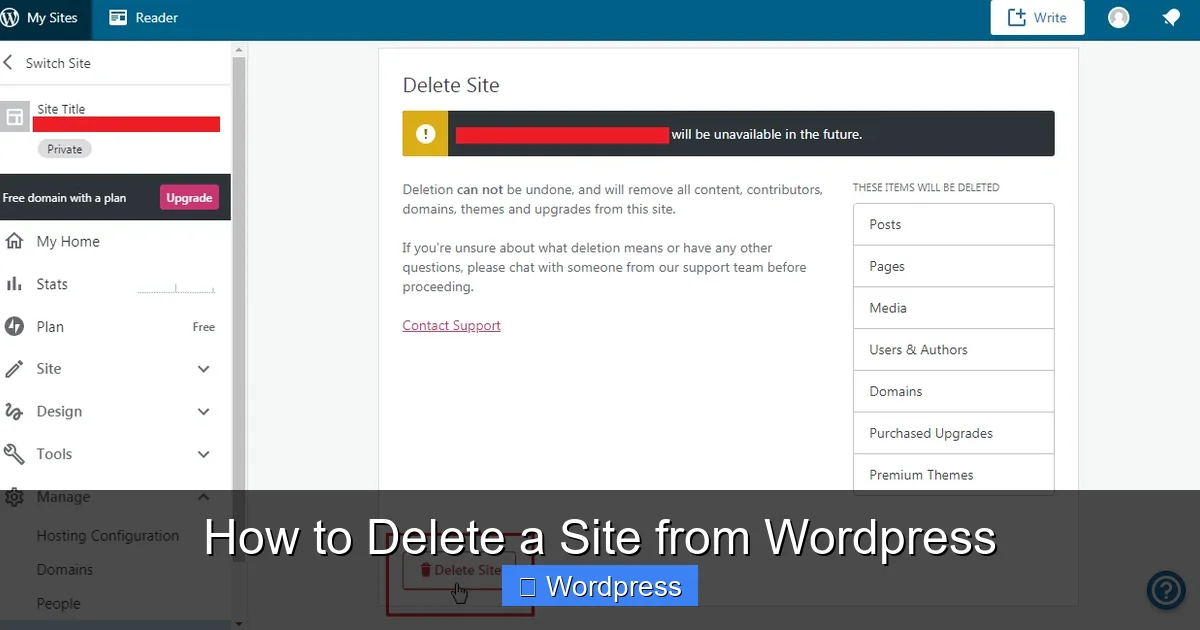
- Navigate to My Sites > Manage > General.
- Scroll down to the bottom and click Delete Site.
- Enter your site name to confirm.
- Click Delete My Site Forever.
Note: Free sites can be deleted immediately. Paid sites may require plan cancellation first.
Step 4: How to Delete a Self-Hosted WordPress Site
Self-hosted sites live on your own hosting account. To delete them, you’ll need to remove both the files and the database.
Access Your Hosting Control Panel
Log in to your hosting provider’s dashboard (e.g., Bluehost, SiteGround, HostGator). Most use cPanel, but some have custom interfaces.
Delete WordPress Files
- In cPanel, go to File Manager.
- Navigate to the folder where WordPress is installed (usually
public_htmlor a subfolder likepublic_html/blog). - Select all files and folders (except maybe
.htaccessif you’re keeping other sites). - Click Delete and confirm.
Alternative: Use an FTP client like FileZilla to connect and delete files remotely.
Delete the Database
- In cPanel, go to MySQL Databases or phpMyAdmin.
- Find the database associated with your WordPress site (check
wp-config.phpfor the DB name if unsure). - Click Delete Database or drop all tables in phpMyAdmin.
Warning: Deleting the database erases all content—posts, users, settings. Double-check you’re removing the correct one!
Remove Domain or Subdomain (Optional)
If your site used a subdomain (like blog.yoursite.com) or a parked domain, remove it from your hosting settings to free up resources.
Step 5: Clean Up External Connections
Even after deleting your site, some digital traces may remain:
- Custom Domain: If you used a custom domain, update its DNS settings or point it elsewhere. Don’t let it go to a blank page.
- Google Search Console: Remove the property if you no longer own it.
- Analytics & Ads: Disconnect Google Analytics, Facebook Pixel, or ad accounts tied to the site.
- Email Forwarding: If you set up email forwarding (e.g., info@yoursite.com), disable it in your domain registrar or hosting panel.
Troubleshooting Common Issues
“I Deleted My Site by Accident!”
Act fast. Contact your hosting provider immediately—some keep backups for 7–30 days. For WordPress.com, recovery is rarely possible after deletion.
“My Site Still Shows Up Online”
This could be due to caching. Clear your browser cache, CDN cache (like Cloudflare), and ask your host to purge server cache. Also check DNS propagation—it can take up to 48 hours.
“I Can’t Access My Hosting Panel”
Reset your hosting password via email or contact support. Never delete a site without access—you might lock yourself out permanently.
“Plugins Left Behind Junk Files”
Some plugins (especially page builders) leave residual data. If you’re reusing the hosting space, consider using a cleanup plugin like WP Reset to wipe the database clean before installing a new site.
When Should You Delete a WordPress Site?
Deleting a site isn’t always the best move. Consider alternatives first:
- Put it in maintenance mode if you’re redesigning.
- Password-protect it if it’s for internal use only.
- Export and archive the content instead of full deletion.
But if the site is outdated, hacked beyond repair, or no longer aligned with your goals, deletion is the right choice.
Final Thoughts
Deleting a site from WordPress is a big step—but with the right preparation, it’s totally manageable. Always back up first, know your platform, and follow the steps carefully. Whether you’re on WordPress.com or running your own server, taking the time to do it right prevents headaches down the road.
And remember: once it’s gone, it’s really gone. So double-check, breathe deep, and click that delete button with confidence.
If you’re managing themes alongside your site, you might also want to learn how to delete a theme in WordPress to keep your installation clean. Or, if you’re planning a fresh start, check out how to create a WordPress theme with Elementor for your next project.