
Yes, you can connect your WordPress site as a custom domain on Framer, but it requires careful DNS configuration and understanding of how Framer handles external domains. This guide walks you through the process clearly and simply.
Key Takeaways
- Framer supports custom domains from external platforms like WordPress, but not direct WordPress hosting.
- You must update DNS records at your domain registrar to point your WordPress site to Framer’s servers.
- SSL certificates are automatically managed by Framer once the domain is properly connected.
- Subdomains work better than root domains for smoother setup and fewer conflicts.
- Always back up your WordPress site before making DNS changes to avoid downtime.
- Use CNAME or A records depending on whether you’re connecting a subdomain or root domain.
- Test your connection after setup using tools like DNS Checker or What’s My DNS.
Can You Connect WordPress as Framer Custom Domain?
If you’re using Framer to design a sleek, modern website but already have a WordPress site running on your domain, you might be wondering: Can I connect my WordPress site as a custom domain in Framer? The short answer is yes—but with an important clarification.
Framer doesn’t host WordPress sites. Instead, it’s a visual web design tool that generates static websites. So when we say “connect WordPress as a Framer custom domain,” what we really mean is: pointing your existing WordPress domain to a Framer-built site. This lets you keep your branded URL (like www.yoursite.com) while using Framer’s powerful design capabilities.
In this guide, you’ll learn exactly how to connect your WordPress domain to Framer, step by step. Whether you’re rebranding, launching a new landing page, or replacing your old WordPress site with a Framer alternative, this process ensures your visitors still see your trusted domain name—not a Framer subdomain.
Understanding How Custom Domains Work in Framer
Visual guide about Can You Connect WordPress as Framer Custom Domain
Image source: seahawkmedia.com
Before jumping into setup, it’s important to understand how Framer handles custom domains.
Framer allows users to connect their own domains (like yoursite.com or blog.yoursite.com) so that when visitors go to that URL, they see the Framer site—not a WordPress page. This is done by updating your domain’s DNS settings to point to Framer’s servers.
However, your actual WordPress content won’t be hosted on Framer. If you want to fully replace your WordPress site with a Framer site, you’ll need to rebuild your content in Framer. But if you’re only using Framer for a specific section (like a landing page or portfolio), you can point a subdomain (e.g., design.yoursite.com) to Framer while keeping the main site on WordPress.
This flexibility makes Framer a great companion tool for WordPress users who want high-performance, designer-friendly pages without sacrificing their domain identity.
Step-by-Step: Connecting Your WordPress Domain to Framer
Visual guide about Can You Connect WordPress as Framer Custom Domain
Image source: smashingapps.com
Follow these steps carefully to connect your WordPress domain (or subdomain) to your Framer site.
Step 1: Choose Your Domain Strategy
Decide whether you want to use:
– A root domain (e.g., yoursite.com)
– A subdomain (e.g., framer.yoursite.com or www.yoursite.com)
Tip: Subdomains are easier to set up and less risky. Root domains require A record changes, which can affect email and other services if done incorrectly.
Step 2: Prepare Your Framer Site
1. Open your Framer project.
2. Click on the Publish button in the top-right corner.
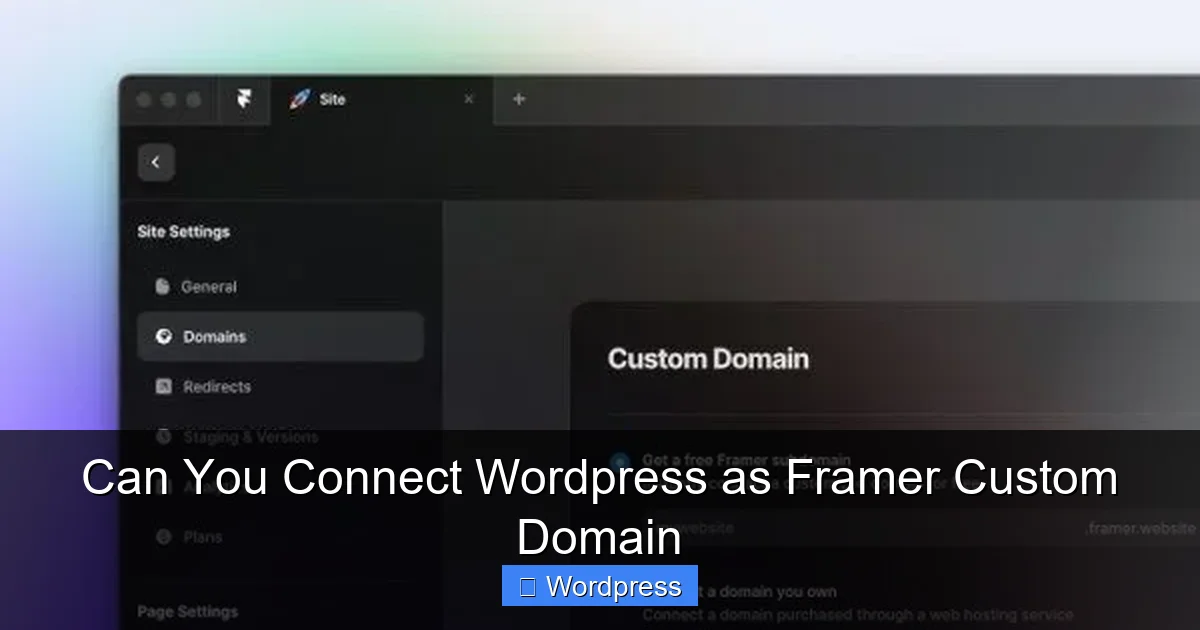
3. Select Custom Domain.
4. Enter the domain or subdomain you want to connect (e.g., framer.yoursite.com).
5. Framer will show you the DNS records you need to add—keep this window open.
Step 3: Access Your Domain Registrar
Go to the website where you bought your domain (e.g., Namecheap, Google Domains, GoDaddy). Log in and find the DNS management section. This is usually under “Domain Settings” or “DNS Management.”
Step 4: Add DNS Records
Based on Framer’s instructions, add the required DNS records:
– For a subdomain (e.g., framer.yoursite.com):
Add a CNAME record:
– Name/Host: framer
– Value/Target: [Framer-provided URL, e.g., alias.framer.com]
– For a root domain (e.g., yoursite.com):
Add an A record:
– Name/Host: @
– Value/Target: [Framer’s IP address, e.g., 76.76.21.21]
Note: Some registrars don’t allow CNAME records on root domains due to RFC standards. In that case, use an A record or consider using a subdomain instead.
Step 5: Save and Wait for Propagation
After saving your DNS changes, it can take anywhere from 5 minutes to 48 hours for the changes to propagate globally. Use tools like What’s My DNS to check if your domain is pointing to Framer.
Step 6: Verify Connection in Framer
Return to Framer and click Verify Connection. If successful, your domain will be live on your Framer site. Framer will also automatically enable SSL (HTTPS) for security.
Troubleshooting Common Issues
Even with careful setup, you might run into problems. Here’s how to fix the most common ones.
Domain Not Resolving
If your site doesn’t load after 24 hours:
– Double-check DNS entries for typos.
– Ensure you used the correct record type (CNAME vs. A).
– Clear your browser cache or try accessing the site from a different device or network.
SSL Certificate Not Activating
Framer usually enables SSL within an hour. If it doesn’t:
– Make sure your DNS is fully propagated.
– Avoid using URL forwarding (e.g., “forward with masking”) from your registrar—this breaks SSL.
– Contact Framer support if the issue persists.
Email Stopped Working
If you’re using a root domain and email stopped working after changing A records:
– Your MX records may have been affected.
– Re-add your email provider’s MX records (e.g., from Google Workspace or Outlook).
– Consider using a subdomain for Framer to avoid this issue entirely.
Best Practices for a Smooth Transition
To avoid downtime and confusion, follow these tips:
– Back up your WordPress site before making any changes. This ensures you can restore it if something goes wrong.
– Use a subdomain for testing (e.g., test.yoursite.com) before switching your main domain.
– Inform your audience if you’re replacing your WordPress site with a Framer version—especially if you’re removing blog content or changing navigation.
– Monitor traffic after launch using Google Analytics to catch any broken links or missing pages.
If you’re unsure about DNS settings, consider consulting your hosting provider or a web developer. And if you’re still using WordPress for content management, check out our guide on why should you use WordPress to understand when it’s best to stick with it.
Should You Replace WordPress with Framer?
Framer excels at fast, beautiful, no-code websites—perfect for portfolios, landing pages, and marketing sites. But WordPress remains unmatched for blogs, eCommerce, and complex content management.
If your site relies on plugins, user logins, or frequent content updates, WordPress is still the better choice. However, for static sites where speed and design matter most, Framer is a powerful alternative.
You can even use both: keep your blog on WordPress (e.g., blog.yoursite.com) and use Framer for your main site (yoursite.com). This hybrid approach gives you the best of both worlds.
Conclusion
Connecting your WordPress domain to Framer is not only possible—it’s a smart way to elevate your online presence with modern design and performance. By updating your DNS records correctly, you can point your trusted domain to a Framer site and enjoy faster load times, better visuals, and full branding control.
Remember: Framer doesn’t host WordPress, so this process replaces your WordPress site with a Framer-built one. If you’re ready for a fresh look and don’t need WordPress’s backend features, this setup is ideal.
Take your time with DNS changes, test thoroughly, and don’t hesitate to use subdomains for safer experimentation. With this guide, you’re well-equipped to make the switch smoothly and confidently.
For more tips on optimizing your website’s performance, explore our article on the best WordPress theme for SEO and speed—even if you’re moving to Framer, these principles still apply to overall site health.