Adding alt tags to images in WordPress is essential for SEO and accessibility. This guide shows you how to do it manually, use plugins, and fix missing tags efficiently.
Key Takeaways
- Alt tags improve SEO: Search engines use alt text to understand image content, helping your site rank better.
- Enhance accessibility: Screen readers rely on alt tags to describe images to visually impaired users.
- Add alt text when uploading: The easiest way is to fill the alt field while inserting an image into a post or page.
- Edit existing images: You can update alt tags anytime through the Media Library or post editor.
- Use plugins for bulk updates: Tools like WP Accessibility help manage alt tags across your site quickly.
- Write descriptive, concise text: Keep alt tags under 125 characters and avoid keyword stuffing.
- Test your changes: Use browser tools or accessibility checkers to verify alt tags are working properly.
Why Alt Tags Matter in WordPress
Alt tags—short for “alternative text”—are invisible labels attached to images on your WordPress site. They describe what the image shows, which helps search engines understand your content and makes your site more accessible to everyone, including people using screen readers.
Without alt tags, you miss out on key SEO benefits and risk excluding users with disabilities. In fact, Google uses alt text as a ranking factor, and many accessibility laws require descriptive image labels. Whether you’re running a blog, online store, or business website, adding alt tags should be part of your routine.
In this guide, you’ll learn how to add alt tags to images in WordPress using built-in tools, plugins, and best practices. We’ll cover everything from uploading new images to fixing old ones—no coding required.
How to Add Alt Tags When Uploading New Images
The simplest way to add alt text is during the image upload process. Here’s how:

Visual guide about How to Add Alt Tags to Images in WordPress
Image source: blossomthemes.com
Step 1: Open the WordPress Editor
Go to your WordPress dashboard and create a new post or page, or edit an existing one. Click the “+” button to add a block, then select “Image.”
Step 2: Upload or Select an Image
You can upload a new image from your computer or choose one from your Media Library. Once selected, the image settings panel will appear on the right side of the screen (or below on mobile).
Step 3: Enter Alt Text
In the “Alt Text” field, type a clear, descriptive phrase that explains the image. For example, instead of “dog,” write “Golden Retriever playing fetch in a sunny park.” Avoid generic terms like “image” or “photo.”
Step 4: Save and Publish
After adding your alt text, click “Update” or “Publish.” The alt tag is now saved with the image and will appear in your site’s HTML code.
Tip: Always fill in the alt text before publishing. It only takes a few seconds but makes a big difference for SEO and accessibility.
How to Edit Alt Tags for Existing Images
Already published content? No problem. You can update alt tags on any image already on your site.
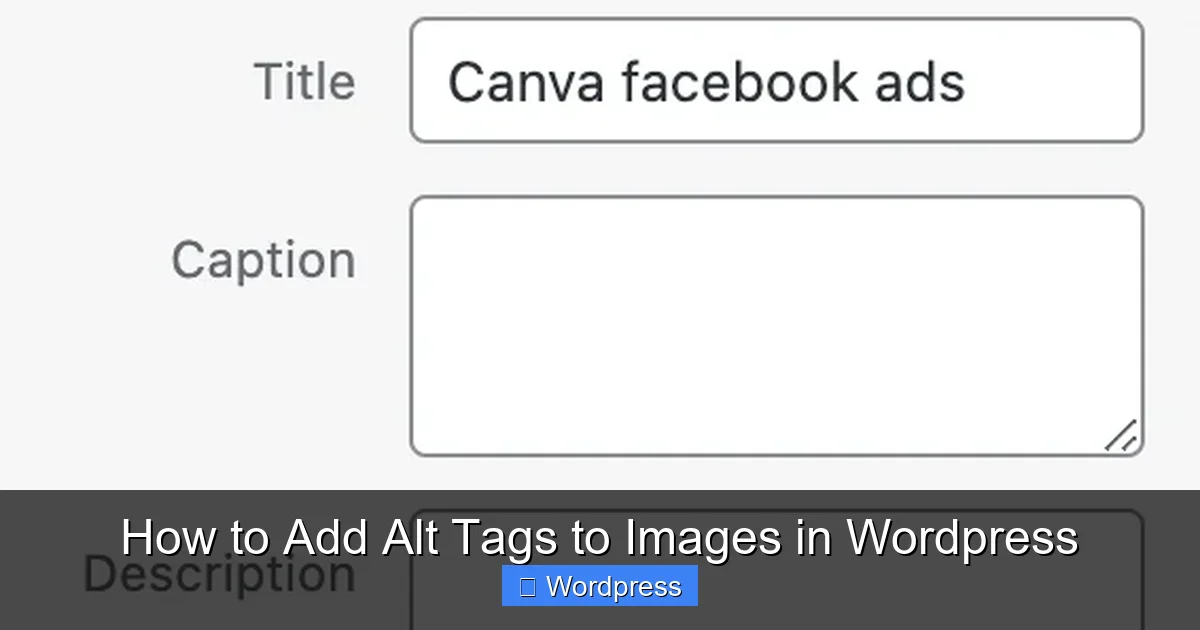
Visual guide about How to Add Alt Tags to Images in WordPress
Image source: vixendigital.com
Method 1: Edit from the Post or Page
Open the post or page containing the image. Click on the image to select it. In the toolbar that appears, click the pencil (edit) icon. In the settings panel, find the “Alt Text” field and update it. Save your changes.
Method 2: Use the Media Library
Go to Media > Library in your WordPress dashboard. Find the image you want to edit and click on it. In the attachment details window, locate the “Alt Text” field and enter your description. Click “Update” to save.
Pro Tip: Use the Media Library to edit multiple images at once. Hover over an image, click “Edit,” and update the alt text quickly.
Using Plugins to Manage Alt Tags
If you have hundreds of images, manually editing each one is time-consuming. That’s where plugins come in handy.
Recommended Plugin: WP Accessibility
WP Accessibility is a free plugin that helps improve your site’s accessibility, including managing alt tags. Once installed, it adds tools to bulk-edit image attributes and highlights missing alt text.
How to Install and Use WP Accessibility
- Go to Plugins > Add New in your dashboard.
- Search for “WP Accessibility,” install it, and activate.
- Navigate to Tools > WP Accessibility.
- Use the “Image Alt Text” tool to scan your site for missing alt tags.
- Edit or add alt text directly from the report.
This plugin saves hours of work and ensures your site stays accessible and SEO-friendly.
Best Practices for Writing Effective Alt Tags
Not all alt text is created equal. Follow these guidelines to write high-quality descriptions:
Be Descriptive and Specific
Instead of “woman smiling,” try “Young woman in a red dress smiling at a birthday cake.” The more accurate, the better.
Keep It Short
Aim for under 125 characters. Screen readers often cut off longer text, and search engines prefer concise descriptions.
Avoid Keyword Stuffing
Don’t cram in keywords like “buy shoes online cheap discount sale.” Write naturally. Google penalizes spammy alt text.
Decorative Images? Use Empty Alt Text
If an image is purely decorative (like a divider or background pattern), leave the alt field blank but don’t delete it. Use alt="" so screen readers skip it.
Include Context When Needed
If the image supports the text (e.g., a chart in a blog post), mention key details: “Bar chart showing 2023 sales growth of 30%.”
Example: For a photo of a coffee cup on a wooden table, write “Steaming cappuccino in a white ceramic mug on a rustic wooden table.”
Troubleshooting Common Alt Tag Issues
Sometimes, alt tags don’t appear as expected. Here’s how to fix common problems:
Alt Text Not Showing Up
If your alt text isn’t visible or being read by screen readers, check your theme. Some themes override default WordPress behavior. Test with a default theme like Twenty Twenty-Four to see if the issue persists.
Images Uploaded Before Alt Text Was Added
Old images may lack alt tags. Use the Media Library or a plugin like WP Accessibility to find and fix them in bulk.
Plugin Conflicts
If a plugin is preventing alt tags from saving, deactivate plugins one by one to identify the culprit. Reactivate them after testing.
Cached Pages
After updating alt text, clear your site and browser cache. Use a plugin like WP Super Cache or contact your hosting provider.
Need help with theme-related issues? Learn how to update your WordPress theme safely without losing customizations.
Testing Your Alt Tags
Don’t assume your alt tags are working. Test them regularly.
Use Browser Developer Tools
Right-click on an image and select “Inspect.” Look for the alt attribute in the HTML code. It should match what you entered.
Try a Screen Reader
Use free tools like NVDA (Windows) or VoiceOver (Mac) to hear how your images are described. This helps ensure real users get the right experience.
Run an Accessibility Check
Plugins like WP Accessibility or online tools like WAVE (wave.webaim.org) scan your site and flag missing or poor alt text.
Conclusion
Adding alt tags to images in WordPress is a simple but powerful way to boost your site’s SEO and make it accessible to all users. Whether you’re uploading new images or updating old ones, always take a moment to write clear, descriptive alt text.
Use the built-in editor for quick updates, leverage plugins for bulk management, and follow best practices to keep your content inclusive and search-friendly. With the steps in this guide, you’ll have a fully optimized image library in no time.
Remember: every image deserves a voice. Don’t let yours go unheard.