
Adding a custom logo to your WordPress theme enhances branding and gives your site a professional appearance. This guide walks you through enabling logo support, uploading your logo, and customizing its display—no coding required.
Key Takeaways
- Enable theme support: Most modern themes support custom logos, but you may need to activate the feature in the Customizer or via functions.php.
- Upload via Customizer: The easiest way to add a logo is through Appearance > Customize > Site Identity.
- Use high-quality images: For best results, use a transparent PNG or SVG with a recommended size of 200×100 pixels.
- Adjust logo size and position: Customize dimensions and alignment using built-in controls or CSS tweaks.
- Test on all devices: Ensure your logo looks sharp on mobile, tablet, and desktop screens.
- Backup before editing code: Always back up your site before modifying theme files directly.
- Use child themes for safety: Avoid losing changes during updates by using a child theme when editing functions.php.
How to Add Custom Logo in WordPress Theme
Adding a custom logo to your WordPress website is one of the simplest yet most impactful ways to strengthen your brand identity. Whether you’re running a blog, portfolio, or online store, a professional logo helps visitors recognize and trust your site instantly. The good news? You don’t need to be a developer to do it. WordPress makes it easy to upload and customize your logo—no plugins required.
In this guide, we’ll walk you through the entire process of adding a custom logo to your WordPress theme. You’ll learn how to enable logo support, upload your image, adjust its size and position, and troubleshoot common issues. By the end, your site will look polished and branded, just the way you want it.
Why Add a Custom Logo?
Visual guide about How to Add Custom Logo in WordPress Theme
Image source: since1979.dev
Before diving into the steps, let’s talk about why adding a custom logo matters. Your logo is more than just a pretty image—it’s the face of your brand. It appears in search results, browser tabs, social shares, and often in the header of your website. A well-placed, high-quality logo builds credibility and helps users remember your site.
Many WordPress themes come with a default placeholder or text-based site title. While functional, these don’t offer the same visual impact as a custom logo. By uploading your own, you create a cohesive brand experience that stands out from the crowd.
Check If Your Theme Supports Custom Logos
Visual guide about How to Add Custom Logo in WordPress Theme
Image source: media.geeksforgeeks.org
Not all WordPress themes support custom logos out of the box, but most modern themes do. Before you start, check if your theme includes this feature.
How to Check Theme Support
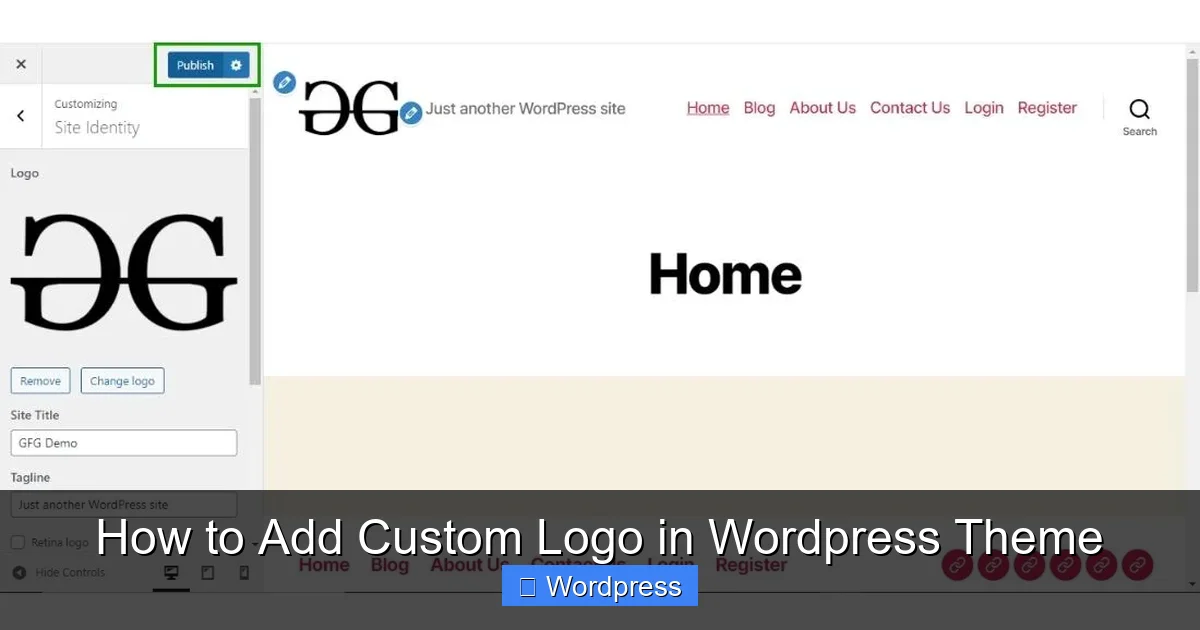
Go to your WordPress dashboard and navigate to Appearance > Customize. Look for a section called Site Identity. If you see an option to upload a logo, your theme supports it. If not, you may need to add support manually.
Some older or highly customized themes might not include logo support. In that case, you’ll need to enable it by editing your theme’s functions.php file—more on that later.
Method 1: Add Logo via the WordPress Customizer (Recommended)
The easiest and safest way to add a custom logo is through the WordPress Customizer. This method doesn’t require any coding and works with most themes.
Step 1: Prepare Your Logo Image
Before uploading, make sure your logo is ready:
– Use a high-resolution image (at least 200×100 pixels).
– Save it as a PNG with transparency for a clean look over any background.
– Alternatively, use an SVG file for crisp scaling on all devices (if your theme supports it).
– Keep the file size under 100KB for faster loading.
Pro tip: Use tools like Canva, Adobe Illustrator, or Figma to design or optimize your logo.
Step 2: Access the Customizer
1. Log in to your WordPress admin dashboard.
2. Go to Appearance > Customize.
3. This opens the live preview editor where you can see changes in real time.
Step 3: Upload Your Logo
1. In the Customizer menu, click on Site Identity.
2. You’ll see options for Site Title, Tagline, and Logo.
3. Click the Select logo button.
4. Choose Upload new image or select from your Media Library.
5. Upload your logo file and click Select.
Step 4: Adjust Logo Size and Position
After uploading, you may need to resize or reposition your logo:
– Use the Logo Size slider (if available) to scale it up or down.
– Some themes allow you to set custom dimensions in pixels.
– If your logo appears too large or small, adjust it until it looks balanced with your site title or navigation menu.
Tip: Avoid making the logo too wide—it can break the layout on mobile devices.
Step 5: Publish Your Changes
Once you’re happy with how the logo looks, click the Publish button at the top of the Customizer. Your logo will now appear on your live site.
Method 2: Enable Logo Support Manually (For Advanced Users)
If your theme doesn’t support custom logos, you can add support by editing your theme’s functions.php file. Always use a child theme to avoid losing changes during updates.
Step 1: Create or Use a Child Theme
A child theme inherits your parent theme’s design but allows safe customization. If you don’t have one, create it using a plugin like Child Theme Configurator or manually.
Step 2: Edit functions.php
1. Go to Appearance > Theme File Editor.
2. In the right sidebar, select your child theme.
3. Open the functions.php file.
4. Add the following code at the end:
add_theme_support( 'custom-logo', array(
    'height'      => 100,
    'width'       => 400,
    'flex-height' => true,
    'flex-width'  => true,
) );
This code enables logo support and sets default dimensions. The flex-height and flex-width options allow the logo to scale proportionally.
Step 3: Upload the Logo via Customizer
Now that support is enabled, go back to Appearance > Customize > Site Identity. You should now see the logo upload option. Follow the same steps as in Method 1.
Customizing Logo Appearance with CSS
Sometimes, the built-in controls aren’t enough. You can fine-tune your logo’s appearance using custom CSS.
How to Add Custom CSS
1. In the Customizer, go to Additional CSS.
2. Add CSS rules to adjust size, margin, or alignment.
Example: Center the logo and add padding
.custom-logo {
    max-width: 250px;
    height: auto;
    margin: 10px auto;
    display: block;
}
Example: Float logo to the left
.site-branding {
    float: left;
    margin-right: 20px;
}
Always preview changes before publishing.
Troubleshooting Common Issues
Even with careful setup, you might run into problems. Here’s how to fix the most common ones.
Logo Not Appearing
– Make sure logo support is enabled (check functions.php).
– Clear your browser and WordPress cache.
– Check if a plugin is conflicting—disable plugins one by one to test.
Logo Looks Blurry
– Use a higher resolution image.
– Avoid stretching small images.
– Use SVG format for sharp scaling.
Logo Overlaps Navigation Menu
– Reduce the logo width.
– Add CSS margin or padding.
– Use responsive design techniques (e.g., hide logo on mobile if needed).
Logo Disappears After Theme Update
– This happens if you edited the parent theme directly.
– Always use a child theme for custom code.
– Re-upload the logo if necessary.
Best Practices for Custom Logos
To get the most out of your logo, follow these best practices:
– Keep it simple: A clean, uncluttered design works best.
– Use your brand colors: Match your logo to your site’s color scheme.
– Optimize for mobile: Test how your logo looks on small screens.
– Update regularly: Refresh your logo if your brand evolves.
– Link to homepage: Most themes automatically link the logo to your homepage—good for UX.
Conclusion
Adding a custom logo to your WordPress theme is a quick and effective way to boost your site’s professionalism and brand recognition. Whether you use the built-in Customizer or enable support manually, the process is straightforward and accessible to everyone.
Remember to use a high-quality image, test on all devices, and always back up your site before making changes. With your new logo in place, your website will leave a lasting impression on visitors.
Ready to get started? Log in to your WordPress dashboard and upload your logo today!