
Adding SEO keywords in WordPress is essential for improving your site’s visibility on search engines. This guide walks you through using popular plugins like Yoast SEO, optimizing meta tags, and structuring content effectively—all without needing to code.
Key Takeaways
- Use SEO plugins: Tools like Yoast SEO or Rank Math simplify keyword optimization with built-in fields and real-time feedback.
- Optimize title tags and meta descriptions: Include your target keyword naturally in both to improve click-through rates from search results.
- Write keyword-rich content: Place your primary keyword in the first 100 words, headings, and throughout the body—but avoid overstuffing.
- Leverage URL structure: Create clean, readable URLs that include your keyword for better indexing.
- Use header tags wisely: Organize content with H1, H2, and H3 tags, placing keywords where relevant for structure and SEO.
- Monitor performance: Regularly check your rankings and adjust keywords based on analytics and search trends.
- Choose an SEO-friendly theme: A fast, well-coded theme like those discussed in our best WordPress theme for SEO and speed guide supports better keyword performance.
How to Add SEO Keywords in WordPress
If you’re running a WordPress website, you’ve probably heard that SEO keywords are crucial for getting found online. But how exactly do you add them? The good news is, WordPress makes it surprisingly easy—especially when you use the right tools and follow best practices.
In this guide, you’ll learn step-by-step how to add SEO keywords in WordPress using plugins, optimize your content, and avoid common mistakes. Whether you’re a blogger, small business owner, or web developer, these tips will help your pages rank higher on Google and attract more organic traffic.
Step 1: Choose the Right SEO Plugin
The easiest way to manage SEO keywords in WordPress is by installing a dedicated SEO plugin. These tools add special fields to your posts and pages where you can enter target keywords, meta descriptions, and more.
Popular SEO Plugins
- Yoast SEO: One of the most trusted plugins with a traffic light system that gives real-time feedback on keyword usage.
- Rank Math: A powerful alternative with advanced features like schema markup and keyword tracking.
- All in One SEO: Great for beginners, offering straightforward keyword input and XML sitemap generation.
To install any of these:
- Go to Plugins > Add New in your WordPress dashboard.
- Search for your chosen plugin (e.g., “Yoast SEO”).
- Click Install Now, then Activate.
Once activated, you’ll see new SEO options when editing posts or pages.
Step 2: Set Your Focus Keyword
After installing an SEO plugin, the next step is to define your focus keyword—the main term you want your page to rank for.
How to Add a Focus Keyword in Yoast SEO
- Open any post or page in the WordPress editor.
- Scroll down to the Yoast SEO box (usually below the content area).
- In the Focus keyphrase field, type your target keyword (e.g., “best coffee makers”).
- Click Save Draft or Update.
Yoast will then analyze your content and highlight areas for improvement, such as keyword density, meta description inclusion, and heading usage.
Tips for Choosing the Right Keyword
- Use tools like Google Keyword Planner, Ubersuggest, or AnswerThePublic to find relevant, low-competition keywords.
- Pick keywords that match user intent—informational, navigational, or transactional.
- Avoid overly broad terms like “shoes” unless you’re a major brand. Instead, try “comfortable running shoes for women”.
Step 3: Optimize Title Tags and Meta Descriptions
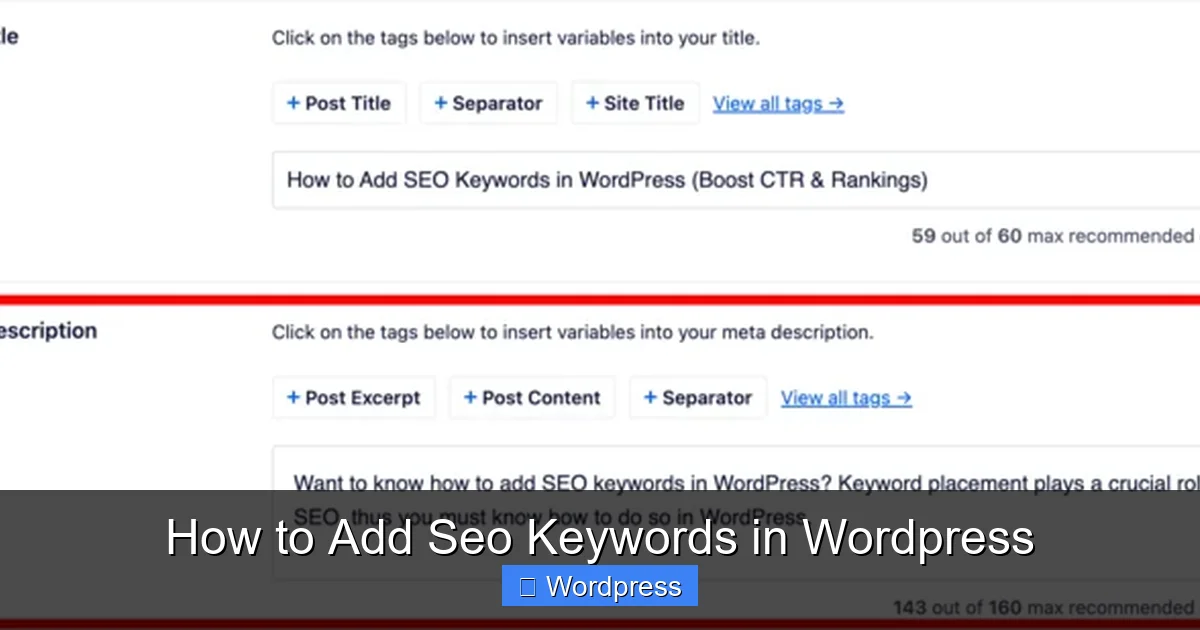
Search engines display your title tag and meta description in search results. Including your keyword here increases relevance and can improve click-through rates.
Editing Titles and Descriptions
- In the Yoast SEO box, click Edit snippet.
- Update the Title field to include your keyword near the beginning (e.g., “Best Coffee Makers of 2024 | Top Picks & Reviews”).
- Write a compelling Meta description (under 160 characters) that includes the keyword and encourages clicks.
- Click Save.
Example:
Title: “How to Add SEO Keywords in WordPress – Complete Guide”
Meta Description: “Learn how to add SEO keywords in WordPress using plugins, meta tags, and content tips to boost your search rankings.”
Step 4: Use Keywords in Your Content
Your content should naturally include your target keyword—but don’t overdo it. Aim for a keyword density of 1–1.5% (about 1–2 mentions per 100 words).
Where to Place Keywords
- First 100 words: Introduce your keyword early to signal relevance.
- Headings (H1, H2, H3): Use variations of your keyword in subheadings. For example, if your focus keyword is “WordPress SEO,” an H2 could be “Why WordPress SEO Matters for Your Blog”.
- Image alt text: Describe images using keywords (e.g., “woman using best coffee maker at home”).
- URL slug: Customize your post URL to include the keyword. Instead of
yourdomain.com/post123, useyourdomain.com/best-coffee-makers.
How to Edit Your URL Slug
- In the WordPress editor, find the Permalink section below the title.
- Click Edit next to the URL.
- Change it to include your keyword (e.g.,
how-to-add-seo-keywords-in-wordpress). - Click OK.
Step 5: Optimize Header Tags and Internal Links
Proper use of header tags (H1, H2, H3) helps search engines understand your content structure. Use your keyword in at least one subheading.
Best Practices for Headers
- Use only one H1 tag per page (usually your post title).
- Break up content with H2 and H3 tags for readability and SEO.
- Include keyword variations naturally—don’t force them.
Also, link to other relevant pages on your site using keyword-rich anchor text. For example, if you write about SEO plugins, link to our guide on the best WordPress theme for SEO and speed using anchor text like “SEO-optimized WordPress themes.”
Step 6: Monitor and Update Your Keywords
SEO isn’t a one-time task. Search trends change, and so should your keywords.
How to Track Performance
- Use Google Search Console to see which keywords are driving traffic.
- Check your SEO plugin’s insights (e.g., Yoast’s SEO analysis) for content suggestions.
- Update old posts with new keywords if they’re underperforming.
For example, if “WordPress SEO tips” is getting more searches than “how to do SEO on WordPress,” consider updating your content and focus keyword.
Troubleshooting Common Issues
Problem: Yoast SEO Not Showing Focus Keyword Field
This usually happens if the plugin isn’t fully activated or there’s a conflict with your theme. Try deactivating other plugins temporarily or switching to a default theme like Twenty Twenty-Four. If the issue persists, reinstall Yoast SEO.
Visual guide about How to Add Seo Keywords in WordPress
Image source: aioseo.com
Problem: Keywords Not Appearing in Search Results
Even with perfect optimization, it can take days or weeks for Google to re-crawl your page. Submit your updated page to Google Search Console under URL Inspection to speed up indexing.
Problem: Duplicate Meta Descriptions
If multiple pages have the same meta description, search engines may ignore them. Use unique descriptions for each page, and consider using dynamic templates in your SEO plugin.
Conclusion
Adding SEO keywords in WordPress doesn’t have to be complicated. With the right plugin, a clear strategy, and consistent optimization, you can significantly improve your site’s search visibility.
Start by installing Yoast SEO or Rank Math, set your focus keyword, and optimize your titles, content, and URLs. Don’t forget to use internal links wisely—like linking to our guide on how to apply a WordPress theme when discussing design changes that affect SEO.
Remember, SEO is a long-term game. Keep refining your keywords, updating content, and monitoring performance. Over time, these small efforts will lead to big results in organic traffic and rankings.