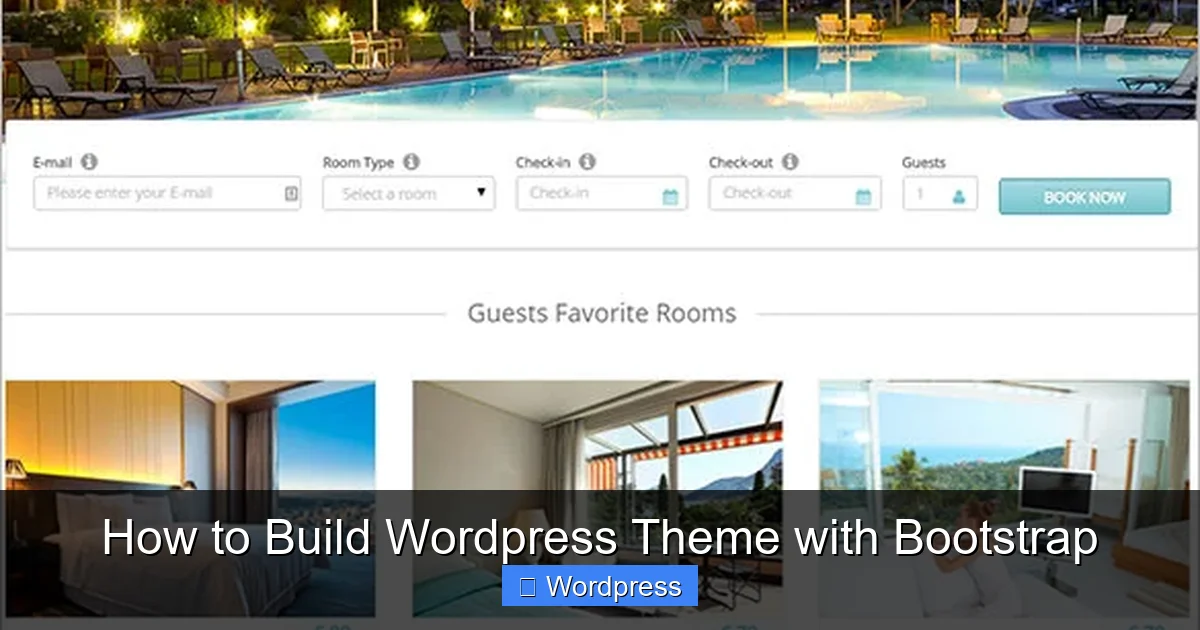
Building a WordPress theme with Bootstrap combines the flexibility of WordPress with the power of Bootstrap’s responsive design. This guide walks you through creating a custom theme from scratch, integrating Bootstrap for mobile-friendly layouts and clean code.
Key Takeaways
- Bootstrap enhances WordPress themes: It provides a responsive grid, pre-built components, and mobile-first design out of the box.
- Start with a blank theme: Use a minimal WordPress theme structure to avoid bloat and maintain control.
- Enqueue Bootstrap correctly: Load Bootstrap CSS and JS via WordPress functions to ensure compatibility and performance.
- Use Bootstrap classes in templates: Apply grid classes like
container,row, andcol-md-6to structure your layout. - Customize with child themes: Modify Bootstrap-based themes safely using child themes to preserve updates.
- Test responsiveness: Always check your theme on multiple devices to ensure it looks great everywhere.
- Optimize for speed: Minify CSS/JS and use Bootstrap’s modular imports to reduce load times.
Introduction: Why Build a WordPress Theme with Bootstrap?
WordPress powers over 40% of the web, but many themes are outdated or bloated. By building your own WordPress theme with Bootstrap, you gain full control over design, performance, and responsiveness. Bootstrap, the world’s most popular front-end framework, makes it easy to create mobile-friendly, modern websites with minimal effort.
In this guide, you’ll learn how to build a custom WordPress theme using Bootstrap from the ground up. Whether you’re a developer or a WordPress enthusiast, this step-by-step tutorial will help you create a clean, responsive theme that looks great on any device. We’ll cover everything from setting up your development environment to deploying your theme.
Step 1: Set Up Your Development Environment
Before you start coding, make sure you have the right tools.
Install a Local Server
Use tools like XAMPP, MAMP, or Local by Flywheel to run WordPress on your computer. This lets you test your theme safely without affecting a live site.
Install WordPress
Download the latest version of WordPress from wordpress.org and install it on your local server. Create a new database and complete the setup process.
Create a Theme Folder
Navigate to wp-content/themes/ and create a new folder for your theme, like my-bootstrap-theme. This is where all your theme files will live.
Step 2: Create the Basic Theme Structure
Visual guide about How to Build WordPress Theme with Bootstrap
Image source: images.template.net
Every WordPress theme needs a few essential files.
Create style.css
In your theme folder, create a style.css file with the following header:
/*
Theme Name: My Bootstrap Theme
Theme URI: https://example.com/my-bootstrap-theme
Author: Your Name
Author URI: https://example.com
Description: A custom WordPress theme built with Bootstrap.
Version: 1.0
License: GNU General Public License v2 or later
Text Domain: my-bootstrap-theme
*/
This tells WordPress your theme exists.
Create index.php
This is the main template file. Start with a basic HTML structure:
<!DOCTYPE html>
<html >
<head>
<meta charset="">
<meta name="viewport" content="width=device-width, initial-scale=1">
<title></title>
>
<div class="container">
<h1></h1>
<p></p>
<?php if (have_posts()) : while (have_posts()) : the_post(); ?>
<h2><a href=""></a></h2>
<?php the_excerpt(); ?>
<?php endwhile; endif; ?>
</div>
Create functions.php
This file loads scripts and adds theme support. Add this code:
This loads Bootstrap and enables key WordPress features.
Step 3: Integrate Bootstrap into Your Theme

Visual guide about How to Build WordPress Theme with Bootstrap
Image source: images.template.net
Now that Bootstrap is loaded, use its classes to build responsive layouts.
Use the Bootstrap Grid System
Replace the basic container in index.php with a responsive grid:
<div class="container">
<div class="row">
<div class="col-md-8">
<?php if (have_posts()) : while (have_posts()) : the_post(); ?>
<article class="mb-4">
<h2><a href=""></a></h2>
<?php the_excerpt(); ?>
</article>
<?php endwhile; endif; ?>
</div>
<div class="col-md-4">
<?php get_sidebar(); ?>
</div>
</div>
</div>
This creates a two-column layout: main content and sidebar.
Style Navigation with Bootstrap
Create a header.php file and add a Bootstrap navbar:
<nav class="navbar navbar-expand-lg navbar-light bg-light">
<div class="container">
<a class="navbar-brand" href=""></a>
<button class="navbar-toggler" type="button" data-bs-toggle="collapse" data-bs-target="#mainNav">
<span class="navbar-toggler-icon"></span>
</button>
<div class="collapse navbar-collapse" id="mainNav">
<?php
wp_nav_menu(array(
'theme_location' => 'primary',
'menu_class' => 'navbar-nav ms-auto',
'container' => false,
'fallback_cb' => false
));
?>
</div>
</div>
</nav>
Then register the menu in functions.php:
register_nav_menus(array(
'primary' => __('Primary Menu', 'my-bootstrap-theme')
));
Step 4: Add Essential Template Files
WordPress uses multiple templates for different pages.
Create header.php and footer.php
Split your index.php into reusable parts. Move the header to header.php and the footer to footer.php. Then include them:
<!-- Main content here -->
Create single.php and page.php
For single posts and pages, create single.php and page.php with similar structure but full content:
<article class="mb-4">
<h1></h1>
<?php the_content(); ?>
</article>
Create sidebar.php
Add widgets using dynamic_sidebar():
<aside class="bg-light p-3">
<?php if (is_active_sidebar('sidebar-1')) : ?>
<?php dynamic_sidebar('sidebar-1'); ?>
<?php endif; ?>
</aside>
Register the sidebar in functions.php:
function my_bootstrap_theme_widgets_init() {
register_sidebar(array(
'name' => __('Sidebar', 'my-bootstrap-theme'),
'id' => 'sidebar-1',
'before_widget' => '',
'before_title' => '',
'after_title' => '
'
));
}
add_action('widgets_init', 'my_bootstrap_theme_widgets_init');
Step 5: Customize and Optimize
Make your theme unique and fast.
Override Bootstrap Styles
Add custom CSS in style.css to tweak colors, fonts, or spacing. For example:
body {
font-family: 'Helvetica', sans-serif;
background-color: #f8f9fa;
}
.navbar-brand {
font-weight: bold;
color: #007bff !important;
}
Use Bootstrap Components
Add alerts, cards, or buttons:
<div class="alert alert-info">
Welcome to our website! Check out our latest posts.
</div>
Optimize Performance
- Use a CDN for Bootstrap (already done).
- Minify your CSS and JS.
- Consider using Bootstrap’s modular build to include only what you need.
Troubleshooting Common Issues
Bootstrap Not Loading?
Check the browser console for 404 errors. Ensure the CDN URLs are correct and wp_enqueue_style is used.
Menu Not Displaying?
Make sure you’ve assigned a menu to the “Primary” location in WordPress admin under Appearance > Menus.
Responsive Layout Broken?
Verify you’re using proper Bootstrap classes like container, row, and col-*. Test on mobile devices.
Conclusion: You’ve Built a WordPress Theme with Bootstrap!
Congratulations! You’ve successfully created a custom WordPress theme using Bootstrap. You now have a responsive, modern theme that’s easy to maintain and extend. From setting up your environment to integrating Bootstrap’s grid and components, you’ve covered all the essentials.
This foundation lets you build anything—from blogs to business sites. Keep experimenting: add custom post types, integrate plugins, or convert your theme into a child theme for safer updates. The combination of WordPress and Bootstrap gives you the best of both worlds: powerful content management and sleek, mobile-ready design.
Ready to go live? Upload your theme folder to your server, activate it in WordPress, and start customizing. Happy coding!