
Changing the background color in your WordPress theme is simpler than you think. Whether you’re using the built-in Customizer, editing CSS, or working with a page builder, this guide walks you through every method with clear, beginner-friendly steps.
Key Takeaways
- Use the WordPress Customizer: The easiest way to change background color without coding—ideal for beginners.
- Edit CSS for full control: Add custom CSS via the Customizer or a child theme for precise styling.
- Leverage page builders: Tools like Elementor and Divi offer visual background editing with real-time previews.
- Check theme settings: Many modern themes include built-in color options in their settings panel.
- Test on mobile devices: Always preview changes across devices to ensure consistency and readability.
- Use a child theme: Avoid losing changes after updates by making modifications safely.
- Consider accessibility: Choose colors with sufficient contrast for readability and inclusivity.
How to Change Background Color in WordPress Theme
Want to give your WordPress website a fresh new look? Changing the background color is one of the quickest and most impactful ways to refresh your site’s design. Whether you’re aiming for a sleek dark mode, a calming pastel tone, or a bold brand color, adjusting the background is simple—even if you’re not a developer.
In this guide, we’ll walk you through how to change background color in WordPress theme using multiple methods. You’ll learn how to use the built-in WordPress tools, edit CSS, work with page builders, and more. By the end, you’ll be able to customize your site’s background with confidence—no coding experience required.
Method 1: Using the WordPress Customizer
The WordPress Customizer is the easiest and safest way to change your background color. It’s built into every WordPress site and lets you see changes in real time before publishing them.

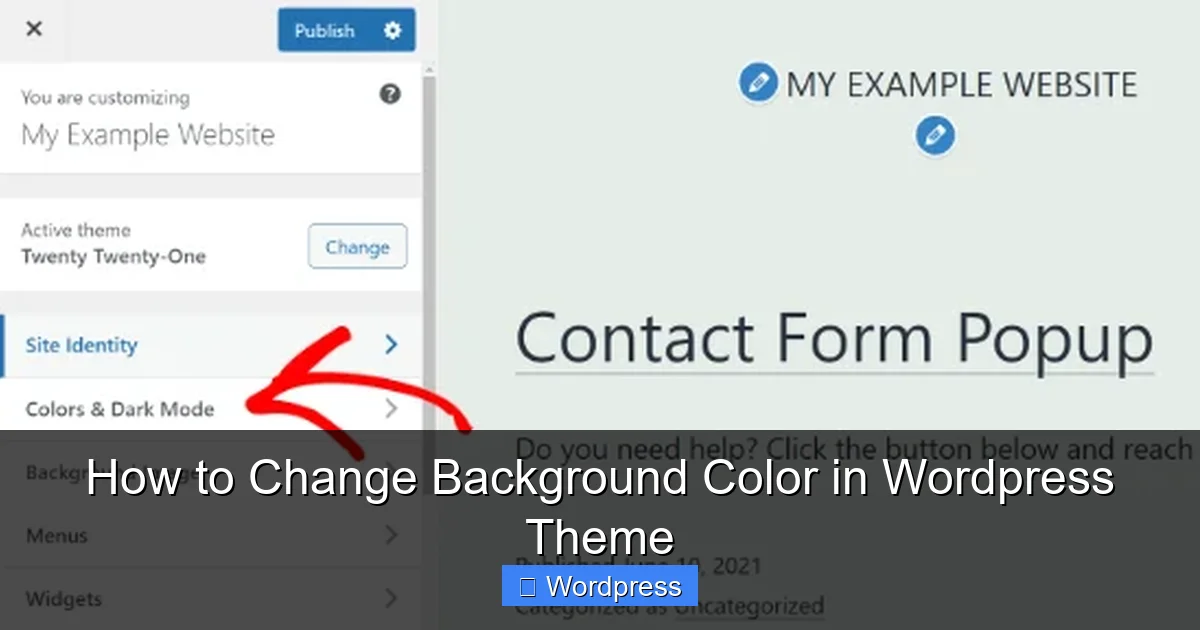
Visual guide about How to Change Background Color in WordPress Theme
Image source: themeskills.com
Step 1: Access the Customizer
Log in to your WordPress dashboard. Go to Appearance > Customize. This opens the live preview editor where you can tweak your site’s design.
Step 2: Find the Background Settings
In the Customizer menu, look for an option labeled Background Image or Colors. Depending on your theme, this may be under “Site Identity,” “Colors & Background,” or a similar heading.
Step 3: Change the Background Color
Click on the background color picker. A color palette will appear. You can either click a preset color or use the hex code input to enter a custom color (like #f0f0f0 for light gray). As you select, the preview updates instantly.
Step 4: Publish Your Changes
Once you’re happy with the color, click the Publish button at the top. Your new background color will go live immediately.
Pro Tip: Some themes don’t support background color changes in the Customizer. If you don’t see the option, try one of the other methods below.
Method 2: Using Custom CSS
If your theme doesn’t offer a background color option, or you want more control, you can use Custom CSS. This method works on any WordPress site and lets you target specific sections.
Visual guide about How to Change Background Color in WordPress Theme
Image source: wpbeginner.com
Step 1: Open the Customizer
Go to Appearance > Customize again. This time, look for Additional CSS in the left menu.
Step 2: Add CSS Code
In the CSS box, paste the following code to change the entire site’s background:
body {
    background-color: #e6f7ff;
}
Replace #e6f7ff with your desired color code. You can find color codes using tools like HTML Color Codes or Adobe Color.
Step 3: Target Specific Areas (Optional)
Want to change only the header or content area? Use more specific selectors:
.site-header {
    background-color: #2c3e50;
}

.content-area {
    background-color: #ffffff;
}
This gives you fine-tuned control over different parts of your site.
Step 4: Publish the CSS
Click Publish to save your changes. The new background colors will appear across your site.
Note: Always test your site after adding CSS. If something looks off, you can delete the code and republish to revert.
Method 3: Using a Page Builder (Elementor, Divi, etc.)
If you’re using a page builder like Elementor, Divi, or WPBakery, changing the background is even more visual and flexible.

Visual guide about How to Change Background Color in WordPress Theme
Image source: snipboard.io
Step 1: Edit a Page with the Builder
Go to Pages > All Pages, then click Edit with Elementor (or your builder’s name).
Step 2: Select the Section or Container
Click on the section, column, or container you want to change. A settings panel will appear on the left.
Step 3: Change the Background
In the settings panel, go to the Style tab. Look for Background options. You can choose a solid color, gradient, or even an image.
For a solid color, click the color picker and choose your shade. The change appears instantly in the editor.
Step 4: Apply to Multiple Pages (Optional)
To apply the same background across your site, use a global style or template. In Elementor, you can save a section as a template and reuse it.
Pro Tip: Page builders often let you set different backgrounds for desktop, tablet, and mobile. Use this to optimize the look on all devices.
Method 4: Editing Theme Files (Advanced)
If you’re comfortable with code, you can edit your theme’s style.css file directly. Warning: This method is riskier and not recommended unless you use a child theme.
Step 1: Use a Child Theme
Never edit your parent theme directly—updates will erase your changes. Instead, install and activate a child theme. Most popular themes have official child themes available.
Step 2: Access Theme Files
Go to Appearance > Theme File Editor. In the right sidebar, select your child theme and open style.css.
Step 3: Add Background CSS
At the bottom of the file, add:
body {
    background-color: #f9f9f9;
}
Save the file. Your background color will update across the site.
Important: If you’re not using a child theme, your changes will be lost when the theme updates. Always back up your site before editing files.
Method 5: Using Theme Options Panel
Many premium themes (like Astra, OceanWP, or GeneratePress) include a dedicated options panel for colors and backgrounds.
Step 1: Go to Theme Settings
In your dashboard, look for a menu item like Theme Options, Customize, or the theme’s name (e.g., “Astra Options”).
Step 2: Find Background Settings
Navigate to the Colors or Background section. You’ll usually see options for body background, header, footer, and more.
Step 3: Choose Your Color
Select a color using the picker or enter a hex code. Some themes also offer preset color schemes.
Step 4: Save Changes
Click Save or Publish. The new background will apply site-wide.
Bonus: These panels often include live previews, so you can see changes before saving.
Troubleshooting Common Issues
Even with the best instructions, things don’t always go smoothly. Here’s how to fix common problems when changing your background color.
Background Color Not Showing
If your color doesn’t appear, it might be overridden by another CSS rule. Use your browser’s inspect tool (right-click > Inspect) to check which styles are active. Add !important to your CSS as a last resort:
body {
    background-color: #ffcc00 !important;
}
Color Looks Different on Mobile
Some themes apply different styles on mobile. Use responsive CSS or check your page builder’s mobile settings to ensure consistency.
Changes Disappear After Update
This happens when you edit the parent theme directly. Always use a child theme or the Customizer’s Additional CSS section to preserve changes.
Poor Readability
Dark text on a dark background (or light on light) is hard to read. Use a contrast checker tool to ensure your text is legible. Aim for a contrast ratio of at least 4.5:1 for normal text.
Best Practices for Background Colors
Changing your background isn’t just about aesthetics—it affects usability and branding. Follow these tips for the best results.
Choose Colors That Match Your Brand
Your background should complement your logo, fonts, and overall design. Use your brand’s primary or secondary colors for consistency.
Prioritize Readability
White or light gray backgrounds work well for text-heavy sites. Dark backgrounds can reduce eye strain but require light text and careful spacing.
Test on Multiple Devices
Colors can look different on screens with varying brightness and color profiles. Always preview your site on a phone, tablet, and desktop.
Use Gradients or Textures Sparingly
Subtle gradients or patterns can add depth, but avoid anything too busy. A plain color is often the most professional choice.
Consider Accessibility
Ensure your color choices meet accessibility standards. Tools like WebAIM’s Contrast Checker help verify readability for users with visual impairments.
Conclusion
Changing the background color in your WordPress theme is a powerful way to personalize your site and improve user experience. Whether you use the Customizer, add custom CSS, or rely on a page builder, the process is straightforward and accessible to everyone.
Remember to test your changes, use a child theme for safety, and always prioritize readability and accessibility. With the methods in this guide, you can confidently update your site’s look and make it truly your own.
Ready to refresh your WordPress site? Pick a method that fits your comfort level and start customizing today!