This guide shows you how to change banner in WordPress theme using built-in tools, customizer options, or page builders. Whether you’re updating a header image or replacing a full-width banner, we’ve got simple, effective methods for every skill level.
Key Takeaways
- Use the WordPress Customizer: Most themes support banner changes via Appearance > Customize > Header or Site Identity.
- Check Theme Documentation: Premium or custom themes may have unique banner settings—always review the theme’s guide first.
- Optimize Image Size: Use banners sized between 1200–1920px wide for crisp display on all devices.
- Leverage Page Builders: Tools like Elementor or WPBakery let you edit banners visually without coding.
- Clear Cache After Changes: If your banner doesn’t update, clear your site and browser cache.
- Backup Before Editing: Always back up your site before making design changes to avoid data loss.
- Test on Mobile: Ensure your new banner looks great on smartphones and tablets.
How to Change Banner in WordPress Theme: A Complete Guide
Changing the banner in your WordPress theme is one of the quickest ways to refresh your website’s look and feel. Whether you’re promoting a sale, launching a new product, or simply updating your branding, swapping out your banner can make a big impact. The good news? You don’t need to be a developer to do it. In this guide, we’ll walk you through how to change banner in WordPress theme using multiple methods—no coding required.
We’ll cover built-in WordPress tools, theme-specific options, page builders, and even manual edits for advanced users. By the end, you’ll know exactly how to update your banner safely and effectively, no matter which theme you’re using.
What Is a Banner in WordPress?
In WordPress, a “banner” typically refers to a prominent image or graphic at the top of your website—often in the header area. It may display your logo, a call-to-action, seasonal messaging, or a hero image. Banners are key for branding and user engagement, so keeping them current is important.
Note: Some themes call this area the “header image,” “hero section,” or “featured banner.” The term varies, but the function is the same—to grab attention and set the tone for your site.
Method 1: Change Banner Using the WordPress Customizer
The WordPress Customizer is the easiest and most common way to update your banner. Most themes support this feature, especially those built with the WordPress Theme Handbook in mind.
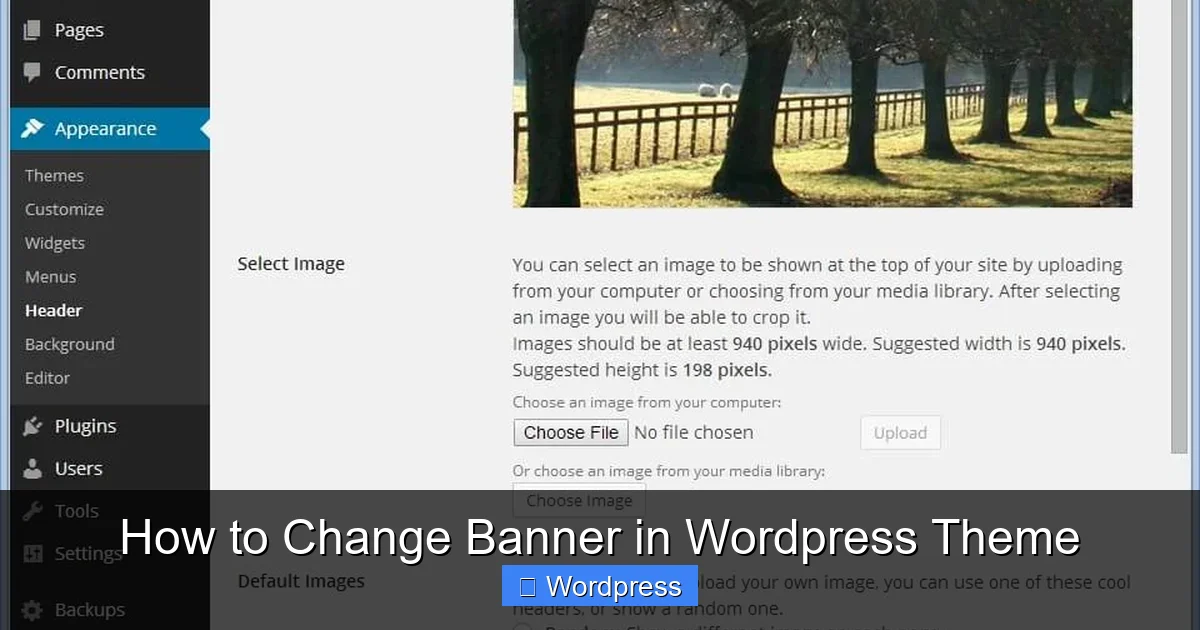
Visual guide about How to Change Banner in WordPress Theme
Image source: theblogstarter.com
Step 1: Access the Customizer
Log in to your WordPress dashboard. Go to Appearance > Customize. This opens the live preview editor where you can see changes in real time.
Step 2: Find the Header or Banner Section
Look for options like:
- Header Image
- Site Identity
- Banner Settings
- Hero Section
Click on the relevant section. For example, in the Twenty Twenty-One theme, you’ll find it under Header Image.
Step 3: Upload or Change the Banner Image
Click Add new image or Select image. Choose a file from your media library or upload a new one. Make sure your image is high quality and properly sized (we’ll cover sizing tips below).
Step 4: Adjust Display Settings
Some themes let you control:
- Image position (center, left, right)
- Whether the image repeats
- Scroll behavior (fixed or scroll with page)
Use the preview pane to see how it looks on desktop and mobile.
Step 5: Publish Your Changes
Once you’re happy, click Publish at the top of the Customizer. Your new banner will go live immediately.
Method 2: Change Banner via Theme Options Panel
Many premium themes (like Astra, OceanWP, or Divi) include a dedicated options panel for banners and headers. These often offer more control than the default Customizer.
Step 1: Locate the Theme Options
Go to your WordPress dashboard and look for a menu item named after your theme (e.g., “Astra Options,” “Divi Theme Options”). Alternatively, check under Appearance > Theme Settings.
Step 2: Navigate to Header or Banner Settings
Look for sections labeled:
- Header Builder
- Banner Settings
- Hero Section
- Top Bar
For example, in the Divi theme, you’d use the Divi Builder to edit the header module directly.
Step 3: Upload or Replace the Banner
Click the image placeholder or “Change Image” button. Upload your new banner or select one from the media library. Some themes allow you to add text overlays, buttons, or animations—take advantage of these for greater impact.
Step 4: Save and Preview
Always save your changes and preview the site on different devices. Premium themes often include responsive controls, so you can tweak the banner for mobile separately.
Method 3: Use a Page Builder to Change the Banner
If your theme supports page builders like Elementor, WPBakery, or Beaver Builder, you can edit the banner with drag-and-drop ease—even on the homepage or specific pages.
Step 1: Edit the Page with Your Builder
Go to Pages > All Pages, find the page with the banner (usually the homepage), and click “Edit with Elementor” (or your builder’s name).
Step 2: Locate the Banner Section
In Elementor, banners are often part of a “Section” at the top. Click on the section to select it. You’ll see editing options in the left panel.
Step 3: Change the Background Image
In the Style tab, find Background and choose “Classic” or “Gradient.” Upload your new banner image. You can also adjust opacity, position, and size.
Step 4: Add or Edit Overlay Content
Most banners include text, buttons, or icons. Click on these elements to edit them. For example, you might change a headline from “Welcome” to “Summer Sale – 50% Off!”
Step 5: Update and Clear Cache
Click Update to save. If you use a caching plugin (like WP Super Cache or W3 Total Cache), clear the cache so visitors see the new banner right away.
Method 4: Manually Edit Theme Files (Advanced)
If your theme doesn’t support banner changes through the dashboard, you may need to edit template files. Only attempt this if you’re comfortable with code and have a backup.
Step 1: Backup Your Site
Use a plugin like UpdraftPlus or your hosting provider’s backup tool. Never skip this step.
Step 2: Access Theme Files
Go to Appearance > Theme File Editor or use FTP/SFTP to connect to your site. Navigate to your active theme folder (usually /wp-content/themes/your-theme-name/).
Step 3: Locate the Header File
Look for header.php or a file like banner.php or hero.php. Open it in the editor.
Step 4: Find the Banner Code
Search for <img> tags or background-image CSS rules. For example:
<div class="banner" style="background-image: url('old-banner.jpg');"></div>Replace the image URL with your new banner’s path.
Step 5: Upload the New Image
Upload your new banner to the /wp-content/uploads/ folder via FTP or the Media Library. Update the file path in the code accordingly.
Step 6: Test and Monitor
Visit your site to confirm the change. Check for broken images or layout issues. If something goes wrong, restore from your backup.
Best Practices for Banner Images
To ensure your banner looks professional and loads quickly, follow these tips:
- Use the Right Dimensions: Aim for 1200–1920 pixels wide and 400–600 pixels tall. This works well on most screens.
- Optimize File Size: Compress images using tools like TinyPNG or ShortPixel. Keep files under 300KB when possible.
- Choose the Right Format: Use JPEG for photos, PNG for graphics with transparency, and WebP for modern browsers.
- Add Alt Text: Always include descriptive alt text for SEO and accessibility.
- Test Responsiveness: Make sure text and key elements aren’t cut off on mobile devices.
Troubleshooting Common Issues
Banner Not Updating?
If your new banner doesn’t appear, clear your browser cache and any site caching plugins. Sometimes changes take a few minutes to propagate.
Image Looks Stretched or Blurry?
This usually means the image is the wrong size or resolution. Resize it to match your theme’s recommended dimensions and re-upload.
Banner Disappears on Mobile?
Some themes hide banners on small screens to save space. Check your theme’s mobile settings or use CSS to force display:
@media (max-width: 768px) {
  .banner { display: block !important; }
}
Can’t Find Banner Settings?
Consult your theme’s documentation or contact support. Some themes require a plugin or child theme for banner customization.
Conclusion
Changing the banner in your WordPress theme doesn’t have to be complicated. Whether you use the Customizer, a theme options panel, a page builder, or manual code edits, there’s a method that fits your skill level. The key is to choose the right image, optimize it for performance, and test across devices.
Remember to back up your site before making changes, and don’t hesitate to experiment—your banner is a powerful tool for engagement. With the steps in this guide, you’re ready to update your banner confidently and keep your site looking fresh and professional.