This guide shows you how to change color in WordPress theme using the Customizer, theme settings, plugins, and custom code. Whether you’re a beginner or experienced user, you’ll find simple, effective methods to update your site’s color scheme.
Key Takeaways
- Use the WordPress Customizer: Most themes support live color changes through the built-in Customizer tool—no coding needed.
- Check your theme settings: Many premium and free themes include color options in their dashboard or theme options panel.
- Install a color plugin: Plugins like YellowPencil or WP Color Picker let you visually edit colors without touching code.
- Add custom CSS: For advanced control, use the Additional CSS section to override default colors with precise styling.
- Test on all devices: Always preview color changes on mobile, tablet, and desktop to ensure consistency and readability.
- Backup before editing: Always back up your site before making major design changes to avoid accidental issues.
- Use accessible color contrasts: Choose colors that meet accessibility standards so all users can read your content easily.
How to Change Color in WordPress Theme: A Complete Guide
Changing the color scheme of your WordPress theme is one of the quickest ways to refresh your website’s look and feel. Whether you’re rebranding, improving readability, or just want a new vibe, adjusting colors can make a big difference. The good news? You don’t need to be a developer to do it. In this guide, we’ll walk you through several easy and effective methods to change color in WordPress theme—no matter your skill level.
We’ll cover everything from using built-in WordPress tools to adding custom code. By the end, you’ll know exactly how to update your site’s colors safely and confidently.
Method 1: Use the WordPress Customizer
The WordPress Customizer is the easiest and most beginner-friendly way to change colors. It lets you see your changes in real time before publishing them.
Step 1: Access the Customizer
Log in to your WordPress dashboard. Go to Appearance > Customize. This opens the live preview editor.
Step 2: Find the Color Settings
Look for a section labeled Colors, Theme Colors, or Site Identity. The exact name depends on your theme. Popular themes like Astra, GeneratePress, and Twenty Twenty-Four all include color options here.
Step 3: Change Your Colors
You’ll usually see options to change:
- Background Color: The main page background.
- Primary Color: Used for buttons, links, and accents.
- Text Color: The default color for body text.
- Header and Footer Colors: Some themes let you style these separately.
Click on any color box to open a color picker. Choose a new shade, and watch your site update instantly in the preview window.
Step 4: Publish Your Changes
Once you’re happy with the colors, click the Publish button at the top. Your new color scheme is now live!
Tip: If you don’t see color options, your theme might not support them. Try switching to a more customizable theme or use one of the methods below.
Method 2: Use Your Theme’s Built-In Options
Many premium and free WordPress themes come with their own settings panel. These often include advanced color controls beyond what the Customizer offers.
Step 1: Check Your Theme Dashboard
Go to Appearance > Theme Options or Appearance > Customize > Theme Settings. Some themes, like Divi or OceanWP, have their own menu items in the dashboard.
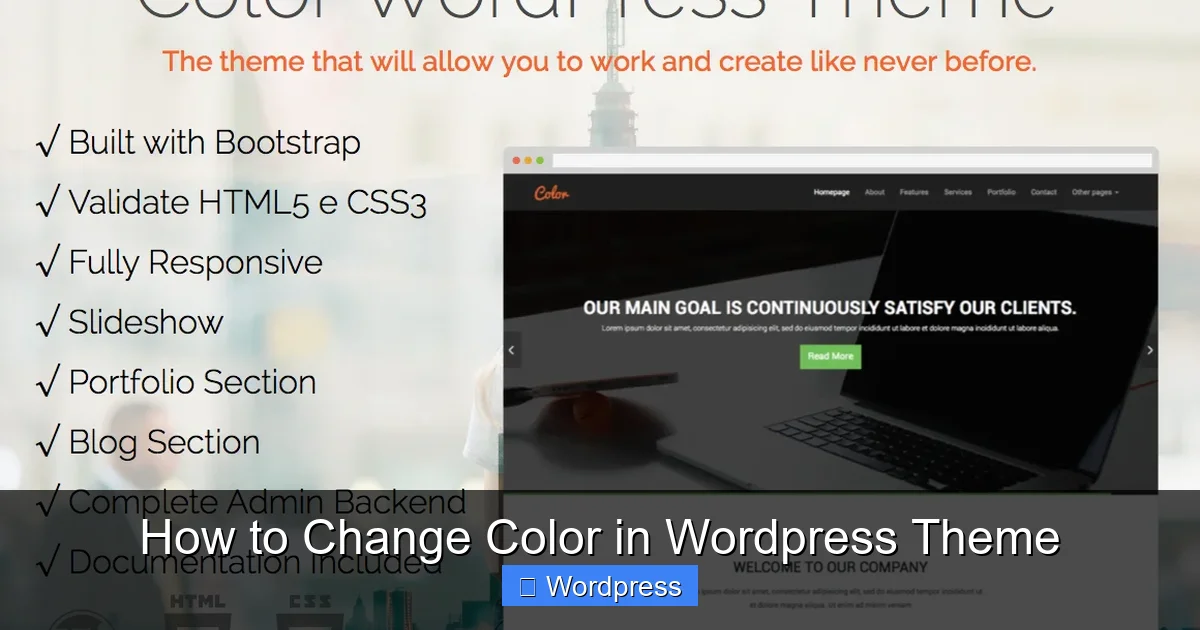
Visual guide about How to Change Color in WordPress Theme
Image source: themeinthebox.com
Step 2: Look for Color or Styling Tabs
Navigate to sections like Styling, Colors, or Design. Here, you might find options to change colors for:
- Headings (H1, H2, etc.)
- Navigation menus
- Call-to-action buttons
- Hover effects
Step 3: Save and Preview
After making changes, save your settings. Always preview your site on different pages to ensure consistency.
Example: In the Astra theme, go to Customize > Global > Colors to adjust primary, secondary, and background colors with hex codes or a color wheel.
Method 3: Use a WordPress Color Plugin
If your theme lacks color options, a plugin can give you full control. These tools are perfect for non-coders who want a visual editor.
Recommended Plugins
- YellowPencil: Lets you click any element on your site and change its color, font, size, and more.
- WP Color Picker: Adds a color picker to your editor for quick styling.
- SiteOrigin CSS: A user-friendly CSS editor with live preview.
How to Use YellowPencil
- Install and activate YellowPencil from the WordPress plugin directory.
- Go to any page on your site and click the YellowPencil icon in the admin bar.
- Click on any element (like a button or heading) to select it.
- Use the color picker to change its background, text, or border color.
- Save your changes.
Tip: Plugins like YellowPencil are great for one-off changes, but avoid overusing them—too many plugins can slow down your site.
Method 4: Add Custom CSS
For full control, use custom CSS. This method works with any theme and lets you target specific elements.
Step 1: Open the Additional CSS Editor
In your WordPress dashboard, go to Appearance > Customize > Additional CSS.
Step 2: Write Your CSS Code
Use CSS selectors to change colors. Here are some common examples:
Change the background color of the entire site:
body {
  background-color: #f4f4f4;
}
Change the color of all headings:
h1, h2, h3, h4, h5, h6 {
  color: #2c3e50;
}
Change link colors:
a {
  color: #3498db;
}
a:hover {
  color: #2980b9;
}
Change button background color:
.button, .wp-block-button__link {
  background-color: #e74c3c;
  color: white;
}
Step 3: Publish the CSS
Click Publish to apply your changes. Use your browser’s inspector tool (right-click > Inspect) to find the right CSS classes if needed.
Tip: Always test your CSS on a staging site first. Use comments in your code to remember what each rule does.
Method 5: Edit Theme Files (Advanced)
If you’re comfortable with code, you can edit your theme’s style.css file directly. Warning: This method is risky—always back up your site first.
Step 1: Use a Child Theme
Never edit your parent theme directly. Instead, create a child theme. This protects your changes during updates.
Step 2: Access Theme Files
Go to Appearance > Theme File Editor or use FTP/SFTP to access your site files. Open the style.css file in your child theme.
Step 3: Add or Modify CSS
Add your color rules just like in the Additional CSS method. For example:
.site-header {
  background-color: #1abc9c;
}
Step 4: Save and Test
Save your changes and refresh your site. Check for any layout issues.
Tip: Use a code editor with syntax highlighting to avoid mistakes. Consider using a plugin like WP File Manager for easier access.
Troubleshooting Common Issues
Colors Not Changing?
- Clear your browser cache and WordPress cache (if using a plugin like WP Super Cache).
- Check if another plugin or theme setting is overriding your changes.
- Use your browser’s inspector to see which CSS rule is active.
Text Is Hard to Read?
- Ensure sufficient contrast between text and background. Use tools like WebAIM’s Contrast Checker.
- Avoid light gray text on white backgrounds.
Changes Disappear After Update?
- This happens if you edited the parent theme. Always use a child theme for custom code.
- Reapply your changes in the Customizer or Additional CSS, which are update-safe.
Best Practices for Changing Colors
- Stick to a color palette: Use 2–3 main colors for consistency. Tools like Coolors.co can help you choose.
- Test on mobile: Colors can look different on small screens. Always check responsiveness.
- Use semantic colors: Red for warnings, green for success, blue for links.
- Keep branding in mind: Match your site colors to your logo and brand guidelines.
- Document your changes: Keep a note of hex codes and where you used them.
Conclusion
Changing color in WordPress theme doesn’t have to be complicated. Whether you use the Customizer, a plugin, or custom CSS, you have multiple safe and effective options. Start with the built-in tools, and move to more advanced methods as you gain confidence.
Remember to test your changes, back up your site, and prioritize accessibility. With the right approach, you can transform your website’s appearance in minutes—no coding degree required.
Now it’s your turn. Pick a method, pick a color, and give your site a fresh new look today!