Clearing your WordPress theme cache helps resolve styling issues, speed up your site, and ensure updates appear instantly. This guide walks you through multiple methods, including plugin-based, manual, and browser-level cache clearing, so you can choose the best approach for your setup.
Key Takeaways
- Theme cache stores static files to improve loading speed, but outdated files can cause display errors or prevent updates from showing.
- Clearing cache via plugins is the easiest method—most popular caching plugins include a one-click clear option in their dashboard.
- Some premium themes have built-in caching systems that require clearing from within the theme settings, not just via plugins.
- Always clear browser cache after clearing server-side cache to see real-time changes on your site.
- Test your site after clearing cache to ensure functionality and appearance remain intact.
- Regular cache maintenance improves performance and prevents conflicts during theme or plugin updates.
- If issues persist, check for object or server-level caching that may require additional steps beyond theme or plugin cache clearing.
Introduction: Why Clearing WordPress Theme Cache Matters
If you’ve ever updated your WordPress theme, changed a setting, or added new content only to see no changes on your live site, you’ve likely encountered a cached version of your page. Caching is a powerful tool that stores static versions of your website to reduce server load and speed up load times. However, when cache isn’t cleared properly, it can prevent your visitors—and even you—from seeing the latest version of your site.
In this guide, you’ll learn how to clear WordPress theme cache using several proven methods. Whether you’re using a caching plugin, a premium theme with built-in caching, or managing cache manually, we’ll cover every scenario. By the end, you’ll know exactly how to refresh your site’s appearance and ensure all updates go live immediately.
Understanding WordPress Theme Cache
Before diving into the steps, it’s important to understand what “theme cache” actually means. Unlike full-page caching (which saves entire HTML pages), theme cache typically refers to cached CSS, JavaScript, and template files generated by your active theme or associated plugins.
Many modern themes—especially those built with frameworks like Elementor, Divi, or Avada—include their own optimization and caching features. These systems combine and minify CSS/JS files to reduce HTTP requests and improve performance. While helpful, they can also delay the visibility of design changes.
Additionally, some themes generate cached versions of layout structures or dynamic content. If you’ve recently modified your header, footer, or custom templates, clearing this internal cache ensures your edits appear right away.
Method 1: Clear Cache Using a Caching Plugin
The most common and user-friendly way to clear theme-related cache is through a dedicated caching plugin. Popular options include WP Super Cache, W3 Total Cache, WP Rocket, and LiteSpeed Cache.
Step 1: Log Into Your WordPress Dashboard
Go to your WordPress admin area by visiting yoursite.com/wp-admin and logging in with your credentials.
Step 2: Locate Your Caching Plugin
Navigate to the plugin’s settings. For example:
– WP Rocket: Go to Settings > WP Rocket
– W3 Total Cache: Go to Performance > Dashboard
– LiteSpeed Cache: Go to LiteSpeed Cache > Cache
Step 3: Clear All Cache
Look for a button labeled “Purge All Cache,” “Clear Cache,” or “Purge Everything.” Click it. Most plugins will confirm the action with a success message.
Pro Tip: Some plugins allow you to clear only specific types of cache (e.g., page, object, or browser). For theme-related issues, purging “Page Cache” and “CSS/JS Cache” is usually sufficient.
Step 4: Verify the Changes
Visit your site in a new incognito window or use a tool like GTmetrix to check if the updated files are loading.
Method 2: Clear Cache from Your Theme’s Built-In System
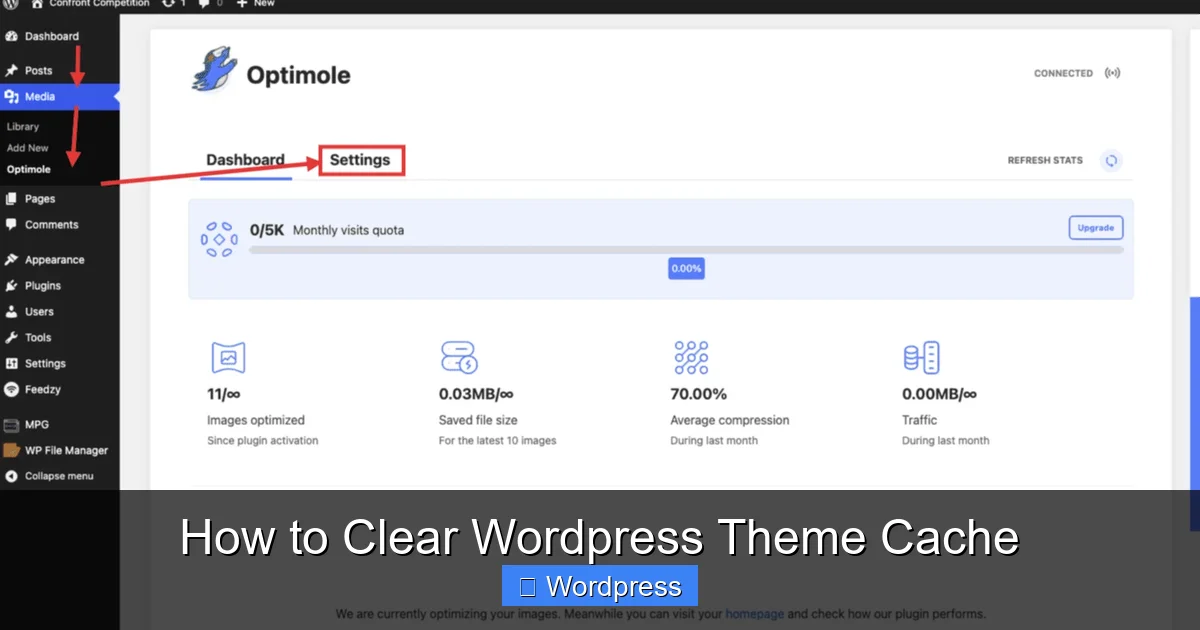
Visual guide about How to Clear WordPress Theme Cache
Image source: cdn-std.droplr.net
Many premium themes come with their own caching and optimization engines. If you’re using a theme like Astra Pro, GeneratePress Premium, or Divi, follow these steps:
Step 1: Access Theme Settings
Go to Appearance > Theme Settings or look for a dedicated theme panel (e.g., “Divi > Theme Options”).
Step 2: Find the Optimization or Cache Section
Look for tabs labeled “Performance,” “Optimization,” or “Static CSS/JS Generation.”
Step 3: Clear Theme Cache
Click the “Regenerate CSS,” “Clear Static Files,” or “Purge Cache” button. For example:
– In Astra Pro, go to Appearance > Astra Options > Performance and click “Regenerate CSS.”
– In Divi, go to Divi > Theme Options > Builder > Advanced and click “Clear Static CSS Cache.”
Note: If you’ve recently updated your theme, consider also checking our guide on how to upgrade WordPress theme to ensure compatibility.
Method 3: Manually Clear Cache via FTP or File Manager
If your site is down or you can’t access the WordPress dashboard, you may need to clear cache files manually.
Step 1: Connect to Your Site via FTP
Use an FTP client like FileZilla or your hosting provider’s file manager (e.g., cPanel > File Manager).
Step 2: Navigate to the Cache Folder
Common cache locations include:
– /wp-content/cache/ (used by many plugins)
– /wp-content/themes/your-theme-name/cache/ (theme-specific)
– /wp-content/uploads/cache/ (used by some optimization tools)
Step 3: Delete Cache Files
Select and delete all files and folders inside the cache directory. Do not delete the main cache folder itself—just its contents.
Step 4: Clear Browser Cache
After clearing server-side cache, always clear your browser cache. On Chrome, press Ctrl+Shift+Delete (Windows) or Cmd+Shift+Delete (Mac), select “Cached images and files,” and click “Clear data.”
For more details, see our article on how to clear browser history.
Method 4: Clear Object Cache (If Enabled)
Object caching stores database query results in memory (e.g., using Redis or Memcached). While not directly tied to themes, it can affect dynamic content.
Step 1: Check if Object Cache Is Active
Plugins like W3 Total Cache or Redis Object Cache will show status in their dashboard.
Step 2: Flush Object Cache
In W3 Total Cache, go to Performance > Object Cache and click “Empty Cache.” In Redis Object Cache, use the “Flush Cache” button.
Step 3: Restart Services (Advanced)
On managed hosts like Kinsta or WP Engine, you may need to use their dashboard to flush object cache or restart PHP.
Troubleshooting Common Issues
Sometimes, clearing cache doesn’t solve the problem. Here’s what to check:
- Changes still not visible? Try a hard refresh: Ctrl+F5 (Windows) or Cmd+Shift+R (Mac).
- White screen or errors after clearing? This could indicate a plugin conflict. Temporarily disable all plugins and re-enable one by one.
- Theme-specific cache not clearing? Ensure you’re using the latest version of your theme. Visit our guide on how to update theme on WordPress for safe update procedures.
- CDN still serving old files? If you use Cloudflare or another CDN, purge its cache from the CDN dashboard.
Best Practices for Managing Theme Cache
To avoid future headaches:
– Clear cache after every major update (theme, plugin, or WordPress core).
– Use a staging site for testing changes before going live.
– Disable caching during development to see changes instantly.
– Schedule regular cache purges if your site has frequent content updates.
If you’re using a page builder like Elementor, consider reading our guide on how to create WordPress theme with Elementor to better understand how caching interacts with dynamic layouts.
Conclusion
Clearing your WordPress theme cache is a simple yet essential task for maintaining a fast, up-to-date website. Whether you rely on plugins, built-in theme tools, or manual methods, knowing how and when to clear cache ensures your visitors always see the latest version of your site. By following the steps in this guide, you’ll eliminate display glitches, speed up load times, and keep your site running smoothly. Remember: when in doubt, clear cache—then clear your browser cache—and test again.