This guide walks you through how to create a home page in WordPress using both the default editor and popular page builders. You’ll learn to set a static front page, customize content, and ensure your site makes a strong first impression.
Key Takeaways
- Understand WordPress homepage types: Choose between a blog-style dynamic homepage or a custom static page for more control.
- Use the WordPress Customizer or Settings: Easily assign your new page as the front page via Settings > Reading.
- Leverage page builders like Elementor: Create visually rich homepages without coding using drag-and-drop tools.
- Optimize for speed and SEO: Keep your homepage fast and search-engine friendly with clean design and optimized images.
- Test on mobile devices: Always preview your homepage on phones and tablets to ensure responsiveness.
- Troubleshoot common issues: Fix problems like missing content or incorrect page assignments quickly.
How to Create Home Page in WordPress: A Complete Step-by-Step Guide
Your website’s homepage is the digital front door to your brand, business, or blog. It’s often the first thing visitors see—and first impressions matter. Whether you’re launching a new site or redesigning an existing one, knowing how to create a home page in WordPress is essential.
In this guide, you’ll learn everything from setting up a basic static homepage to designing a stunning, professional layout using popular tools. No coding required! By the end, you’ll have a fully functional, visually appealing homepage that engages visitors and supports your goals.
Step 1: Understand Your Homepage Options
Before diving in, it’s important to know that WordPress offers two main types of homepages:
Visual guide about How to Create Home Page in WordPress
Image source: wordpress.org
- Blog-style (dynamic) homepage: Shows your latest posts in reverse chronological order. Ideal for blogs, news sites, or content-heavy platforms.
- Static homepage: A custom-designed page with fixed content like a welcome message, services, or call-to-action buttons. Perfect for businesses, portfolios, or landing pages.
Most modern websites use a static homepage because it gives you full control over design and messaging. That’s what we’ll focus on in this guide.
Step 2: Create a New Page for Your Homepage
To build a custom homepage, you first need to create a new page in WordPress.
Log in to Your WordPress Dashboard
Go to your website’s admin area (usually yoursite.com/wp-admin) and log in with your credentials.
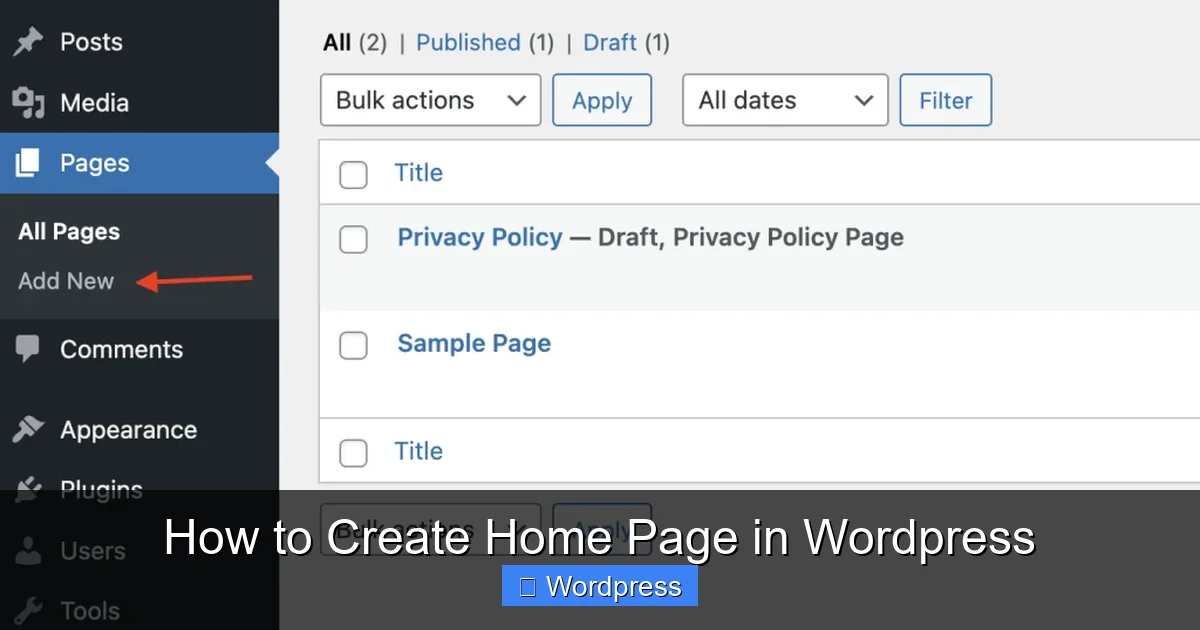
Navigate to Pages > Add New
In the left-hand menu, click Pages, then select Add New. Give your page a title like “Home” or “Welcome.”
Add Content Using the Block Editor (Gutenberg)
WordPress uses the Gutenberg block editor by default. You can add text, images, buttons, videos, and more using blocks. For example:
- Use a Heading block for your main title.
- Add a Paragraph block for your introduction.
- Insert a Button block to link to your contact page or services.
- Use an Image block to showcase your logo or hero photo.
Tip: Keep your content concise and scannable. Use short paragraphs, bullet points, and clear headings.
Step 3: Set Your New Page as the Homepage
Creating the page is only half the job. Now you need to tell WordPress to use it as your site’s front page.
Go to Settings > Reading
In your dashboard, click Settings, then Reading.
Choose “A static page”
Under “Your homepage displays,” select the radio button for A static page.
Assign Your Page
In the “Homepage” dropdown, select the page you just created (e.g., “Home”). You can also set a separate page for your blog posts if needed.
Save Changes
Click Save Changes at the bottom. Now, when visitors go to your site’s root URL (e.g., yoursite.com), they’ll see your custom homepage.
Step 4: Customize Your Homepage Design
Once your page is live, it’s time to make it look great. You can do this using WordPress’s built-in tools or third-party page builders.
Option A: Use the WordPress Customizer
The Customizer lets you tweak colors, fonts, and layout in real time.
- Go to Appearance > Customize.
- Explore sections like Site Identity, Colors, and Homepage Settings.
- Make changes and watch them update live.
- Click Publish when satisfied.
Option B: Use a Page Builder (Recommended)
For more design flexibility, use a page builder like Elementor, Beaver Builder, or WPBakery.
For example, with Elementor:
- Install and activate the Elementor plugin from the WordPress repository.
- Edit your homepage and click “Edit with Elementor.”
- Use drag-and-drop widgets to add sections, icons, testimonials, and more.
- Save and publish your design.
Tip: Many themes are built to work seamlessly with Elementor. If you’re using a theme like Astra, Hello, or OceanWP, you’ll get even better results.
Step 5: Optimize for Speed and SEO
A beautiful homepage is useless if it loads slowly or ranks poorly in search engines.
Optimize Images
Large images slow down your site. Use tools like Smush or ShortPixel to compress images without losing quality.
Use Clean, Lightweight Designs
Avoid overloading your homepage with animations, pop-ups, or too many plugins. Stick to a simple, fast-loading layout.
Add SEO Basics
Install an SEO plugin like Yoast SEO or Rank Math and:
- Set a clear focus keyword (e.g., “best coffee shop in NYC”).
- Write a compelling meta description.
- Use header tags (H1, H2) properly.
- Ensure your page title is descriptive and under 60 characters.
Step 6: Test Your Homepage
Before celebrating, test your homepage thoroughly.
Check on Mobile Devices
Use Chrome’s Developer Tools (F12 > Toggle Device Toolbar) or visit your site on a real phone. Make sure text is readable, buttons are tappable, and images scale correctly.
Test Load Speed
Use Google PageSpeed Insights or GTmetrix to check performance. Aim for a score above 80 on mobile and desktop.
Preview in Different Browsers
Open your site in Chrome, Firefox, Safari, and Edge to ensure consistent display.
Troubleshooting Common Issues
Even with careful planning, things can go wrong. Here’s how to fix common problems:
Homepage Shows Blog Posts Instead of Static Page
This usually means the Reading settings aren’t configured correctly. Double-check Settings > Reading and ensure “A static page” is selected with the right page assigned.
Changes Don’t Appear Live
Clear your browser cache and any caching plugins (like WP Super Cache or W3 Total Cache). Also, check if your hosting provider has server-level caching.
Page Builder Not Working
Ensure your theme supports the page builder. Some themes require compatibility plugins. Also, check for JavaScript errors in the browser console.
Homepage Looks Broken on Mobile
This is often due to fixed-width elements or missing responsive settings. In Elementor, use the mobile editing mode to adjust spacing and font sizes.
Conclusion
Creating a homepage in WordPress doesn’t have to be complicated. By following these steps—choosing a static page, designing with blocks or a page builder, and optimizing for performance—you can build a homepage that looks professional and works flawlessly.
Remember, your homepage is more than just a pretty layout. It’s a tool to guide visitors, communicate your value, and drive action. Take the time to craft it thoughtfully, test it thoroughly, and update it as your goals evolve.
Now that you know how to create a home page in WordPress, you’re ready to make a lasting impression. Start building today!