
Creating a sitemap in WordPress without a plugin is easier than you think. This guide walks you through step-by-step instructions using built-in WordPress functions and custom code to generate an XML sitemap manually. Improve your site’s SEO without relying on third-party tools.
Key Takeaways
- Manual sitemaps enhance control: You decide exactly which pages and posts appear, improving SEO precision.
- No plugin means faster performance: Avoid plugin bloat and keep your site lightweight and fast-loading.
- Built-in WordPress functions simplify the process: Use core functions like
get_posts()andhome_url()to generate URLs dynamically. - Regular updates are essential: Your sitemap should reflect new content, so consider automating or scheduling updates.
- Submit your sitemap to search engines: Manually upload it to Google Search Console and Bing Webmaster Tools for better indexing.
- Test your sitemap for errors: Use online validators to ensure proper XML formatting and avoid crawl issues.
Why Create a Sitemap Without a Plugin?
A sitemap is a file that lists all the important pages of your website, helping search engines like Google and Bing discover and index your content. While plugins like Yoast SEO or Rank Math offer automatic sitemap generation, there are solid reasons to build one manually.
First, plugins add extra code and database queries, which can slow down your site. If performance is a priority—especially on shared hosting—removing unnecessary plugins is a smart move. Second, manual sitemaps give you full control over what gets included. You can exclude private pages, duplicate content, or low-value posts that plugins might accidentally include.
Finally, learning how to create a sitemap without a plugin deepens your understanding of WordPress core functions and improves your overall development skills. Whether you’re a blogger, small business owner, or developer, this method is both practical and educational.
What You’ll Need Before Starting
Visual guide about How to Create Sitemap in WordPress Without Plugin
Image source: aioseo.com
Before diving into the code, make sure you have the following:
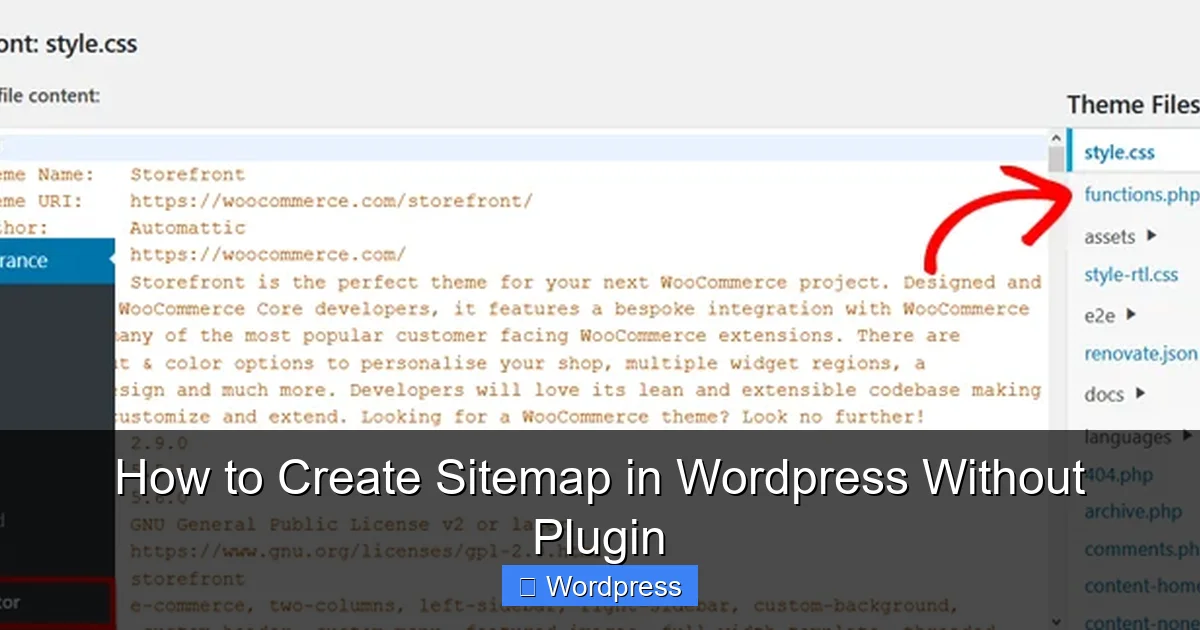
- Access to your WordPress files: You’ll need to edit theme files via FTP, cPanel File Manager, or the WordPress theme editor.
- A child theme (recommended): Always use a child theme to avoid losing changes when updating your parent theme. Learn how to create a WordPress theme with Elementor if you’re using a page builder.
- Basic knowledge of PHP and XML: Don’t worry—this guide uses simple code snippets you can copy and paste.
- Backup your site: Always back up your website before making code changes.
Step 1: Create a Custom Sitemap Template File
We’ll start by creating a new PHP file that generates your sitemap dynamically.
Create the sitemap.php File
1. Connect to your site via FTP or use the file manager in your hosting control panel.
2. Navigate to your active theme folder: wp-content/themes/your-child-theme/.
3. Create a new file named sitemap.php.
4. Open it in a text editor and paste the following code:
'; ?>array('post', 'page'), 'post_status' => 'publish', 'numberposts' => -1, 'orderby' => 'modified', 'order' => 'DESC' )); foreach ($posts as $post) { setup_postdata($post); $url = get_permalink($post->ID); $date = get_the_modified_time('c', $post->ID); ?> weekly 0.8
Save and Upload the File
Save the file and upload it to your child theme directory. This file will generate a valid XML sitemap every time it’s accessed.
Step 2: Create a New Page to Display the Sitemap
Visual guide about How to Create Sitemap in WordPress Without Plugin
Image source: techwiser.com
Now that the template is ready, we need a page to trigger it.
Add a New Page in WordPress
1. Log in to your WordPress dashboard.
2. Go to Pages > Add New.
3. Title the page “Sitemap” (or any name you prefer).
4. In the right sidebar, under Page Attributes > Template, select Custom Sitemap.
5. Publish the page.
Access Your Sitemap
Visit yoursite.com/sitemap/ in your browser. You should see a clean XML output listing all your posts and pages with proper tags like <loc>, <lastmod>, and <priority>.
Step 3: Customize the Sitemap (Optional)
You can enhance your sitemap by including custom post types, excluding specific pages, or adjusting priorities.
Include Custom Post Types
If you use custom post types (like “Products” or “Portfolio”), update the post_type array:
'post_type' => array('post', 'page', 'product', 'portfolio'),
Exclude Specific Pages or Posts
To exclude certain pages (e.g., a coming soon page), add a conditional check:
if ($post->ID != 123) { // Replace 123 with the page ID to exclude
  // Output the URL
}
Adjust Priority and Change Frequency
You can set different priorities based on post type:
$priority = ($post->post_type