This guide shows you how to create a WordPress theme with Elementor, even if you’re not a developer. You’ll learn to design headers, footers, templates, and full pages using Elementor’s drag-and-drop tools—no coding required.
Key Takeaways
- No coding needed: Elementor lets you build professional themes visually using its intuitive interface.
- Use a starter theme: Start with a lightweight base like Hello Elementor for best performance and flexibility.
- Create global templates: Design reusable headers, footers, and sections to maintain consistency across your site.
- Leverage Elementor Theme Builder: Customize every part of your site—including single posts, archives, and 404 pages.
- Optimize for speed and SEO: Clean design choices and proper structure improve both user experience and search rankings.
- Test responsiveness: Always preview your theme on mobile, tablet, and desktop to ensure it looks great everywhere.
Introduction: Why Create a WordPress Theme with Elementor?
Creating a WordPress theme from scratch used to require deep knowledge of PHP, CSS, and HTML. But with Elementor, anyone can design a fully custom, responsive website—no coding skills needed. Whether you’re a blogger, small business owner, or freelancer, learning how to create a WordPress theme with Elementor gives you full creative control without relying on pre-made themes.
In this guide, you’ll walk through the entire process: choosing the right base theme, installing Elementor, building global templates, and publishing your custom design. By the end, you’ll have a unique, fast-loading website that reflects your brand perfectly.
Step 1: Choose the Right Base Theme
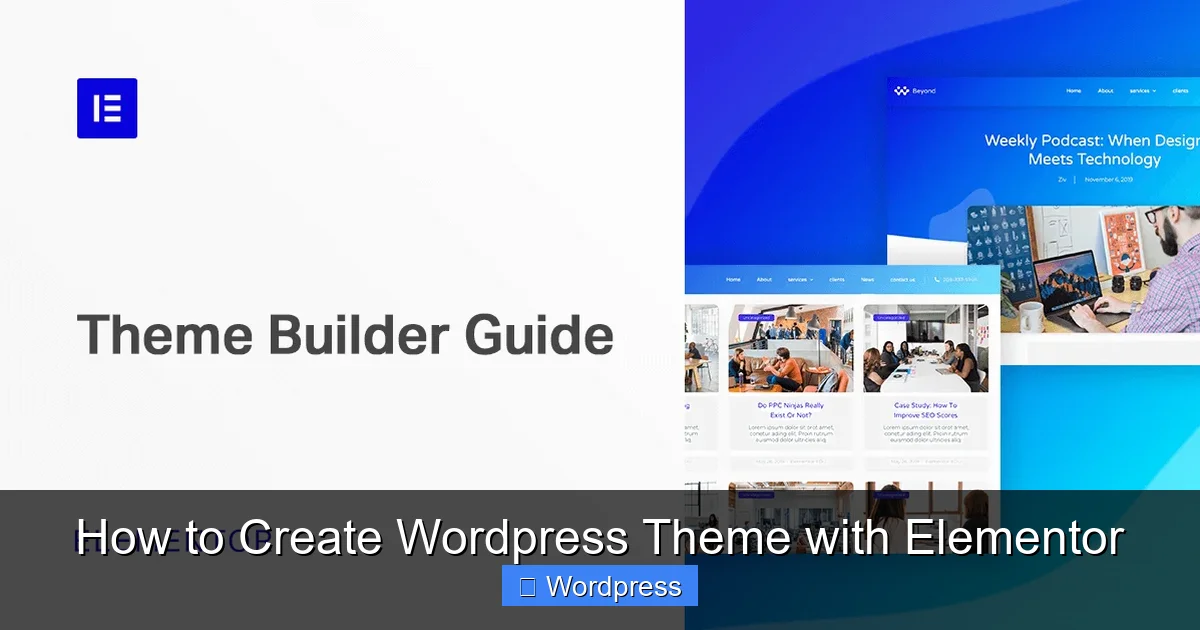
Visual guide about How to Create WordPress Theme with Elementor
Image source: elementor.com
Before diving into design, you need a clean foundation. While you could use any WordPress theme, it’s best to start with one that’s lightweight and built for page builders.
Why Use Hello Elementor?
The official Hello Elementor theme is minimal, fast, and fully compatible with Elementor. It includes only essential WordPress functions, so there’s no bloat or conflicting styles. This makes it ideal for custom theme creation.
To install it:
- Go to Appearance > Themes in your WordPress dashboard.
- Click Add New and search for “Hello Elementor.”
- Click Install and then Activate.
> 💡 Pro Tip: Avoid heavy themes like Astra or Divi if your goal is full Elementor control—they often come with their own builders and styling that can conflict.
Step 2: Install and Activate Elementor
Elementor comes in two versions: free and Pro. For basic theme building, the free version works well, but Elementor Pro unlocks the Theme Builder, which is essential for creating headers, footers, and dynamic content.
How to Install Elementor
- Go to Plugins > Add New.
- Search for “Elementor.”
- Click Install Now and then Activate.
If you want advanced features like global widgets, theme styles, and custom post templates, purchase and install Elementor Pro from the Elementor website. Upload the plugin ZIP file via Plugins > Add New > Upload Plugin.
Step 3: Access the Elementor Theme Builder
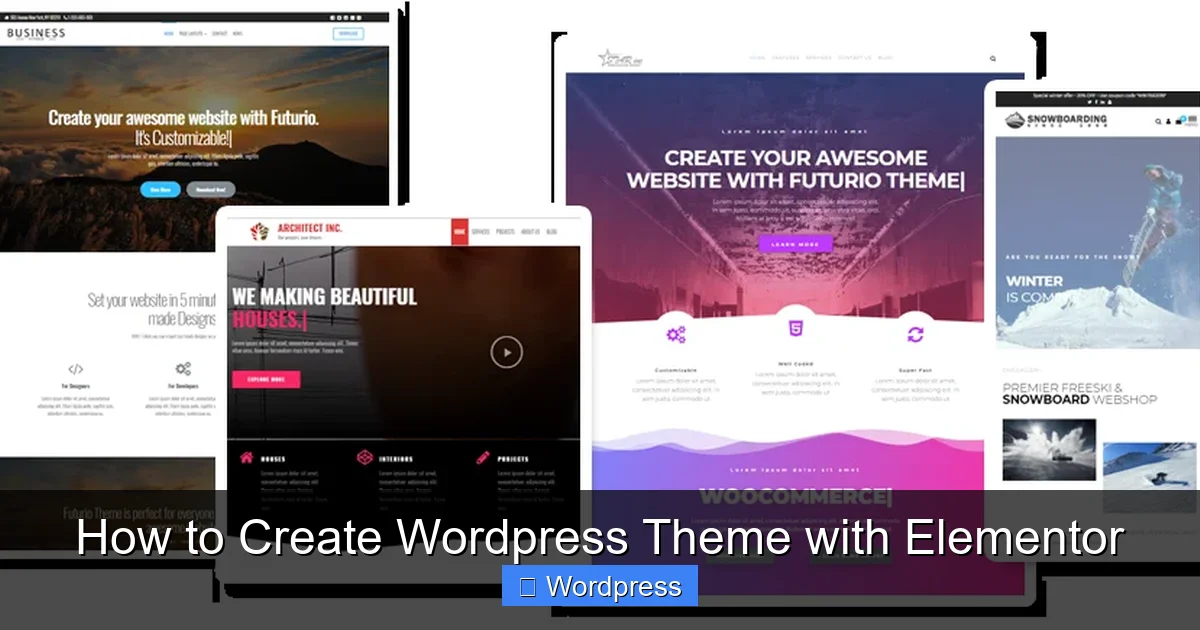
Visual guide about How to Create WordPress Theme with Elementor
Image source: futuriowp.com
Once Elementor Pro is active, you’ll see a new option: Templates > Theme Builder. This is your control center for designing every part of your site.
Understanding Theme Builder Sections
The Theme Builder includes:
- Header: The top section of every page.
- Footer: The bottom section.
- Single Post: Template for blog posts.
- Archive: Template for category or tag pages.
- 404 Page: Shown when a page isn’t found.
- Single Page: For static pages like About or Contact.
Each section can be customized independently and applied site-wide.
Step 4: Design Your Header
Your header sets the tone for your site. It usually includes your logo, navigation menu, and maybe a call-to-action button.
Creating a Custom Header
- In Templates > Theme Builder, click Add New next to Header.
- Choose a blank template or a pre-designed starter.
- Use the Elementor editor to drag in a Site Logo widget, Nav Menu, and Button.
- Style the colors, fonts, and spacing using the left panel.
- Set display conditions to “Entire Site” so it appears on all pages.
- Click Publish.
> 💡 Pro Tip: Use the Sticky option in the Advanced tab to keep your header visible as users scroll.
Step 5: Build Your Footer
The footer often includes links, social icons, and copyright info. It should be simple but informative.
Designing a Clean Footer
- In Theme Builder, click Add New next to Footer.
- Add columns using the Inner Section widget.
- Insert text, menu, and social icon widgets.
- Use the Theme Styles panel to apply consistent fonts and colors.
- Set display conditions to “Entire Site.”
- Publish when done.
> 💡 Example: A three-column footer might have: Quick Links (left), Newsletter Signup (center), and Social Media Icons (right).
Step 6: Create Page Templates
Now that your global sections are ready, design templates for your content.
Single Post Template
This controls how your blog posts look.
- In Theme Builder, add a new Single Post template.
- Use dynamic widgets like Post Title, Post Content, and Featured Image.
- Add a related posts section or author bio using widgets.
- Apply to all posts or specific categories using display conditions.
Archive Template
This styles category, tag, and search result pages.
- Create a new Archive template.
- Add a Posts widget to display article previews.
- Include a sidebar with search and recent posts if desired.
- Style the layout (grid or list) and spacing.
404 Page Template
Make your 404 page helpful and on-brand.
- Add a new 404 Page template.
- Include a friendly message, search bar, and link back to the homepage.
- Use large, readable fonts and calming colors.
Step 7: Style with Theme Styles
Elementor’s Theme Styles panel lets you set global colors, typography, and button styles. This ensures consistency across all templates.
Setting Global Styles
- Open any Elementor template.
- Click the Theme Styles icon (paintbrush) in the bottom left.
- Define your primary and secondary colors.
- Set font families for headings and body text.
- Customize button shapes, hover effects, and padding.
These styles automatically apply to all widgets, saving you time and keeping your design cohesive.
Step 8: Test Responsiveness
A great theme works on all devices. Elementor makes it easy to preview and adjust for mobile, tablet, and desktop.
How to Check Responsiveness
- In the Elementor editor, click the Responsive Mode icon (phone/tablet).
- Switch between device views.
- Adjust font sizes, padding, and column layouts for smaller screens.
- Hide or reposition elements if needed (e.g., move menu to a hamburger icon on mobile).
> 💡 Pro Tip: Always test on real devices when possible—emulators don’t catch every issue.
Troubleshooting Common Issues
Even with a visual builder, you might run into problems. Here’s how to fix the most common ones.
Header or Footer Not Showing?
Check your display conditions in the Theme Builder. Make sure the template is set to “Entire Site” or the correct pages.
Styles Look Different on Frontend?
Clear your cache (both WordPress and browser). Also, ensure no other plugins or themes are overriding styles.
Elementor Editor Not Loading?
Deactivate other plugins one by one to find conflicts. Also, increase PHP memory limit in your wp-config.php file.
Mobile Layout Broken?
Use the mobile editing tools in Elementor to adjust spacing and font sizes. Avoid fixed widths that don’t scale.
Conclusion: You’ve Built a Custom WordPress Theme!
Congratulations! You’ve just learned how to create a WordPress theme with Elementor—from setup to publishing. By using Hello Elementor as your base, leveraging the Theme Builder, and applying global styles, you’ve built a fast, responsive, and fully custom website without writing a single line of code.
Remember, the key to success is consistency. Use global templates, test on all devices, and keep your design clean. As you grow more comfortable, explore advanced features like dynamic content, custom CSS, and WooCommerce integration.
Your website is now uniquely yours—ready to impress visitors and grow your online presence.