
This guide walks you through how to delete a website in WordPress—whether hosted on WordPress.com or self-hosted. You’ll learn secure methods to remove your site, back up data, and avoid common pitfalls.
Key Takeaways
- Back up your site first: Always save your content, themes, plugins, and database before deleting anything.
- WordPress.com vs. self-hosted: Deletion steps differ significantly between hosted and self-hosted WordPress sites.
- Delete via hosting panel: For self-hosted sites, use cPanel, Plesk, or your host’s file manager to remove files and databases.
- Remove domain and DNS records: Don’t forget to cancel your domain and update DNS settings to fully disconnect your site.
- Check for residual data: Some hosts keep backups—contact support to ensure complete removal.
- Use plugins cautiously: While plugins like “WP Reset” can wipe a site, they don’t delete files or databases from the server.
- Permanent action: Once deleted, recovering a WordPress site is nearly impossible without backups.
Introduction: Why and When to Delete a WordPress Website
Maybe your project is complete, your business has pivoted, or you’re switching platforms. Whatever the reason, knowing how to delete a website in WordPress properly is crucial. Doing it wrong can leave behind sensitive data, waste hosting resources, or even cause security risks.
This guide covers both WordPress.com (hosted) and self-hosted WordPress (installed on your own server) scenarios. You’ll learn safe, step-by-step methods to fully remove your site—files, database, domain, and all—while preserving what matters most: your data.
Step 1: Back Up Your Website Before Deletion
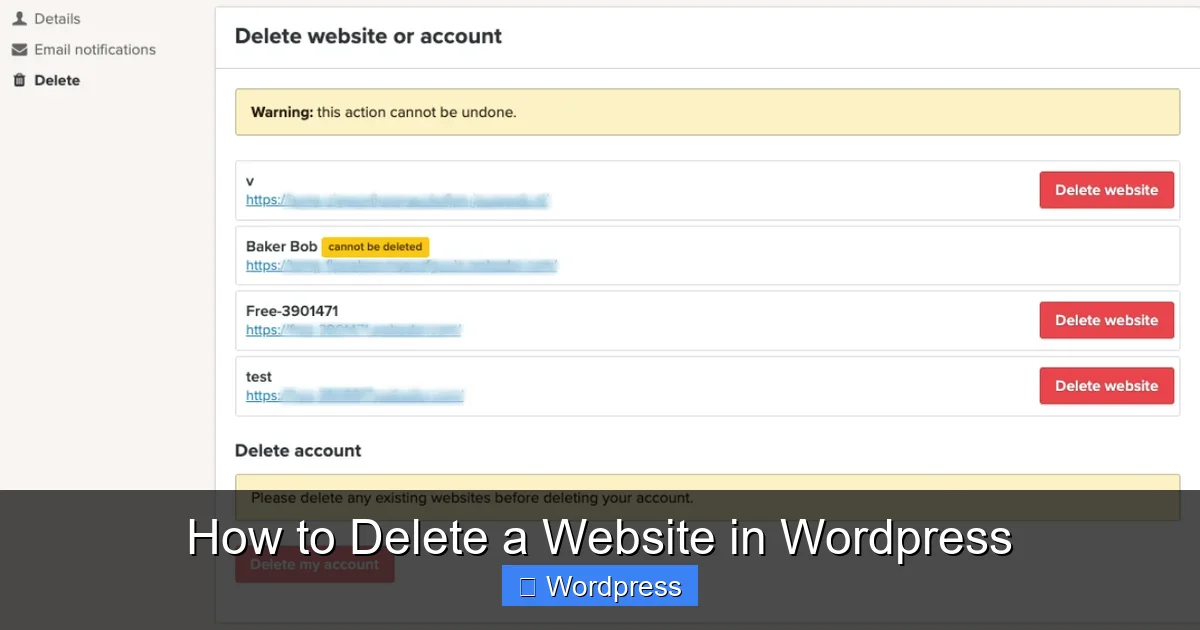
Visual guide about How to Delete a Website in WordPress
Image source: help.webador.com
Before you delete anything, create a full backup. This includes posts, pages, media, themes, plugins, and the database.
How to Back Up a Self-Hosted WordPress Site
- Use a plugin like UpdraftPlus, All-in-One WP Migration, or Duplicator.
- Download the backup files to your computer or cloud storage (Google Drive, Dropbox).
- Export your database via phpMyAdmin (found in your hosting control panel).
How to Back Up a WordPress.com Site
- Go to My Site > Tools > Export.
- Choose “All content” to download your posts, pages, and media.
- Note: WordPress.com doesn’t allow full database or theme backups unless you’re on a Business plan.
> 💡 Pro Tip: Test your backup by importing it into a local WordPress install (using tools like Local by Flywheel) to ensure it works.
Step 2: Delete a Website on WordPress.com
If your site is hosted on WordPress.com, deletion is handled through their dashboard. This process is simpler but less flexible than self-hosted deletion.
Steps to Delete Your WordPress.com Site
- Log in to your WordPress.com account.
- Go to My Sites > Manage > Settings.
- Scroll down to the Delete Site section.
- Click Delete Site and confirm by typing your site name.
- Choose whether to keep your domain (if purchased separately) or let it expire.
> ⚠️ Important: Deleting your site on WordPress.com is permanent. You cannot undo it. If you only want to pause your site, consider switching to a free plan instead.
What Happens After Deletion?
- Your site becomes inaccessible immediately.
- All content, themes, and plugins are removed.
- If you used a custom domain, it may be released back to the registry unless you transfer it.
Step 3: Delete a Self-Hosted WordPress Website
Self-hosted WordPress sites (installed on your own hosting) require manual deletion of files and databases. This gives you full control but demands caution.
Method 1: Delete via Hosting Control Panel (cPanel)
Most hosts use cPanel. Here’s how to use it:
Delete WordPress Files
- Log in to your hosting account and open cPanel.
- Go to File Manager.
- Navigate to the root folder (usually
public_htmlor a subfolder likepublic_html/yoursite). - Select all WordPress files and folders (wp-admin, wp-content, wp-includes, etc.).
- Click Delete and confirm.
Delete the Database
- In cPanel, go to MySQL Databases.
- Find the database associated with your WordPress site.
- Click Delete Database and confirm.
- Also remove the database user if no longer needed.
> 🔍 Tip: To find your database name, check wp-config.php in your WordPress root folder. Look for DB_NAME.
Method 2: Delete via FTP
If you can’t access cPanel, use an FTP client like FileZilla.
- Connect to your server using FTP credentials (from your host).
- Navigate to the WordPress installation directory.
- Select and delete all files and folders.
- Then, use phpMyAdmin (via your host’s control panel) to delete the database.
Method 3: Use a WordPress Reset Plugin (Not Recommended for Full Deletion)
Plugins like WP Reset can wipe your site’s content and settings, but they do not delete files or the database from the server.
- Use this only if you want to reset your site to a clean state, not delete it entirely.
- For full deletion, always remove files and database manually.
> 📌 Related: If you’re cleaning up themes before deletion, learn how to delete a theme in WordPress safely.
Step 4: Remove Your Domain and DNS Settings
Deleting files isn’t enough. To fully disconnect your site:
Cancel or Transfer Your Domain
- If you own the domain, decide whether to keep it or let it expire.
- To transfer, unlock the domain and get an authorization code from your registrar.
- To cancel, simply stop renewing it—most registrars will release it after expiration.
Update DNS Records
- Log in to your domain registrar (e.g., GoDaddy, Namecheap).
- Remove or update DNS A records pointing to your hosting server.
- This ensures visitors don’t see error pages or cached versions of your site.
Step 5: Contact Your Hosting Provider
Some hosts keep automatic backups for 30–90 days—even after you delete your site.
- Contact support and request permanent deletion of all backups.
- Ask for confirmation that your data has been fully removed from their servers.
- This is especially important for compliance (e.g., GDPR) or security reasons.
Troubleshooting Common Issues
“I deleted my site but it’s still accessible!”
- Clear your browser cache and DNS cache (
ipconfig /flushdnson Windows). - Check if your domain still points to the old server.
- Some hosts take 24–48 hours to fully propagate changes.
“I can’t find my database in phpMyAdmin”
- Check
wp-config.phpfor the correct database name. - Ensure you’re logged into the right hosting account.
- Contact your host if the database isn’t listed.
“I accidentally deleted my site—can I recover it?”
- If you have a backup, restore it via your host or a plugin.
- Without a backup, recovery is unlikely—most hosts don’t keep user data indefinitely.
- This is why backing up before deletion is critical.
> 📌 Related: If you’re managing multiple themes, learn how to deactivate a theme in WordPress before deletion to avoid conflicts.
Conclusion: Delete Your WordPress Site with Confidence
Deleting a WordPress website doesn’t have to be scary. Whether you’re on WordPress.com or self-hosted, the key is preparation and precision. Always back up your data, follow the correct steps for your setup, and verify that everything—files, database, domain—is fully removed.
Remember: deletion is permanent. Take your time, double-check each step, and don’t hesitate to contact your host if you’re unsure. And if you’re rebuilding soon, consider setting a default theme in WordPress for your next project.
By following this guide, you’ll ensure your site is deleted cleanly, securely, and without leaving digital footprints behind.