This guide walks you through how to disable WordPress plugin from cPanel without accessing the WordPress dashboard. Whether your site is down or you can’t log in, you’ll learn safe methods using File Manager or FTP. Perfect for beginners and urgent fixes.
Key Takeaways
- Access your site via cPanel: Use File Manager to navigate to the wp-content/plugins folder and disable plugins by renaming their directories.
- Disable all plugins at once: Rename the “plugins” folder to temporarily deactivate every plugin and restore your site’s functionality.
- Use FTP as an alternative: If cPanel isn’t accessible, connect via FTP client like FileZilla to manage plugin files remotely.
- Always backup first: Create a full site backup before making changes to avoid data loss or irreversible errors.
- Troubleshoot common issues: Learn how to recover from white screen errors, plugin conflicts, or broken admin access after disabling plugins.
- Reactivate safely: After fixing the issue, rename folders back one by one to identify the problematic plugin and restore functionality.
Why Disable a WordPress Plugin from cPanel?
Sometimes, a faulty WordPress plugin can crash your website, trigger a white screen of death, or lock you out of the admin dashboard. When you can’t access wp-admin to deactivate plugins normally, cPanel becomes your best friend. Learning how to disable WordPress plugin from cPanel gives you emergency control over your site—no coding required.
This method is especially useful when:
– Your site shows a fatal error after activating a new plugin.
– You’re locked out of the WordPress admin area.
– A plugin causes high server load or security vulnerabilities.
– You need to quickly test if a plugin is causing performance issues.
In this guide, you’ll learn two reliable ways to disable plugins directly from cPanel: using the built-in File Manager or via FTP. Both methods are safe, beginner-friendly, and don’t require technical expertise.
Prerequisites: What You’ll Need
Before starting, make sure you have:
– Access to your hosting account’s cPanel (usually found at yourdomain.com/cpanel).
– Your cPanel username and password.
– Basic familiarity with navigating folders and files.
– A recent backup of your website (highly recommended).
If you haven’t backed up your site yet, now is the time. Most hosting providers offer one-click backups in cPanel under “Backup” or “Backup Wizard.” Always back up both files and databases before making changes.
Method 1: Disable WordPress Plugin Using cPanel File Manager
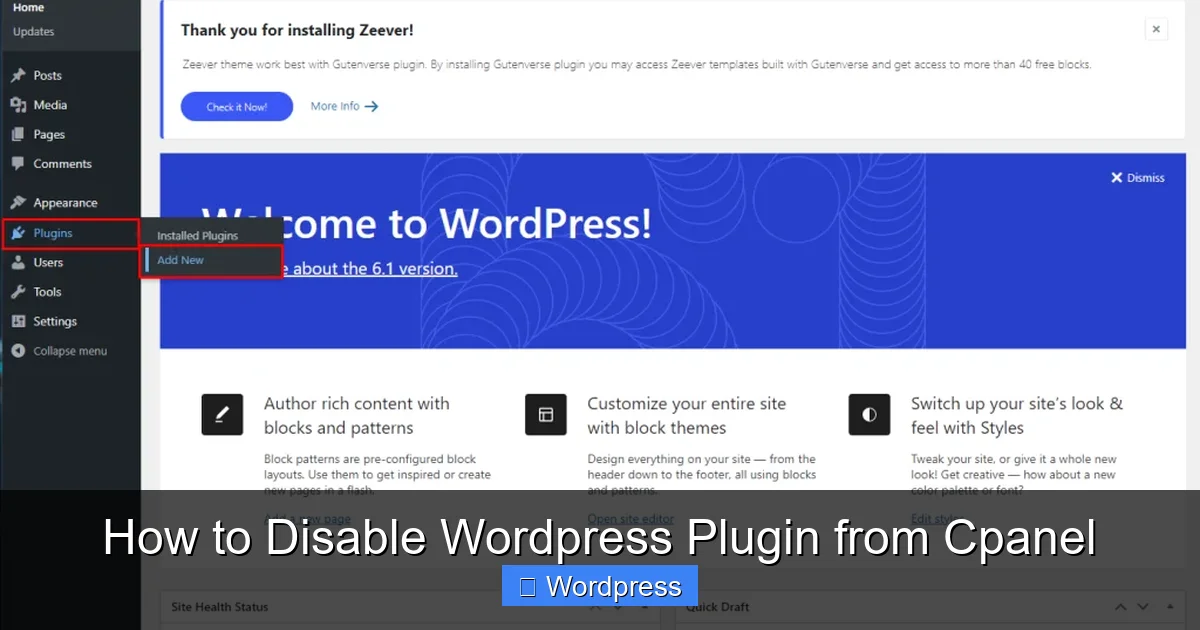
Visual guide about How to Disable WordPress Plugin from Cpanel
Image source: blog.gotmyhost.com
The File Manager in cPanel lets you browse, edit, and rename files just like on your computer. Here’s how to use it to disable a specific plugin.
Step 1: Log in to cPanel
Go to your hosting provider’s login page and enter your cPanel credentials. Once logged in, look for the “File Manager” icon—it’s usually under the “Files” section.
Step 2: Navigate to the Plugins Folder
In File Manager, click “Web Root (public_html/www)” and check “Show Hidden Files” if available. Then click “Go.”
You’ll see your website’s root directory. Open the wp-content folder, then open the plugins folder inside it.
Each plugin has its own folder named after the plugin (e.g., “akismet,” “wpforms-lite,” “elementor”).
Step 3: Rename the Plugin Folder
Right-click the folder of the plugin you want to disable (e.g., “problem-plugin”) and select “Rename.”
Add a prefix like “disabled-” so it becomes “disabled-problem-plugin.”
WordPress automatically deactivates any plugin whose folder it can’t find—so renaming effectively disables it.
Step 4: Test Your Website
Visit your website in a new browser tab. If the error is gone and your site loads normally, the plugin was likely the culprit.
If you still can’t access wp-admin, try disabling more plugins one by one using the same method.
Step 5: Reactivate the Plugin (Optional)
Once your site is stable, you can reactivate the plugin by renaming the folder back to its original name (e.g., remove “disabled-”).
Test carefully—if the issue returns, consider updating the plugin, finding an alternative, or contacting the developer.
Method 2: Disable All Plugins at Once
Visual guide about How to Disable WordPress Plugin from Cpanel
Image source: skillsurface.com
If you’re unsure which plugin is causing trouble, or your site is completely broken, disabling all plugins is the fastest fix.
Step 1: Access the Plugins Folder
Follow the same steps above to open public_html > wp-content > plugins in File Manager.
Step 2: Rename the Entire Plugins Folder
Right-click the “plugins” folder and rename it to something like “plugins-old” or “plugins-disabled.”
WordPress will treat this as if no plugins are installed, effectively deactivating all of them.
Step 3: Check Your Site
Reload your website. It should now load without any plugin-related errors. You may also regain access to wp-admin.
Step 4: Restore Plugins One by One
To find the problematic plugin:
1. Create a new folder named “plugins” in the wp-content directory.
2. Move one plugin folder from “plugins-old” into the new “plugins” folder.
3. Reload your site. If it breaks, that plugin is the issue.
4. Repeat until you identify the culprit.
This process helps you isolate conflicts and keep your site running smoothly.
Alternative: Disable Plugins via FTP
If you can’t access cPanel (e.g., due to server issues), use an FTP client like FileZilla.
Step 1: Connect via FTP
Download and install FileZilla (free). Enter your FTP credentials (host, username, password, port 21) from your hosting account.
Step 2: Navigate to wp-content/plugins
Once connected, go to your website’s root directory, then open wp-content > plugins.
Step 3: Rename Plugin Folders
Right-click a plugin folder and choose “Rename.” Add “disabled-” to the beginning, just like in cPanel.
Step 4: Verify Changes
Refresh your website to see if the issue is resolved. Use the same reactivation process as above.
FTP gives you the same control as cPanel and is a great backup option.
Troubleshooting Common Issues
Even with careful steps, problems can arise. Here’s how to handle them:
White Screen After Disabling Plugins?
If your site still shows a blank page, the issue might be theme-related. Try switching to a default theme like Twenty Twenty-Four. You can do this by renaming your current theme folder in wp-content/themes (similar to the plugin method). For detailed steps, see our guide on how to deactivate a theme in WordPress.
Can’t Access cPanel or FTP?
Contact your hosting provider immediately. They can often restore access or disable plugins from their end.
Plugin Still Active After Renaming?
Clear your browser cache and any caching plugins or server-side caches (like WP Super Cache or Cloudflare). Sometimes cached versions keep old plugin behavior.
Accidentally Deleted a Plugin Folder?
Don’t panic! If you have a backup, restore the folder. If not, you can reinstall the plugin from the WordPress repository—just make sure to back up your settings first if the plugin stores data.
Site Works, But Features Are Missing?
Some plugins handle critical functions (e.g., contact forms, SEO, security). If you disabled a necessary plugin, consider finding a lightweight alternative or reactivating it after updating.
Best Practices and Pro Tips
– Always backup first: Use cPanel’s Backup Wizard or a plugin like UpdraftPlus before making changes.
– Test on a staging site: If your host offers staging environments, test plugin changes there first.
– Update regularly: Outdated plugins are more likely to cause conflicts. Keep everything current.
– Use trusted plugins: Only install plugins from reputable developers with good reviews and regular updates.
– Monitor performance: Use tools like Query Monitor or Sucuri Security to detect plugin-related slowdowns or vulnerabilities. Learn more about securing your site with our guide on Sucuri Security WordPress plugin.
When to Seek Professional Help
If you’ve tried disabling plugins and your site still doesn’t work, the issue may be deeper—like corrupted core files, database errors, or malware. In such cases, contact your hosting support or a WordPress developer. They can run diagnostics, restore from backups, or clean infected files.
For complex issues like broken links after plugin removal, check out our tutorial on fixing broken links in WordPress without a plugin.
Conclusion
Knowing how to disable WordPress plugin from cPanel is an essential skill for any WordPress user. Whether you’re troubleshooting a crashed site or preventing future conflicts, this method gives you quick, reliable control—even when the dashboard is inaccessible.
By using cPanel’s File Manager or FTP to rename plugin folders, you can safely deactivate problematic plugins, restore functionality, and get back to managing your site with confidence. Remember to always back up, test changes carefully, and reactivate plugins one at a time to pinpoint issues.
With this guide, you’re equipped to handle plugin emergencies like a pro—no panic, no downtime, just smooth sailing.