
This guide shows you how to duplicate a page on WordPress quickly and easily. Whether you’re using the native editor or a plugin, you’ll save time and maintain consistency across your site.
Key Takeaways
- WordPress doesn’t natively support page duplication – You’ll need a plugin or workaround to copy pages.
- Plugins like Duplicate Page make it simple – Install, activate, and duplicate with one click.
- You can duplicate pages manually via export/import – Useful if you can’t install plugins.
- Duplicated pages are saved as drafts – Always review and edit before publishing.
- Check for broken links or media after duplication – Ensure all assets transfer correctly.
- Use duplication for templates and landing pages – Speed up content creation and maintain design consistency.
- Always test on a staging site first – Avoid disrupting your live website.
Introduction: Why Duplicate a Page on WordPress?
If you’ve ever built a beautiful WordPress page only to realize you need the same layout for another section of your site, you’ll love the ability to duplicate it. Instead of starting from scratch, duplicating a page saves time, reduces errors, and keeps your design consistent.
Whether you’re creating landing pages, service offerings, or blog templates, knowing how to duplicate a page on WordPress is a must-have skill. Unfortunately, WordPress doesn’t include a built-in “duplicate” button for pages—but don’t worry. There are several reliable methods, from free plugins to manual workarounds.
In this guide, you’ll learn three proven ways to duplicate a page: using a plugin, manually copying content, and exporting/importing. We’ll also cover best practices and troubleshooting tips to ensure your duplicated pages work perfectly.
Method 1: Duplicate a Page Using a Plugin (Recommended)
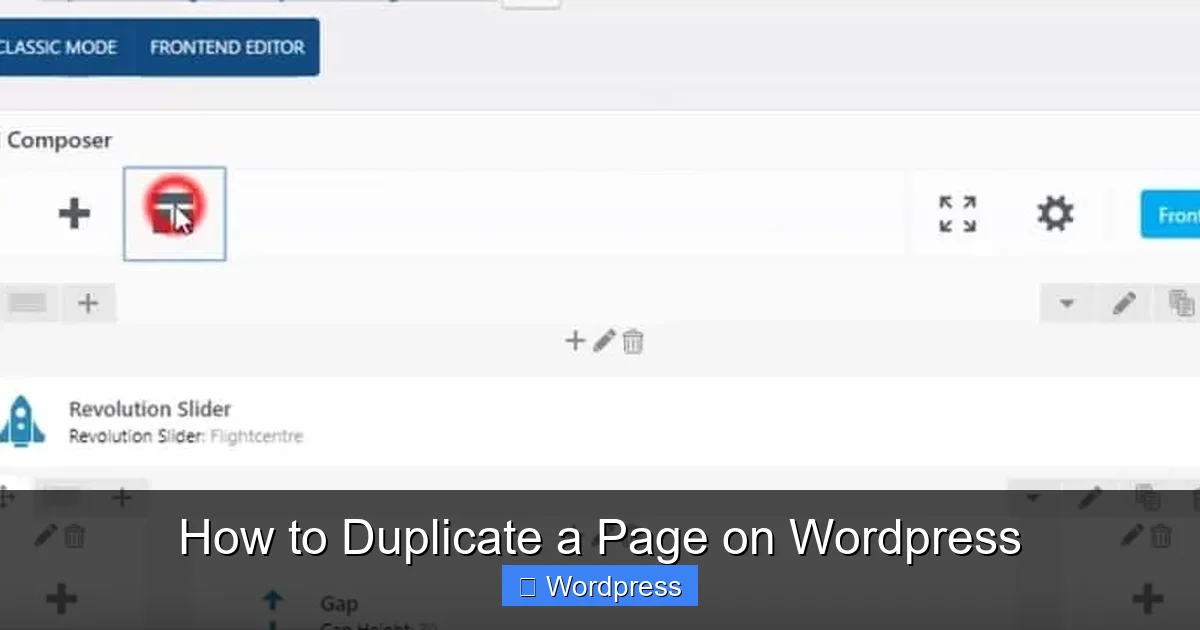
Visual guide about How to Duplicate a Page on WordPress
Image source: sprout-flowers.com
The easiest and most popular way to duplicate a page is by using a plugin. Plugins are safe, fast, and require no coding. Here’s how to do it with the free Duplicate Page plugin.
Step 1: Install the Duplicate Page Plugin
Log in to your WordPress dashboard. Go to Plugins > Add New. In the search bar, type “Duplicate Page”. Look for the plugin by mndsingh287—it has over 1 million active installations and a 4.8-star rating.
Click Install Now, then Activate.
Step 2: Duplicate Your Page
Once activated, go to Pages > All Pages. Hover over the page you want to copy. You’ll see new options appear: Duplicate This, Clone, and View.
Click Duplicate This. WordPress will instantly create a copy of the page, saved as a draft with “(Copy)” added to the title.
Step 3: Edit and Publish the Duplicated Page
Click Edit on the new draft. Change the title, update content, adjust images, or modify any settings. When you’re ready, click Publish.
💡 Pro Tip: Use this method to create templates for services, portfolios, or product pages. Duplicate once, then customize each version.
Method 2: Manually Copy and Paste Content
If you can’t install plugins (e.g., on a restricted hosting plan), you can duplicate a page manually. This method works but takes more time.
Step 1: Open the Original Page
Go to Pages > All Pages and click Edit on the page you want to copy.
Step 2: Copy All Content
In the WordPress editor (Gutenberg or Classic), select all content. Press Ctrl+A (Windows) or Cmd+A (Mac), then Ctrl+C or Cmd+C to copy.
Step 3: Create a New Page
Go to Pages > Add New. Paste the content using Ctrl+V or Cmd+V. Add a new title and adjust any links or images as needed.
Step 4: Publish
Review the page, then click Publish.
⚠️ Note: This method doesn’t copy page settings like SEO meta, featured images, or custom fields. You’ll need to reconfigure those manually.
Method 3: Export and Import Pages
For advanced users or bulk duplication, WordPress’s built-in export/import tool works well. This is ideal if you’re moving pages between sites or backing up content.
Step 1: Export the Page
Go to Tools > Export. Select Pages, then choose the specific page you want to duplicate. Click Download Export File. This creates an XML file with your page data.
Step 2: Import the Page
Go to Tools > Import. Click WordPress (install the importer if needed). Upload your XML file and follow the prompts.
During import, assign the page to a user and choose whether to download media files.
Step 3: Edit and Publish
After import, go to Pages > All Pages. Find the new page (it may appear as a draft). Edit the title and content, then publish.
💡 Pro Tip: Use this method when duplicating pages across different WordPress installations or for backup purposes.
Best Practices When Duplicating Pages
Duplicating pages is powerful, but a few best practices will keep your site clean and functional.
1. Always Edit the Title and Slug
Never leave duplicated pages with titles like “Page Title (Copy)”. Update both the title and the URL slug to avoid confusion and SEO issues.
2. Check Internal Links
If your original page links to other pages or posts, verify those links still make sense. Update them if the context has changed.
3. Review Images and Media
Sometimes media files don’t transfer correctly. Check that all images, videos, and downloads appear as expected.
4. Update SEO Settings
If you use an SEO plugin like Yoast or Rank Math, duplicate pages may inherit old meta titles and descriptions. Always review and update SEO fields.
5. Use a Staging Site for Testing
Before duplicating pages on your live site, test the process on a staging environment. This prevents accidental errors or downtime.
Troubleshooting Common Issues
Even with the best methods, things can go wrong. Here’s how to fix common problems.
Problem: Duplicated Page Doesn’t Appear
If you don’t see the duplicated page, check the Status filter in Pages > All Pages. It might be saved as a draft or pending review.
Problem: Media Files Are Missing
This often happens with manual copy-paste. Re-upload missing images or use the Media Library to reassign them.
Problem: Plugin Conflicts
Some plugins may interfere with duplication. If the Duplicate Page plugin isn’t working, deactivate other plugins temporarily and try again.
Problem: Custom Fields or Layouts Not Copied
Plugins like Elementor or Beaver Builder may require their own duplication tools. For Elementor, use the Save as Template feature, then insert it into a new page.
When Should You Duplicate a Page?
Duplicating pages isn’t just for convenience—it’s a strategic tool. Here are common use cases:
- Landing Pages: Create variations for A/B testing.
- Service Pages: Offer similar services with consistent layouts.
- Product Pages: Launch new items quickly using a template.
- Event Pages: Promote recurring events with updated dates.
- Blog Templates: Maintain formatting across long-form content.
Conclusion: Save Time and Stay Consistent
Learning how to duplicate a page on WordPress is a game-changer for website management. Whether you use a plugin, manual copy-paste, or export/import, duplicating pages helps you work smarter, not harder.
For most users, the Duplicate Page plugin is the fastest and most reliable option. It’s free, easy to use, and handles everything from content to settings. Just remember to edit titles, check links, and test on a staging site when possible.
By mastering page duplication, you’ll streamline your workflow, maintain design consistency, and focus more on creating great content—instead of rebuilding the same page over and over.