
Learn how to duplicate a WordPress site quickly and safely using popular plugins or manual techniques. This guide covers everything from backups to domain updates, ensuring your clone works flawlessly on any server.
Key Takeaways
- Choose the right method: Use plugins like Duplicator or All-in-One WP Migration for beginners, or manual copying for advanced users.
- Always backup first: Never skip creating a full backup before duplicating your site to avoid data loss.
- Update URLs after cloning: Failing to replace old domain references can break links and images.
- Test the cloned site: Always verify functionality, themes, plugins, and forms on the new copy before going live.
- Use staging environments: Duplicate your site to a staging subdomain for safe testing without affecting your live site.
- Check file permissions: Incorrect server permissions may prevent the cloned site from loading properly.
- Deactivate unnecessary plugins: Temporarily disable security or caching plugins during migration to avoid conflicts.
Introduction: Why Duplicate a WordPress Site?
Whether you’re launching a new domain, testing major updates, or creating a backup, knowing how to duplicate a WordPress site is an essential skill. Cloning your site lets you experiment safely, move to a new host, or set up a development environment without risking your live content.
In this guide, we’ll walk you through multiple proven methods—using plugins, manual file copying, and database handling—so you can choose the best approach for your needs. By the end, you’ll be able to duplicate your WordPress site with confidence, whether you’re a beginner or an experienced developer.
Method 1: Duplicate a WordPress Site Using a Plugin (Recommended for Beginners)
Plugins make duplicating a WordPress site fast, reliable, and user-friendly. They handle file transfers, database exports, and URL replacements automatically. Here are two of the most trusted tools.
Visual guide about How to Duplicate a WordPress Site Histinger
Image source: ninjateam.org
Step 1: Install and Activate Duplicator Plugin
Go to your WordPress dashboard → Plugins → Add New. Search for “Duplicator – WordPress Migration & Backup Plugin” and click Install Now, then Activate.
Step 2: Create a Package
- Navigate to Duplicator → Packages and click Create New.
- Give your package a name (e.g., “Site Backup – March 2024”).
- Under Archive, leave the default settings unless you want to exclude large files or specific folders.
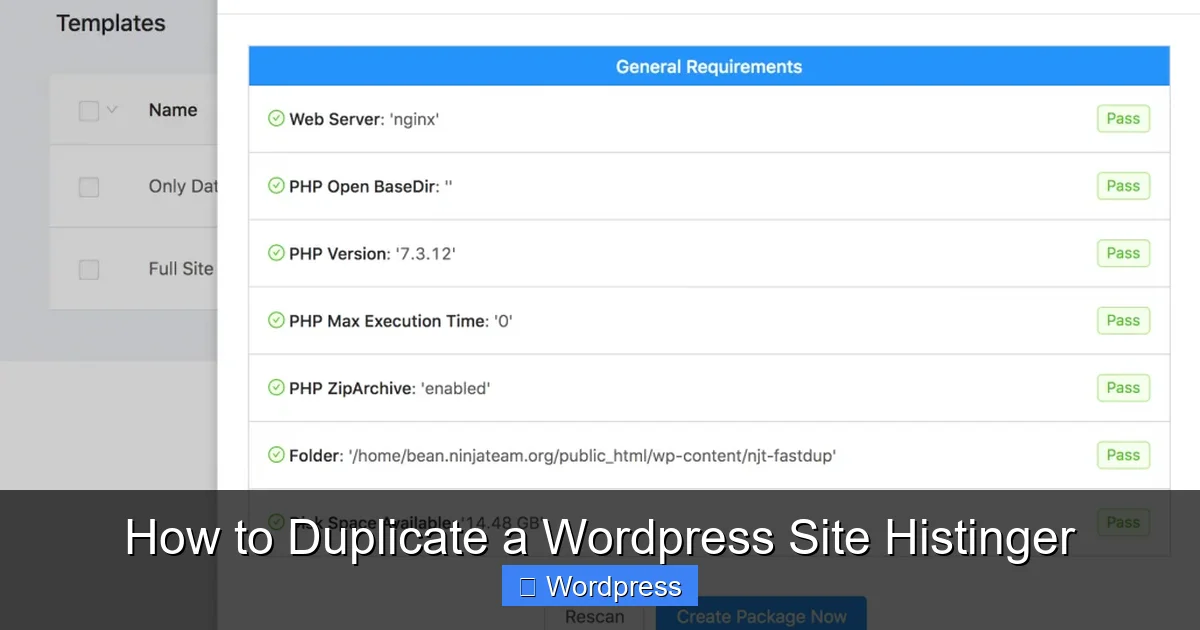
- Click Next and wait while Duplicator scans your site for issues (e.g., large files, timeouts).
- If no errors appear, click Build. This generates two files: an archive (.zip) and an installer.php file.
Step 3: Download the Files
Once the build completes, download both the archive.zip and installer.php files to your computer. Keep them in the same folder.
Step 4: Upload to New Server
- Log in to your new hosting account (e.g., via cPanel or FTP).
- Upload both files to the root directory of your new domain (e.g., public_html or a subfolder like /staging).
Step 5: Run the Installer
Visit yournewdomain.com/installer.php in your browser. Follow the on-screen steps:
- Accept the terms and click Next.
- Enter your new database details (host, name, username, password). Create a new database if needed.
- Test the connection. If successful, proceed.
- On the “Install Type” screen, choose Standard Install.
- Review the summary and click Run Deployment.
Step 6: Finalize and Clean Up
After installation, log in to your new site’s admin panel. Go to Settings → Permalinks and click Save Changes to refresh rewrite rules. Finally, delete the installer.php and archive.zip files from your server for security.
Method 2: Manual Duplication (For Advanced Users)
If you prefer full control or your host doesn’t allow plugin-based migrations, manually duplicating your site is a solid alternative. This method involves copying files and exporting/importing the database.
Visual guide about How to Duplicate a WordPress Site Histinger
Image source: assets.wpdeveloper.com
Step 1: Backup Your Files via FTP
Use an FTP client like FileZilla to connect to your current site. Download the entire public_html folder (or wherever your WordPress files are stored) to your local machine.
Step 2: Export the Database
- Log in to your hosting control panel (e.g., cPanel).
- Open phpMyAdmin and select your WordPress database.
- Click Export, choose Quick export method, and click Go.
- Save the .sql file to your computer.
Step 3: Create a New Database on the Target Server
On your new hosting account, create a new MySQL database and user. Assign the user full privileges to the database. Note down the database name, username, and password.
Step 4: Import the Database
In the new server’s phpMyAdmin, select the new database and click Import. Upload your .sql file and click Go.
Step 5: Upload WordPress Files
Use FTP to upload all your downloaded WordPress files to the new server’s root directory.
Step 6: Update wp-config.php
Edit the wp-config.php file in your new site’s root folder. Update these lines with your new database details:
define('DB_NAME', 'new_database_name');
define('DB_USER', 'new_database_user');
define('DB_PASSWORD', 'new_database_password');
define('DB_HOST', 'localhost'); // or your host’s specific address
Step 7: Replace Old URLs in the Database
WordPress stores full URLs in the database. If your new site has a different domain, you must update them. Use a tool like WP-CLI or run SQL queries in phpMyAdmin:
UPDATE wp_options SET option_value = replace(option_value, 'https://olddomain.com', 'https://newdomain.com') WHERE option_name = 'home' OR option_name = 'siteurl';
UPDATE wp_posts SET post_content = replace(post_content, 'https://olddomain.com', 'https://newdomain.com');
UPDATE wp_postmeta SET meta_value = replace(meta_value, 'https://olddomain.com', 'https://newdomain.com');
Note: Always backup your database before running SQL queries.
Troubleshooting Common Issues
Even with careful planning, issues can arise. Here’s how to fix the most common problems:
White Screen After Migration
This usually means a PHP error. Enable debugging by adding this to wp-config.php:
define('WP_DEBUG', true);Check your error logs or look for plugin conflicts. Temporarily rename the plugins folder via FTP to disable all plugins.
Broken Images or Links
If images or internal links still point to the old domain, double-check your URL replacement steps. You may need to use a search-and-replace tool like Better Search Replace plugin.
“Error Establishing Database Connection”
Verify your wp-config.php settings. Ensure the database name, username, password, and host are correct. Also confirm the database user has proper privileges.
Theme or Plugin Not Working
Some themes or plugins store absolute paths or URLs. Re-save your permalinks and clear any caching plugins. If issues persist, consider re-installing the affected theme or plugin. For theme-related problems, you might need to deactivate the current theme temporarily and switch to a default one like Twenty Twenty-Four.
Best Practices When Duplicating a WordPress Site
- Use a staging subdomain: Clone your site to something like
staging.yoursite.comto test safely without public exposure. - Disable search engine indexing: In Settings → Reading, check “Discourage search engines from indexing this site” on the cloned version.
- Update passwords: Change admin passwords on the cloned site to prevent unauthorized access.
- Test everything: Check forms, checkout processes, contact pages, and media galleries.
- Keep backups: Store copies of both your original and cloned sites locally or in cloud storage.
Conclusion
Duplicating a WordPress site doesn’t have to be complicated. With tools like Duplicator or manual methods, you can create an exact copy for testing, development, or migration. Always prioritize backups, test thoroughly, and update URLs to ensure a smooth transition.
Whether you’re preparing for a redesign or moving hosts, mastering site duplication saves time and reduces risk. And if you ever need to refresh your theme after cloning, check out our guide on how to update a WordPress theme safely.