
This guide shows you how to edit WordPress theme header and footer using the Customizer, theme options, or code. Whether you’re a beginner or advanced user, you’ll find clear steps to customize your site’s top and bottom sections safely and effectively.
Key Takeaways
- Use the WordPress Customizer: Most themes allow header and footer edits through the built-in Customizer under Appearance > Customize.
- Try a Child Theme: Always use a child theme when editing theme files to avoid losing changes during updates.
- Page Builders Simplify Editing: Tools like Elementor or Beaver Builder let you visually design headers and footers without coding.
- Footer Widgets Are Customizable: Add links, social icons, or copyright text via widget areas in the footer.
- Backup Before Editing: Always back up your site before making code changes to prevent errors or crashes.
- Check Theme Documentation: Some themes have unique settings—review your theme’s docs for specific instructions.
- Use Plugins for Extra Control: Plugins like Header Footer Code Manager help insert scripts or HTML without touching theme files.
How to Edit WordPress Theme Header and Footer
Your website’s header and footer are like the frame around a painting—they set the tone and provide essential navigation. Whether you want to add a logo, change the menu, insert a call-to-action, or update copyright info, knowing how to edit WordPress theme header and footer is a must-have skill.
In this guide, you’ll learn multiple ways to customize these areas—using the WordPress Customizer, theme settings, plugins, and even code. We’ll keep it simple, safe, and beginner-friendly.
Method 1: Using the WordPress Customizer
The Customizer is the easiest and safest way to edit your header and footer. It’s built into WordPress and works with most modern themes.
Access the Customizer
- Log in to your WordPress dashboard.
- Go to Appearance > Customize.
- The Customizer will open in a new window with a live preview of your site.
Edit the Header
Look for sections like Header, Site Identity, or Logo. Here’s what you can usually change:
- Site Title & Tagline: Update your website name and description.
- Logo: Upload a custom logo by clicking “Select logo” and choosing an image from your media library.
- Header Layout: Some themes let you switch between layouts (e.g., logo left, menu right).
- Background Color or Image: Change the header’s appearance with colors or background images.
Edit the Footer
Footer options vary by theme, but common settings include:
- Footer Widgets: Add or remove widget areas (e.g., for contact info, links, or social icons).
- Copyright Text: Edit the bottom line (e.g., “© 2024 Your Site Name”).
- Footer Background: Change color or add a background image.
After making changes, click Publish to save them. Always preview on mobile and desktop to ensure everything looks good.
Method 2: Using Theme Options (If Available)
Many premium themes come with their own settings panel. These often offer more control than the default Customizer.
Find Theme Options
- Go to Appearance > Theme Options or Appearance > [Your Theme Name].
- Look for tabs like Header or Footer.
Common Features
- Sticky Header: Keep the header visible when scrolling.
- Transparent Header: Useful for landing pages with full-width images.
- Footer Columns: Choose 1–4 columns for widgets.
- Custom HTML: Insert code snippets in header or footer areas.
For example, the Astra or GeneratePress themes offer extensive header and footer controls. Always check your theme’s documentation for specifics.
Method 3: Using a Page Builder (Elementor, Beaver Builder)
Page builders make it easy to design custom headers and footers visually—no coding needed.
Edit with Elementor
- Install and activate Elementor and Elementor Pro (required for headers/footers).
- Go to Templates > Theme Builder.
- Click Add New and choose Header or Footer.
- Design your section using drag-and-drop widgets (logo, menu, buttons, etc.).
- Set display conditions (e.g., show on all pages).
- Save and publish.
Tips for Page Builders
- Use global colors and fonts for consistency.
- Add a mobile menu for better responsiveness.
- Test on different devices using the preview mode.
This method is ideal if you want full design freedom. It also avoids editing theme files directly.
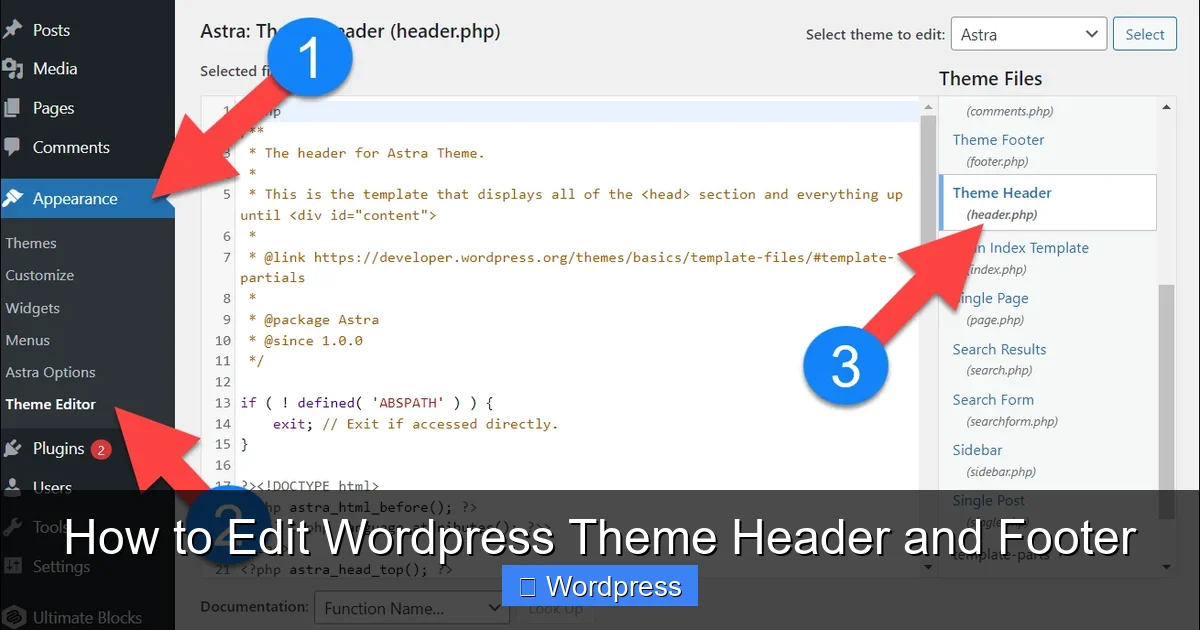
Visual guide about How to Edit WordPress Theme Header and Footer
Image source: lh5.googleusercontent.com
Method 4: Editing Theme Files (Advanced)
If you’re comfortable with code, you can edit header.php and footer.php directly. But proceed with caution.
Use a Child Theme
Never edit theme files directly—updates will erase your changes. Instead, create a child theme. Learn how in our guide: What Is a Child Theme in WordPress?
Edit header.php
- Go to Appearance > Theme File Editor.
- From the right sidebar, select your child theme.
- Open header.php.
- Make changes (e.g., add a banner, modify navigation).
- Click Update File.
Edit footer.php
Same process—open footer.php and edit the HTML or PHP code. For example, you might change the copyright text:
© Your Website Name. All rights reserved.
Best Practices
- Always back up your site first.
- Use a code editor with syntax highlighting.
- Test changes on a staging site if possible.
Method 5: Using Plugins
Plugins offer a safe, code-free way to add content to headers and footers.
Header Footer Code Manager
This popular plugin lets you insert HTML, CSS, or JavaScript into header or footer areas.
- Install Header Footer Code Manager from the plugin directory.
- Go to Settings > Header Footer Code.
- Create a new snippet.
- Choose “Header” or “Footer” as the location.
- Paste your code (e.g., Google Analytics, custom CSS).
- Save and publish.
Other Useful Plugins
- Insert Headers and Footers: Simple plugin for adding scripts.
- WPForms: Add a contact form to your footer.
- Social Icons Widget: Display social media links in the footer.
Troubleshooting Common Issues
Changes Not Showing?
- Clear your browser and site cache.
- Check if a caching plugin is hiding updates.
- Ensure you’re editing the correct theme (especially if using a child theme).
Header or Footer Looks Broken?
- Undo recent changes and reapply them step by step.
- Check for missing closing tags in HTML.
- Disable plugins one by one to find conflicts.
Mobile Layout Issues?
- Use responsive design tools in your page builder.
- Add custom CSS for mobile adjustments.
- Test using Chrome’s device toolbar.
Final Tips for Success
- Keep it simple: Don’t overcrowd your header or footer.
- Prioritize speed: Avoid heavy scripts or large images.
- Stay consistent: Match fonts, colors, and styles across your site.
- Update regularly: Review your footer copyright and links annually.
Remember, every WordPress theme is different. If you’re using a popular theme like Twenty Twenty-Four or a premium option like Divi, check the official documentation. And if you ever need to update your WordPress theme, make sure your customizations are safe in a child theme.
Conclusion
Editing your WordPress theme’s header and footer doesn’t have to be scary. Whether you use the Customizer, a page builder, or custom code, you now have the tools to make your site look professional and on-brand. Start with the safest method—like the Customizer or a plugin—and work your way up as you gain confidence.
Always back up your site, use a child theme for code edits, and test on multiple devices. With these steps, you’ll master how to edit WordPress theme header and footer in no time.