Ajax errors in WordPress can break forms, login systems, and dynamic features. This guide walks you through diagnosing and fixing these issues quickly and safely. You’ll learn practical fixes like checking file permissions, disabling plugins, and verifying nonce values.
Key Takeaways
- Check for plugin or theme conflicts: Deactivate plugins one by one or switch to a default theme like Twenty Twenty-Four to isolate the issue.
- Verify wp-config.php settings: Ensure AJAX calls are properly defined and no security constants are blocking requests.
- Inspect browser console errors: Use developer tools to identify JavaScript or network-related problems causing the Ajax failure.
- Confirm file permissions: Incorrect permissions on wp-admin or wp-includes can prevent Ajax from running.
- Test with a clean .htaccess file: Rewrite rules or corrupted files may interfere with Ajax requests—resetting it often helps.
- Ensure proper nonce usage: Missing or expired security tokens (nonces) are a common cause of 403 Ajax errors.
- Update WordPress core, themes, and plugins: Outdated code can introduce compatibility issues that break Ajax functionality.
How to Fix Ajax Error WordPress: A Complete Step-by-Step Guide
If your WordPress site suddenly stops responding when you try to submit a form, log in via AJAX, or use any dynamic feature—like live search or comment submission—you’re likely dealing with an Ajax error in WordPress. These errors are frustrating but usually fixable with the right approach.
In this guide, you’ll learn exactly how to diagnose and resolve Ajax errors in WordPress. We’ll cover the most common causes, walk you through proven troubleshooting steps, and show you how to prevent future issues. Whether you’re a beginner or an experienced developer, these methods will help you restore full functionality to your site quickly and safely.
What Is an Ajax Error in WordPress?
Ajax (Asynchronous JavaScript and XML) allows web pages to update content without reloading the entire page. In WordPress, Ajax is used for tasks like submitting comments, updating user profiles, handling contact forms, and more. When something goes wrong—like a missing script, a security block, or a server misconfiguration—the Ajax request fails, often showing a generic “0” error or a 403/500 HTTP status code.
These errors typically appear as pop-ups, silent failures, or console messages like “Failed to load resource” or “Ajax request failed.” The good news? Most Ajax issues stem from predictable causes and have straightforward fixes.
Step 1: Check Your Browser Console for Errors
The first step in fixing any Ajax error is to see what’s actually going wrong. Your browser’s developer tools can reveal crucial clues.
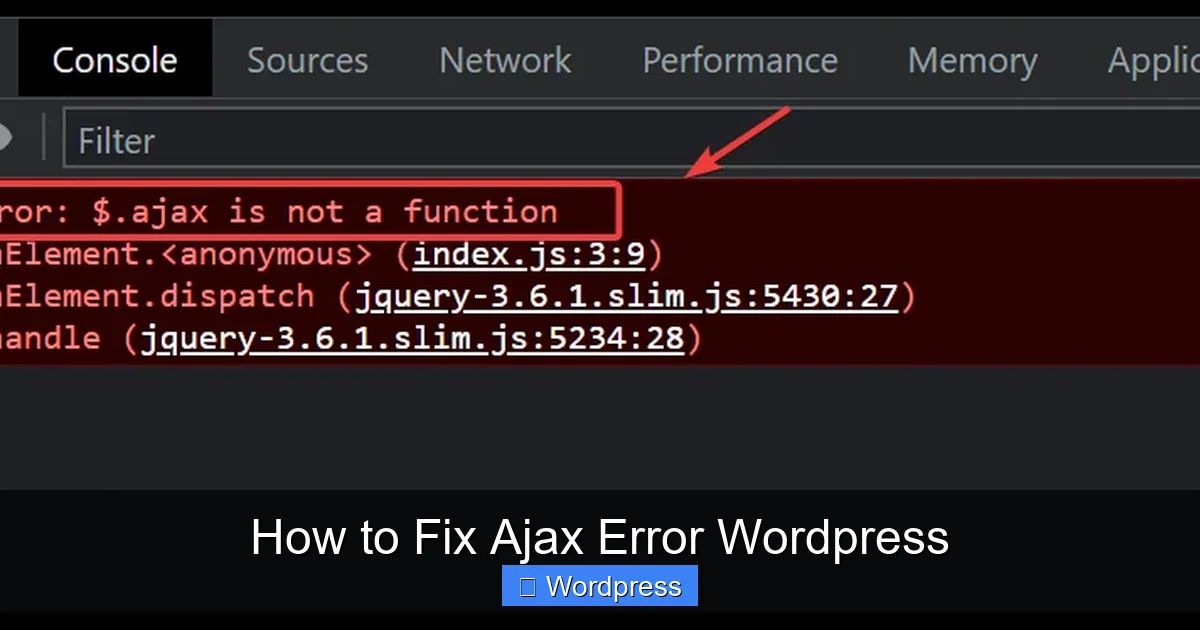
Visual guide about How to Fix Ajax Error WordPress
Image source: cdn.appuals.com
Open Developer Tools
Press F12 (or right-click and select “Inspect”) to open your browser’s developer tools. Go to the Console tab and reproduce the error—try submitting a form or triggering the Ajax action again.
Look for Red Error Messages
Common messages include:
POST https://yoursite.com/wp-admin/admin-ajax.php 403 (Forbidden)Uncaught ReferenceError: jQuery is not definedFailed to load resource: the server responded with a status of 500
These messages tell you whether the issue is JavaScript-related, a server permission problem, or a plugin conflict. For example, a 403 error often points to a security plugin blocking the request, while a 500 error suggests a PHP crash in your theme or plugin.
Step 2: Disable Plugins to Find Conflicts
Plugins are the most common cause of Ajax errors. A poorly coded plugin or one with outdated code can interfere with WordPress’s core Ajax handler.
Deactivate All Plugins
Go to WordPress Dashboard > Plugins and deactivate all plugins. Then test the Ajax functionality again. If it works, you’ve confirmed a plugin is the culprit.
Reactivate One by One
Turn plugins back on one at a time, testing after each activation. When the error returns, you’ve found the problematic plugin. Common offenders include security plugins (like Wordfence), caching tools, and form builders.
Pro tip: If you can’t access the dashboard due to the error, use FTP or your hosting file manager to rename the plugins folder to plugins-old. This deactivates all plugins instantly.
Step 3: Switch to a Default WordPress Theme
Your active theme might be causing the issue—especially if it’s custom-built or outdated.
Temporarily Use a Default Theme
Go to Appearance > Themes and activate a default theme like Twenty Twenty-Four. Test your Ajax feature again. If it works, the problem lies in your original theme.
You can then check your theme’s functions.php file for incorrect Ajax hooks, missing wp_head() or wp_footer() calls, or outdated JavaScript. For help managing themes safely, see our guide on how to deactivate a theme in WordPress.
Step 4: Check File Permissions
Incorrect file permissions can prevent WordPress from executing Ajax requests, especially on Linux servers.
Verify Key Directories
Using FTP or your hosting file manager, check the permissions for:
/wp-admin/– Should be 755/wp-includes/– Should be 755admin-ajax.php– Should be 644
If permissions are too restrictive (like 600 or 700), change them to the recommended values. Be cautious—incorrect permissions can create security risks.
Step 5: Reset Your .htaccess File
The .htaccess file controls URL rewriting and security rules. A corrupted or misconfigured file can block Ajax requests.
Backup and Replace .htaccess
First, download a backup of your current .htaccess file. Then, replace it with the default WordPress version:
# BEGIN WordPressRewriteEngine On RewriteRule ^index\.php$ - [L] RewriteCond %{REQUEST_FILENAME} !-f RewriteCond %{REQUEST_FILENAME} !-d RewriteRule . /index.php [L] # END WordPress
Save the file and test your site. If Ajax works, the issue was in your rewrite rules. For more on managing WordPress files, check out our article on how to update a theme on WordPress, which includes safe file handling practices.
Step 6: Verify Nonce Values in Your Code
WordPress uses nonces (number used once) to protect against CSRF attacks. If your custom Ajax code doesn’t include a valid nonce, the request will be rejected with a 403 error.
Check Your JavaScript and PHP
In your theme or plugin, ensure your Ajax call includes a nonce:
// In PHP (enqueue script with localized nonce)
wp_localize_script( 'my-script', 'ajax_object', array(
    'ajax_url' => admin_url( 'admin-ajax.php' ),
    'nonce'    => wp_create_nonce( 'my_nonce_action' )
));
// In JavaScript
jQuery.ajax({
    url: ajax_object.ajax_url,
    type: 'POST',
    data: {
        action: 'my_custom_action',
        nonce: ajax_object.nonce,
        // other data
    },
    success: function(response) {
        console.log(response);
    }
});
// In PHP (verify nonce)
add_action('wp_ajax_my_custom_action', 'my_custom_callback');
add_action('wp_ajax_nopriv_my_custom_action', 'my_custom_callback');

function my_custom_callback() {
    check_ajax_referer('my_nonce_action', 'nonce');
    // Your logic here
    wp_die();
}
Missing or mismatched nonces are a frequent cause of Ajax failures, especially after updates or migrations.
Step 7: Update Everything
Outdated software is a common source of bugs. Ensure your site is up to date.
Update WordPress Core
Go to Dashboard > Updates and install any pending WordPress updates.
Update Themes and Plugins
Update all themes and plugins. If a plugin no longer works after an update, check its support forum or consider replacing it. For safe theme updates, refer to our guide on how to upgrade WordPress theme.
Troubleshooting Tips
- Clear your cache: If you use a caching plugin or CDN, clear all caches after making changes.
- Check for JavaScript errors: Even minor JS errors can break Ajax. Fix any console errors first.
- Test on a staging site: Always test fixes on a copy of your site before applying them live.
- Review server error logs: Your hosting provider’s error logs may reveal PHP fatal errors or timeouts affecting Ajax.
Conclusion
Ajax errors in WordPress can disrupt user experience and break essential functionality, but they’re rarely permanent. By following this guide—checking the console, disabling plugins, switching themes, verifying permissions, and ensuring proper nonce usage—you can resolve most issues quickly.
Remember: always back up your site before making changes, and test fixes in a safe environment. With these steps, you’ll keep your WordPress site running smoothly and your users happy.