Broken links hurt your site’s SEO and frustrate visitors. This guide shows you how to find and fix broken links in WordPress using plugins, manual checks, and built-in tools—keeping your site healthy and trustworthy.
Key Takeaways
- Broken links damage SEO: Search engines penalize sites with too many 404 errors, lowering your rankings.
- Use plugins for easy detection: Tools like Broken Link Checker automate the process of finding dead links across your site.
- Manual checks are still valuable: Regularly review important pages and posts to catch broken links early.
- Update or remove broken links: Replace outdated URLs with working ones or remove the link entirely if it’s no longer relevant.
- Monitor regularly: Set up alerts or schedule weekly scans to maintain a healthy link profile.
- Redirect when necessary: Use 301 redirects for moved content to preserve SEO value and user experience.
- Test after fixing: Always verify that your fixes work by clicking through the updated links.
Introduction: Why Fixing Broken Links Matters
Broken links—also known as dead links or 404 errors—happen when a webpage no longer exists but is still linked from another page. These aren’t just annoying for visitors; they can seriously hurt your WordPress site’s search engine rankings and credibility.
In this guide, you’ll learn how to fix broken links in WordPress using simple, effective methods. Whether you’re a beginner or a seasoned blogger, we’ll walk you through tools, techniques, and best practices to keep your site running smoothly. You’ll also discover how to prevent future broken links and maintain a clean, professional website.
Step 1: Identify Broken Links on Your Site
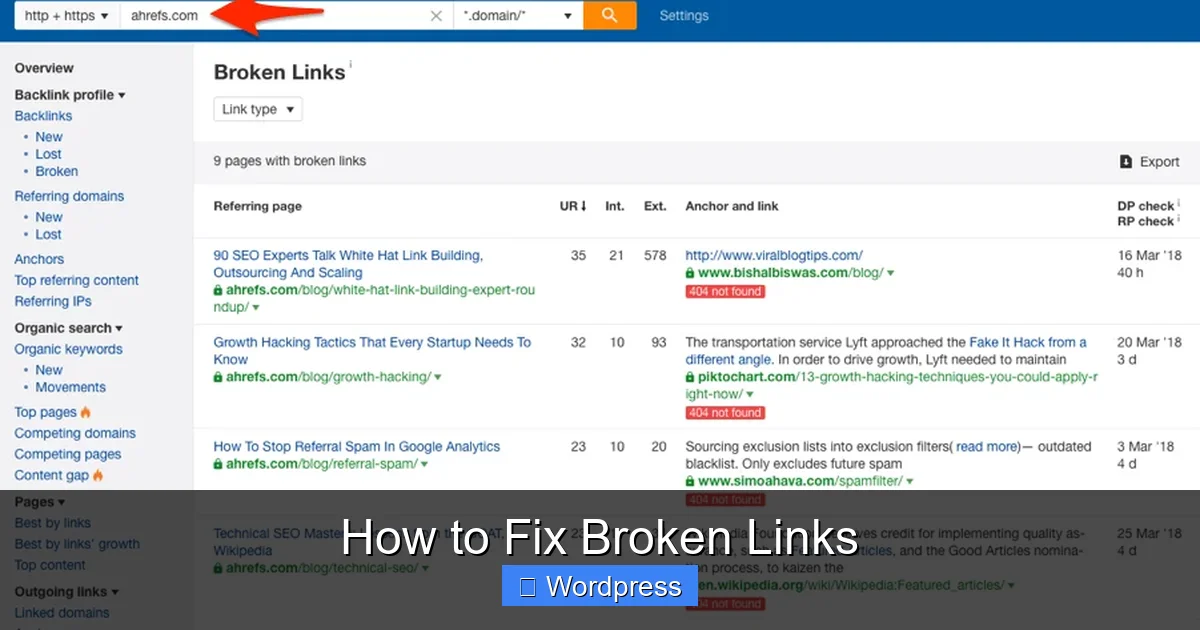
Visual guide about How to Fix Broken Links
Image source: ahrefs.com
Before you can fix broken links, you need to find them. There are several ways to do this—some automated, some manual.
Use a WordPress Plugin (Recommended)
The easiest way to scan your entire site is with a dedicated plugin. One popular choice is the Broken Link Checker plugin. Here’s how to use it:
- Go to your WordPress dashboard.
- Navigate to Plugins > Add New.
- Search for “Broken Link Checker” and install it.
- Activate the plugin and go to Tools > Broken Links.
- The plugin will scan all your posts, pages, comments, and custom fields for broken links.
Once the scan is complete, you’ll see a list of broken links with their status codes (like 404 or 500). You can filter by type, edit directly, or unlink problematic URLs.
Tip: If you prefer not to use a plugin, check out our guide on how to fix broken links in WordPress without a plugin for manual alternatives.
Manual Checking with Browser Tools
For smaller sites or one-time checks, you can use your browser’s developer tools:
- Right-click on any page and select “Inspect” or “Inspect Element.”
- Go to the “Console” tab and look for red error messages mentioning failed resource loads.
- Alternatively, use online tools like Google Search Console or Ahrefs Site Audit to find crawl errors.
While less efficient for large sites, manual checks help you spot issues on high-traffic pages like your homepage or contact page.
Step 2: Decide How to Fix Each Broken Link
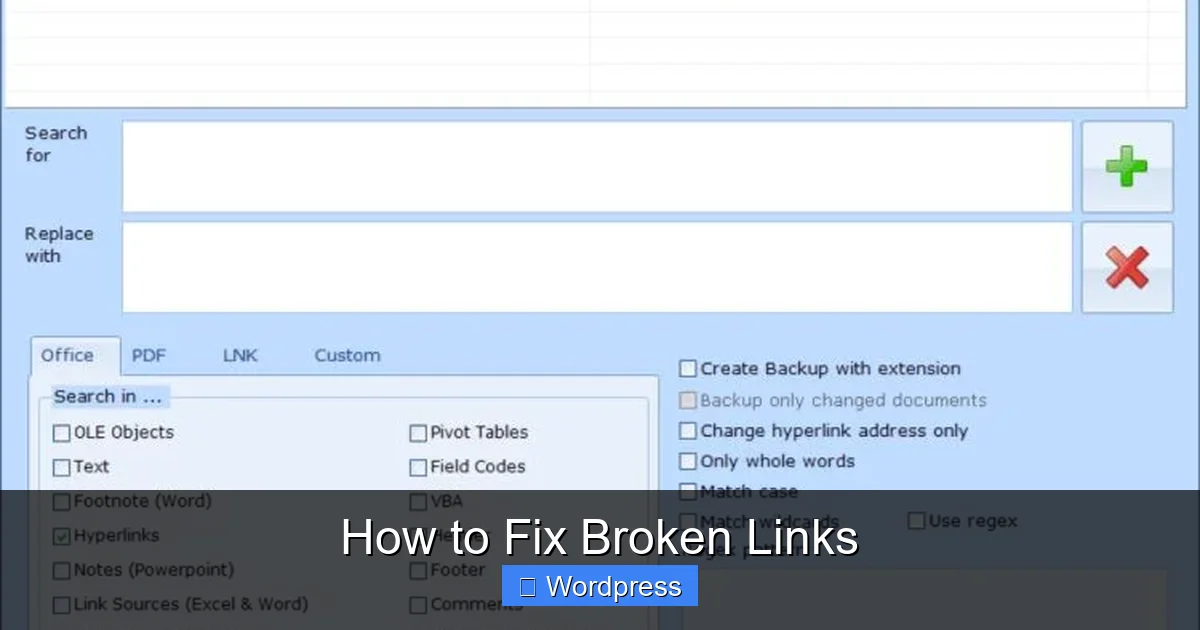
Visual guide about How to Fix Broken Links
Image source: replacemagic.com
Not all broken links require the same solution. Here’s how to handle different scenarios:
Update the URL
If the content still exists but has moved to a new address (e.g., after a site redesign), simply update the link to point to the correct URL. This is the most common fix.
Example:
Old link: https://yoursite.com/blog/old-post
New link: https://yoursite.com/blog/updated-post
In the WordPress editor, highlight the text, click the link icon, and paste the new URL.
Remove the Link Entirely
If the linked content is gone forever and there’s no replacement, consider removing the hyperlink. Keep the anchor text (the clickable words) so your sentence still makes sense.
Example:
Instead of: “Check out our old guide”
Use: “Check out our old guide (no longer available).”
Set Up a 301 Redirect
When you’ve moved or deleted a page, use a 301 redirect to send visitors—and search engines—to a relevant new page. This preserves SEO value and improves user experience.
To set up a redirect:
- Install a redirect plugin like Redirection or Rank Math.
- Add a new redirect rule: source URL → destination URL.
- Choose “301 Moved Permanently” as the redirect type.
This is especially useful after changing permalinks or restructuring your site.
Replace with Internal or Alternative Content
If the external link is broken but the topic is still relevant, link to a similar page on your own site or find an updated external source.
Example:
If a government statistics page moved, search for the new URL and update your link accordingly.
Step 3: Prevent Future Broken Links
Fixing broken links is important—but preventing them is even better. Here’s how to stay ahead:
Use Relative Links for Internal Pages
Relative links (like /about instead of https://yoursite.com/about) are less likely to break if you change your domain name or switch from HTTP to HTTPS.
Regularly Audit Your Site
Schedule monthly or quarterly link audits using your plugin or Google Search Console. Set up email alerts in tools like Ahrefs or SEMrush to notify you of new 404 errors.
Be Careful When Editing Content
Always double-check links before publishing or updating posts. A simple typo (like htp:// instead of http://) can create a broken link.
Monitor External Links
External links are the most common source of broken links because you don’t control them. Consider using a plugin that periodically checks external URLs or only link to reputable, stable sources.
Troubleshooting Common Issues
Even with the best tools, you might run into problems. Here’s how to solve them:
Plugin Shows False Positives
Sometimes plugins flag working links as broken due to server timeouts or temporary outages. Re-scan the link or test it manually in your browser.
Can’t Edit a Link in the Block Editor
If you’re using the Gutenberg editor and can’t edit a link, switch to “Code Editor” mode (top-right menu) and manually update the HTML.
Links Break After Theme Update
Custom themes or outdated code can cause link issues after updates. Always back up your site before updating, and test key pages afterward. For help managing themes safely, see our guide on how to update a theme on WordPress.
Too Many Broken Links to Fix Manually
For large sites with hundreds of broken links, consider exporting your content, using a script to bulk-replace URLs, or hiring a developer. Some plugins also support bulk actions.
Conclusion: Keep Your Site Healthy and Trustworthy
Broken links might seem minor, but they add up—and they affect how users and search engines see your site. By regularly scanning for dead links, updating or removing them promptly, and setting up smart redirects, you’ll protect your SEO, improve user experience, and maintain your site’s professionalism.
Remember: fixing broken links isn’t a one-time task. Make it part of your regular site maintenance routine. With the right tools and habits, you can keep your WordPress site clean, fast, and reliable for years to come.
And if you ever need to refresh your theme or troubleshoot display issues after making changes, don’t forget to check out our guide on how to apply a WordPress theme for smooth transitions.