Outdated SQL Server connections can break your WordPress site’s functionality and security. This guide walks you through identifying, updating, and securing your database setup to ensure smooth performance and compatibility with modern WordPress versions.
Key Takeaways
- Check your SQL Server version: Older versions like SQL Server 2008 or 2012 may no longer be supported by current WordPress or PHP versions.
- Update PHP and WordPress: Ensure both are up to date to maintain compatibility with modern database systems.
- Use the correct database driver: Install and configure the proper SQL Server driver (e.g., sqlsrv) for PHP to enable communication.
- Backup before making changes: Always create a full backup of your site and database before updating or modifying configurations.
- Test after updates: Verify that your site loads correctly and all features work as expected post-update.
- Consider migrating to MySQL or MariaDB: If ongoing SQL Server support is complex, switching to a more WordPress-friendly database may be easier long-term.
- Monitor for errors: Use WordPress debug logs to catch and resolve database connection issues early.
How to Fix Outdated Sql Server WordPress
If your WordPress site is running on an outdated SQL Server database, you might be facing slow performance, broken features, or even complete downtime. WordPress was originally designed to work with MySQL, but with the right setup, it can also run on Microsoft SQL Server—especially in enterprise environments. However, when the SQL Server version becomes outdated, compatibility issues arise. This guide will show you how to fix outdated SQL Server WordPress setups step by step, ensuring your site remains secure, fast, and functional.
Whether you’re managing a corporate intranet or a custom-built WordPress installation on Windows Server, keeping your database layer up to date is crucial. We’ll cover how to identify the problem, update your environment, and avoid common pitfalls.
Step 1: Identify the Problem
Before jumping into fixes, you need to confirm that your SQL Server is indeed outdated and causing issues.
Check Your SQL Server Version
Log in to your SQL Server Management Studio (SSMS) or use a command-line tool like sqlcmd. Run the following query:
Visual guide about How to Fix Outdated Sql Server WordPress
Image source: blog.sqlauthority.com
SELECT @@VERSION;
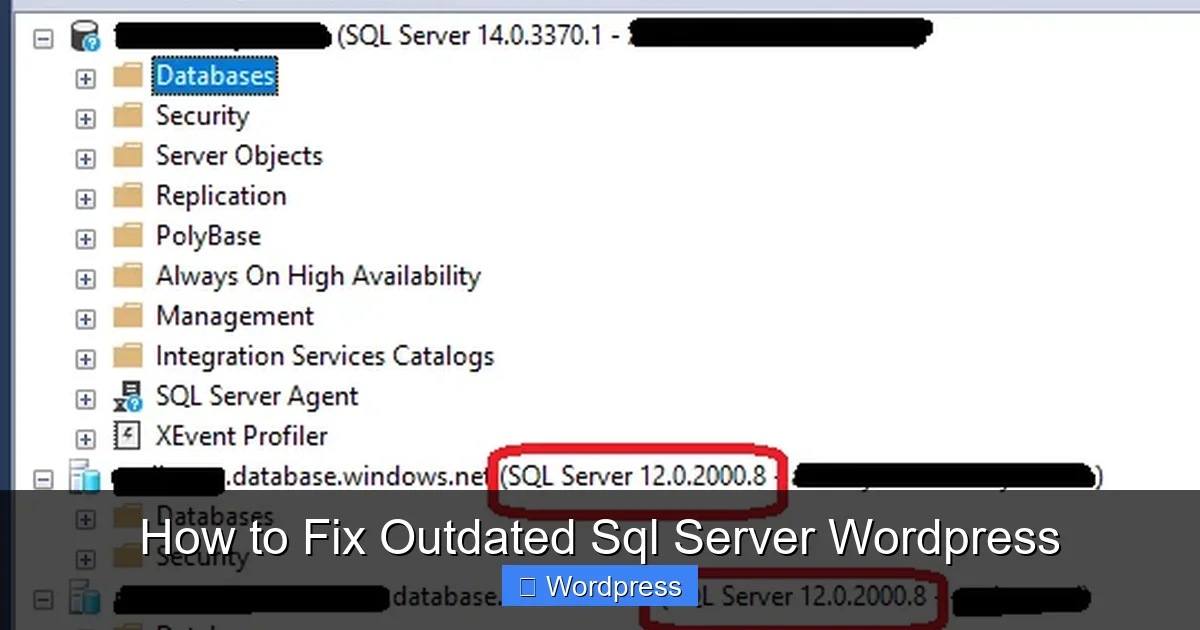
This will return the exact version and build number. Compare it with Microsoft’s support lifecycle. For example, SQL Server 2008 and 2012 reached end-of-life years ago and no longer receive security updates.
Review WordPress and PHP Compatibility
WordPress regularly updates its minimum requirements. As of 2024, WordPress recommends PHP 8.0 or higher. Older SQL Server versions may not work well with newer PHP versions, especially if the correct drivers aren’t installed.
Check your current PHP version by creating a file called info.php in your WordPress root directory with this code:
<?php phpinfo(); ?>
Access it via your browser (e.g., yoursite.com/info.php) and look for the PHP version and loaded extensions.
Look for Error Messages
Common signs of an outdated SQL Server setup include:
- “Database connection error” on your WordPress site
- White screen of death (WSOD)
- Admin dashboard loading slowly or not at all
- PHP warnings about missing
sqlsrvorpdo_sqlsrvextensions
Step 2: Backup Your Site and Database
Never make changes without a backup. A single mistake can break your site.
Backup WordPress Files
Use an FTP client or your hosting control panel to download all WordPress files, including themes, plugins, uploads, and configuration files like wp-config.php.
Visual guide about How to Fix Outdated Sql Server WordPress
Image source: blog.sqlauthority.com
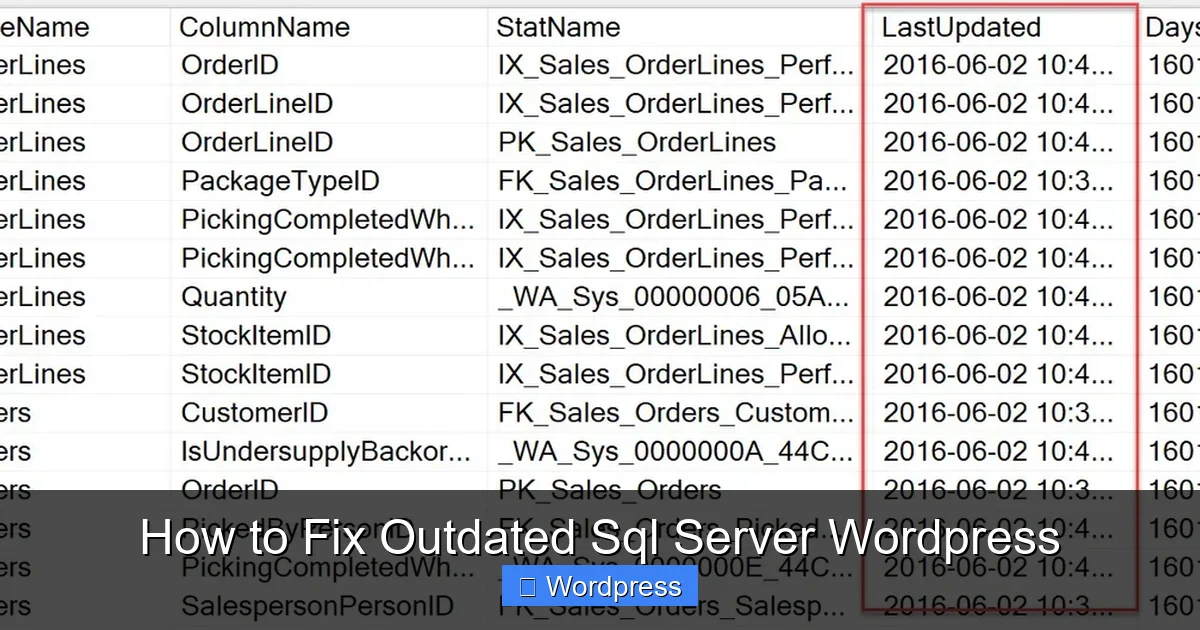
Backup the SQL Server Database
In SQL Server Management Studio:
- Right-click your database
- Select Tasks > Backup
- Choose “Full” backup type and save the .bak file to a secure location
Alternatively, use the command line:
BACKUP DATABASE [YourDatabaseName] TO DISK = 'C:\Backups\YourDatabaseName.bak';
Use a WordPress Backup Plugin (Optional)
If you prefer a plugin-based approach, tools like UpdraftPlus or Duplicator can help automate backups. However, since your database is on SQL Server, ensure the plugin supports custom database types.
Step 3: Update SQL Server (If Possible)
If you have control over the server, upgrading SQL Server is the best long-term solution.
Check Upgrade Paths
Microsoft provides clear upgrade paths. For example, SQL Server 2012 can be upgraded to 2016, 2017, 2019, or 2022. Avoid skipping multiple versions unless documented as supported.
Visual guide about How to Fix Outdated Sql Server WordPress
Image source: i.stack.imgur.com
Install the Latest SQL Server Version
Download the latest version from the official Microsoft website. Run the installer and follow the prompts. Choose “Upgrade” if prompted.
Tip: Test the upgrade on a staging server first to avoid breaking your live site.
Apply Latest Service Packs and Cumulative Updates
Even new installations should receive the latest patches. Use Windows Update or download updates directly from Microsoft.
Step 4: Update PHP and Install Correct Drivers
WordPress on SQL Server requires specific PHP extensions to communicate with the database.
Update PHP
If you’re using an old PHP version (below 7.4), upgrade to at least PHP 8.0. Most modern hosting panels (like Plesk or cPanel) allow PHP version switching. For Windows Server, download the latest PHP from php.net.
Install SQL Server Drivers for PHP
WordPress uses the sqlsrv and pdo_sqlsrv extensions to connect to SQL Server. These are not included by default.
Download the latest drivers from Microsoft’s GitHub repository: https://github.com/microsoft/msphpsql
Choose the version compatible with your PHP version (e.g., PHP 8.1 x64 Thread Safe).
After downloading:
- Extract the DLL files (e.g.,
php_sqlsrv_81_ts_x64.dll) - Copy them to your PHP
extfolder - Edit your
php.inifile and add:
extension=php_sqlsrv_81_ts_x64.dll
extension=php_pdo_sqlsrv_81_ts_x64.dll
Restart your web server (IIS or Apache) for changes to take effect.
Verify Driver Installation
Reload your info.php page and search for “sqlsrv” or “pdo_sqlsrv”. If you see these sections, the drivers are active.
Step 5: Update WordPress and Plugins
Outdated WordPress core or plugins can cause compatibility issues with newer database systems.
Update WordPress Core
Go to Dashboard > Updates and click “Update Now” if a new version is available. Always backup first.
Update Themes and Plugins
Outdated themes and plugins may not support newer PHP or database standards. Update them one by one and test your site after each update.
For themes, consider using a modern, well-supported option. If you’re using a custom theme, ensure it’s compatible with current WordPress standards. You can learn how to upgrade WordPress theme safely.
Remove Unused Plugins and Themes
Deactivate and delete plugins or themes you no longer use. This reduces security risks and potential conflicts. If you need to remove a theme, follow our guide on how to delete theme in WordPress.
Step 6: Test Your Site
After making changes, thoroughly test your site.
Check Frontend and Backend
Visit your homepage, browse posts, and log into the admin dashboard. Ensure everything loads quickly and without errors.
Test Forms and Dynamic Features
Submit a contact form, leave a comment, or use any interactive feature. These rely heavily on database writes.
Enable Debug Mode
Temporarily enable WordPress debugging by adding these lines to your wp-config.php:
define('WP_DEBUG', true);
define('WP_DEBUG_LOG', true);
define('WP_DEBUG_DISPLAY', false);
Check the wp-content/debug.log file for any database-related errors.
Troubleshooting Common Issues
“Database Connection Error” Persists
Double-check your wp-config.php file. Ensure the database name, username, password, and host are correct. For SQL Server, the host might include a port (e.g., localhost,1433).
White Screen After Update
This often means a PHP error. Enable debug mode (see above) or check your server’s error logs. It could be a missing driver or syntax error in a plugin.
Slow Performance
Outdated SQL Server versions may lack query optimization. Consider enabling caching plugins like WP Super Cache or using a CDN. Also, review slow queries in SQL Server Profiler.
Driver Not Loading
Ensure the DLL files match your PHP version (TS vs NTS, x86 vs x64). Also, confirm that the extension_dir in php.ini points to the correct folder.
Alternative: Migrate to MySQL or MariaDB
If maintaining SQL Server becomes too complex, consider migrating to MySQL or MariaDB—WordPress’s native database systems.
Why Migrate?
- Better plugin and theme compatibility
- Easier hosting options
- Stronger community support
- Automatic updates and backups
How to Migrate
Use a tool like WP Migrate DB or All-in-One WP Migration. These plugins can export your content and convert it for MySQL. Then, set up a new MySQL database on your host and import the data.
After migration, update your wp-config.php to point to the new database.
Conclusion
Fixing an outdated SQL Server WordPress setup requires careful planning, but it’s entirely doable. Start by identifying the root cause—whether it’s an old SQL Server version, missing PHP drivers, or outdated WordPress components. Always backup your site before making changes, and test thoroughly afterward.
While WordPress can run on SQL Server, it’s not the most common setup. If you’re facing ongoing issues, consider migrating to MySQL or MariaDB for a smoother experience. With the right tools and precautions, your site can stay secure, fast, and fully functional—no matter what database you use.