Encountering a critical error in WordPress can be stressful, but it’s fixable. This guide walks you through safe, effective steps to restore your site, from enabling debugging to identifying faulty plugins or themes.
Key Takeaways
- Enable WP_DEBUG: Turn on debugging in wp-config.php to reveal the exact error message and source.
- Deactivate plugins via FTP: Rename the plugins folder to disable all plugins instantly if the dashboard is inaccessible.
- Switch to a default theme: Use FTP to rename your active theme folder, forcing WordPress to fall back to a default like Twenty Twenty-Four.
- Check .htaccess file: Replace a corrupted .htaccess with the default WordPress version to resolve server-related issues.
- Increase PHP memory limit: Add define(‘WP_MEMORY_LIMIT’, ‘256M’); to wp-config.php if the error is memory-related.
- Restore from backup: If all else fails, restore your site using a recent backup to revert to a working state.
- Prevent future errors: Always test updates on a staging site and keep plugins/themes updated.
How to Fix the Critical Error in WordPress Step by Step
Seeing a “There has been a critical error on this website” message in WordPress is alarming—especially if you can’t access your admin dashboard. Don’t panic! This error, often called the “White Screen of Death” or WSOD, is usually caused by a plugin conflict, theme issue, or PHP error. The good news? It’s almost always fixable with the right approach.
In this guide, you’ll learn how to fix the critical error in WordPress step by step, even if you’re not a developer. We’ll cover safe troubleshooting methods using FTP, debugging tools, and file edits—all designed to get your site back online quickly and securely.
Step 1: Enable WordPress Debugging Mode
The first step in diagnosing any WordPress critical error is to see what’s actually going wrong. By default, WordPress hides error details from visitors for security. But you can turn on debugging to reveal the root cause.
Edit the wp-config.php File
Using an FTP client like FileZilla or your hosting control panel’s file manager, navigate to your WordPress root directory (usually public_html or www). Locate the wp-config.php file and download a backup copy before making changes.
Open the file in a text editor and look for this line:
define('WP_DEBUG', false);If it exists, change it to:
define('WP_DEBUG', true);If it doesn’t exist, add it just above the line that says /* That’s all, stop editing! Happy publishing. */.
Add Additional Debug Settings (Optional but Recommended)
To log errors to a file instead of displaying them on screen (which is safer), add these lines below the WP_DEBUG line:
define('WP_DEBUG_LOG', true);
define('WP_DEBUG_DISPLAY', false);
This will create a debug.log file in your /wp-content/ folder, which you can review later for detailed error messages.
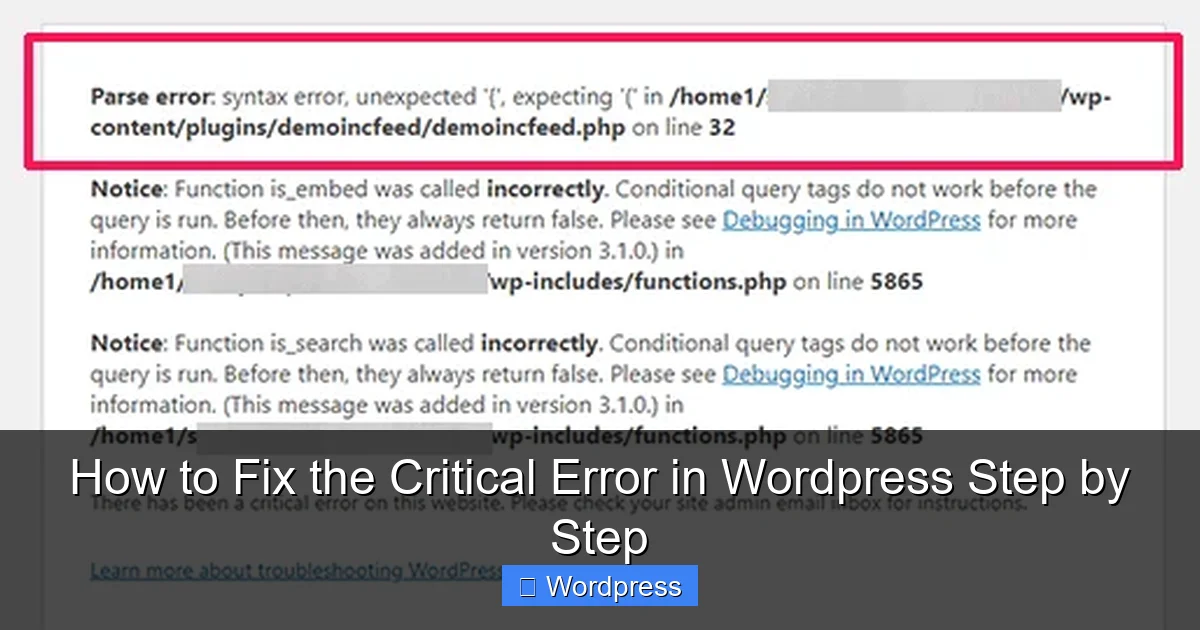
Once enabled, reload your site. You should now see a more detailed error message—something like “Fatal error: Cannot redeclare function…” or “Call to undefined function…”. This tells you exactly which plugin or theme is causing the issue.
Step 2: Deactivate All Plugins via FTP
If you can’t access your WordPress admin dashboard, you’ll need to disable plugins manually using FTP. Plugins are the most common cause of critical errors, especially after updates.
Visual guide about How to Fix the Critical Error in WordPress Step by Step
Image source: wisdmlabs.com
Rename the Plugins Folder
Connect to your site via FTP and go to /wp-content/plugins/. Rename this folder to something like plugins_old.
WordPress automatically disables all plugins when it can’t find the plugins directory. Now try loading your site. If it works, the error was caused by a plugin.
Identify the Problematic Plugin
Once your site is back online, rename the folder back to plugins. Then, reactivate your plugins one by one from the WordPress dashboard. After activating each one, check your site. When the error returns, you’ve found the culprit.
Delete or replace the faulty plugin. If you need it, check for updates or contact the developer for support.
Step 3: Switch to a Default WordPress Theme
If deactivating plugins doesn’t fix the issue, the problem might be your active theme—especially if you recently updated or installed a new one.
Visual guide about How to Fix the Critical Error in WordPress Step by Step
Image source: wpbeginner.com
Rename Your Current Theme Folder
Using FTP, navigate to /wp-content/themes/. Find your active theme folder (e.g., my-custom-theme) and rename it to my-custom-theme_old.
WordPress will automatically fall back to a default theme like Twenty Twenty-Four, Twenty Twenty-Three, or Twenty Twenty-Two—if one is installed. If not, you may need to install a default theme manually.
Once renamed, reload your site. If it loads without errors, your theme was the issue. You can now either fix the theme (check for syntax errors or missing files) or switch to a stable alternative. For help managing themes safely, see our guide on how to deactivate a theme in WordPress.
Step 4: Restore the .htaccess File
A corrupted or misconfigured .htaccess file can also trigger critical errors, especially after permalink changes or plugin installations.
Replace with Default .htaccess
In your WordPress root directory, locate the .htaccess file. Download a backup, then delete it or rename it to .htaccess_old.
Now, create a new file named .htaccess and paste the default WordPress rules:
# BEGIN WordPressRewriteEngine On RewriteRule ^index\.php$ - [L] RewriteCond %{REQUEST_FILENAME} !-f RewriteCond %{REQUEST_FILENAME} !-d RewriteRule . /index.php [L] # END WordPress
Save and upload the file. Reload your site. If the error is gone, the old .htaccess file was the problem.
Step 5: Increase PHP Memory Limit
Sometimes, the critical error occurs because your site has run out of memory. This is common on resource-heavy sites with many plugins or large media libraries.
Edit wp-config.php Again
Open wp-config.php and add this line above the “Happy publishing” comment:
define('WP_MEMORY_LIMIT', '256M');This increases the PHP memory limit to 256MB. You can go higher (e.g., 512M) if your hosting allows it. Check with your provider if you’re unsure about memory limits.
Save the file and reload your site. If the error disappears, memory was the issue.
Step 6: Check for File Corruption or Missing Core Files
If none of the above steps work, your WordPress core files might be corrupted—possibly due to a failed update or hacking attempt.
Reinstall WordPress Manually
Download the latest version of WordPress from wordpress.org. Extract the ZIP file and upload all files except the wp-content folder and wp-config.php to your server via FTP, overwriting existing files.
This refreshes core files without affecting your content, themes, or plugins. After uploading, reload your site.
Step 7: Restore from Backup (Last Resort)
If you’ve tried everything and your site is still down, it’s time to restore from a backup. Most hosting providers offer one-click restore options. Alternatively, use a backup plugin like UpdraftPlus if you have access.
Restore both your files and database to a point before the error occurred. Always test backups regularly to ensure they’re working.
Troubleshooting Tips and Best Practices
- Always backup before making changes: Use a plugin or your host’s tools to create full site backups.
- Use a staging site: Test plugin and theme updates on a copy of your site before applying them live.
- Keep everything updated: Outdated plugins, themes, and WordPress core are common error sources.
- Monitor error logs: Regularly check your debug.log or server error logs for early warnings.
- Avoid nulled themes/plugins: These often contain malicious code that breaks your site.
Conclusion
Dealing with a critical error in WordPress is frustrating, but with a systematic approach, you can resolve it quickly. Start by enabling debugging to identify the issue, then methodically test plugins, themes, and core files. Most errors stem from a single plugin or theme conflict—and once isolated, they’re easy to fix.
Remember: prevention is key. Regular updates, backups, and cautious plugin management will keep your site running smoothly. And if you ever need to reset your theme setup, check out our guide on how to set a default theme in WordPress for a clean fallback option.
With these steps, you’re equipped to handle any critical error—and get your site back online with confidence.