
Locked out of your WordPress admin dashboard? This guide walks you through proven solutions to fix common wp-admin login errors—from password resets to plugin conflicts—so you can get back in quickly and safely.
Key Takeaways
- Reset your password via email or phpMyAdmin: Use the “Lost your password?” link or directly update the database if email recovery fails.
- Disable plugins and themes manually: Rename plugin or theme folders via FTP to rule out conflicts causing login issues.
- Check for corrupted core files: Re-upload fresh WordPress core files (except wp-content and wp-config.php) to fix broken installations.
- Verify site URL settings: Incorrect URLs in the database can redirect or block access—fix them in wp_options or wp-config.php.
- Clear browser cache and cookies: Stored data may interfere with login—try incognito mode or clear browsing data first.
- Check file permissions: Incorrect permissions on wp-admin or wp-includes can block access—set directories to 755 and files to 644.
- Contact your hosting provider: Server-side issues like mod_security rules or IP blocking may require host intervention.
How to Fix WordPress Login Error at Wp Admin
Getting locked out of your WordPress admin dashboard (wp-admin) is frustrating—but it’s rarely permanent. Whether you’re seeing a blank screen, infinite redirects, “Error establishing database connection,” or just can’t log in despite correct credentials, this guide will help you troubleshoot and fix the issue step by step.
In this comprehensive tutorial, you’ll learn how to diagnose and resolve the most common causes of WordPress login errors. We’ll cover everything from simple browser fixes to advanced server-level troubleshooting—all explained in plain English with practical examples. By the end, you’ll not only regain access but also understand how to prevent future lockouts.
Let’s dive in!
Step 1: Try the Obvious Fixes First
Before diving into complex solutions, rule out simple causes.
Clear Browser Cache and Cookies
Sometimes, old cached data or corrupted cookies prevent you from logging in. Try these quick fixes:
- Open an incognito/private browsing window and attempt to log in.
- If that works, clear your browser’s cache and cookies, then retry normally.
- Test with a different browser (e.g., switch from Chrome to Firefox).
Check Caps Lock and Password Accuracy
It sounds silly, but double-check:
- Your username and password are typed correctly (case-sensitive!).
- You’re not accidentally using a space before or after the password.
- Try copying and pasting credentials from a secure password manager.
Use the “Lost Your Password?” Link
Click the “Lost your password?” link on the login page. Enter your username or email address. If you receive the reset email, follow the instructions. If not, check your spam folder—or proceed to manual password reset methods below.
Step 2: Reset Your WordPress Password Manually
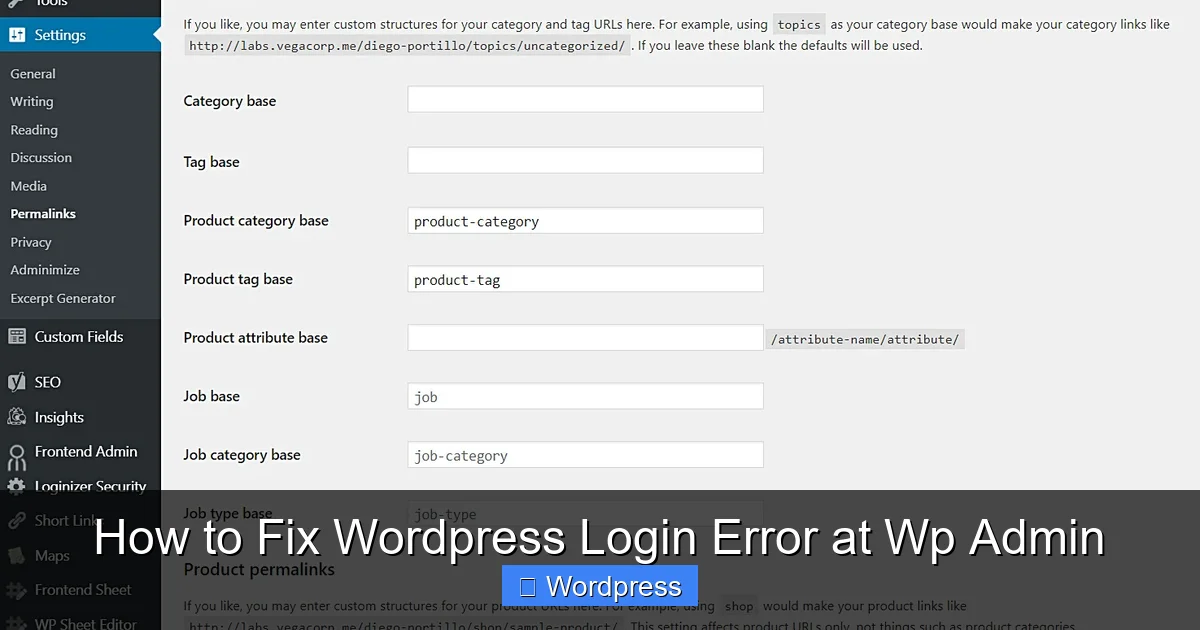
Visual guide about How to Fix WordPress Login Error at Wp Admin
Image source: wpfrontendadmin.com
If email recovery isn’t working, reset your password directly in the database.
Method A: Use phpMyAdmin (Recommended)
- Log in to your hosting control panel (e.g., cPanel).
- Open phpMyAdmin and select your WordPress database.
- Find the
wp_userstable (prefix may vary, e.g.,wp123_users). - Click “Browse,” locate your admin user, and click the “Edit” icon.
- In the
user_passfield, delete the existing hash, type your new password, and set the function to MD5 (WordPress uses MD5 hashing for backward compatibility in this context). - Click “Go” to save. Now log in with your new password.
Method B: Edit wp-config.php (Advanced)
Add this line to your wp-config.php file (above the “That’s all, stop editing!” comment):
define('WP_ALLOW_REPAIR', true);
Then visit yoursite.com/wp-admin/maint/repair.php and follow the prompts. While this won’t reset your password directly, it can fix database corruption that may be blocking login.
Step 3: Disable Plugins and Themes via FTP
A faulty plugin or theme is one of the top causes of wp-admin login errors.
Disable All Plugins
- Connect to your site via FTP or your host’s file manager.
- Navigate to
/wp-content/plugins/. - Rename the
pluginsfolder toplugins_old. - Try accessing wp-admin. If it works, rename the folder back to
plugins, then reactivate plugins one by one to find the culprit.
Switch to a Default Theme
If disabling plugins doesn’t help, your active theme might be the issue:
- Go to
/wp-content/themes/. - Rename your current theme folder (e.g.,
mytheme→mytheme_old). - WordPress will automatically fall back to a default theme like Twenty Twenty-Four.
- Try logging in again. If successful, you’ll need to reinstall or update your custom theme.
> 💡 Pro Tip: Need to reinstall a clean theme? Check out our guide on how to install WP themes manually for safe, step-by-step instructions.
Step 4: Restore Corrupted WordPress Core Files
Missing or corrupted core files can break the login page entirely.
Re-upload Fresh Core Files
- Download the latest version of WordPress from wordpress.org.
- Extract the ZIP file on your computer.
- Using FTP, upload all files except:
wp-content(your themes, plugins, and uploads)wp-config.php(your site settings)
- Overwrite existing files when prompted.
- Try accessing wp-admin again.
This replaces only core system files—your content and settings remain untouched.
Step 5: Fix Incorrect Site URL Settings
If your site URL is misconfigured, you might get redirected or see a “404 Not Found” error when trying to log in.
Check and Update Site URLs
You can fix this in two ways:
Option 1: Edit wp-config.php
Add these lines above the “That’s all, stop editing!” comment:
define('WP_HOME', 'https://yoursite.com');
define('WP_SITEURL', 'https://yoursite.com');
Replace yoursite.com with your actual domain (include https:// if using SSL).
Option 2: Update the Database Directly
In phpMyAdmin, go to the wp_options table and ensure these two fields are correct:
siteurlhome
Both should match your full site URL (e.g., https://yoursite.com).
> ⚠️ Note: If you recently moved your site or changed domains, this is likely the root cause.
Step 6: Check File Permissions and Server Issues
Incorrect file permissions or server security rules can block access to wp-admin.
Verify File Permissions
Via FTP or file manager:
- Set all directories to
755. - Set all files to
644. - Ensure
wp-config.phpis not world-writable (should be640or644).
Check for Server-Side Blocks
Some hosts use security tools like mod_security that may block login attempts due to suspicious activity.
- Contact your hosting provider and ask if they’ve blocked your IP or triggered a security rule.
- Check your server error logs (usually in cPanel under “Errors” or via FTP in
/logs/). - Temporarily disable mod_security via
.htaccess(only if advised by your host):
  SecFilterEngine Off
  SecFilterScanPOST Off
> 🔍 Related Issue: If you’re seeing a “404 Error in WordPress” instead of a login page, it could be a permalink or URL rewrite issue. Learn more in our 404 Error in WordPress guide.
Troubleshooting Tips and Warnings
- Always backup first: Before making changes—especially to the database—create a full site and database backup.
- Don’t delete files blindly: Renaming is safer than deleting. You can always revert.
- Test after each step: Don’t skip ahead. Isolate the fix so you know what worked.
- Use a staging site if possible: For complex sites, replicate the issue on a clone before applying fixes to production.
Conclusion
WordPress login errors at wp-admin are common but almost always solvable. Start with simple fixes like clearing your browser cache or resetting your password. If those fail, systematically disable plugins and themes, restore core files, and verify your site URLs. Most issues stem from one of these causes.
Remember: patience and methodical troubleshooting are your best tools. And if you’re ever unsure, your hosting provider’s support team can often pinpoint server-related problems quickly.
With these steps, you’ll not only regain access but also build confidence in managing your WordPress site like a pro.
> 🛠️ Need to clean up after fixing the issue? Learn how to delete a theme in WordPress safely, or explore how to use the WP Reset plugin for deeper site resets (use with caution!).