
If your WordPress site is stuck in maintenance mode, don’t panic—this common issue usually happens after updates. This guide walks you through simple, effective fixes to restore your site fast.
Key Takeaways
- Maintenance mode is triggered by WordPress updates: It creates a temporary .maintenance file that should auto-delete after updates complete.
- Delete the .maintenance file manually: Use FTP or your hosting file manager to remove it and instantly restore access.
- Check for failed updates: Incomplete core, plugin, or theme updates can leave the site stuck—retrying the update may help.
- Use safe mode if needed: Temporarily disable plugins or themes via renaming folders to rule out conflicts.
- Prevent future issues: Always backup your site before updating and use reliable plugins for smoother maintenance.
How to Fix WordPress Stuck in Maintenance Mode
Ever tried to visit your WordPress site only to see a blank screen or a message saying “Briefly unavailable for scheduled maintenance. Check back in a minute.”? That’s WordPress stuck in maintenance mode—and it’s more common than you think. While this state is meant to be temporary (usually during updates), sometimes things go wrong and the site doesn’t exit properly.
In this guide, you’ll learn exactly how to fix WordPress stuck in maintenance mode using safe, proven methods. Whether you’re a beginner or a seasoned site owner, we’ll walk you through each step clearly—no coding expertise required. By the end, your site will be back online and running smoothly.
What Causes WordPress Maintenance Mode?
WordPress automatically enters maintenance mode when performing updates—whether it’s the core software, a plugin, or a theme. During this time, it creates a hidden file called .maintenance in your site’s root directory. Once the update finishes successfully, WordPress deletes this file and returns your site to normal.
However, if the update fails, times out, or gets interrupted (like a lost internet connection or server crash), that .maintenance file isn’t removed. As a result, your site remains locked in maintenance mode—even though no actual maintenance is happening.
Step 1: Delete the .maintenance File via FTP
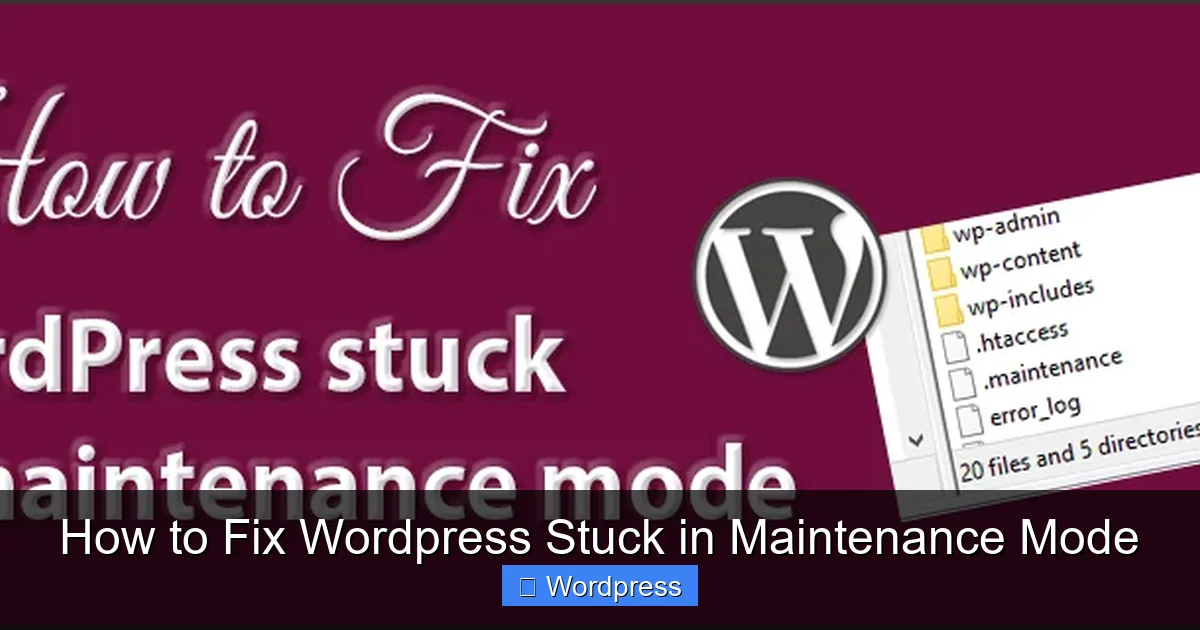
The most common and effective fix is simply removing the .maintenance file. Here’s how to do it using FTP:
Visual guide about How to Fix WordPress Stuck in Maintenance Mode
Image source: mprstudio.com
Connect to Your Site Using FTP
You’ll need an FTP client like FileZilla (free and widely used). Open it and enter your FTP credentials—these are usually found in your hosting control panel under “FTP Accounts” or similar.
Navigate to the Root Directory
Once connected, go to the main folder where your WordPress files are stored. This is typically named public_html, www, or your domain name.
Show Hidden Files
The .maintenance file is hidden by default. In FileZilla, click Server > Force showing hidden files to reveal it.
Delete the .maintenance File
Look for a file named .maintenance (note the dot at the beginning). Right-click it and select Delete. That’s it! Refresh your website—it should load normally now.
Tip: If you don’t see the file, double-check that hidden files are enabled. Some servers hide dot-prefixed files by default.
Step 2: Use Your Hosting File Manager (No FTP Needed)
Not comfortable with FTP? Most web hosts offer a built-in file manager in their control panel (like cPanel or Plesk). Here’s how to use it:
Log Into Your Hosting Account
Go to your hosting provider’s dashboard and find the File Manager tool.
Open the Root Directory
Navigate to the folder containing your WordPress installation—again, usually public_html.
Enable Hidden Files
Look for a setting like “Show Hidden Files” or “Preferences” and make sure it’s turned on.
Locate and Delete .maintenance
Find the .maintenance file, right-click it, and choose Delete. Your site should come back immediately.
Example: On Bluehost or SiteGround, this process takes less than 30 seconds once you’re in the file manager.
Step 3: Check for Failed Updates
Sometimes, deleting the .maintenance file isn’t enough—especially if an update partially completed and left your site broken. After restoring access, check if any updates are pending:
Log Into Your WordPress Dashboard
If you can access the admin area, go to Dashboard > Updates.
Review Pending Updates
Look for any plugins, themes, or core updates marked as “failed” or still pending. Try re-running them one by one.
Manually Update if Necessary
If automatic updates keep failing, consider manually updating your WordPress theme or plugins via FTP. This gives you more control and avoids timeouts.
Pro tip: Always backup your site before updating. Use plugins like UpdraftPlus or your host’s backup tool.
Step 4: Disable Plugins or Themes (If Site Still Won’t Load)
If your site remains inaccessible even after removing the .maintenance file, a plugin or theme conflict might be to blame. Here’s how to troubleshoot:
Rename the Plugins Folder
Using FTP or your file manager, go to wp-content/plugins and rename the folder to plugins_old. This effectively disables all plugins. If your site loads now, you’ve found the culprit.
Reactivate Plugins One by One
Rename the folder back to plugins, then reactivate each plugin individually from the WordPress dashboard to identify the problematic one.
Switch to a Default Theme
If plugins aren’t the issue, try switching to a default WordPress theme like Twenty Twenty-Four. Rename your current theme folder (e.g., mytheme to mytheme_old) inside wp-content/themes. WordPress will automatically fall back to a default theme.
For more details, check out our guide on how to deactivate a theme in WordPress safely.
Step 5: Prevent Future Maintenance Mode Issues
Now that your site is fixed, let’s make sure this doesn’t happen again:
- Backup regularly: Use automated backups so you can restore quickly if something goes wrong.
- Update during low traffic: Schedule updates when fewer visitors are online to reduce server load.
- Use reliable plugins: Avoid poorly coded plugins that may crash during updates.
- Monitor server resources: Low memory or PHP timeouts can interrupt updates—upgrade your hosting plan if needed.
- Consider staging sites: Test updates on a staging environment before applying them to your live site.
Troubleshooting Tips
Still seeing the maintenance message? Clear your browser cache and try accessing your site in incognito mode. Sometimes cached versions show old errors.
Getting a “500 Internal Server Error” instead? This could mean a corrupted wp-config.php file or PHP memory issue. Check your error logs via your hosting panel for clues.
Can’t access FTP or file manager? Contact your hosting support—they can often remove the .maintenance file for you within minutes.
Conclusion
WordPress getting stuck in maintenance mode is frustrating—but rarely permanent. In most cases, it’s just a missing cleanup step after an update. By deleting the .maintenance file via FTP or your hosting file manager, you can restore your site in under a minute.
If the problem persists, methodically check for failed updates or plugin/theme conflicts. And remember: prevention is key. With regular backups and careful update practices, you’ll minimize downtime and keep your site running smoothly.
Don’t let a simple maintenance hiccup scare you off—WordPress is built to be resilient, and now you know exactly how to handle it.