
The WordPress white screen of death (WSOD) is a common but frustrating issue that leaves your site completely blank. This guide walks you through proven fixes, including disabling plugins, switching themes, and enabling debugging—so you can get your site back online fast.
Key Takeaways
- Enable WP_DEBUG: Turn on debugging in wp-config.php to reveal hidden error messages that cause the white screen.
- Disable all plugins: A faulty plugin is often the culprit—deactivate them via FTP or phpMyAdmin to isolate the issue.
- Switch to a default theme: Use a core WordPress theme like Twenty Twenty-Four to rule out theme-related problems.
- Check memory limits: Increase PHP memory limit in wp-config.php if your site runs out of resources.
- Review recent changes: Roll back recent plugin, theme, or core updates that may have triggered the WSOD.
- Restore from backup: If all else fails, restore your site using a recent backup to return to a working state.
- Use safe mode tools: Plugins like WP Reset can help recover your site without full data loss.
What Is the WordPress White Screen of Death?
The WordPress white screen of death (WSOD) is when your website displays a completely blank page—no content, no error message, just white. It can affect your front end, admin dashboard, or both. This issue usually happens after a plugin update, theme change, or WordPress core update. While it looks scary, it’s often fixable with the right steps.
In this guide, you’ll learn how to diagnose and fix the white screen of death using safe, proven methods. We’ll cover everything from enabling error logs to restoring your site from a backup. By the end, you’ll know exactly what to do when faced with a blank screen.
Step 1: Enable WordPress Debugging
The first step in fixing the WSOD is to find out what’s causing it. By default, WordPress hides error messages, which is why you only see a blank screen. Enabling debugging reveals the real issue.
Edit wp-config.php
Use an FTP client or your hosting file manager to locate the wp-config.php file in your WordPress root directory. Open it and look for this line:
define('WP_DEBUG', false);Change it to:
define('WP_DEBUG', true);Also add these lines below it to log errors to a file:
define('WP_DEBUG_LOG', true);
define('WP_DEBUG_DISPLAY', false);
This will save error details to /wp-content/debug.log without showing them on your live site. Check that file after reloading your site to see the error message.
What to Look For
Common errors include “Fatal error: Allowed memory size exhausted” or “Call to undefined function.” These clues point directly to the source—like a broken plugin or missing file.
Step 2: Disable All Plugins
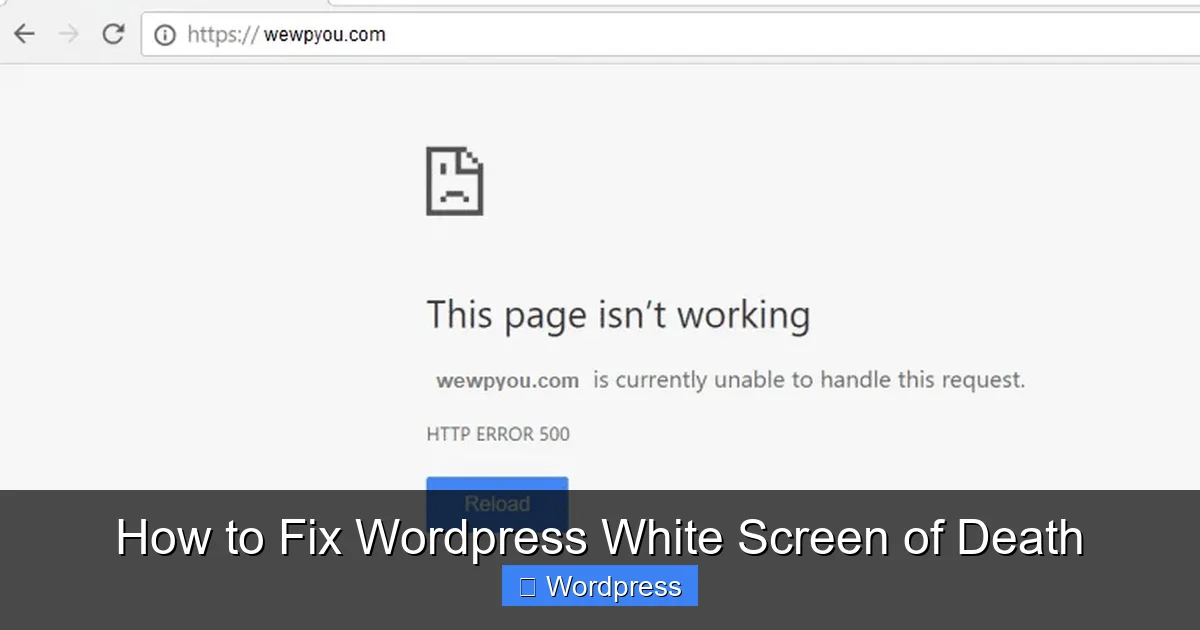
Plugins are the most common cause of the white screen. A single faulty plugin can crash your entire site. Here’s how to disable them when you can’t access the admin dashboard.
Visual guide about How to Fix WordPress White Screen of Death
Image source: wewpyou.com
Rename the Plugins Folder via FTP
Connect to your site using FTP or your hosting file manager. Navigate to /wp-content/ and rename the plugins folder to plugins_old. This deactivates all plugins at once.
Now reload your site. If it loads, you’ve confirmed a plugin is causing the issue. Rename the folder back to plugins, then go to your WordPress admin and reactivate plugins one by one to find the problematic one.
Alternative: Use phpMyAdmin
If you prefer database access, log into phpMyAdmin, find your WordPress database, and open the wp_options table (prefix may vary). Look for the active_plugins row and edit it. Replace the value with a:0:{} to deactivate all plugins.
Once your site is back, reactivate plugins individually from the dashboard to identify the culprit.
Step 3: Switch to a Default WordPress Theme
If disabling plugins doesn’t work, the issue might be your active theme. A corrupted or incompatible theme can cause the WSOD—especially after an update.
Visual guide about How to Fix WordPress White Screen of Death
Image source: zardness.com
Rename Your Current Theme Folder
Using FTP, go to /wp-content/themes/ and rename your current theme folder (e.g., from mytheme to mytheme_old). WordPress will automatically fall back to a default theme like Twenty Twenty-Four.
Reload your site. If it loads, the problem was your theme. You can then delete the faulty theme or reinstall a fresh copy from the WordPress repository.
Reinstall a Clean Theme
If you’re using a premium theme, download a fresh copy from the developer and upload it via FTP. For free themes, go to Appearance > Themes in your dashboard and reinstall it.
Need help choosing a reliable theme? Check out our guide on the best WordPress theme for SEO and speed for recommendations.
Step 4: Increase PHP Memory Limit
WordPress may run out of memory during heavy operations, leading to a white screen. Increasing the PHP memory limit can solve this.
Edit wp-config.php Again
Open wp-config.php and add this line above the “That’s all, stop editing!” comment:
define('WP_MEMORY_LIMIT', '256M');This raises the memory limit to 256MB. Most hosts allow up to 512MB, but check with your provider if you’re unsure.
Alternative: Use .htaccess or php.ini
If the above doesn’t work, try adding this to your .htaccess file:
php_value memory_limit 256M
Or create/edit a php.ini file in your root directory with:
memory_limit = 256M
Not all hosts support these methods, so test carefully.
Step 5: Check for Corrupted Core Files
Sometimes, WordPress core files get corrupted during updates or transfers. Replacing them can fix the WSOD.
Reinstall WordPress Manually
Download the latest version of WordPress from wordpress.org. Extract the ZIP file and upload all files except wp-content and wp-config.php to your server via FTP. This overwrites core files without affecting your content or settings.
After uploading, reload your site. This often resolves issues caused by missing or damaged files.
Step 6: Restore from a Backup
If none of the above steps work, it’s time to restore your site from a backup. This returns your site to a working state before the WSOD occurred.
Use Your Hosting Backup
Many hosts offer automatic backups. Log into your hosting control panel (like cPanel) and look for a “Backup” or “Restore” option. Choose a backup from before the issue started and restore it.
Use a Backup Plugin
If you use a plugin like UpdraftPlus or BackupBuddy, restore your site through their interface. These tools let you restore files and databases separately.
Always test your site after restoration to ensure everything works correctly.
Troubleshooting Tips
- Clear your browser cache: Sometimes, a cached blank page appears even after the fix. Hard-refresh (Ctrl+F5) or clear cache.
- Check file permissions: Incorrect permissions on WordPress files can cause issues. Set folders to 755 and files to 644 via FTP.
- Disable caching plugins: If you use caching tools like WP Super Cache, disable them during troubleshooting.
- Review recent changes: Think about what changed before the WSOD—new plugin, theme update, or code edit? Revert it if possible.
When to Use WP Reset Plugin
If you’re stuck and need a quick reset, consider using the WP Reset plugin. It lets you reset your database, deactivate plugins, and switch themes without losing your content. Use it cautiously—always backup first.
Conclusion
The WordPress white screen of death is alarming, but rarely permanent. By enabling debugging, disabling plugins, switching themes, and checking memory limits, you can usually restore your site quickly. Always keep regular backups and test updates on a staging site when possible.
Remember: most WSOD issues stem from plugins or themes. Stay cautious with updates, and use trusted tools. With this guide, you’re equipped to handle the white screen like a pro—and get your site back online with confidence.