
If you’re seeing a Yoast SEO error on your WordPress site, don’t panic—most issues are easy to fix. This guide walks you through common problems and proven solutions to get your SEO back on track.
Key Takeaways
- Clear plugin conflicts: Deactivate other plugins temporarily to identify if one is causing the Yoast SEO error.
- Update Yoast SEO: Always use the latest version of the plugin to avoid bugs and compatibility issues.
- Check file permissions: Incorrect folder permissions can prevent Yoast from generating sitemaps or saving settings.
- Reset .htaccess file: A corrupted .htaccess file may block SEO features—reset it safely via WordPress.
- Re-save permalinks: Refreshing your permalink structure often resolves indexing and sitemap errors.
- Use debug mode: Enable WP_DEBUG to uncover hidden PHP errors affecting Yoast functionality.
- Contact support if needed: If all else fails, reach out to Yoast’s support team with detailed error logs.
How to Fix Yoast SEO Error: A Complete Step-by-Step Guide
If you’ve ever logged into your WordPress dashboard and seen a red warning saying “Yoast SEO error,” you’re not alone. These alerts can be confusing—especially when they affect your site’s search engine visibility. The good news? Most Yoast SEO errors are fixable with a few simple steps.
In this guide, you’ll learn how to diagnose and resolve the most common Yoast SEO issues. Whether it’s a sitemap that won’t generate, a missing meta description, or a mysterious PHP error, we’ll walk you through practical solutions. By the end, your SEO plugin should be running smoothly again—and your site will be back in Google’s good graces.
Common Causes of Yoast SEO Errors
Before jumping into fixes, it helps to understand what might be causing the problem. Yoast SEO is a powerful tool, but it relies on several WordPress components working correctly. Here are the most frequent culprits:
- Outdated plugin version: Running an old version of Yoast SEO can lead to compatibility issues with newer WordPress updates.
- Plugin or theme conflicts: Another plugin—or even your active theme—might interfere with Yoast’s functionality.
- Corrupted .htaccess file: This critical file controls URL rewriting and can break sitemaps if damaged.
- Incorrect file permissions: If WordPress can’t write to certain folders, Yoast can’t generate sitemaps or save settings.
- Permalink structure issues: Improper permalinks prevent proper indexing and can trigger errors.
- PHP memory limits: Low memory allocation may cause Yoast to fail during heavy operations like sitemap generation.
Now that you know what to look for, let’s fix it.
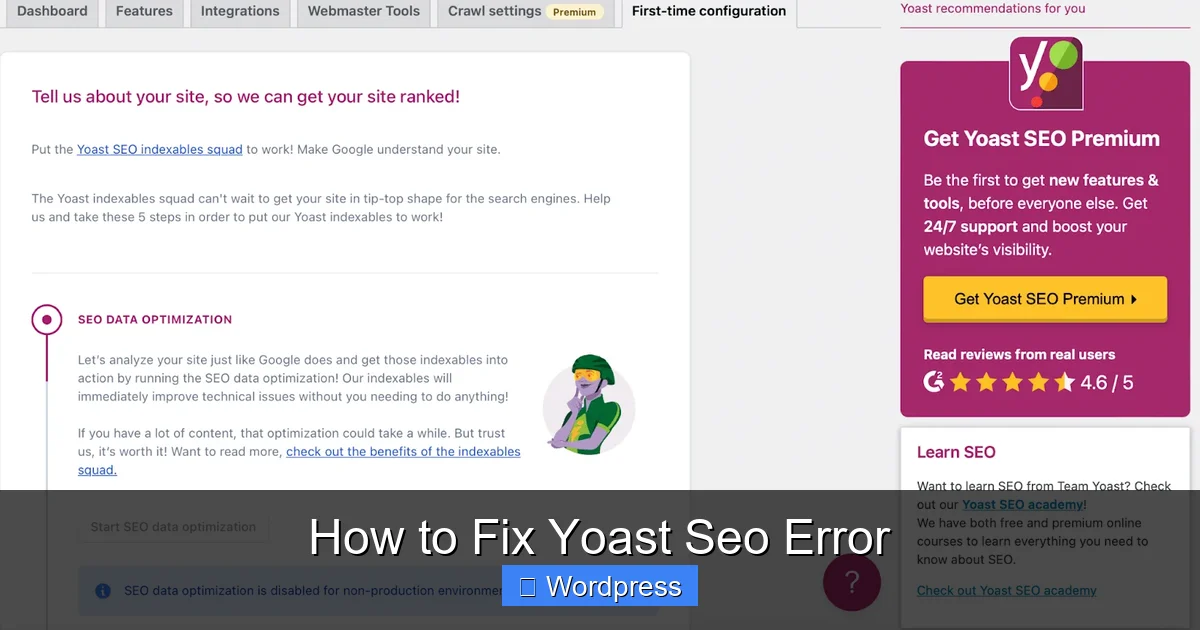
Step 1: Update Yoast SEO to the Latest Version
Visual guide about How to Fix Yoast Seo Error
Image source: kinsta.com
Outdated plugins are a common source of errors. Developers regularly release updates to patch bugs and improve compatibility.
How to Update Yoast SEO
- Go to your WordPress dashboard.
- Navigate to Plugins > Installed Plugins.
- Find “Yoast SEO” in the list.
- If an update is available, click Update Now.
If you don’t see an update option, visit the official Yoast SEO page and download the latest version. Then, upload it manually via Plugins > Add New > Upload Plugin.
Pro tip: Always back up your site before updating any plugin—just in case something goes wrong.
Step 2: Check for Plugin or Theme Conflicts
Visual guide about How to Fix Yoast Seo Error
Image source: b-website.com
Sometimes, another plugin or your current theme clashes with Yoast SEO. To test this, you’ll need to disable other plugins temporarily.
How to Test for Conflicts
- Go to Plugins > Installed Plugins.
- Deactivate all plugins except Yoast SEO.
- Check if the error disappears.
- If it does, reactivate plugins one by one, checking after each activation to find the culprit.
If the error only occurs with a specific plugin active, consider replacing it or contacting its developer for support.
Test Your Theme
If no plugin is causing the issue, your theme might be the problem:
- Go to Appearance > Themes.
- Switch to a default WordPress theme like Twenty Twenty-Four.
- Check if the Yoast SEO error is gone.
If the error disappears, your original theme may have compatibility issues. Consider updating it or switching to a more reliable option. For help choosing a fast, SEO-friendly theme, check out our guide on the best WordPress theme for SEO and speed.
Step 3: Re-save Your Permalink Structure
A simple but effective fix for many Yoast SEO errors is refreshing your permalink settings. This forces WordPress to regenerate the .htaccess file and can resolve sitemap and indexing issues.
How to Re-save Permalinks
- Go to Settings > Permalinks.
- Without changing anything, click Save Changes at the bottom.
This action updates the rewrite rules and often fixes broken sitemaps or 404 errors related to SEO.
Step 4: Fix or Reset the .htaccess File
The .htaccess file controls how URLs are handled on your site. If it’s corrupted or missing, Yoast SEO may fail to generate sitemaps or apply redirects.
How to Reset .htaccess Safely
- Access your site via FTP or your hosting file manager.
- Navigate to the root folder (usually public_html or www).
- Look for a file named .htaccess (it may be hidden—enable “show hidden files”).
- Rename it to .htaccess_backup as a safety measure.
- Go back to Settings > Permalinks in WordPress and click Save Changes again.
WordPress will automatically create a new, clean .htaccess file. Test your site and Yoast SEO to see if the error is resolved.
Note: If you’ve added custom rules (like redirects), you’ll need to re-add them after resetting.
Step 5: Check File and Folder Permissions
Yoast SEO needs write access to certain directories—especially to generate sitemaps. If file permissions are too restrictive, the plugin can’t function properly.
How to Fix Permissions
- Use FTP or your hosting control panel to access your site files.
- Navigate to wp-content/uploads/.
- Ensure the folder has 755 permissions (or 775 if your host recommends it).
- Also check that files inside have 644 permissions.
Most hosting providers allow you to change permissions directly in the file manager. If you’re unsure, contact your host for guidance.
Step 6: Increase PHP Memory Limit
Low memory can cause Yoast SEO to crash during heavy tasks like sitemap generation. The default limit is often 64M or 128M—too low for complex sites.
How to Increase Memory Limit
- Edit your wp-config.php file (in your site’s root directory).
- Add this line above the “That’s all, stop editing!” comment:
define('WP_MEMORY_LIMIT', '256M'); - Save the file and reload your site.
If you can’t edit the file directly, ask your hosting provider to increase the memory limit via php.ini or their control panel.
Step 7: Enable Debug Mode to Find Hidden Errors
Sometimes, Yoast SEO errors are caused by underlying PHP issues that aren’t visible in the dashboard. Enabling debug mode reveals these hidden problems.
How to Enable WP_DEBUG
- Open your wp-config.php file.
- Find the line that says
define('WP_DEBUG', false); - Change it to:
define('WP_DEBUG', true);
define('WP_DEBUG_LOG', true);
define('WP_DEBUG_DISPLAY', false); - Save the file.
Now, check the wp-content/debug.log file for error messages. Look for anything mentioning “Yoast,” “SEO,” or “fatal error.” These clues can point you to the exact cause.
Once you’ve fixed the issue, remember to disable debug mode by setting WP_DEBUG back to false.
Troubleshooting Advanced Yoast SEO Errors
If you’re still seeing errors after trying the steps above, here are a few advanced fixes:
- Sitemap returns 404: This usually means the .htaccess file isn’t working. Re-save permalinks or check with your host if mod_rewrite is enabled.
- “Unable to save settings” error: Often caused by file permission issues or a full disk. Clear cache and check server space.
- Meta tags not appearing: Ensure your theme supports Yoast SEO. Some themes override meta tags—consider using a compatible theme or editing header.php.
For persistent issues, visit the Yoast Help Center or post in their community forum with your debug log.
When to Contact Yoast Support
If you’ve tried everything and the error persists, it’s time to reach out for help. Yoast offers excellent support for premium users, and even free users can get assistance through their forums.
Before contacting support:
- Note the exact error message.
- List the steps you’ve already tried.
- Include your WordPress version, PHP version, and active plugins.
- Attach your debug log if possible.
The more details you provide, the faster they can help.
Conclusion
Dealing with a Yoast SEO error can be frustrating, but most issues are solvable with a systematic approach. Start by updating the plugin, checking for conflicts, and re-saving permalinks. If that doesn’t work, dig deeper into file permissions, .htaccess, and debug logs.
Remember: keeping your WordPress site updated, using compatible themes, and monitoring plugin interactions are the best ways to prevent future errors. And if you ever need to switch themes, make sure to follow best practices—our guide on how to update a theme on WordPress can help you do it safely.
With these steps, your Yoast SEO plugin should be back to boosting your site’s visibility in no time.