
This guide teaches you how to login in WordPress admin using multiple methods, including the standard URL, dashboard links, and troubleshooting login issues. Whether you’re a beginner or managing multiple sites, you’ll find clear, actionable steps to access your WordPress backend securely and efficiently.
Key Takeaways
- Standard login URL: Most WordPress sites use yoursite.com/wp-admin or yoursite.com/wp-login.php to access the admin area.
- Bookmark the login page: Save the admin URL in your browser for quick and secure access in the future.
- Use correct credentials: Ensure your username and password are accurate—case-sensitive and free of extra spaces.
- Enable two-factor authentication: Add an extra layer of security to prevent unauthorized access to your WordPress admin.
- Troubleshoot common issues: Clear cache, check for plugin conflicts, or reset your password if login fails.
- Custom login URLs: Some sites use plugins to change the default login path for enhanced security.
- Stay updated: Keep WordPress, themes, and plugins updated to avoid login problems caused by outdated software.
How to Login in WordPress Admin: A Complete Step-by-Step Guide
Logging into your WordPress admin dashboard is the first step to managing your website—whether you’re publishing posts, updating themes, or configuring settings. While it seems simple, many users struggle with login issues due to forgotten passwords, incorrect URLs, or security plugins. In this comprehensive guide, you’ll learn how to login in WordPress admin using different methods, fix common problems, and keep your access secure.
By the end of this article, you’ll be able to access your WordPress backend confidently, even if you’re a complete beginner. We’ll cover the standard login process, alternative methods, troubleshooting tips, and best practices for maintaining secure access.
Method 1: Using the Standard WordPress Login URL
The most common way to access your WordPress admin is through the default login page. Here’s how:
Visual guide about How to Login in WordPress Admin
Image source: cdn.learnwoo.com
Step 1: Open Your Web Browser
Launch your preferred browser—Chrome, Firefox, Safari, or Edge—and make sure you’re connected to the internet.
Step 2: Enter the Login URL
Type one of the following URLs into the address bar:
https://yourwebsite.com/wp-adminhttps://yourwebsite.com/wp-login.php
Replace “yourwebsite.com” with your actual domain name. For example, if your site is exampleblog.com, the login URL would be https://exampleblog.com/wp-admin.
Step 3: Enter Your Login Credentials
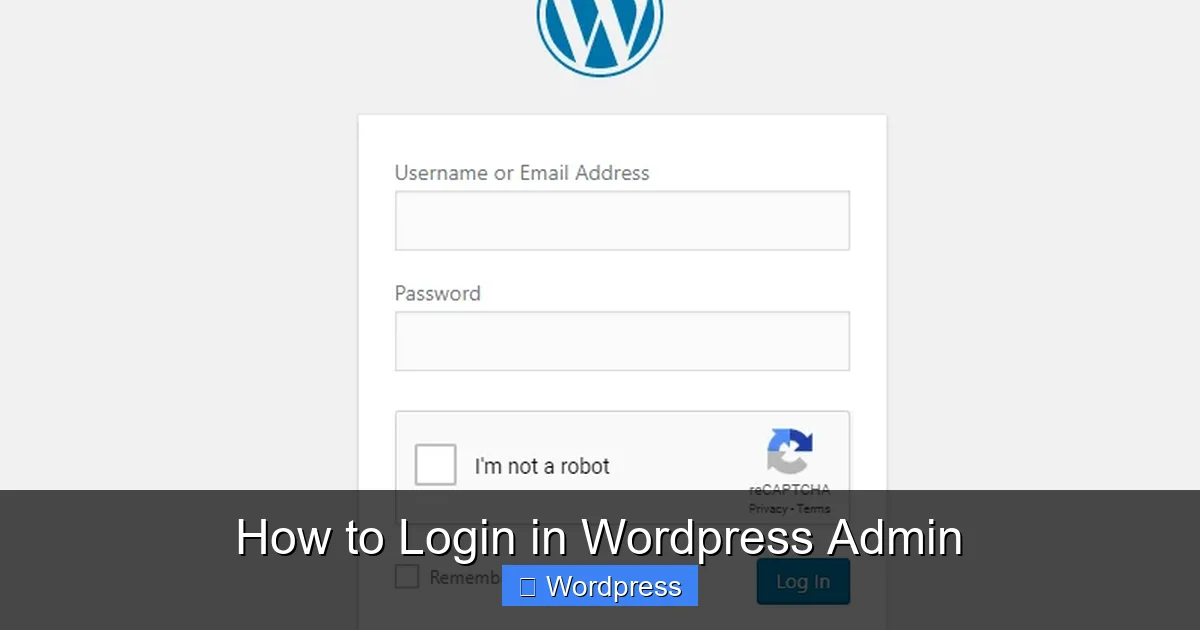
You’ll see a login form with two fields:
- Username or Email: Enter the username or email address you used when creating your WordPress account.
- Password: Type your password exactly as it was set—remember, it’s case-sensitive.
Click the “Log In” button to proceed.
Step 4: Access the Dashboard
If your credentials are correct, you’ll be redirected to the WordPress admin dashboard. From here, you can manage posts, pages, themes, plugins, and more.
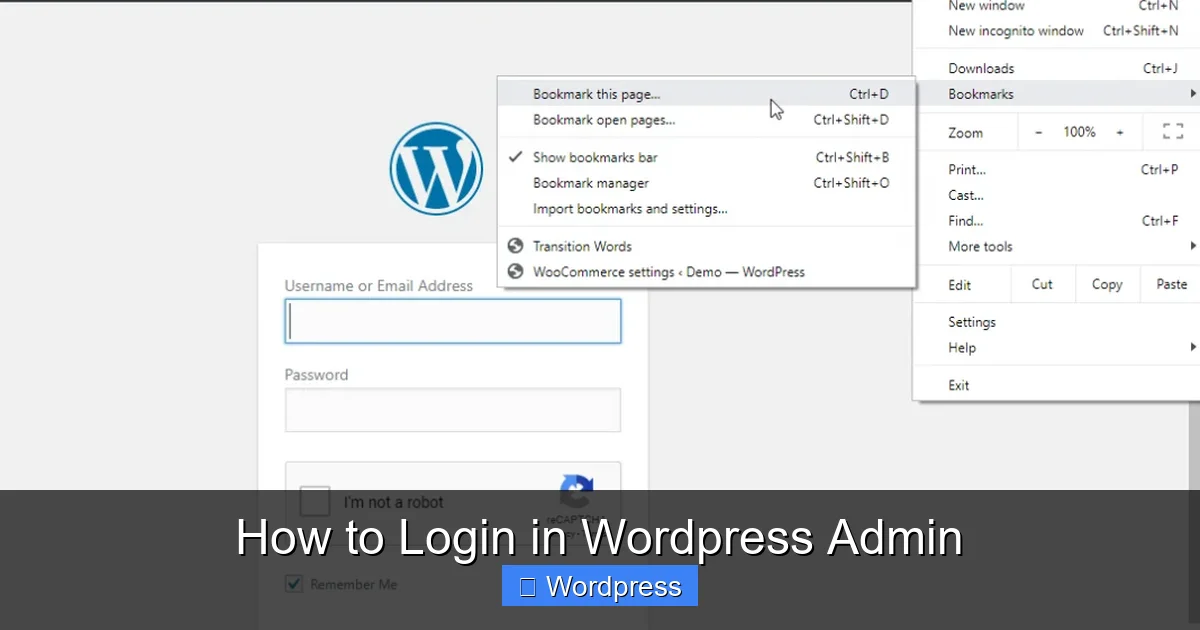
Pro Tip: Bookmark this login page in your browser for faster access next time. Just click the star icon in the address bar and save it to your bookmarks bar.
Method 2: Logging In via the WordPress.com Login Page (For WordPress.com Sites)
If your site is hosted on WordPress.com (not self-hosted WordPress.org), the login process is slightly different.
Visual guide about How to Login in WordPress Admin
Image source: cdn.learnwoo.com
Step 1: Go to WordPress.com
Visit https://wordpress.com/log-in in your browser.
Step 2: Enter Your Account Details
Use the email address and password associated with your WordPress.com account. If you signed up with Google or Apple, click the corresponding social login button.
Step 3: Navigate to Your Site’s Admin
After logging in, click on your site name from the dashboard. Then, look for the “WP Admin” button—usually in the top-right corner—to access the backend.
Note: This method only applies to WordPress.com users. Self-hosted WordPress sites (using WordPress.org software) must use the /wp-admin URL.
Method 3: Using a Custom Login URL (For Enhanced Security)
Many website owners change their default login URL to prevent brute-force attacks. If your site uses a security plugin like WPS Hide Login or iThemes Security, the login path may be customized.
How to Find Your Custom Login URL
- Check your site’s documentation or contact your web developer.
- Look for a plugin setting that shows the new login path (e.g.,
yourwebsite.com/loginoryourwebsite.com/admin-area). - If you’re the admin, you can usually find this in the plugin’s settings under “Security” or “Login Protection.”
Example: If you installed WPS Hide Login and set the new slug to “secure-login”, your login URL becomes https://yourwebsite.com/secure-login.
Important: If you forget your custom login URL, you can still access it via the database or by temporarily disabling the plugin via FTP.
Troubleshooting Common WordPress Login Issues
Even experienced users face login problems. Here’s how to fix the most common ones.
Issue 1: “Invalid Username or Password” Error
This is the most frequent login error. Try these fixes:
- Check for typos: Ensure your username and password are correct. Passwords are case-sensitive.
- Reset your password: Click “Lost your password?” on the login page. Enter your username or email, and WordPress will send a reset link.
- Clear browser cache: Sometimes cached data causes login issues. Clear your browser’s cache and cookies, then try again.
Issue 2: “Error Establishing a Database Connection”
This means WordPress can’t connect to your database. Possible causes include incorrect database credentials or server downtime.
- Check your
wp-config.phpfile for correct database name, username, password, and host. - Contact your hosting provider to verify if the database server is running.
Issue 3: “404 Error” on Login Page
If you get a 404 error when visiting /wp-admin, your site’s permalinks might be misconfigured.
- Try accessing
yourwebsite.com/wp-login.phpdirectly. - If that works, go to Settings > Permalinks in your dashboard and click “Save Changes” to refresh permalink rules.
For more help with 404 errors, check out our guide on 404 Error in WordPress.
Issue 4: Locked Out Due to Security Plugin
If a security plugin blocks your IP or hides the login page, you may be locked out.
- Use FTP or your hosting file manager to access your site’s
wp-content/pluginsfolder. - Temporarily rename the plugin folder (e.g., change “wps-hide-login” to “wps-hide-login-off”).
- This deactivates the plugin, allowing you to log in and adjust settings.
Learn more about managing plugins in our article on how to deactivate a theme in WordPress—the process is similar for plugins.
Issue 5: White Screen or “Internal Server Error”
This could be due to a PHP error or plugin conflict.
- Disable all plugins via FTP by renaming the
pluginsfolder. - If the login page loads, reactivate plugins one by one to find the culprit.
- Check your server’s error logs for more details.
Best Practices for Secure WordPress Admin Access
Once you’ve successfully logged in, follow these tips to keep your admin area safe:
1. Use Strong Passwords
Avoid common passwords like “password123”. Use a mix of uppercase, lowercase, numbers, and symbols. Consider using a password manager.
2. Enable Two-Factor Authentication (2FA)
Install a plugin like Wordfence or Google Authenticator to require a second verification step during login.
3. Limit Login Attempts
Use plugins like Limit Login Attempts Reloaded to block IP addresses after repeated failed login attempts.
4. Change the Default Login URL
As mentioned earlier, hiding your login page reduces the risk of brute-force attacks. Plugins like WPS Hide Login make this easy.
5. Keep WordPress Updated
Regularly update WordPress core, themes, and plugins to patch security vulnerabilities. Outdated software is a common entry point for hackers.
For theme-related updates, see our guide on how to update theme on WordPress.
Conclusion
Knowing how to login in WordPress admin is essential for managing your website effectively. Whether you’re using the standard /wp-admin URL, a custom login path, or logging in via WordPress.com, the process is straightforward once you understand the steps. Remember to use strong credentials, enable security features, and troubleshoot issues promptly.
By following this guide, you’ll not only gain access to your dashboard but also protect your site from unauthorized users. Bookmark your login page, stay vigilant about updates, and don’t hesitate to use security plugins to safeguard your admin area.
Now that you’re logged in, explore your dashboard and start customizing your site. From themes to plugins, the possibilities are endless—just make sure you know how to get back in safely next time!