
This guide walks you through how to login to a WordPress website using multiple methods, including the default login URL, admin dashboard, and direct links. You’ll also learn how to recover lost passwords and fix common login issues.
Key Takeaways
- Default login URL: Most WordPress sites use /wp-login.php or /wp-admin at the end of the domain.
- Bookmark your login page: Save the direct login link to avoid typing it every time.
- Use strong passwords: Always protect your account with a secure, unique password.
- Enable two-factor authentication: Add an extra layer of security to prevent unauthorized access.
- Reset password easily: Use the “Lost your password?” link if you forget your credentials.
- Troubleshoot common issues: Clear cache, check URLs, and disable plugins if login fails.
- Know your user role: Only administrators and editors typically access the WordPress dashboard.
How to Login to a WordPress Website – A Complete Guide
Logging into your WordPress website is the first step to managing content, updating themes, installing plugins, or customizing your site. Whether you’re a blogger, business owner, or web developer, knowing how to access your WordPress dashboard securely and efficiently is essential. This guide will walk you through every method to login to a WordPress site, including troubleshooting tips and security best practices.
In this guide, you’ll learn:
- The standard ways to access your WordPress login page
- How to recover your password if you forget it
- Tips to make logging in faster and safer
- What to do if you can’t log in
Method 1: Using the Default WordPress Login URL
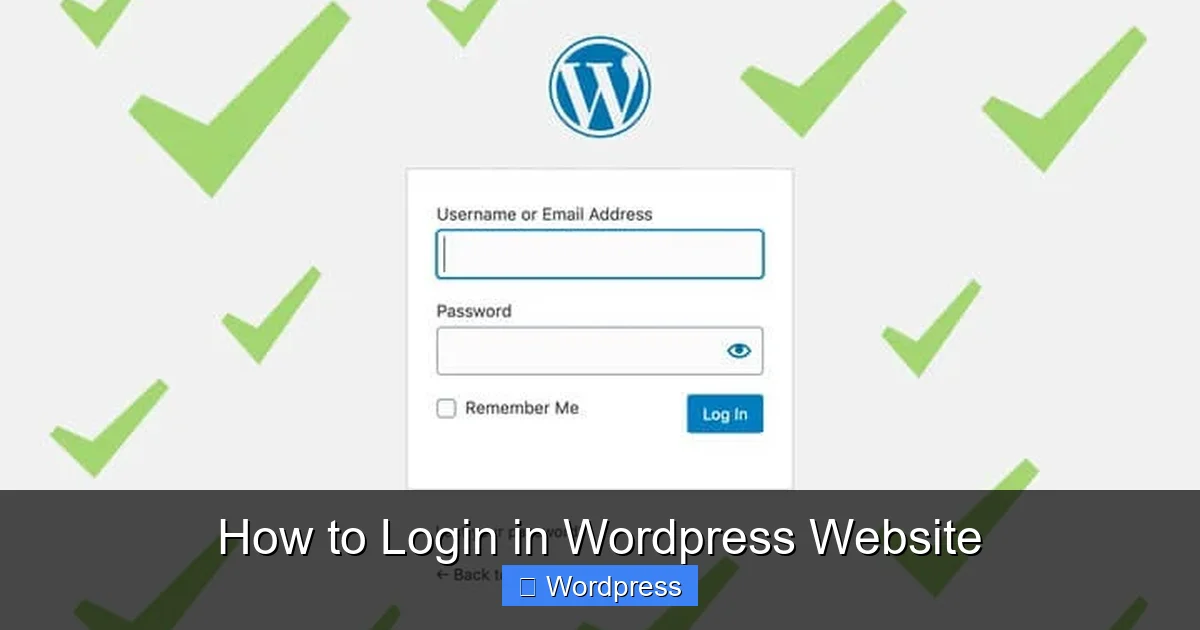
The most common way to login to a WordPress website is by using the default login URL. WordPress automatically sets up a login page when you install it, and it’s accessible through two standard paths:
Visual guide about How to Login in WordPress Website
Image source: wprunner.com
Step 1: Add /wp-login.php to Your Website URL
Type your website’s domain followed by /wp-login.php. For example:
- If your site is www.example.com, go to www.example.com/wp-login.php
This will take you directly to the WordPress login screen.
Step 2: Use /wp-admin Instead
Another way is to add /wp-admin to your domain:
- Visit www.example.com/wp-admin
This URL redirects you to the same login page. If you’re already logged in, it takes you straight to the WordPress dashboard.
Step 3: Enter Your Login Credentials
On the login page, you’ll see two fields:
- Username or Email Address: Enter the username or email you used when creating your WordPress account.
- Password: Type your password. Make sure Caps Lock is off.
Click the Log In button to access your dashboard.
Method 2: Accessing Login via the Website’s Homepage
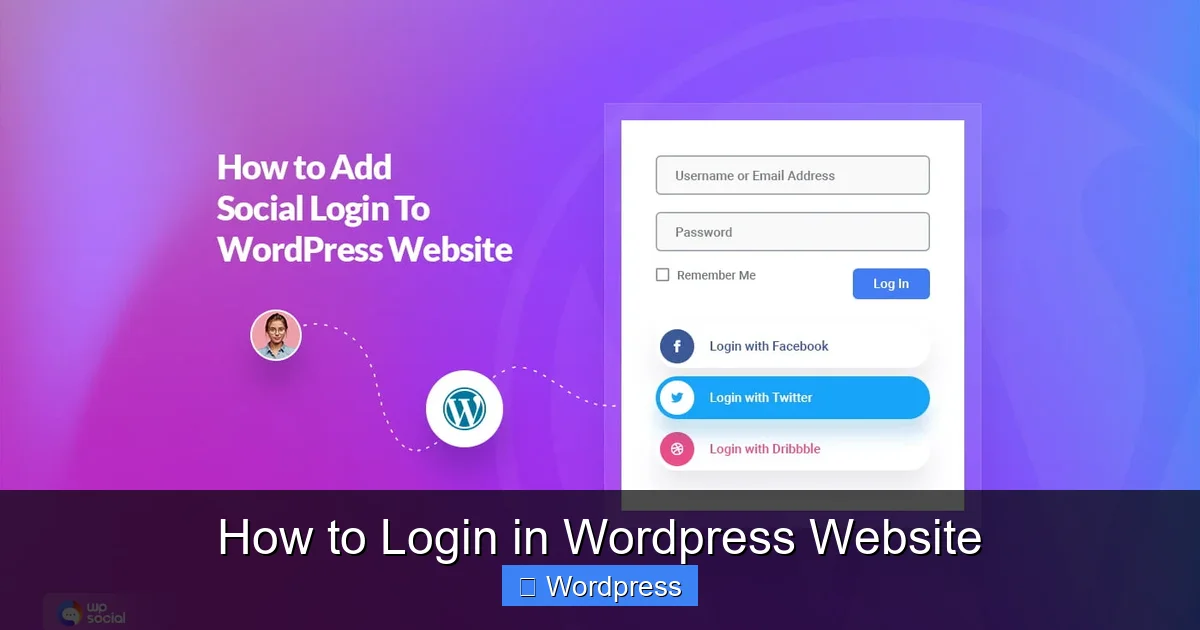
Some WordPress websites include a “Login” or “Admin” link in the footer, header, or sidebar. This is especially common on business or membership sites.
Visual guide about How to Login in WordPress Website
Image source: wpmet.com
Step 1: Scroll to the Footer
Look at the bottom of your website’s homepage. Many themes include a “Login” link in the footer menu.
Step 2: Check the Header or Navigation Menu
Some sites add a login button in the top-right corner of the header. Hover over menu items to see if “Dashboard” or “Admin” is listed.
Step 3: Click the Link
Clicking the login link will take you to the WordPress login page. Enter your credentials as usual.
Method 3: Using a Custom Login Page (If Available)
Some WordPress sites use plugins or custom themes to create a branded login page. This improves user experience and security by hiding the default login URL.
Step 1: Look for a Custom Login Link
If your site uses a plugin like Theme My Login or Custom Login Page Customizer, the login URL might be different. Common examples include:
- www.example.com/login
- www.example.com/member-login
- www.example.com/admin
Step 2: Use the Correct URL
If you’re unsure, check with your website administrator or look for clues in the site’s navigation. You can also search your site for “login” using the search bar (if available).
How to Reset Your WordPress Password
If you’ve forgotten your password, don’t worry—WordPress makes it easy to reset it.
Step 1: Go to the Login Page
Visit your site’s login page using one of the methods above.
Step 2: Click “Lost your password?”
Below the login form, click the Lost your password? link.
Step 3: Enter Your Username or Email
Type the username or email address associated with your account. WordPress will send a password reset link to your email.
Step 4: Check Your Email
Open your email inbox and look for a message from your WordPress site. Click the reset link inside the email.
Step 5: Create a New Password
You’ll be taken to a page where you can enter a new password. Choose a strong password with a mix of letters, numbers, and symbols. Confirm it and click Reset Password.
Tips for Faster and Safer WordPress Login
Once you know how to login to a WordPress website, make the process smoother and more secure with these tips.
Bookmark Your Login Page
After logging in, bookmark the login URL in your browser. This saves time and reduces the risk of visiting a fake login page.
Use a Password Manager
Tools like LastPass, Bitwarden, or 1Password store your login details securely and auto-fill them when needed.
Enable Two-Factor Authentication (2FA)
Add an extra layer of security by enabling 2FA. Use plugins like Google Authenticator or Wordfence to require a code from your phone during login.
Keep Your WordPress Updated
Regularly update your WordPress core, themes, and plugins to protect against security vulnerabilities. Learn how to update themes on WordPress safely to avoid login issues.
Limit Login Attempts
Use a plugin like Limit Login Attempts Reloaded to block brute force attacks. This prevents hackers from guessing your password.
Troubleshooting Common WordPress Login Problems
Sometimes, you might face issues when trying to login. Here’s how to fix the most common problems.
Problem: “Invalid Username or Password” Error
Solution: Double-check your username and password. Make sure Caps Lock is off. If you’re still stuck, reset your password using the method above.
Problem: Login Page Keeps Refreshing
Solution: This often happens due to plugin conflicts or corrupted cookies. Try these steps:
- Clear your browser cache and cookies
- Try logging in using a different browser or incognito mode
- Disable plugins by renaming the plugins folder via FTP (advanced users)
Problem: 404 Error on Login Page
Solution: If you get a “Page Not Found” error, the login URL might be incorrect. Try both /wp-login.php and /wp-admin. If neither works, contact your hosting provider or site administrator.
Problem: White Screen After Login
Solution: This is often caused by a theme or plugin conflict. Learn how to deactivate a theme in WordPress via FTP to fix the issue. You can also rename the active theme folder to force WordPress to revert to a default theme.
Problem: Locked Out of Admin
Solution: If you’re completely locked out, you can reset your password directly in the database using phpMyAdmin. Alternatively, contact your hosting support for assistance.
Best Practices for WordPress Login Security
Protecting your login page is crucial to prevent hacking and data loss.
Change the Default Login URL
Using plugins like WPS Hide Login, you can change /wp-login.php to something unique like /my-secret-login. This stops automated bots from attacking your site.
Use HTTPS
Ensure your site uses SSL (HTTPS) so login data is encrypted. Most hosting providers offer free SSL certificates.
Regularly Audit User Accounts
Remove inactive users and ensure each account has the correct role (e.g., subscriber, editor, admin). Too many admin accounts increase security risks.
Backup Your Site
Always keep regular backups. If something goes wrong during login troubleshooting, you can restore your site quickly.
Conclusion
Logging into a WordPress website is simple once you know the right steps. Whether you use the default /wp-login.php URL, a custom login page, or a link from the homepage, accessing your dashboard is the gateway to managing your site effectively. Remember to use strong passwords, enable two-factor authentication, and keep your site updated for maximum security.
If you ever run into login issues, don’t panic—most problems can be fixed with basic troubleshooting. And if you’re customizing your site’s appearance, check out how to apply a WordPress theme to give your login page a professional look.
Now that you know how to login to a WordPress website, you’re ready to take full control of your site. Happy blogging!