Making a clickable phone number in WordPress is essential for mobile users who want to call your business with one tap. This guide walks you through simple methods using HTML, plugins, and theme settings to ensure your contact number works flawlessly across all devices.
Key Takeaways
- Use the tel: protocol: Always wrap your phone number in a
<a href="tel:...">tag to make it clickable on mobile devices. - Edit HTML directly: You can add clickable numbers in posts, pages, or widgets using the Text/HTML editor in WordPress.
- Use a plugin for ease: Plugins like WP Call Button or Click to Call simplify adding and styling clickable phone numbers.
- Place numbers strategically: Add clickable numbers in headers, footers, menus, or contact sections for maximum visibility.
- Test on mobile: Always preview your site on a smartphone to ensure the number triggers a call prompt.
- Format numbers correctly: Use international format (e.g., +1234567890) for global compatibility.
- Customize with CSS: Style your clickable number to match your site’s design using custom CSS.
How to Make a Clickable Phone Number in WordPress
If you run a business website on WordPress, making your phone number clickable is one of the simplest ways to boost customer engagement—especially on mobile devices. When users can tap your number and instantly start a call, you remove friction and increase the chances of converting visitors into customers.
In this guide, you’ll learn multiple ways to add a clickable phone number to your WordPress site. Whether you’re using the block editor, a classic editor, or a plugin, we’ll cover step-by-step methods that work for beginners and advanced users alike. By the end, your phone number will be mobile-friendly, functional, and styled to match your brand.
Why Clickable Phone Numbers Matter
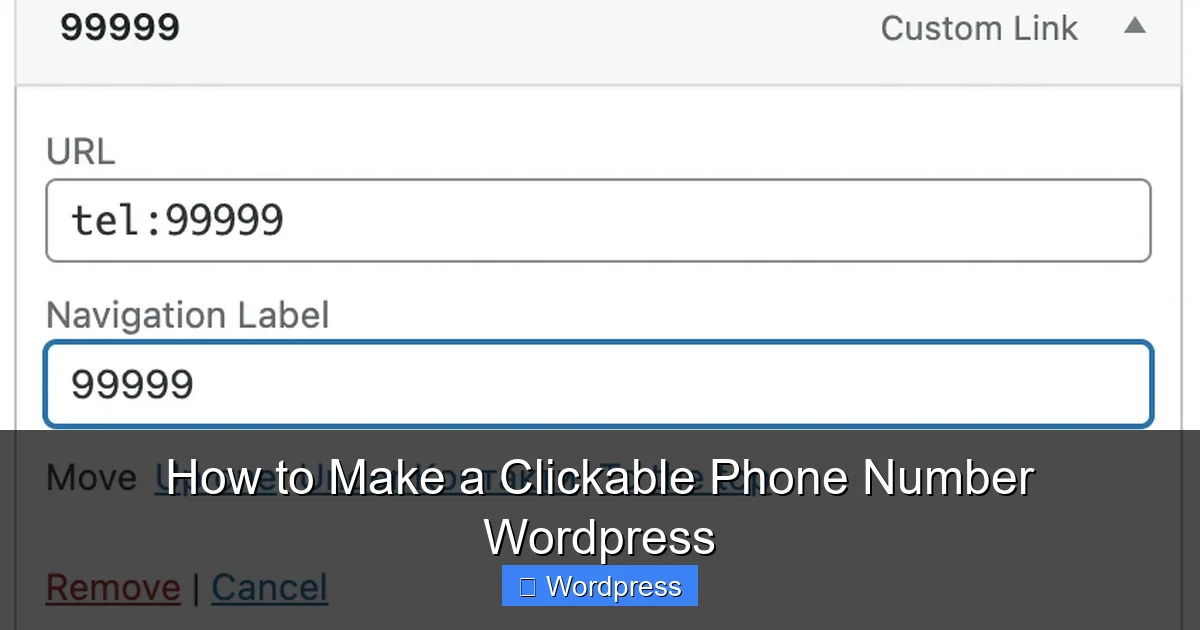
Visual guide about How to Make a Clickable Phone Number WordPress
Image source: webgolovolomki.com
More than 60% of website traffic comes from mobile devices. When someone visits your site on a phone, they expect quick access to contact options. A clickable phone number lets them call you with one tap—no copying, pasting, or dialing manually.
This small feature can significantly improve user experience and lead to more calls, appointments, and sales. It’s especially useful for local businesses, service providers, and e-commerce sites where direct communication builds trust.
Method 1: Add a Clickable Phone Number Using HTML
The most reliable way to make a phone number clickable is by using HTML’s tel: protocol. This method works in posts, pages, widgets, and even menus.
Step 1: Open the WordPress Editor
Go to the page or post where you want to add the phone number. Click “Edit” and switch to the Text tab (in the Classic Editor) or use the Custom HTML block (in the Block Editor).
Step 2: Insert the HTML Code
Use this format:
<a href="tel:+1234567890">Call Us: (123) 456-7890</a>
Replace +1234567890 with your actual phone number in international format (including the country code). The text between the tags (e.g., “Call Us: (123) 456-7890”) is what visitors will see.
Step 3: Save and Preview
Click “Update” or “Publish,” then view your page on a mobile device. Tap the number—it should open your phone’s dialer with the number pre-filled.
Pro Tip: Always use the international format (e.g., +1 for the US, +44 for the UK) to ensure compatibility across devices and regions.
Method 2: Add a Clickable Number in the Header or Footer
Placing your phone number in the header or footer ensures it’s visible on every page. Here’s how to do it.
Step 1: Access the Theme Customizer
Go to Appearance > Customize in your WordPress dashboard. Look for sections like “Header,” “Footer,” or “Site Identity.”
Step 2: Edit the Header/Footer Text
Some themes allow you to add custom HTML in the header or footer. If yours does, insert the same tel: link:
<a href="tel:+1234567890" class="phone-link">(123) 456-7890</a>
If your theme doesn’t support HTML in these areas, you may need to use a plugin or edit theme files (see Method 4).
Step 3: Use a Widget (Alternative)
Go to Appearance > Widgets and add a “Custom HTML” widget to your footer or header widget area. Paste the clickable phone number code there.
Method 3: Use a WordPress Plugin
If you’re not comfortable with code, plugins make adding a clickable phone number fast and easy.
Recommended Plugin: WP Call Button
WP Call Button is a popular, free plugin that adds a floating call button to your site.
Step 1: Install the Plugin
Go to Plugins > Add New, search for “WP Call Button,” and click “Install Now” followed by “Activate.”
Step 2: Configure the Button
Go to WP Call Button > Settings. Enter your phone number, choose a position (e.g., bottom right), and customize the button color and text.
Step 3: Save and Test
Click “Save Changes” and visit your site on mobile. You’ll see a floating button that users can tap to call.
Bonus: The plugin also supports WhatsApp and SMS links, making it versatile for different contact methods.
Method 4: Add a Clickable Number in the Menu
Adding your phone number to the main navigation menu keeps it visible and professional.
Step 1: Go to Menus
Navigate to Appearance > Menus. Select your primary menu or create a new one.
Step 2: Add a Custom Link
In the “Custom Links” section, enter:
– URL: tel:+1234567890
– Link Text: Call Us
Click “Add to Menu.”
Step 3: Style the Menu Item (Optional)
Some themes may not style tel: links by default. To make it stand out, add a CSS class like “call-button” and use custom CSS to style it (see Styling section below).
Method 5: Use Shortcodes (Advanced)
If you frequently add phone numbers, create a shortcode for reusability.
Step 1: Add Code to functions.php
Go to Appearance > Theme File Editor and open functions.php. Add this code:
function clickable_phone_shortcode() {
    return '<a href="tel:+1234567890">Call Us: (123) 456-7890</a>';
}
add_shortcode('phone', 'clickable_phone_shortcode');
Step 2: Use the Shortcode
Now, anywhere on your site, type [phone] and it will display the clickable number.
Note: Always back up your site before editing theme files.
Styling Your Clickable Phone Number
A well-designed phone link improves visibility and trust.
Use CSS for Custom Styling
Add this to Appearance > Customize > Additional CSS:
.phone-link {
    color: #0073aa;
    font-weight: bold;
    text-decoration: none;
    padding: 8px 12px;
    border-radius: 5px;
    background-color: #f0f0f0;
}
.phone-link:hover {
    background-color: #0073aa;
    color: white;
}
This creates a button-like appearance with hover effects. Adjust colors to match your theme.
Make It Stand Out
Use contrasting colors, bold text, or icons (like a phone emoji 📞) to draw attention.
Troubleshooting Common Issues
Phone Number Doesn’t Work on Mobile
– Ensure you used the tel: protocol.
– Check that the number includes the country code (e.g., +1).
– Test on a real device—some browsers or emulators may not support tel: links.
Number Shows as Plain Text
– You’re likely in the Visual editor instead of Text/HTML mode.
– Switch to the correct editor and re-enter the HTML.
Plugin Conflicts
If a plugin breaks your site, deactivate it and check for updates. Try an alternative plugin like “Click to Call” or “Call Now Button.”
Theme Doesn’t Support HTML in Menus
Use a plugin or consider switching to a more flexible theme like Astra or GeneratePress.
Best Practices for Clickable Phone Numbers
- Use international format: Always include the country code (e.g., +1, +44).
- Place it prominently: Header, footer, or floating button for maximum visibility.
- Keep it updated: If your number changes, update it everywhere—posts, menus, plugins.
- Test regularly: Check functionality on different devices and browsers.
- Combine with other CTAs: Pair with “Book Now” or “Get a Quote” buttons for higher conversions.
Conclusion
Adding a clickable phone number in WordPress is a simple yet powerful way to improve user experience and drive more calls. Whether you use HTML, a plugin, or theme settings, the process takes just minutes.
By following this guide, you’ve learned how to make your phone number mobile-friendly, stylish, and functional. Now, visitors can reach you with one tap—making it easier than ever to connect with your audience.
Start implementing these methods today and watch your engagement grow.