
If your WordPress site is showing database errors or won’t load, repairing the WordPress database can often fix the issue. This guide walks you through simple, safe methods to diagnose and resolve common database problems using built-in tools and manual fixes.
Key Takeaways
- Backup your database first: Always create a full backup before making any changes to avoid data loss.
- Use WordPress’s built-in repair tool: Enable WP_ALLOW_REPAIR in wp-config.php to run automatic database repairs.
- Access phpMyAdmin for manual fixes: Use phpMyAdmin via your hosting control panel to check and repair tables directly.
- Check for plugin or theme conflicts: Deactivate all plugins and switch to a default theme if the repair doesn’t resolve the issue.
- Monitor database health regularly: Use plugins like WP-DBManager to optimize and maintain your database over time.
- Contact your host if problems persist: Some database issues require server-level support from your hosting provider.
How to Repair WordPress Database: A Complete Step-by-Step Guide
Is your WordPress site showing a “Error establishing a database connection” or other database-related messages? Don’t panic—this is a common issue, and in most cases, it’s fixable. Whether your site is down, loading slowly, or throwing unexpected errors, a corrupted or misconfigured database could be the culprit.
In this guide, you’ll learn how to repair WordPress database problems safely and effectively. We’ll cover both automatic and manual repair methods, explain how to prevent future issues, and help you get your site back online with minimal downtime. Whether you’re a beginner or a seasoned WordPress user, these steps are designed to be clear, practical, and easy to follow.
Why Does the WordPress Database Get Corrupted?
Your WordPress database stores everything—posts, pages, comments, user data, settings, and more. It’s the backbone of your site. But like any system, it can run into problems. Common causes of database corruption include:
Visual guide about How to Repair WordPress Database
Image source: pixert.com
- Sudden server crashes or power outages during database writes
- Faulty plugins or themes that interfere with database operations
- Incomplete updates (WordPress core, plugins, or themes)
- Hosting issues like low memory or disk space
- Malware or hacking attempts that alter database structure
Recognizing the signs early—like slow loading, missing content, or error messages—can help you act fast and minimize damage.
Step 1: Backup Your Database Before Repairing
Before you attempt any repair, always back up your database. This is the most important step. If something goes wrong during the repair, you’ll have a clean copy to restore from.
How to Back Up Your WordPress Database
There are two main ways to back up your database:
- Using a plugin: Install a backup plugin like UpdraftPlus, BackWPup, or Duplicator. These tools let you schedule automatic backups and store them in the cloud (Google Drive, Dropbox, etc.).
- Manual backup via phpMyAdmin: Log in to your hosting control panel (like cPanel), open phpMyAdmin, select your WordPress database, click “Export,” choose “Quick” and “SQL” format, then download the file.
Pro tip: Store your backup in a secure location outside your website (like your computer or cloud storage). Never rely solely on your hosting provider’s backups.
Step 2: Use WordPress’s Built-in Database Repair Tool
WordPress includes a handy built-in tool to repair and optimize your database. It’s simple to use and often resolves common issues without needing technical skills.
Visual guide about How to Repair WordPress Database
Image source: zinruss.com
Enable the Repair Tool
To activate the repair feature, you need to edit your wp-config.php file. This file is located in the root directory of your WordPress installation.
- Access your site files via FTP, File Manager in cPanel, or your hosting provider’s file editor.
- Locate and open
wp-config.php. - Add the following line just before the line that says
/* That's all, stop editing! Happy publishing. */:
define('WP_ALLOW_REPAIR', true);
Save the file and upload it back to your server if you used FTP.
Run the Repair Tool
Now, visit this URL in your browser (replace yourdomain.com with your actual domain):
http://yourdomain.com/wp-admin/maint/repair.php
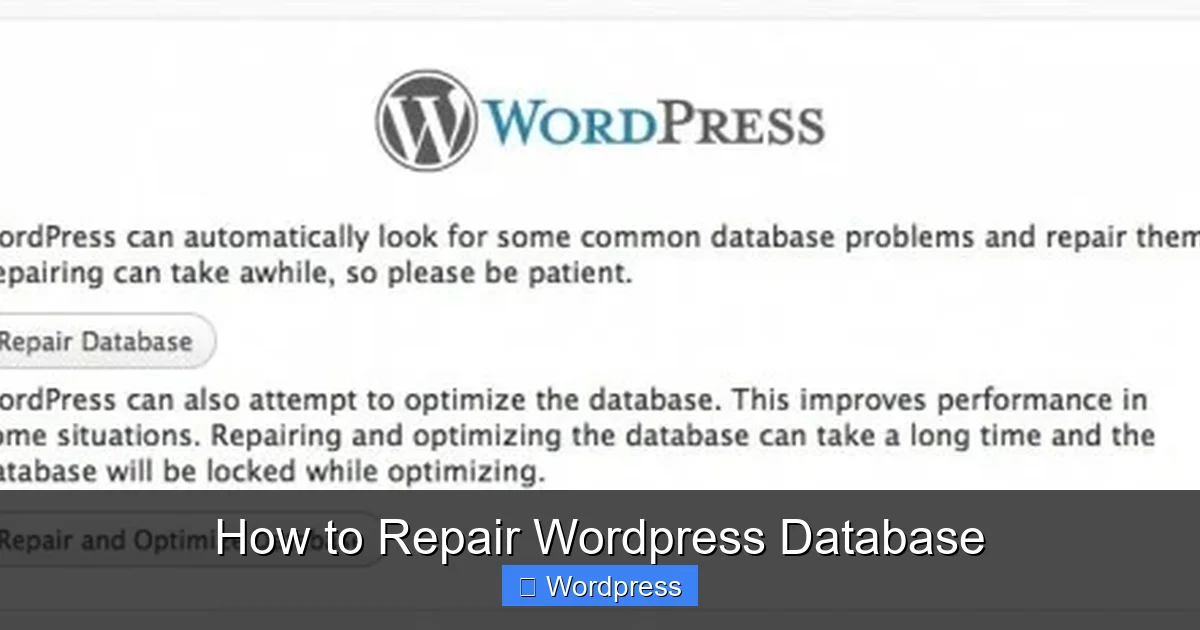
You’ll see a screen with two options:
- Repair Database: Fixes corrupted tables.
- Repair and Optimize Database: Repairs tables and removes unnecessary data to improve performance.
Click “Repair Database” first. Wait for the process to complete. You’ll see a list of tables and whether they were repaired.
Disable the Repair Tool
For security reasons, remove or comment out the line you added to wp-config.php after the repair:
// define('WP_ALLOW_REPAIR', true);
This prevents unauthorized access to the repair tool.
Step 3: Repair Database Manually Using phpMyAdmin
If the built-in tool doesn’t work, or you prefer more control, you can repair your database manually using phpMyAdmin—a web-based database management tool included with most hosting plans.
Access phpMyAdmin
- Log in to your hosting control panel (e.g., cPanel).
- Find and click on “phpMyAdmin” under the Databases section.
- Select your WordPress database from the left sidebar (it usually starts with your username or “wp_”).
Check and Repair Tables
Once inside your database:
- Click the “Check All” link to select all tables.
- From the dropdown menu at the bottom, choose “Check table” and click “Go.” This scans for issues.
- After checking, select all tables again and choose “Repair table” from the dropdown, then click “Go.”
phpMyAdmin will display the status of each table. Look for messages like “OK” or “Table is already up to date.” If any tables show errors, the repair process should fix them.
Note: If you see “Table doesn’t exist” or “Incorrect key file,” the table may be severely corrupted. In that case, you might need to restore from a backup or contact your host.
Step 4: Troubleshoot Common Issues After Repair
Even after repairing the database, your site might still have problems. Here’s how to troubleshoot:
Site Still Shows Database Errors
- Check wp-config.php settings: Ensure the database name, username, password, and host are correct. A typo here can cause connection failures.
- Verify database credentials: Log in to your hosting panel and confirm the database user has proper permissions.
- Restart your database server: Some hosts allow you to restart MySQL from the control panel. This can resolve temporary glitches.
Site Loads but Content Is Missing or Broken
This could indicate partial corruption or plugin/theme conflicts.
- Deactivate all plugins: Rename the
pluginsfolder via FTP toplugins_old. This disables all plugins at once. If the site works, reactivate plugins one by one to find the culprit. - Switch to a default theme: Rename your current theme folder (e.g.,
twentytwentyfourtotwentytwentyfour_old). WordPress will fall back to a default theme like Twenty Twenty-Three.
White Screen of Death (WSOD)
A blank white screen often means a PHP error. Enable debugging by adding these lines to wp-config.php:
define('WP_DEBUG', true);
define('WP_DEBUG_LOG', true);
define('WP_DEBUG_DISPLAY', false);
This will log errors to wp-content/debug.log. Check the log for clues about what’s causing the issue.
Step 5: Prevent Future Database Problems
Once your site is back online, take steps to avoid future database issues:
- Keep WordPress, plugins, and themes updated: Updates often include database optimizations and security fixes.
- Use reliable plugins and themes: Stick to well-reviewed, regularly updated tools from trusted developers.
- Optimize your database regularly: Use plugins like WP-Optimize or WP-DBManager to clean up post revisions, spam comments, and transient options.
- Monitor server resources: Ensure your hosting plan provides enough memory and disk space. Upgrade if needed.
- Install a security plugin: Tools like Wordfence or Sucuri can detect malware and prevent unauthorized database changes.
When to Contact Your Hosting Provider
Some database issues are beyond the scope of user-level fixes. Contact your host if:
- The database is completely inaccessible.
- You see “MySQL server has gone away” errors.
- Your site crashes during high traffic.
- You suspect a server-side problem (e.g., disk failure, MySQL service down).
Hosting support teams can restore databases from backups, repair server-level issues, and provide insights into performance bottlenecks.
Conclusion
Repairing your WordPress database doesn’t have to be scary. With the right tools and a careful approach, you can resolve most issues quickly and safely. Start by backing up your data, then use WordPress’s built-in repair tool or phpMyAdmin for manual fixes. If problems persist, troubleshoot plugins, themes, and server settings.
Remember, prevention is just as important as repair. Regular maintenance, updates, and monitoring will keep your database healthy and your site running smoothly. By following this guide, you’re now equipped to handle database errors like a pro—and get your WordPress site back online with confidence.