
This guide walks you through how to reset Astra theme to default settings safely and effectively. Whether you’ve customized layouts, colors, or typography, you’ll learn multiple methods—including using the Customizer, Astra Options, and plugins—to restore the original look without losing your content.
Key Takeaways
- Resetting Astra restores default design settings: This includes colors, fonts, layouts, and header/footer configurations, but does not delete your posts or pages.
- Use the WordPress Customizer for a quick reset: Navigate to Appearance > Customize > Astra Options > Reset to restore most theme settings.
- Child themes preserve custom code: If you’ve used a child theme, resetting the parent Astra theme won’t affect your custom functions or styles.
- Backup your site first: Always create a full backup before resetting to avoid accidental data loss.
- Plugins can simplify the process: Tools like WP Reset or Astra Starter Templates offer one-click reset options for advanced users.
- Troubleshoot common issues: If the reset doesn’t work, check for caching, plugin conflicts, or incomplete installations.
- Re-import starter templates if needed: After resetting, you can reapply a clean Astra demo layout to jumpstart your design.
How to Reset Astra Theme to Default
If you’ve been customizing your WordPress site with the Astra theme and things have gotten a little messy—maybe your colors are clashing, your layout is broken, or you just want a fresh start—resetting Astra to its default settings can be a lifesaver. The good news? It’s easier than you think. In this guide, we’ll walk you through how to reset Astra theme to default using several reliable methods. Whether you’re a beginner or a seasoned WordPress user, you’ll find a solution that fits your comfort level.
By the end of this article, you’ll know exactly how to restore Astra’s original look without losing your valuable content like blog posts, pages, or media files. We’ll cover built-in reset options, plugin-based solutions, and troubleshooting tips to ensure a smooth process. Let’s dive in!
Why Reset Astra Theme?
Before we get into the steps, let’s talk about why you might want to reset Astra. Over time, as you tweak settings in the WordPress Customizer—changing fonts, adjusting spacing, modifying header layouts—your site can drift far from its original design. Sometimes, a plugin update or a conflicting setting can cause unexpected behavior. Resetting Astra gives you a clean slate to work from, helping you:
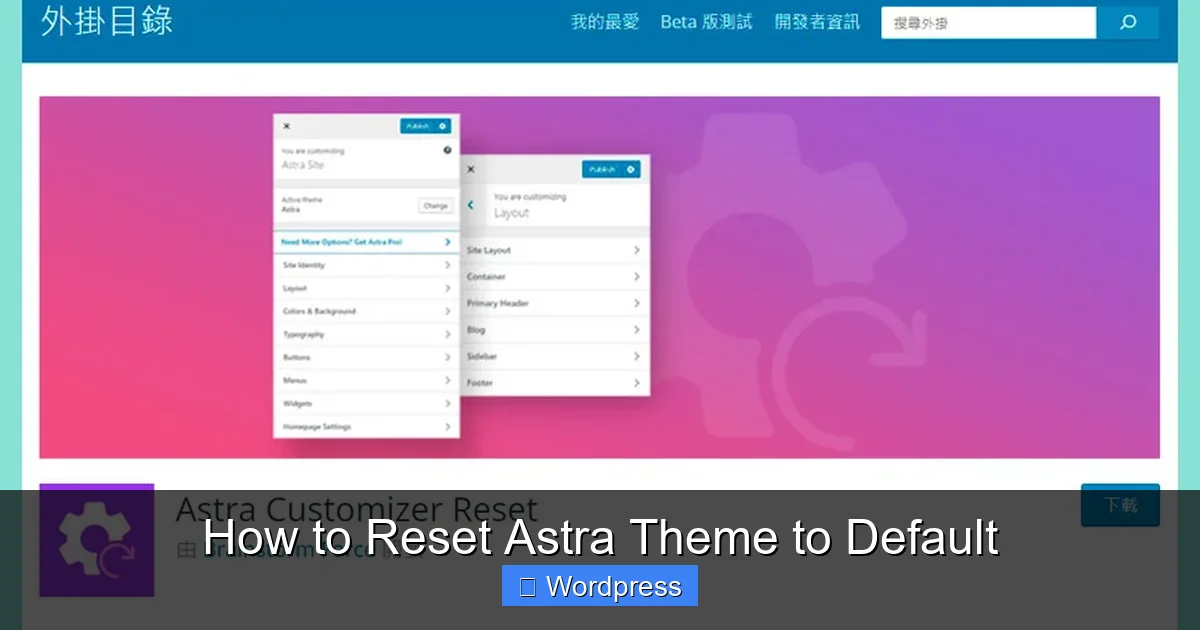
Visual guide about How to Reset Astra Theme to Default
Image source: wp-valley.com
- Fix layout or styling issues
- Start fresh with a new design direction
- Remove unwanted customizations
- Prepare your site for a new starter template
And don’t worry—resetting Astra only affects theme settings, not your actual content. Your posts, pages, images, and plugins will remain untouched.
Method 1: Reset Astra via the WordPress Customizer
The easiest and most recommended way to reset Astra is through the built-in Customizer. This method is safe, straightforward, and doesn’t require any plugins.
Step 1: Access the WordPress Customizer
Log in to your WordPress dashboard. From the left-hand menu, go to Appearance > Customize. This opens the WordPress Customizer, where you can preview and modify your site’s design in real time.
Step 2: Navigate to Astra Options
In the Customizer panel, scroll down until you see a section labeled Astra Options. Click on it to expand the menu. Here, you’ll find various theme-specific settings like typography, colors, layout, and more.
Step 3: Click the Reset Button
At the bottom of the Astra Options panel, you’ll see a button that says Reset. Click it. A confirmation popup will appear asking if you’re sure you want to reset all Astra settings to default. Confirm by clicking OK or Reset.
Step 4: Publish the Changes
After resetting, click the Publish button at the top of the Customizer to save your changes. Your site will now reflect Astra’s original default design.
Pro Tip: If you don’t see the Reset button, make sure you’re using the latest version of Astra. Older versions may not have this feature. Update your theme via Appearance > Themes > Add New > Upload Theme if needed.
Method 2: Reset Using the Astra Theme Options Panel
In some versions of Astra, especially when used with the Astra Pro add-on, you may find a dedicated theme options panel outside the Customizer. Here’s how to use it:
Step 1: Go to Astra Settings
In your WordPress dashboard, look for a menu item called Astra or Astra Theme. Click on it to open the theme’s settings page.
Step 2: Find the Reset Option
Look for a tab or section labeled Tools, Import/Export, or Reset. Inside, you should see an option to reset all settings. Click it and confirm when prompted.
Step 3: Clear Cache (If Needed)
After resetting, clear your site’s cache if you’re using a caching plugin like WP Super Cache or W3 Total Cache. This ensures your visitors see the updated design immediately.
Note: This method may vary slightly depending on your Astra version and whether you’re using the free or Pro version. Always check the official Astra documentation if you’re unsure.
Method 3: Use a WordPress Reset Plugin
If the built-in options aren’t working or you want a more thorough reset, consider using a dedicated plugin. These tools can reset not just Astra settings but also widgets, menus, and customizer data.
Step 1: Install a Reset Plugin
Go to Plugins > Add New in your WordPress dashboard. Search for a trusted reset plugin like WP Reset or Customizer Reset. Install and activate your chosen plugin.
Step 2: Use the Plugin to Reset Astra
Once activated, go to the plugin’s settings page (usually under Tools > WP Reset). Look for an option like Reset Customizer or Reset Theme Mods. This will clear all theme customizations, including those made in Astra.
Warning: Some plugins offer a “nuclear” reset that deletes all content. Always read the description carefully and avoid options like “Reset Entire Database” unless you’re starting from scratch.
Step 3: Reapply Your Content
After resetting, your site will look like a fresh WordPress install with the default Astra design. Re-add your logo, menus, and widgets as needed. Your posts and pages will still be there—only the design settings are reset.
Method 4: Manually Reset via Database (Advanced)
For advanced users comfortable with databases, you can reset Astra settings directly in the WordPress database. This method is not recommended for beginners.
Step 1: Backup Your Database
Before making any changes, create a full backup of your database using a plugin like UpdraftPlus or via your hosting control panel.
Step 2: Access phpMyAdmin
Log in to your hosting account and open phpMyAdmin. Select your WordPress database from the list on the left.
Step 3: Locate the Astra Options
In the database, find the table named wp_options (the prefix may vary). Look for rows where the option_name contains astra or theme_mods_astra.
Step 4: Delete or Reset the Options
You can either delete these rows or edit them to restore default values. For safety, consider exporting the current settings first. After making changes, clear your site cache and refresh your site.
Important: Incorrect database edits can break your site. Only proceed if you’re confident in your technical skills.
Troubleshooting Common Issues
Even with the best methods, things don’t always go smoothly. Here are some common problems and how to fix them:
Reset Button Is Missing
If you don’t see the Reset button in the Customizer, your Astra theme might be outdated. Go to Appearance > Themes, click Add New, search for “Astra,” and update it. Also, ensure no other theme is active—only Astra should be running.
Changes Don’t Appear
If your site still looks customized after resetting, clear your browser cache and any server-side caching plugins. Sometimes, cached versions of your site are served to visitors.
Custom Code Remains
Resetting Astra won’t remove custom CSS or PHP code added via a child theme or code snippets plugin. To remove these, go to Appearance > Customize > Additional CSS and delete any custom code. For PHP, check your child theme’s functions.php file.
Plugin Conflicts
If the reset doesn’t work, a plugin might be interfering. Temporarily deactivate all plugins, reset Astra, then reactivate them one by one to identify the culprit.
Best Practices Before Resetting
To ensure a smooth reset process, follow these best practices:
- Backup your site: Use a plugin like UpdraftPlus or BackupBuddy to create a full backup of your files and database.
- Document your current settings: Take screenshots of your current design or note down key customizations in case you want to reapply them later.
- Use a staging site: If possible, test the reset on a staging copy of your site before doing it on the live version.
- Update Astra: Make sure you’re using the latest version of the theme for full compatibility and features.
Conclusion
Resetting the Astra theme to default is a simple yet powerful way to restore your WordPress site’s original look and fix design issues. Whether you use the Customizer, a plugin, or manual methods, the process is safe and won’t affect your content. By following this guide, you can confidently reset Astra and start fresh with a clean, professional design.
Remember to always back up your site first, and don’t hesitate to reach out to Astra’s support team if you run into problems. With Astra’s flexibility and these reset options, you’re always just a few clicks away from a beautifully designed website.