This guide walks you through how to reset your WordPress theme to default without losing your content. Whether you’re troubleshooting or starting fresh, you’ll learn safe methods using the dashboard, FTP, or database tools.
Key Takeaways
- Resetting a theme doesn’t delete your posts or pages: Your content stays safe, but custom settings, widgets, and menus may be lost.
- Use the WordPress dashboard for the easiest method: Switching to a default theme like Twenty Twenty-Four is fast and secure.
- Always back up your site first: Prevent data loss by creating a full backup before making changes.
- Customizer settings are theme-specific: Resetting removes colors, fonts, and layout choices made in the Customizer.
- Child themes require special care: If you used a child theme, resetting the parent won’t affect it—but you may need to reactivate it.
- Use FTP or phpMyAdmin for advanced resets: If your site is broken, these tools let you manually remove or replace theme files.
- Test your site after resetting: Check for broken links, missing images, or layout issues and fix them promptly.
Introduction: Why Reset Your WordPress Theme?
Have you ever customized your WordPress theme only to realize it looks worse than before? Or maybe your site suddenly broke after a plugin update? Resetting your WordPress theme to default can be a lifesaver. It helps you start fresh, fix styling issues, or troubleshoot conflicts—without touching your actual content like posts, pages, or media.
In this guide, you’ll learn how to reset your WordPress theme to default safely and efficiently. We’ll cover multiple methods, from simple dashboard switches to advanced file management. Whether you’re a beginner or a seasoned WordPress user, these steps will help you restore your site’s appearance with confidence.
What Does “Reset Theme to Default” Mean?
Resetting a theme means returning it to its original state—removing all customizations like colors, fonts, widgets, and layout changes. It does not delete your content. Your blog posts, pages, images, and users remain intact. However, any settings you changed in the WordPress Customizer, theme options panel, or via code will be lost.
Visual guide about How to Reset WordPress Theme to Default
Image source: tenforums.com
There are two main ways to reset:
- Switch to a default WordPress theme (like Twenty Twenty-Four) to replace your current one.
- Reinstall your current theme to remove customizations while keeping the same design base.
We’ll explore both approaches, so you can choose what fits your needs.
Method 1: Switch to a Default WordPress Theme (Easiest)
This is the safest and fastest way to reset your site’s appearance. You’ll temporarily switch to a built-in WordPress theme, which gives you a clean slate.
Visual guide about How to Reset WordPress Theme to Default
Image source: visualmodo.com
Step 1: Back Up Your Website
Before making any changes, always back up your site. Use a plugin like UpdraftPlus, BackupBuddy, or your hosting provider’s backup tool. This ensures you can restore everything if something goes wrong.
Step 2: Access Your WordPress Dashboard
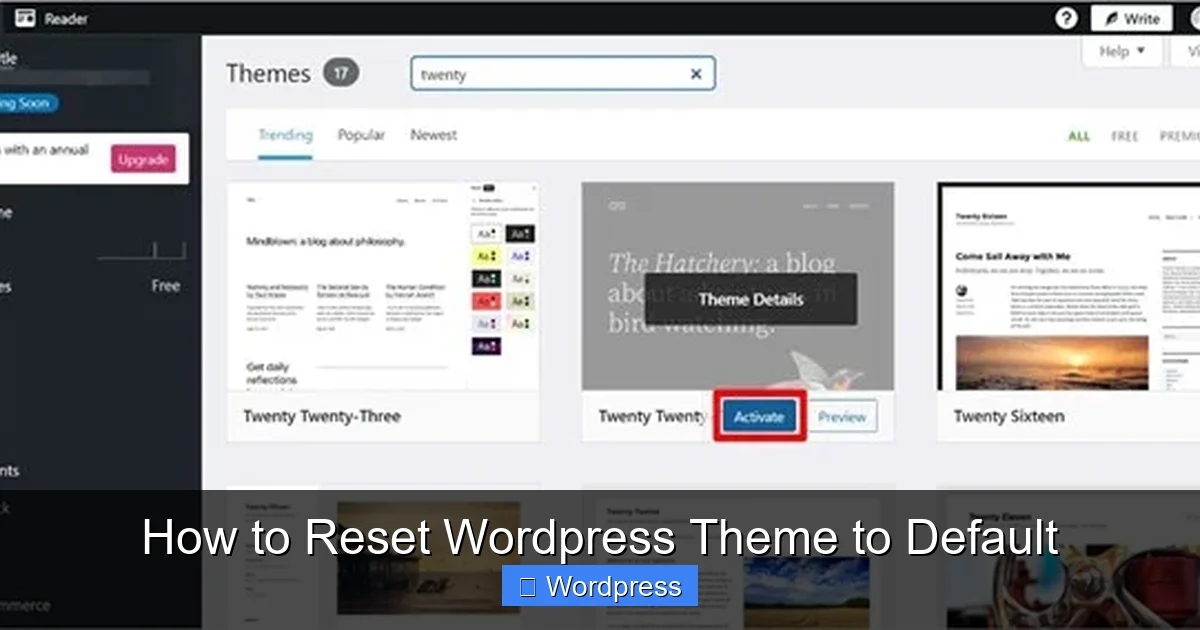
Log in to your WordPress admin area (usually yoursite.com/wp-admin). From the left menu, go to Appearance > Themes.
Step 3: Activate a Default Theme
WordPress comes with free default themes like Twenty Twenty-Four, Twenty Twenty-Three, and Twenty Twenty-Two. These are clean, well-coded, and great for testing.
- Click on one of the default themes (e.g., “Twenty Twenty-Four”).
- Click the Activate button.
Your site will now use the default theme. All customizations from your previous theme will be gone, but your content remains.
Step 4: Preview and Confirm
Visit your website to see the new look. If everything looks good, you’re done! If you want to go back, simply reactivate your old theme from the same Themes page.
Pro Tip: Use this method to test if a problem is theme-related. If your site works fine with the default theme, the issue likely lies in your original theme’s settings or code.
Method 2: Reinstall Your Current Theme (Keep the Design)
If you want to keep using your current theme but remove all customizations, reinstalling it is the way to go. This resets the theme to its original files and settings.
Visual guide about How to Reset WordPress Theme to Default
Image source: websitebuilderinsider.com
Step 1: Go to Appearance > Themes
In your WordPress dashboard, navigate to Appearance > Themes. Find your active theme and click on it.
Step 2: Delete the Theme
Click the Delete button at the bottom of the theme preview. Don’t worry—this only removes the theme files, not your content.
Step 3: Reinstall the Theme
After deleting, click Add New at the top of the Themes page. Search for your theme by name (e.g., “Astra” or “OceanWP”). Click Install, then Activate.
Your theme is now reset to its default state. All customizer settings, widgets, and theme options will be cleared.
Note: If your theme was purchased or downloaded from a third-party site (like ThemeForest), you’ll need to upload the ZIP file manually. Click Upload Theme, select the file, and install it.
Method 3: Reset Theme Customizer Settings
If you only want to undo changes made in the WordPress Customizer (like colors, fonts, or header images), you can reset those settings without reinstalling the theme.
Step 1: Open the Customizer
Go to Appearance > Customize in your dashboard.
Step 2: Look for a “Reset” or “Restore Defaults” Option
Some themes include a reset button at the bottom of the Customizer panel. If you see one, click it to restore default settings.
Step 3: Manually Revert Changes
If there’s no reset button, you’ll need to manually change settings back to their defaults. For example:
- Set the background color to white.
- Remove custom logos or header images.
- Reset font choices to the theme’s default.
Click Publish to save your changes.
Tip: Take screenshots of your current settings before resetting, so you can recreate them later if needed.
Method 4: Use FTP to Manually Reset Theme Files (Advanced)
If your site is broken and you can’t access the dashboard, use FTP (File Transfer Protocol) to reset your theme manually.
Step 1: Connect to Your Site via FTP
Use an FTP client like FileZilla or Cyberduck. Enter your FTP credentials (usually found in your hosting control panel).
Step 2: Navigate to the Themes Folder
Go to wp-content/themes/. You’ll see folders for all installed themes.
Step 3: Rename or Delete the Problematic Theme
Find your active theme’s folder (e.g., “my-custom-theme”). Rename it to something like “my-custom-theme-old”. This forces WordPress to fall back to a default theme.
Alternatively, delete the folder entirely. WordPress will automatically switch to a default theme if the active one is missing.
Step 4: Upload a Fresh Copy (Optional)
If you want to reinstall the theme, upload a clean ZIP file of the theme to the themes folder and extract it.
Warning: Only use this method if you’re comfortable with FTP. Mistakes can break your site.
Method 5: Reset via phpMyAdmin (Database Level)
In rare cases, theme settings are stored in the database. You can reset them using phpMyAdmin, but this is risky and not recommended for beginners.
Step 1: Access phpMyAdmin
Log in to your hosting control panel (like cPanel) and open phpMyAdmin.
Step 2: Find the wp_options Table
Select your WordPress database, then look for the wp_options table (prefix may vary, e.g., wp_ or wp123_).
Step 3: Locate Theme Mods
Search for rows with option_name like theme_mods_your-theme-name. These store Customizer settings.
Step 4: Delete or Edit the Entry
Click Edit and delete the value in the option_value field, or delete the entire row. This resets theme mods to default.
Important: Always back up your database before making changes. One wrong move can crash your site.
Troubleshooting Common Issues
After resetting your theme, you might encounter a few hiccups. Here’s how to fix them:
White Screen of Death (WSOD)
If your site shows a blank white screen, it’s likely a PHP error. Use FTP to rename your theme folder—this will force WordPress to use a default theme.
Missing Widgets or Menus
Resetting a theme often clears widget areas and menus. Go to Appearance > Widgets and Appearance > Menus to reassign them.
Broken Layout or Images
Check if images are missing or layouts are misaligned. Re-upload media if needed, and review your page builder settings (if using Elementor, Gutenberg, etc.).
Theme Not Appearing in Dashboard
If your theme doesn’t show up, it may not be properly installed. Re-upload the theme files via FTP or the WordPress uploader.
Conclusion: Reset with Confidence
Resetting your WordPress theme to default is a powerful way to fix issues, start fresh, or troubleshoot problems. Whether you use the dashboard, FTP, or database tools, always back up your site first and proceed carefully.
For most users, switching to a default theme or reinstalling the current one is the safest approach. Advanced users can explore FTP or phpMyAdmin methods when needed.
Remember: Resetting a theme doesn’t erase your content—it only removes customizations. With the steps in this guide, you can reset your WordPress theme confidently and get your site back on track.