Resetting your WordPress theme doesn’t have to mean losing your hard-earned content. This guide walks you through safe methods to restore your theme to its default settings while preserving all posts, pages, images, and custom data.
Key Takeaways
- Backup first: Always create a full site backup before making any changes to avoid accidental data loss.
- Use the Customizer reset: Many themes offer a built-in reset option in the WordPress Customizer under “Reset” or “Restore Defaults.”
- Reinstall the theme: Deactivating and reinstalling your theme can reset settings without affecting your content database.
- Child themes protect customizations: If you used a child theme, resetting the parent won’t impact your custom code or styles.
- Plugins can help: Tools like WP Reset or Health Check & Troubleshooting simplify safe resets and testing.
- Database safety: Theme resets only affect theme settings—your posts, pages, and media remain untouched in the database.
- Test on a staging site: Try the reset on a clone of your site first to avoid surprises on the live version.
Introduction: Why Reset Your WordPress Theme?
Have you ever customized your WordPress theme so much that it’s become slow, buggy, or just plain confusing? Maybe you’ve installed too many plugins, tweaked CSS endlessly, or switched layouts multiple times. Over time, these changes can pile up—leading to layout issues, broken features, or even site crashes.
The good news? You don’t need to start from scratch. You can reset your WordPress theme to its original state without losing any of your content—posts, pages, images, or user data. This guide will show you exactly how to do it safely, step by step, using built-in tools, plugins, and smart backup strategies.
Whether you’re troubleshooting a problem or just want a clean slate, this method keeps your content safe while restoring your theme’s default settings.
Step 1: Backup Your Website
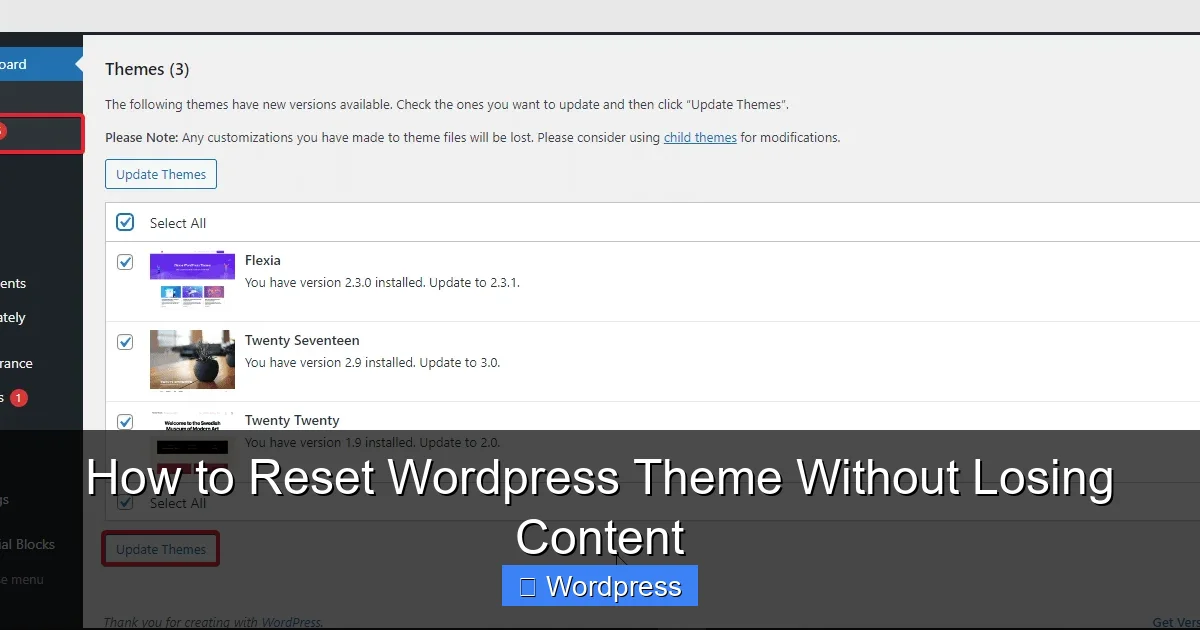
Visual guide about How to Reset WordPress Theme Without Losing Content
Image source: assets.wpdeveloper.com
Before touching anything, always back up your entire website. This is the most important step—no exceptions.
Even though resetting a theme shouldn’t affect your content, things can go wrong. A plugin conflict, server error, or accidental deletion could happen. A backup ensures you can restore your site in minutes.
How to Create a Full Backup
- Use a backup plugin: Install a trusted plugin like UpdraftPlus, BackupBuddy, or Jetpack Backup. These tools let you save your entire site—files and database—to cloud storage (Google Drive, Dropbox, etc.).
- Manual backup via FTP: If you’re comfortable with technical tools, use an FTP client like FileZilla to download all your site files. Then, export your database using phpMyAdmin (found in your hosting control panel).
- Hosting provider backups: Many hosts (like SiteGround, Bluehost, or WP Engine) offer one-click backups. Check your hosting dashboard for this option.
Pro tip: Store your backup in at least two places—like Google Drive and your computer—so you’re doubly protected.
Step 2: Use the WordPress Customizer Reset (Easiest Method)
Many modern WordPress themes include a built-in reset option. This is the safest and fastest way to restore default settings.
How to Reset via the Customizer
- Go to your WordPress dashboard.
- Navigate to Appearance > Customize.
- Look for a section labeled “Reset,” “Restore Defaults,” or “Theme Options.” This varies by theme—popular themes like Astra, GeneratePress, and OceanWP include this feature.
- Click the reset button. You’ll usually see a confirmation popup—click “Yes” or “Reset.”
- Save changes and exit the Customizer.
Note: This method only resets theme settings (colors, fonts, layouts). It does not delete your content or media.
What If There’s No Reset Button?
If your theme doesn’t have a reset option, don’t worry. Move on to the next method—reinstalling the theme.
Step 3: Reinstall the Theme (Reset Without Losing Content)
Visual guide about How to Reset WordPress Theme Without Losing Content
Image source: talkerscode.com
Reinstalling your theme is a reliable way to reset all settings to default. Since WordPress stores your content in the database (not in theme files), this process is completely safe.
How to Reinstall Your Theme
- Go to Appearance > Themes in your dashboard.
- Find your active theme and click “Deactivate.”
- Click “Delete” to remove the theme files. (Don’t worry—this won’t affect your content.)
- Now, click “Add New” and search for your theme by name (e.g., “Twenty Twenty-Four”).
- Click “Install” and then “Activate.”
Your theme is now back to its original state. All your posts, pages, and media are still there—only the theme settings have been reset.
Important: If you’ve made custom code changes (like editing functions.php or style.css), those will be lost. That’s why using a child theme is so important (more on that below).
Step 4: Use a Child Theme to Protect Customizations
If you’ve added custom CSS, PHP functions, or template edits, always use a child theme. A child theme inherits your parent theme’s design but lets you make changes safely.
When you reset or reinstall the parent theme, your child theme—and all its customizations—remain untouched.
How to Create a Child Theme (Quick Guide)
- Install a plugin like Child Theme Configurator or One-Click Child Theme.
- Select your parent theme and generate a child theme.
- Activate the child theme from Appearance > Themes.
- Make all future customizations in the child theme’s files.
Now, if you ever need to reset the parent theme, your custom work stays safe.
Step 5: Use a Plugin for Advanced Reset Options
For more control, use a dedicated reset plugin. These tools let you reset specific parts of your site—like theme settings, widgets, or menus—without touching your content.
Recommended Plugins
- WP Reset: Offers a “Theme Reset” feature that clears theme mods (settings) while keeping content. It also includes a “Database Reset” option—use this with caution.
- Health Check & Troubleshooting: A free plugin by the WordPress team. It lets you enable a “Troubleshooting Mode” to test theme resets without affecting live users.
- Customizer Reset: Specifically designed to reset only the Customizer settings—perfect for cleaning up design tweaks.
How to Use WP Reset for Theme Reset
- Install and activate WP Reset from the plugin directory.
- Go to Tools > WP Reset.
- Scroll down to the “Theme Reset” section.
- Click “Reset Theme Mods.” This clears all theme customizations.
- Confirm the action when prompted.
Your theme settings are now reset, but your content remains intact.
Step 6: Test on a Staging Site First
If you’re nervous about making changes on your live site, test the reset on a staging site first. A staging site is a clone of your live site—perfect for safe experimentation.
How to Create a Staging Site
- Use your host’s staging tool: Many hosts (like SiteGround, Kinsta, or WP Engine) offer one-click staging.
- Use a plugin: Plugins like WP Staging or Duplicator let you create a clone of your site in minutes.
- Manual clone: Copy your files and database to a subdomain (e.g., staging.yoursite.com) using FTP and phpMyAdmin.
Once your staging site is ready, follow the reset steps above. If everything works, apply the same process to your live site.
Troubleshooting Common Issues
Even with careful planning, things can go wrong. Here’s how to fix common problems:
White Screen After Reset
If your site shows a blank white screen (“White Screen of Death”), it’s likely a PHP error.
- Access your site via FTP.
- Rename the theme folder (e.g., from “twentytwentyfour” to “twentytwentyfour-old”).
- WordPress will revert to a default theme (like Twenty Twenty-Three).
- Reinstall your theme and check for conflicts.
Custom Code Lost
If you edited theme files directly (not using a child theme), your changes are gone after reinstalling.
- Restore from backup.
- Recreate changes in a child theme.
- Never edit parent theme files again!
Widgets or Menus Reset
Some theme resets also clear widgets and menus.
- Go to Appearance > Widgets and Appearance > Menus to restore them.
- Use a plugin like Widget Options to save widget configurations.
Conclusion: Reset with Confidence
Resetting your WordPress theme doesn’t have to be scary. With the right approach, you can restore your theme to its default state while keeping all your valuable content safe.
Remember:
- Always backup first.
- Use the Customizer reset if available.
- Reinstall the theme for a full reset.
- Protect custom work with a child theme.
- Test changes on a staging site.
By following these steps, you’ll have a clean, fast, and reliable WordPress site—without losing a single post or image. Now go ahead and reset with confidence!