This guide shows you how to reset your WordPress website without using a plugin, ensuring full control over the process. You’ll learn safe methods to wipe content, themes, plugins, and database tables while preserving your site’s core structure.
Key Takeaways
- Backup your site first: Always create a full backup before resetting to avoid permanent data loss.
- Use phpMyAdmin to reset the database: This is the most effective way to clear all content and settings manually.
- Delete plugins and themes via FTP: Remove unwanted files directly from your server to ensure a clean reset.
- Reinstall WordPress core files: Replace core files with fresh copies to eliminate corrupted or modified code.
- Reset .htaccess file: Restore default rewrite rules to fix permalink and security issues.
- No plugin required: This method gives you full control without relying on third-party tools.
- Test your site after reset: Verify functionality, login access, and homepage load to confirm success.
How to Reset WordPress Website Without Plugin
Have you ever wanted to start fresh with your WordPress site—without installing another plugin? Maybe your site is cluttered with old content, broken plugins, or outdated themes. Or perhaps you’re preparing to rebuild your site from scratch and want a clean slate.
The good news? You can reset your WordPress website without using a plugin. This gives you full control, avoids plugin conflicts, and ensures a thorough cleanup. In this guide, we’ll walk you through the complete process step by step—safely and efficiently.
Why Reset WordPress Without a Plugin?
Plugins are convenient, but they’re not always the best solution. Some reset plugins may leave behind traces, fail to clear custom tables, or even cause compatibility issues. By resetting manually, you:
- Remove all content, including posts, pages, comments, and media
- Delete all plugins and themes (except the default ones)
- Clear custom database tables and settings
- Ensure no hidden code or malware remains
- Maintain full control over what gets deleted
This method is ideal for developers, site rebuilds, or troubleshooting persistent issues.
Step 1: Backup Your Website
Before doing anything, always back up your site. This is non-negotiable. If something goes wrong, you’ll have a restore point.
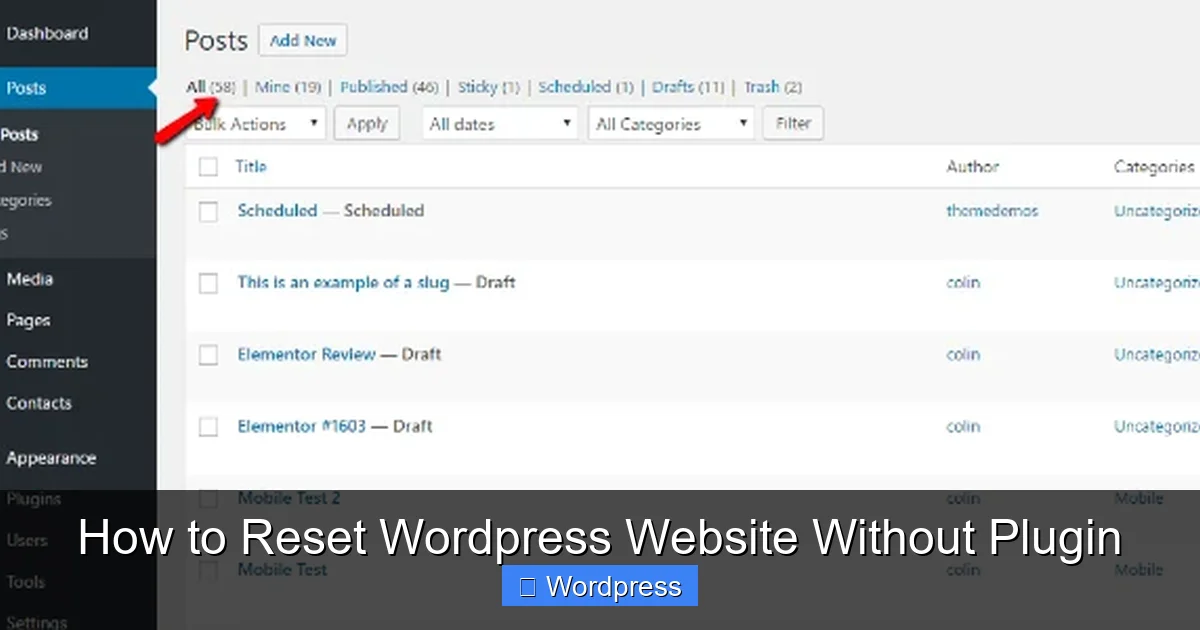
Visual guide about How to Reset WordPress Website Without Plugin
Image source: cdn.themewaves.com
How to Backup Manually
You’ll need two things: a copy of your files and a copy of your database.
Backup Files via FTP
- Connect to your site using an FTP client like FileZilla.
- Navigate to your WordPress root directory (usually
public_htmlorwww). - Download the entire folder to your computer. This includes
wp-content,wp-config.php, and all core files.
Backup Database via phpMyAdmin
- Log in to your hosting control panel (like cPanel).
- Open phpMyAdmin.
- Select your WordPress database from the left sidebar.
- Click Export at the top.
- Choose Quick export method and SQL format.
- Click Go to download the .sql file.
Store both backups in a safe location. You’ll need them if you want to restore anything later.
Step 2: Delete All Content from the Database
Now it’s time to clear your WordPress content. We’ll use phpMyAdmin to reset the database tables.
Access phpMyAdmin
- Log in to your hosting control panel.
- Open phpMyAdmin.
- Select your WordPress database.
Truncate WordPress Tables
Instead of dropping the entire database (which removes user accounts and settings), we’ll truncate the tables. This clears the data but keeps the structure intact.
- In phpMyAdmin, click SQL at the top.
- Paste the following SQL commands one by one and click Go after each:
TRUNCATE TABLE wp_comments;
TRUNCATE TABLE wp_commentmeta;
TRUNCATE TABLE wp_links;
TRUNCATE TABLE wp_postmeta;
TRUNCATE TABLE wp_posts;
TRUNCATE TABLE wp_terms;
TRUNCATE TABLE wp_term_relationships;
TRUNCATE TABLE wp_term_taxonomy;
TRUNCATE TABLE wp_usermeta;
DELETE FROM wp_users WHERE ID != 1;
Note: Replace wp_ with your actual table prefix if it’s different (e.g., wp123_).
The last command keeps your admin user (ID 1) so you can still log in. All other users will be deleted.
Optional: Delete Custom Tables
If you have plugins that created custom tables (like contact forms or analytics), you may want to remove them too. Look for tables with names like wp_contact_form or wp_woocommerce. To delete them:
- Select the table in phpMyAdmin.
- Click Drop and confirm.
Be careful—only delete tables you’re sure are unnecessary.
Step 3: Remove Plugins and Themes via FTP
Even after clearing the database, plugin and theme files remain on your server. Let’s delete them manually.
Delete Plugins
- Connect via FTP.
- Go to
wp-content/plugins. - Delete all plugin folders except any you want to keep (e.g., a security plugin).
Deleting via FTP ensures no plugin code remains active or hidden.
Delete Themes
- Navigate to
wp-content/themes. - Delete all theme folders except
twentytwentyfour(or the latest default theme).
Keeping one default theme ensures your site has something to display after reset.
Delete Uploads (Optional)
If you want a completely clean media library:
- Go to
wp-content/uploads. - Delete the entire folder.
This removes all images, videos, and files uploaded through WordPress. Only do this if you don’t need any media.
Step 4: Reinstall WordPress Core Files
Over time, WordPress core files can become corrupted or modified. Replacing them ensures a clean foundation.
Download Fresh WordPress
- Go to wordpress.org/download.
- Download the latest version as a .zip file.
- Extract it on your computer.
Upload Core Files via FTP
- Connect to your site via FTP.
- Upload all files except
wp-contentandwp-config.php. - Overwrite existing files when prompted.
This replaces core files like wp-admin, wp-includes, and root PHP files with fresh copies.
Important: Do not overwrite wp-config.php—it contains your database credentials.
Step 5: Reset .htaccess File
The .htaccess file controls URL rewriting, security rules, and redirects. Resetting it can fix permalink issues.
Locate and Edit .htaccess
- Connect via FTP.
- Go to your WordPress root directory.
- Find
.htaccess(it’s hidden—enable “show hidden files” in your FTP client). - Download a copy as backup.
- Delete the file from the server.
Regenerate .htaccess
- Log in to your WordPress admin dashboard.
- Go to Settings > Permalinks.
- Click Save Changes without making any changes.
WordPress will automatically generate a new .htaccess file with default rules.
Step 6: Test Your Reset WordPress Site
Now that you’ve reset everything, it’s time to verify the results.
Check the Frontend
- Visit your website’s homepage.
- It should show the default WordPress theme (e.g., Twenty Twenty-Four).
- There should be no posts, pages, or comments.
Check the Admin Dashboard
- Go to
yoursite.com/wp-admin. - Log in with your admin account.
- Verify that:
- No plugins are active
- Only one theme is installed
- No content appears in Posts, Pages, or Media
- Settings are at defaults
Test Permalinks
- Go to Settings > Permalinks.
- Try switching to “Post name” and save.
- Visit a test page to ensure URLs work.
If everything loads correctly, your reset was successful!
Troubleshooting Common Issues
Even with careful steps, issues can arise. Here’s how to fix them:
Can’t Log In After Reset
If you’re locked out:
- Check if your admin user still exists in
wp_users(via phpMyAdmin). - If not, recreate it using the
wp_create_userfunction or reset the password via database. - Ensure
wp-config.phpwasn’t accidentally modified.
White Screen of Death
This usually means a PHP error. Try:
- Renaming the
wp-content/pluginsfolder to disable all plugins. - Switching to a default theme by renaming your current theme folder.
- Checking error logs in your hosting panel.
Permalinks Not Working
If URLs return 404 errors:
- Ensure
.htaccesswas regenerated. - Check that your hosting supports
mod_rewrite(most do). - Manually add the default WordPress rewrite rules to
.htaccess:
# BEGIN WordPressRewriteEngine On RewriteRule ^index\.php$ - [L] RewriteCond %{REQUEST_FILENAME} !-f RewriteCond %{REQUEST_FILENAME} !-d RewriteRule . /index.php [L] # END WordPress
Conclusion
Resetting your WordPress website without a plugin gives you complete control and a truly clean start. By backing up your site, clearing the database, removing plugins and themes, reinstalling core files, and resetting .htaccess, you ensure no leftover code or data remains.
This method is perfect for developers, site rebuilds, or troubleshooting. It’s safe, thorough, and doesn’t rely on third-party tools. Just remember: always backup first. Once you’ve completed the reset, you’re ready to build a faster, cleaner, and more secure WordPress site from the ground up.