Restoring a WordPress theme is essential when updates break your site or changes go wrong. This guide walks you through reliable methods—from using backups to reinstalling themes—so you can recover quickly and safely.
Key Takeaways
- Always back up your site first: Before restoring, ensure you have a recent backup of both files and database to avoid data loss.
- Use the WordPress dashboard for quick fixes: You can reinstall or reset your theme directly from Appearance > Themes if it’s still listed.
- Restore via FTP for deeper issues: If your site crashes or the dashboard is inaccessible, use FTP to replace theme files manually.
- Child themes protect customizations: Using a child theme ensures your design changes survive parent theme restores or updates.
- Check plugin conflicts after restore: Sometimes plugins interfere with themes—disable them temporarily to test.
- Keep your theme updated: Regular updates reduce the risk of corruption and improve compatibility.
- Know when to contact support: If restoration fails, reach out to your theme developer or hosting provider for help.
How to Restore WordPress Theme: A Complete Step-by-Step Guide
Have you ever updated your WordPress theme only to find your site looking broken or completely blank? Or maybe you made custom changes that accidentally broke the layout? Don’t panic—restoring your WordPress theme is easier than you think, and in most cases, totally doable without losing your content.
In this guide, we’ll walk you through several proven methods to restore your WordPress theme safely and efficiently. Whether you’re using a free theme from the WordPress directory or a premium theme from a marketplace like ThemeForest, these steps will help you get your site back to normal. We’ll cover restoring from backups, reinstalling via the dashboard, using FTP, and troubleshooting common issues. By the end, you’ll know exactly how to restore WordPress theme files with confidence.
Why You Might Need to Restore Your WordPress Theme
There are several common reasons you might need to restore your WordPress theme:
- Failed updates: Sometimes a theme update doesn’t go smoothly and causes layout or functionality issues.
- Accidental changes: Editing theme files (like
functions.phporstyle.css) can break your site if done incorrectly. - Hacked or corrupted files: Security breaches can damage theme files, requiring a clean restore.
- White screen of death: A blank screen often means a critical theme file is missing or corrupted.
- Switching themes and wanting to go back: You tried a new theme but prefer your old one.
No matter the cause, the good news is that WordPress makes it relatively easy to restore your theme—especially if you’ve prepared in advance.
Method 1: Restore WordPress Theme from a Backup
The safest and most reliable way to restore your WordPress theme is by using a backup. If you have a recent full-site backup (including files and database), you can restore your entire site to a working state.
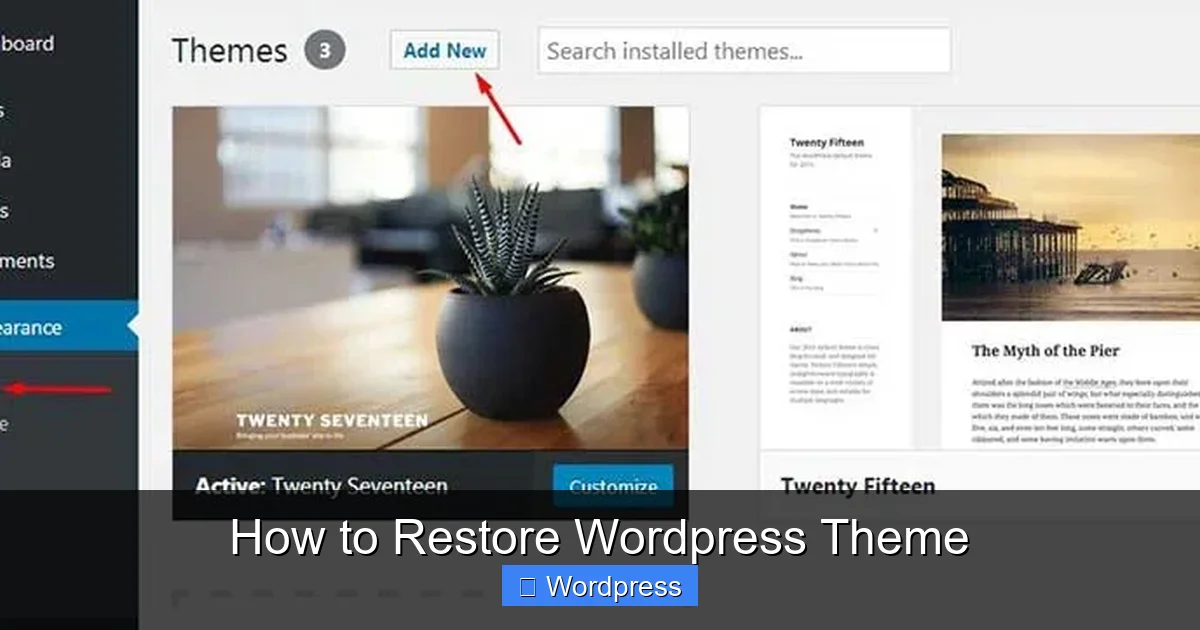
Visual guide about How to Restore WordPress Theme
Image source: essentialwebapps.com
Step 1: Locate Your Backup
Check if your hosting provider offers automatic backups (many do, like SiteGround, Bluehost, or WP Engine). Alternatively, if you use a plugin like UpdraftPlus, BackupBuddy, or Jetpack Backup, log into your account and find the most recent backup before the issue occurred.
Step 2: Restore Files and Database
Most backup plugins allow one-click restoration. For example, in UpdraftPlus:
- Go to Settings > UpdraftPlus Backups.
- Find the backup set from before the problem.
- Click Restore and select all components (files and database).
- Follow the prompts to complete the process.
After restoration, visit your site to confirm it’s working. Your theme—and all customizations—should be back to normal.
Tip: Test Backups Regularly
Don’t wait until disaster strikes. Test your backups periodically to ensure they’re complete and functional. A backup is only useful if it actually works when you need it.
Method 2: Reinstall the Theme via WordPress Dashboard
If your site is still accessible and the theme appears in your dashboard (even if broken), you can reinstall it without losing settings.
Step 1: Go to Appearance > Themes
Log into your WordPress admin panel and navigate to Appearance > Themes. You should see your active theme listed.
Step 2: Delete and Reinstall the Theme
Hover over your theme and click Theme Details. Then click Delete at the bottom. Don’t worry—this only removes the theme files, not your content or settings.
Next, click Add New and search for your theme by name (e.g., “Astra,” “OceanWP,” or “Twenty Twenty-Four”). Click Install and then Activate.
Important: This Works for Default and Repository Themes
This method only works if your theme is available in the official WordPress theme directory. If you’re using a premium theme (like from Elegant Themes or MyThemeShop), you’ll need to upload the ZIP file manually (see Method 3).
What About Customizations?
If you used the WordPress Customizer (Appearance > Customize) to change colors, fonts, or layouts, those settings are stored in the database and will remain after reinstalling. However, any code changes made directly to theme files (like editing header.php) will be lost unless you used a child theme.
Method 3: Restore Theme Using FTP or File Manager
If your site is down or you can’t access the dashboard, you’ll need to restore the theme manually using FTP or your hosting file manager.
Step 1: Access Your Site via FTP
Use an FTP client like FileZilla or your hosting provider’s file manager (e.g., cPanel > File Manager). Connect to your site using your FTP credentials (usually found in your hosting account).
Step 2: Navigate to the Themes Folder
Go to /wp-content/themes/. You’ll see folders for each installed theme.
Step 3: Delete the Corrupted Theme Folder
Find the folder for your broken theme (e.g., /wp-content/themes/your-theme-name/). Right-click and delete it.
Step 4: Upload a Fresh Copy of the Theme
Download the original theme ZIP file from the official source (WordPress.org or the developer’s site). Extract it on your computer, then upload the entire folder to /wp-content/themes/ via FTP.
Step 5: Reactivate the Theme
Once uploaded, log into your WordPress dashboard (if accessible) and go to Appearance > Themes. Your theme should appear—click Activate.
Tip: Use a Child Theme Next Time
To avoid losing custom code in the future, always use a child theme for modifications. That way, you can safely update or restore the parent theme without affecting your changes.
Method 4: Restore Using a Staging Site
If you have a staging site (a copy of your live site for testing), you can restore your theme there first to avoid disrupting your live site.
Step 1: Create or Access Your Staging Site
Many hosts offer one-click staging (e.g., WP Engine, Kinsta, SiteGround). If not, use a plugin like WP Staging to create a copy.
Step 2: Restore the Theme on Staging
Use any of the methods above (backup, reinstall, FTP) on the staging site. Test thoroughly to ensure everything works.
Step 3: Push Changes to Live Site
Once confirmed, use your staging tool to push the restored theme to your live site. This minimizes downtime and risk.
Troubleshooting Common Issues After Restoring
Even after restoring your theme, you might encounter issues. Here’s how to fix them:
White Screen or 500 Internal Server Error
This usually means a PHP error in your theme. Try switching to a default theme (like Twenty Twenty-Four) via FTP by renaming your current theme folder. Then check error logs in your hosting panel or enable WP_DEBUG in wp-config.php:
define('WP_DEBUG', true);
define('WP_DEBUG_LOG', true);
Missing Styles or Layout Issues
If your site looks broken but loads, clear your browser cache and any caching plugins (like WP Super Cache or W3 Total Cache). Also, regenerate CSS if your theme has a built-in option.
Customizations Are Gone
If you lost design changes, check if they were saved in the Customizer (Appearance > Customize). If not, and you didn’t use a child theme, you may need to reapply them manually.
Plugins Causing Conflicts
Sometimes plugins interfere with themes. Temporarily disable all plugins via FTP by renaming the /wp-content/plugins/ folder to plugins_old. Then reactivate them one by one to find the culprit.
Best Practices to Avoid Future Issues
- Always back up before updating: Make a full backup before any theme or plugin update.
- Use a child theme for custom code: Never edit parent theme files directly.
- Keep themes updated: Outdated themes are more prone to bugs and security issues.
- Test updates on staging first: Never update your live site without testing.
- Choose reliable themes: Stick to well-supported themes from trusted developers.
Conclusion
Learning how to restore WordPress theme files doesn’t have to be stressful. With the right approach—whether using backups, the dashboard, FTP, or staging—you can recover your site quickly and safely. The key is preparation: regular backups, using child themes, and testing changes before going live.
Remember, every WordPress user faces theme issues at some point. What matters is knowing how to fix them. By following this guide, you’re now equipped to handle theme restoration like a pro. So the next time your site breaks, take a deep breath—you’ve got this.