This guide walks you through how to set a landing page in WordPress using themes, plugins, or the native page editor. Whether you’re a beginner or experienced user, you’ll learn to create high-converting landing pages quickly and effectively.
Key Takeaways
- Choose the right method: Use a dedicated landing page plugin, a page builder, or WordPress’s built-in tools depending on your skill level and needs.
- Pick a conversion-focused design: Your landing page should have a clear headline, strong call-to-action (CTA), and minimal distractions.
- Use a reliable page builder: Tools like Elementor, Beaver Builder, or Divi make designing landing pages fast and flexible.
- Set the page as your homepage or static front page: Go to Settings > Reading to assign your landing page as the site’s main entry point.
- Optimize for speed and mobile: Fast-loading, mobile-friendly pages improve user experience and SEO rankings.
- Test and refine: Use A/B testing tools to improve conversion rates over time.
- Ensure compatibility: Always check that your theme and plugins work well together to avoid layout or functionality issues.
How to Set Landing Page in WordPress
Setting up a landing page in WordPress is easier than you think—even if you’re not a developer. A well-designed landing page can boost conversions, capture leads, and guide visitors toward a specific action, like signing up for a newsletter or buying a product. In this guide, we’ll walk you through how to set a landing page in WordPress using different methods, from plugins to built-in tools. By the end, you’ll have a professional, high-performing landing page ready to go.
What Is a Landing Page?
A landing page is a standalone web page designed for a specific marketing or advertising campaign. Unlike your homepage, which may have multiple goals, a landing page focuses on one objective—like getting visitors to download an ebook, register for a webinar, or make a purchase. It typically includes a compelling headline, a clear value proposition, supporting content, and a prominent call-to-action (CTA).
Landing pages are essential for digital marketing because they reduce distractions and guide users toward conversion. Whether you’re running Google Ads, Facebook campaigns, or email promotions, directing traffic to a dedicated landing page increases your chances of success.
Method 1: Using a Landing Page Plugin
One of the easiest ways to create a landing page in WordPress is by using a dedicated plugin. These tools offer pre-designed templates, drag-and-drop builders, and built-in analytics—perfect for beginners and marketers.
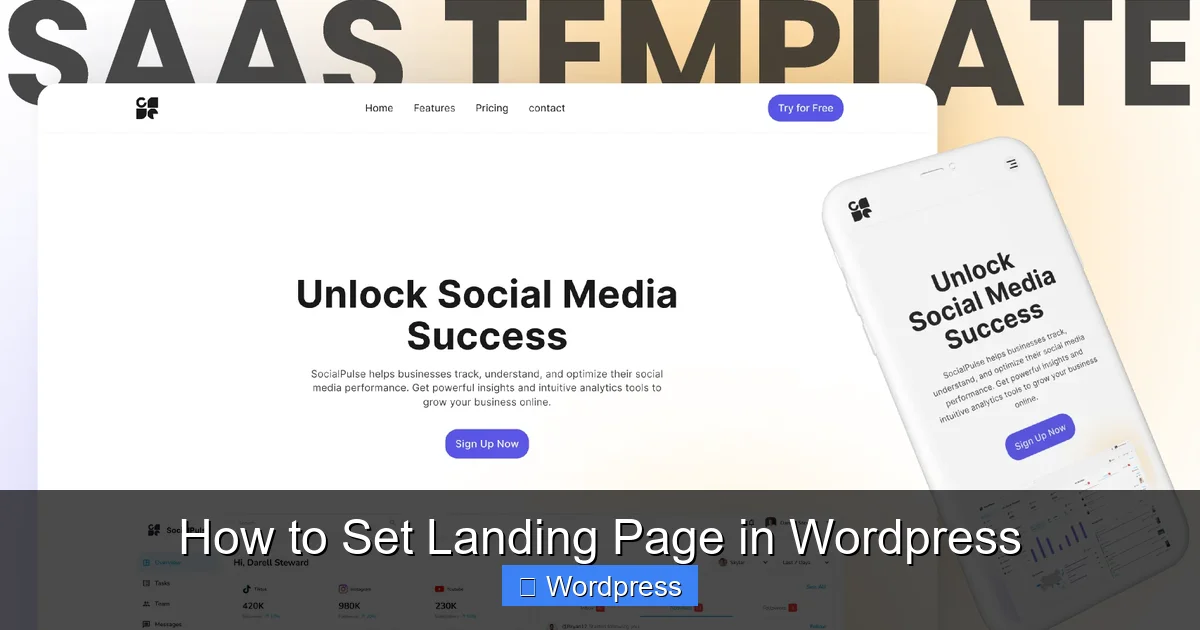
Visual guide about How to Set Landing Page in WordPress
Image source: s3-alpha.figma.com
Step 1: Install a Landing Page Plugin
Popular options include Thrive Architect, Leadpages, and Unbounce. For this example, we’ll use Thrive Architect, a powerful conversion-focused plugin.
- Go to Plugins > Add New in your WordPress dashboard.
- Search for “Thrive Architect.”
- Click Install Now and then Activate.
Step 2: Create a New Landing Page
Once activated, Thrive Architect adds a new option under Thrive Dashboard.
- Go to Thrive Dashboard > Landing Pages.
- Click New Landing Page.
- Choose a template that matches your goal (e.g., “Webinar Signup” or “Product Launch”).
- Give your page a name and click Create Landing Page.
Step 3: Customize Your Landing Page
Thrive Architect opens a visual editor where you can drag and drop elements like headlines, images, buttons, and forms.
- Edit the headline to clearly state your offer (e.g., “Get Your Free Marketing Guide Today”).
- Add a subheadline that explains the benefit.
- Insert a lead capture form (e.g., email signup) using the built-in form element.
- Customize the CTA button—use action-oriented text like “Download Now” or “Start Free Trial.”
- Adjust colors, fonts, and spacing to match your brand.
Step 4: Publish and Set as Landing Page
When you’re happy with the design, click Publish. Then, go to Settings > Reading in your WordPress dashboard.
- Under “Your homepage displays,” select A static page.
- Choose your new landing page from the dropdown menu.
- Click Save Changes.
Now, visitors who land on your site will see your custom landing page first.
Method 2: Using a Page Builder Plugin
If you already use a page builder like Elementor, Divi, or Beaver Builder, you can create a landing page without extra plugins. These tools offer more design flexibility and are great for custom layouts.
Step 1: Install and Activate Elementor
- Go to Plugins > Add New.
- Search for “Elementor.”
- Install and activate it.
Step 2: Create a New Page
- Go to Pages > Add New.
- Give your page a title like “Free Ebook Landing Page.”
- Click Edit with Elementor.
Step 3: Design Your Landing Page
Elementor opens a drag-and-drop editor. Start with a blank canvas or choose a landing page template.
- Add a section with a full-width background image or color.
- Insert a heading widget for your main offer.
- Add a text editor for supporting content.
- Use the “Form” widget to collect leads (connect it to email marketing tools like Mailchimp or ConvertKit).
- Place a large, colorful CTA button below the form.
- Optimize for mobile by switching to the mobile view and adjusting spacing.
Step 4: Set as Homepage
After publishing, go to Settings > Reading and assign your new page as the static front page, just like in Method 1.
Method 3: Using Your Theme’s Built-in Options
Some WordPress themes come with built-in landing page templates. For example, Astra, OceanWP, and Neve offer one-click landing page setups.
Step 1: Install a Compatible Theme
- Go to Appearance > Themes > Add New.
- Search for “Astra” or another landing page-friendly theme.
- Install and activate it.
Step 2: Import a Landing Page Template
- Go to Appearance > Starter Templates (or similar, depending on the theme).
- Browse the library and select a landing page design.
- Click Import to apply it to your site.
Step 3: Customize and Publish
Use the WordPress Customizer or block editor to tweak text, images, and colors. Once done, set the page as your homepage via Settings > Reading.
Tips for High-Converting Landing Pages
Design matters, but so does strategy. Follow these best practices to maximize conversions:
- Keep it simple: Remove navigation menus and links that lead away from the page.
- Use social proof: Add testimonials, client logos, or trust badges.
- Optimize load speed: Compress images and use caching plugins to reduce bounce rates.
- Make it mobile-friendly: Over 60% of web traffic comes from mobile devices—test your page on phones and tablets.
- Test different versions: Use A/B testing tools (like Nelio A/B Testing) to compare headlines, CTAs, and layouts.
Troubleshooting Common Issues
Even with the best tools, you might run into problems. Here’s how to fix common issues:
Landing Page Not Showing as Homepage
If your landing page doesn’t appear when you visit your site:
- Double-check Settings > Reading to ensure the correct page is selected.
- Clear your browser cache and WordPress cache (if using a plugin like WP Super Cache).
- Check for conflicting plugins—deactivate them one by one to find the culprit.
Design Looks Broken on Mobile
Use your page builder’s mobile view to adjust padding, font sizes, and image alignment. Avoid large images that slow down loading.
Form Not Submitting
Ensure your form is connected to an email service. Test the form by submitting a dummy entry. If it fails, check plugin settings or switch to a different form plugin like WPForms.
Conclusion
Learning how to set a landing page in WordPress opens up powerful opportunities for lead generation and sales. Whether you use a dedicated plugin, a page builder, or your theme’s built-in tools, the process is straightforward and customizable. Focus on clarity, speed, and a strong call-to-action to create pages that convert. Start simple, test often, and refine based on real user behavior. With the right approach, your WordPress site can become a conversion machine.