Setting up a sitemap in WordPress helps search engines like Google understand your site structure and index your content faster. This guide walks you through simple steps using popular plugins or manual methods to create and submit your sitemap.
Key Takeaways
- What a sitemap is: A file that lists all important pages on your site, helping search engines crawl and index your content efficiently.
- Why you need one: Improves SEO, ensures new pages get discovered, and helps fix indexing issues.
- Best plugins to use: Yoast SEO, Rank Math, and All in One SEO are top choices for automatic sitemap generation.
- How to access your sitemap: Most plugins create it automatically at yourdomain.com/sitemap_index.xml or similar.
- Submitting to Google: Use Google Search Console to submit your sitemap and monitor indexing status.
- Manual method available: If you prefer not to use plugins, you can create a basic XML sitemap manually.
- Keep it updated: Your sitemap should reflect new content—most plugins do this automatically.
How to Set Up a Sitemap in WordPress
If you’ve ever wondered how search engines find and display your website in search results, a sitemap plays a big role. A sitemap is like a roadmap for your website—it tells search engines which pages exist, how they’re connected, and how often they update. In this guide, you’ll learn exactly how to set up a sitemap in WordPress, whether you’re a beginner or have some technical experience.
By the end of this guide, you’ll know how to generate a sitemap using popular plugins, access it on your site, and submit it to Google. You’ll also learn troubleshooting tips and best practices to keep your site visible and well-organized in search results.
What Is a Sitemap and Why Do You Need One?
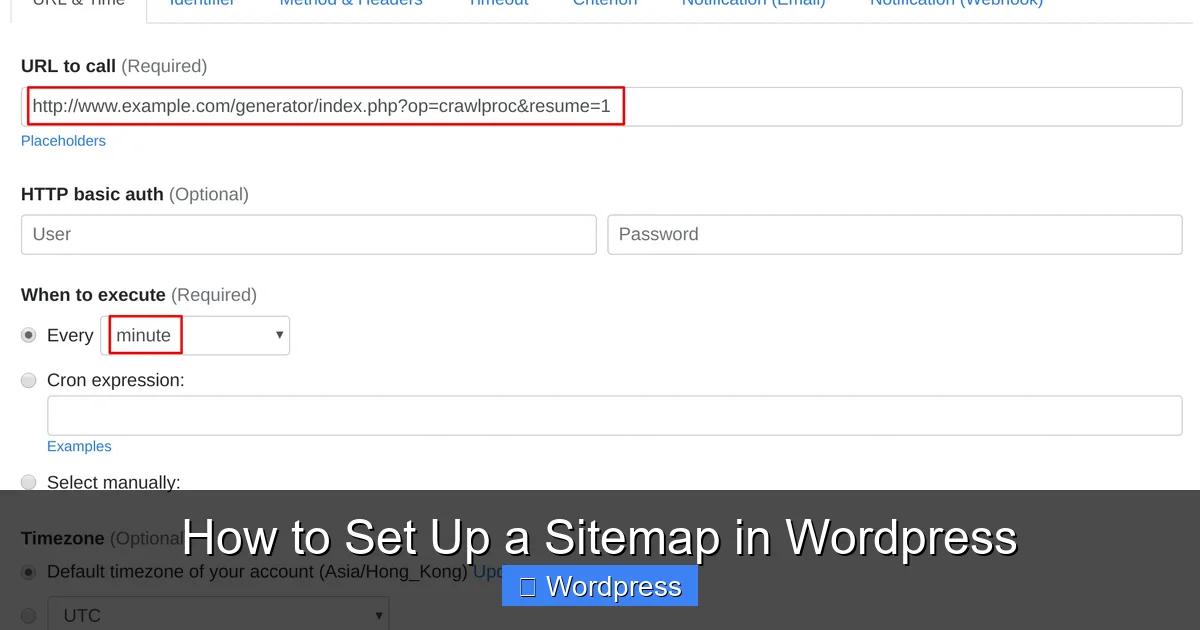
Visual guide about How to Set Up a Sitemap in WordPress
Image source: easycron.com
A sitemap is an XML file that lists all the important pages on your website. It helps search engines like Google, Bing, and Yahoo crawl your site more efficiently. Without a sitemap, search engines might miss new pages or take longer to discover updates.
Even though modern search engines are smart, they still benefit from a clear roadmap. A sitemap ensures that:
- All your pages—especially new or hidden ones—get indexed
- Your site structure is easy to understand
- You can prioritize important pages (like your homepage or blog)
- You reduce the chance of duplicate content issues
In short, a sitemap improves your site’s SEO and helps you get found faster.
Method 1: Set Up a Sitemap Using Yoast SEO (Recommended)
Yoast SEO is one of the most popular WordPress plugins, and it makes sitemap setup incredibly easy. Here’s how to do it step by step.
Step 1: Install and Activate Yoast SEO
Go to your WordPress dashboard. Click on Plugins > Add New. Search for “Yoast SEO,” then click Install Now and Activate.
Step 2: Configure Basic Settings
After activation, you’ll see a new “SEO” menu in your dashboard. Click on it and follow the setup wizard. You’ll be asked about your site type, company info, and social profiles. Fill these out to help Yoast optimize your site.
Step 3: Enable the Sitemap
Once setup is complete, go to SEO > General > Features. Look for the “XML Sitemaps” option and make sure the toggle is turned On.
Step 4: View Your Sitemap
Your sitemap is now live! To view it, go to:
https://yourdomain.com/sitemap_index.xml
Replace “yourdomain.com” with your actual website URL. You should see a structured list of your site’s pages, posts, categories, and other content.
Step 5: Submit to Google Search Console
To help Google find your sitemap faster, submit it to Google Search Console:
- Go to Google Search Console
- Select your property (your website)
- Click on Sitemaps in the left menu
- Paste your sitemap URL (e.g., https://yourdomain.com/sitemap_index.xml)
- Click Submit
Google will now crawl your sitemap regularly and index new content faster.
Method 2: Set Up a Sitemap Using Rank Math
Rank Math is another powerful SEO plugin with excellent sitemap features. Here’s how to use it.
Step 1: Install Rank Math
Go to Plugins > Add New, search for “Rank Math SEO,” install, and activate it.
Step 2: Run the Setup Wizard
After activation, you’ll be guided through a setup process. Choose your site type, connect to Google Search Console if possible, and configure basic SEO settings.
Step 3: Enable Sitemap
Go to Rank Math > General Settings > Sitemap. Make sure “Enable Sitemap” is turned on. You can also customize which post types, taxonomies, and images to include.
Step 4: Access Your Sitemap
Your sitemap will be available at:
https://yourdomain.com/sitemap.xml
Or, if you’re using the XML Sitemap module, it might be:
https://yourdomain.com/sitemap_index.xml
Check the URL in the plugin settings to confirm.
Step 5: Submit to Search Engines
Just like with Yoast, submit your sitemap URL to Google Search Console and Bing Webmaster Tools for faster indexing.
Method 3: Set Up a Sitemap Using All in One SEO
All in One SEO (AIOSEO) is another great option, especially for beginners.
Step 1: Install the Plugin
Go to Plugins > Add New, search for “All in One SEO,” install, and activate.
Step 2: Complete the Setup Wizard
The plugin will guide you through initial settings. Choose your site type, enter company details, and connect to Google Search Console if possible.
Step 3: Enable Sitemap
Go to All in One SEO > Sitemaps. Toggle “Enable Sitemap” to On. You can customize which content types to include and set update frequency.
Step 4: View Your Sitemap
Your sitemap will be available at:
https://yourdomain.com/sitemap.xml
Or check the URL shown in the plugin settings.
Step 5: Submit to Google
Submit the sitemap URL to Google Search Console as described earlier.
Method 4: Create a Sitemap Manually (Advanced)
If you prefer not to use plugins, you can create a basic XML sitemap manually. This method is best for small, static sites.
Step 1: Create the XML File
Open a text editor (like Notepad or TextEdit) and paste the following code:
<?xml version="1.0" encoding="UTF-8"?>
<urlset xmlns="http://www.sitemaps.org/schemas/sitemap/0.9">
  <url>
    <loc>https://yourdomain.com/</loc>
    <lastmod>2024-04-01</lastmod>
    <changefreq>weekly</changefreq>
    <priority>1.0</priority>
  </url>
  <url>
    <loc>https://yourdomain.com/about/</loc>
    <lastmod>2024-03-15</lastmod>
    <changefreq>monthly</changefreq>
    <priority>0.8</priority>
  </url>
</urlset>
Replace the URLs and dates with your actual pages.
Step 2: Save and Upload
Save the file as sitemap.xml and upload it to your website’s root directory (usually public_html or www) using FTP or your hosting file manager.
Step 3: Submit to Search Engines
Submit the URL (https://yourdomain.com/sitemap.xml) to Google Search Console and Bing.
Note: This method doesn’t auto-update. You’ll need to edit the file every time you add a new page.
Troubleshooting Common Sitemap Issues
Even with the best setup, you might run into problems. Here’s how to fix common issues.
Sitemap Not Found (404 Error)
If your sitemap URL returns a 404 error:
- Make sure the plugin is active and sitemap is enabled
- Check for typos in the URL
- Clear your cache (plugin, browser, or server cache)
- Ensure your permalinks are set correctly (go to Settings > Permalinks and click Save)
Sitemap Shows Old or Missing Pages
This usually means the sitemap hasn’t updated. Try:
- Manually refreshing the sitemap in your SEO plugin
- Checking if the page is set to “noindex” (which excludes it from sitemaps)
- Ensuring the page is published, not draft or private
Google Search Console Says “Sitemap Could Not Be Read”
This can happen if:
- The sitemap URL is incorrect
- Your site is blocking Googlebot (check robots.txt)
- The sitemap has invalid XML (use a validator like XML-Sitemaps.com)
Too Many URLs in Sitemap
Google allows up to 50,000 URLs per sitemap. If you have more, your plugin should automatically create a sitemap index. If not, check your plugin settings or consider splitting content.
Best Practices for Sitemaps
To get the most out of your sitemap, follow these tips:
- Keep it updated: Most plugins do this automatically, but check regularly.
- Include only important pages: Avoid listing low-value pages like login or thank-you pages.
- Use HTTPS: Make sure all URLs in your sitemap use https:// for security.
- Submit to multiple search engines: Besides Google, submit to Bing, Yahoo, and others.
- Monitor in Search Console: Check for errors, warnings, and indexing status.
Conclusion
Setting up a sitemap in WordPress is a simple but powerful step for better SEO. Whether you use Yoast SEO, Rank Math, All in One SEO, or create one manually, a sitemap helps search engines find and index your content faster.
By following this guide, you’ve learned how to generate, access, and submit your sitemap—plus how to troubleshoot common issues. Remember, a well-maintained sitemap is part of a healthy website. Keep it updated, monitor its performance, and watch your search visibility grow.
Don’t wait—set up your sitemap today and give your site the visibility it deserves.