Understanding the difference between categories and tags in WordPress is essential for organizing your blog content. Categories provide broad groupings, while tags offer specific details—using both correctly improves navigation and SEO.
Key Takeaways
- Categories are hierarchical: You can create subcategories, making them ideal for broad content organization.
- Tags are non-hierarchical: They describe specific details and work best for granular topics.
- Use categories sparingly: Limit to 5–10 main categories to avoid confusion and improve site structure.
- Tags enhance discoverability: They help users find related posts through keyword-rich labels.
- SEO benefits from proper use: Well-structured categories and tags improve internal linking and search engine rankings.
- Default category is mandatory: Every post must belong to at least one category—WordPress won’t let you publish without it.
- Manage via Posts > Categories/Tags: Both are easy to add, edit, or delete from the WordPress dashboard.
What Is the Difference Between Categories and Tags in WordPress?
If you’re new to WordPress or even if you’ve been blogging for a while, you might be confused about when to use categories versus tags. Both help organize your content, but they serve different purposes. Getting this right can make your site easier to navigate, improve your SEO, and help readers find what they’re looking for faster.
In this guide, we’ll break down exactly what categories and tags are, how they differ, and how to use them effectively on your WordPress site. You’ll learn best practices, see real-world examples, and get step-by-step instructions to manage both like a pro.
Understanding Categories in WordPress
Visual guide about What Is the Difference Between Categories and Tags in WordPress
Image source: ostraining.com
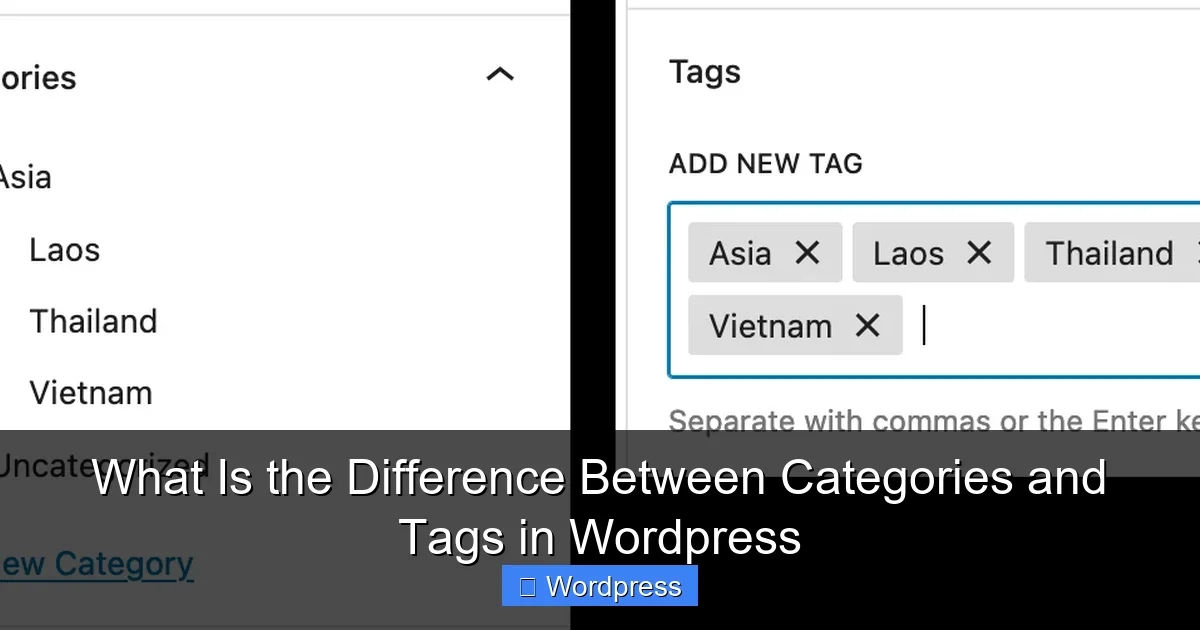
Categories are the backbone of your content structure. Think of them as the main chapters in a book. They help group your posts into broad topics so visitors can easily browse related content.
For example, if you run a food blog, your main categories might include:
– Recipes
– Restaurant Reviews
– Cooking Tips
– Ingredient Guides
Each of these represents a major theme of your blog. Categories are hierarchical, meaning you can create subcategories. Under “Recipes,” you could have subcategories like “Desserts,” “Main Dishes,” and “Vegetarian.” This nesting helps keep your content organized as your site grows.
How to Create and Manage Categories
To add a category:
1. Go to Posts > Categories in your WordPress dashboard.
2. Enter a name (e.g., “Travel”).
3. Optionally, add a slug (the URL-friendly version, like “travel-tips”).
4. Choose a parent category if creating a subcategory.
5. Click Add New Category.
You can also assign categories when writing a post. In the post editor, look for the “Categories” box on the right. Check the appropriate boxes or add a new one on the spot.
Best Practices for Using Categories
– Keep it simple: Don’t create too many categories. Aim for 5–10 main ones.
– Be consistent: Use clear, descriptive names (e.g., “Home Improvement” instead of “DIY Stuff”).
– Use subcategories wisely: Only go one level deep to avoid complexity.
– Set a default category: Go to Settings > Writing and choose a fallback (usually “Uncategorized”).
For more details on managing categories, check out our guide on WordPress Categories.
Understanding Tags in WordPress
Visual guide about What Is the Difference Between Categories and Tags in WordPress
Image source: bigapplemedia.com
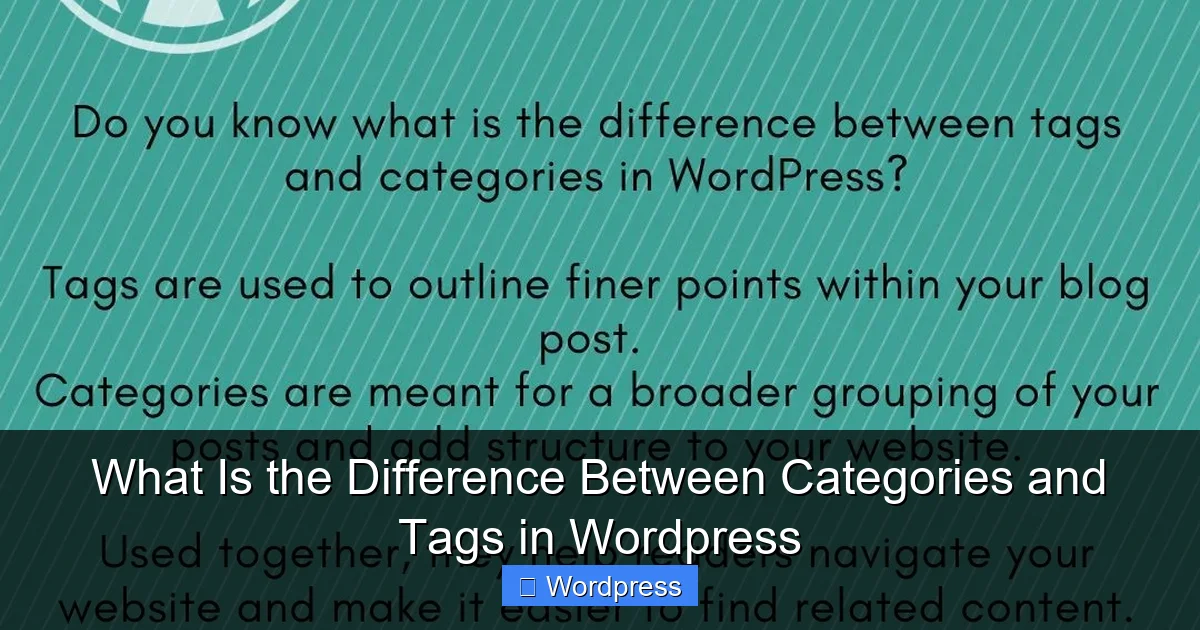
Tags are like keywords or descriptors that give more detail about your content. While categories answer “What is this about?”, tags answer “What specific aspects does this cover?”
Using the food blog example again, a post under the “Recipes” category might have tags like:
– gluten-free
– quick meals
– 30-minute recipes
– chicken
Tags are flat—there’s no hierarchy. You can’t have sub-tags, and that’s by design. Their job is to connect related posts across different categories.
For instance, a “gluten-free” tag could link a dessert recipe (under “Recipes”) with a restaurant review of a gluten-free bakery (under “Restaurant Reviews”). This cross-linking improves user experience and SEO.
How to Create and Manage Tags
To add tags:
1. Go to Posts > Tags in your dashboard.
2. Enter a tag name (e.g., “vegan”).
3. Add a slug if needed.
4. Click Add New Tag.
Or, while writing a post, use the “Tags” box in the editor. Separate multiple tags with commas.
Best Practices for Using Tags
– Use specific, relevant terms: Avoid vague tags like “cool” or “awesome.”
– Limit the number per post: 3–5 tags are usually enough.
– Avoid duplicates: “Recipe” and “Recipes” are technically different—stick to one format.
– Don’t over-tag: Too many tags can dilute their usefulness and confuse readers.
Key Differences Between Categories and Tags
Now that you know how each works, let’s compare them side by side:
| Feature | Categories | Tags |
|---|---|---|
| Purpose | Broad content grouping | Specific details or keywords |
| Hierarchy | Yes (can have subcategories) | No (flat structure) |
| Required? | Yes (every post needs at least one) | No (optional) |
| Number Used | Few (5–10 recommended) | Many (but use sparingly per post) |
| SEO Impact | High (affects site structure) | Moderate (helps with internal linking) |
Why Proper Use Matters for SEO and User Experience
Using categories and tags correctly isn’t just about organization—it directly impacts how people and search engines interact with your site.
Better Navigation
When visitors land on your site, they often browse by topic. Clear categories act as signposts, guiding them to the content they want. Tags act like a search tool, helping them discover related posts they might not have found otherwise.
Improved Internal Linking
WordPress automatically creates archive pages for categories and tags (e.g., yoursite.com/category/recipes). These pages list all posts in that group, creating natural internal links. Search engines love this—it helps them crawl your site more effectively.
Enhanced SEO
Well-structured categories improve your site’s architecture, which is a ranking factor. Tags help target long-tail keywords (e.g., “easy vegan dinner recipes”), which can drive targeted traffic.
For tips on choosing a theme that supports strong SEO and speed, visit our guide on the Best WordPress Theme for SEO and Speed.
Common Mistakes to Avoid
Even experienced bloggers make these errors:
Using Too Many Categories
Creating a new category for every post leads to a cluttered menu and confused readers. Stick to broad, meaningful groups.
Confusing Categories with Tags
Don’t use tags as categories. For example, don’t make “Recipe” a tag if it’s already a category. That creates redundancy.
Ignoring the Default Category
If you delete “Uncategorized,” WordPress will prompt you to assign a new default. Never leave posts without a category—it can break your site’s structure.
Over-Tagging
Adding 10+ tags per post looks spammy and offers little value. Focus on relevance.
Troubleshooting Tips
Tags Not Showing on Posts?
Some themes don’t display tags by default. Check your theme settings or use a plugin like “Ultimate Category Excluder” to control visibility.
Category Pages Returning 404 Errors?
This usually happens after changing permalink settings. Go to Settings > Permalinks and click “Save Changes” to refresh the rewrite rules. For more help, see our guide on 404 Errors in WordPress.
Can’t Delete a Category?
WordPress won’t let you delete the default category. Change the default first under Settings > Writing, then delete the old one.
Conclusion
Categories and tags are powerful tools for organizing your WordPress content—but only if used correctly. Categories provide the big-picture structure, while tags add helpful detail. Together, they improve navigation, boost SEO, and help readers find exactly what they’re looking for.
Remember: keep categories broad and limited, use tags for specificity, and always assign at least one category per post. With these practices, your site will be cleaner, more user-friendly, and better optimized for search engines.
Whether you’re running a personal blog or a business site, mastering categories and tags is a small step that makes a big difference. Start organizing your content today—and watch your site grow!