Slow WordPress sites frustrate visitors and hurt SEO. This guide uncovers the top reasons behind sluggish performance—from hosting issues to bloated plugins—and shows you step-by-step how to fix them. You’ll learn practical, actionable tips to make your site faster, smoother, and more user-friendly.
Key Takeaways
- Poor hosting is the #1 cause of slow WordPress sites: Shared or low-quality hosts often lack resources for fast load times.
- Heavy themes and plugins slow down performance: Unoptimized code, unused features, and outdated tools bloat your site.
- Unoptimized images increase page weight: Large image files without compression delay loading, especially on mobile.
- Missing caching reduces efficiency: Without proper caching, your server works harder on every visit.
- External scripts (ads, fonts, trackers) add delays: Third-party services can block rendering if not loaded wisely.
- Database bloat slows queries: Over time, your WordPress database fills with spam, revisions, and trash that need cleaning.
- Regular maintenance keeps speed consistent: Updates, cleanups, and monitoring prevent future slowdowns.
Why Is My WordPress Site So Slow? A Step-by-Step Fix Guide
If your WordPress site takes forever to load, you’re not alone. Slow websites frustrate users, increase bounce rates, and hurt your search engine rankings. The good news? Most speed issues are fixable with the right approach.
In this guide, you’ll learn exactly why your WordPress site might be slow—and how to speed it up fast. We’ll cover hosting, themes, plugins, images, caching, and more. By the end, you’ll have a clear action plan to boost performance and keep your site running smoothly.
1. Check Your Hosting Plan
Your web host is the foundation of your site’s speed. If it’s weak, nothing else matters.
Many beginners choose cheap shared hosting to save money. But shared plans often overload servers with too many sites, causing slow response times—especially during traffic spikes.
Signs of Bad Hosting
- Pages take over 5 seconds to load
- Your site crashes during traffic surges
- You see “Error establishing database connection” frequently
What to Do
Upgrade to a managed WordPress host like Bluehost, WP Engine, or SiteGround. These providers optimize servers specifically for WordPress, offer built-in caching, and include free SSL and CDN support.
For example, Bluehost WordPress Hosting Review shows how reliable hosting can cut load times in half. If you’re serious about speed, investing in quality hosting is the smartest first step.
2. Audit Your Theme and Plugins
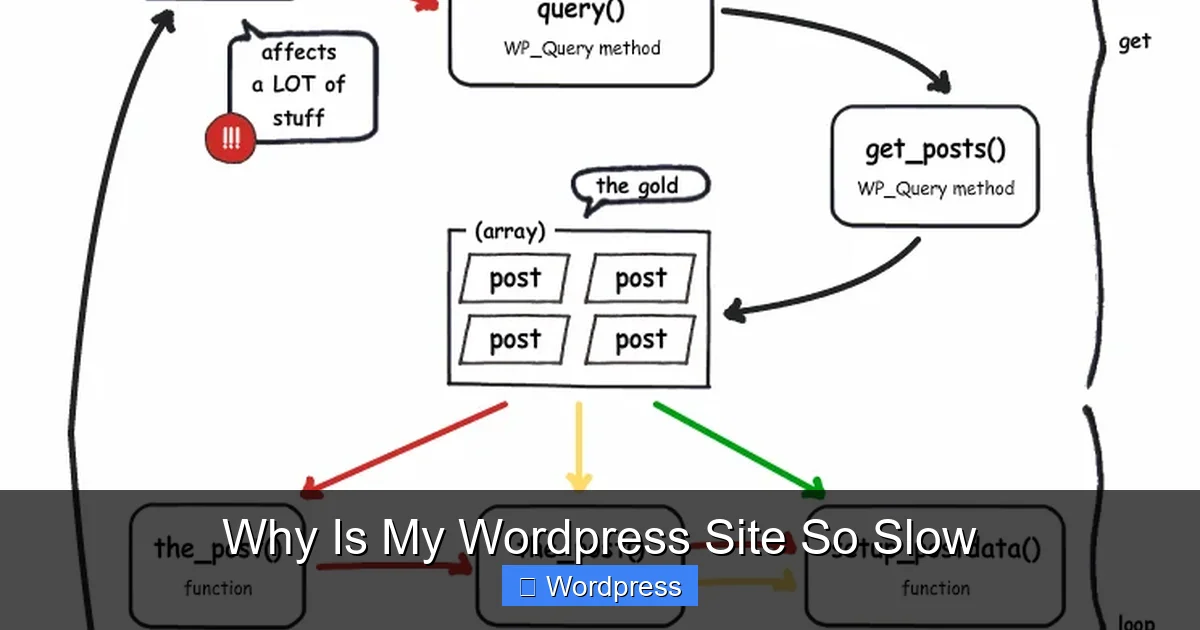
Visual guide about Why Is My WordPress Site So Slow
Image source: thecustomizewindows.cachefly.net
Not all themes and plugins are created equal. Some are lightweight and well-coded. Others are bloated, outdated, or poorly optimized—slowing your site to a crawl.
How to Spot Problematic Themes
Avoid themes packed with unnecessary features like sliders, animations, and demo content you don’t use. These add extra code that slows rendering.
Instead, choose a fast, SEO-friendly theme. The Best WordPress Theme for SEO and Speed guide recommends lightweight options like Astra, GeneratePress, or Neve—all built for performance.
Clean Up Unused Plugins
Deactivate and delete any plugin you’re not using. Even inactive plugins can leave behind database entries.
Test plugins one by one. Install a plugin like Query Monitor to see which ones slow down your site. Replace heavy plugins with lighter alternatives—for example, use WP Super Cache instead of a complex page builder for simple sites.
3. Optimize Your Images
Large, uncompressed images are a major cause of slow loading. A single 5MB image can delay your entire page.
Best Practices for Image Speed
- Resize images before uploading—never upload full-resolution photos.
- Use modern formats like WebP instead of JPEG or PNG.
- Compress images with tools like ShortPixel, TinyPNG, or Smush.
For example, a 2MB JPEG can shrink to 300KB as a WebP file with no visible quality loss. That’s a 85% reduction in file size—and a huge speed boost.
Enable lazy loading so images only load when users scroll to them. Most modern themes and plugins support this by default.
4. Enable Caching
Caching stores a static version of your pages so the server doesn’t have to rebuild them on every visit. This dramatically reduces load times.
Types of Caching
- Page Caching: Saves fully rendered HTML pages.
- Browser Caching: Tells visitors’ browsers to store files locally.
- Object Caching: Speeds up database queries (available on some hosts).
How to Set Up Caching
Install a caching plugin like WP Super Cache, W3 Total Cache, or LiteSpeed Cache. These tools are easy to configure and often include one-click setup.
Most managed hosts (like WP Engine) include server-level caching, so you may not need a plugin. Check with your host first.
5. Minify CSS, JavaScript, and HTML
Minification removes unnecessary characters (like spaces and comments) from your code. This reduces file sizes and speeds up loading.
How to Minify Files
Use a plugin like Autoptimize or WP Rocket. These tools can:
- Minify and combine CSS and JS files
- Defer non-critical JavaScript
- Inline small CSS files
Be cautious: minifying can sometimes break layouts. Always test your site after enabling these features. Use a staging site if possible.
6. Use a Content Delivery Network (CDN)
A CDN stores copies of your site on servers around the world. When someone visits, they get content from the nearest server—cutting down travel time.
Popular CDN Options
- Cloudflare (free tier available)
- KeyCDN
- BunnyCDN
Cloudflare is a great starting point. It’s free, easy to set up, and includes security features like DDoS protection. Just point your domain’s DNS to Cloudflare, and you’re ready to go.
7. Clean Your WordPress Database
Over time, your database fills with:
- Post revisions
- Spam comments
- Trashed posts and pages
- Expired transients
This bloat slows down queries and increases load times.
How to Clean Your Database
Use a plugin like WP-Optimize or Advanced Database Cleaner. These tools safely remove junk data with one click.
Schedule regular cleanups—monthly is ideal. Always back up your site before cleaning.
8. Limit External Scripts
Third-party scripts—like Google Fonts, Facebook widgets, ads, and analytics—can block your page from loading.
Tips to Reduce Script Impact
- Load Google Fonts locally instead of from Google’s servers.
- Defer non-essential scripts until after the page loads.
- Use asynchronous loading where possible.
For example, instead of loading 10 different font weights, use only the ones you need. Fewer requests mean faster pages.
Troubleshooting Common Speed Issues
Sometimes, speed problems persist even after optimization. Here’s how to dig deeper:
Use Speed Testing Tools
Run your site through:
- Google PageSpeed Insights
- GTmetrix
- Pingdom Tools
These tools pinpoint specific issues—like render-blocking resources or slow server response—and suggest fixes.
Check for Plugin Conflicts
If your site slows after installing a new plugin, deactivate all plugins and reactivate them one by one. This helps identify the culprit.
Monitor Uptime and Server Response
Use a service like UptimeRobot to track downtime. Slow server response (TTFB) often points to hosting issues.
Conclusion
A slow WordPress site doesn’t have to be permanent. By addressing hosting, themes, plugins, images, caching, and external scripts, you can dramatically improve load times.
Start with your host—upgrade if needed. Then audit your themes and plugins, optimize images, enable caching, and use a CDN. Regular maintenance keeps your site fast long-term.
Remember: speed isn’t just about user experience. It’s a key ranking factor for Google. A faster site means happier visitors, lower bounce rates, and better SEO.
Take action today. Test your site, apply these fixes, and watch your performance soar.