WooCommerce login is a critical feature for online stores, enabling customers to access their accounts, track orders, and manage profiles. A well-designed and secure login system improves user trust and reduces cart abandonment.
Key Takeaways
- WooCommerce login is built on WordPress: It uses the default WordPress user system, so managing logins means managing WordPress users.
- Customize the login page for branding: You can change the logo, colors, and layout to match your store’s design.
- Enable guest checkout to reduce friction: Not every customer needs an account—offer both options for flexibility.
- Boost security with two-factor authentication: Protect customer data with plugins like Google Authenticator or Wordfence.
- Use shortcodes to place login forms anywhere: Embed login forms on custom pages using [woocommerce_my_account].
- Monitor login attempts to prevent attacks: Track suspicious activity and block brute force attempts.
- Optimize for mobile users: Ensure the login form is responsive and easy to use on all devices.
Quick Answers to Common Questions
Can I change the WooCommerce login page URL?
Yes, you can change the login URL using plugins like WPS Hide Login or by editing your site’s .htaccess file. This helps prevent automated attacks targeting the default /wp-login.php path.
How do I add a login form to a custom page?
Use the [woocommerce_my_account] shortcode in any page or post. This will display the login, registration, and account dashboard forms all in one place.
Is guest checkout better than requiring an account?
It depends. Guest checkout reduces friction and can increase conversions, but requiring an account gives you valuable customer data. Offer both options for the best results.
Can customers log in with their email instead of username?
Yes, WooCommerce allows users to log in with their email address by default. You don’t need to change any settings—just make sure your login form accepts email input.
How do I reset a customer’s password?
Customers can reset their password using the “Lost your password?” link on the login page. As an admin, you can also reset passwords from the WordPress Users section.
📑 Table of Contents
What Is WooCommerce Login?
WooCommerce login is the gateway that allows customers to access their personal accounts on your online store. When a user logs in, they can view past orders, update shipping addresses, save payment methods, and manage subscriptions. This login system is powered by WordPress, which means every customer account is also a WordPress user account.
Unlike standalone e-commerce platforms, WooCommerce leverages WordPress’s robust user management system. This gives store owners powerful control over user roles, permissions, and access levels. Whether you’re running a small boutique or a large marketplace, the WooCommerce login process is essential for delivering a personalized shopping experience.
A smooth and secure login experience builds customer confidence. If users struggle to log in—or worse, get locked out—they may abandon their carts or never return. That’s why optimizing your WooCommerce login page is not just about functionality; it’s about trust and retention.
How WooCommerce Login Works
When a customer creates an account on your WooCommerce store, a new user is registered in the WordPress database. This user gets a username (usually their email) and a password. The login process then authenticates these credentials against the WordPress user system.
Default Login Flow
By default, WooCommerce uses the standard WordPress login page (usually at /wp-login.php). However, this page doesn’t look like part of your store. To improve branding, most store owners customize or replace this with a dedicated login page.
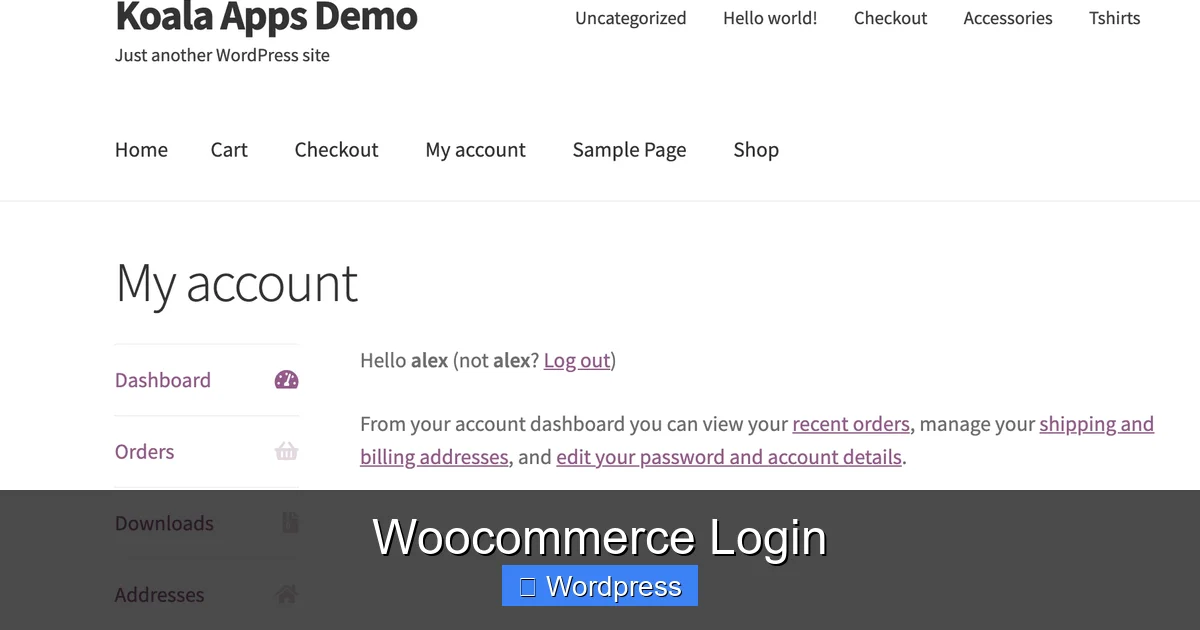
When a customer clicks “My Account” in your store’s menu, they’re taken to a page that includes login and registration forms. This page is created automatically when you install WooCommerce and uses the [woocommerce_my_account] shortcode. From here, users can log in, register, or reset their password.
Guest Checkout vs. Account Login
One of the biggest decisions you’ll make is whether to require account creation at checkout. WooCommerce allows both guest checkout and account creation. Enabling guest checkout can reduce cart abandonment, especially for first-time buyers who don’t want to go through a registration process.
However, requiring an account gives you more data—like customer preferences and order history—which helps with marketing and personalization. The best approach? Offer both. Let users choose guest checkout, but encourage account creation with incentives like exclusive discounts or faster reordering.
Customizing the WooCommerce Login Page
Visual guide about Woocommerce Login
Image source: woocommerce.com
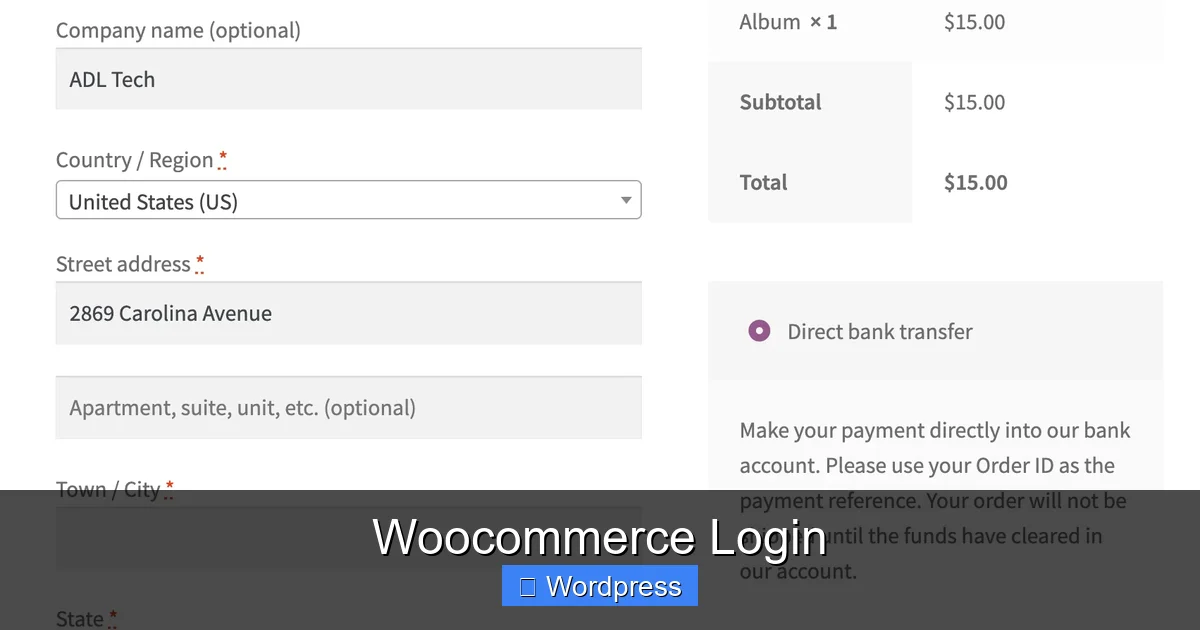
A generic login page can feel disconnected from your brand. Customizing the WooCommerce login experience makes your store feel more professional and trustworthy.
Change the Login Logo and Styling
You can easily replace the default WordPress logo on the login page with your store’s logo. This is done by adding a small snippet of code to your theme’s functions.php file or using a plugin like “Custom Login Page Customizer.” You can also change the background color, button styles, and fonts to match your brand.
For example, if your store uses a blue and white color scheme, update the login buttons and links to reflect that. A consistent look across your site—including the login page—helps users feel they’re still in the same trusted environment.
Create a Custom Login Page
Instead of redirecting users to /wp-login.php, create a dedicated login page on your site. Use the [woocommerce_my_account] shortcode to embed the login and registration forms. Then, style the page with your theme or a page builder like Elementor.
This approach gives you full control over the layout. You can add trust badges, customer testimonials, or a brief message like “Welcome back! Track your orders and save your favorites.” These small touches can significantly improve conversion rates.
Improve Mobile Responsiveness
More than half of online shoppers use mobile devices. If your login form is hard to use on a phone—tiny buttons, cramped fields—users will get frustrated and leave. Test your login page on different screen sizes and ensure the form is easy to tap and fill out.
Use large input fields, clear labels, and a prominent “Log In” button. Avoid pop-ups or overlays that don’t work well on mobile. A responsive design isn’t optional—it’s essential.
Enhancing Security for WooCommerce Login
Visual guide about Woocommerce Login
Image source: woocommerce.com
Security is non-negotiable when handling customer logins. A breach can damage your reputation and lead to legal issues. Fortunately, there are several ways to protect your WooCommerce login process.
Enable Two-Factor Authentication (2FA)
Two-factor authentication adds an extra layer of security by requiring users to verify their identity with a second method—like a code from an app or SMS. Plugins like Google Authenticator or Wordfence Security make it easy to enable 2FA for all users or just administrators.
Even if someone steals a password, they won’t be able to log in without the second factor. This is especially important for store owners and staff with admin access.
Limit Login Attempts
Brute force attacks—where hackers try thousands of password combinations—are common. Use a plugin like Limit Login Attempts Reloaded to block IP addresses after a set number of failed login attempts.
For example, you can allow 5 failed attempts, then lock the IP for 24 hours. This stops automated attacks without inconveniencing real users. You can also set up email alerts to notify you of suspicious activity.
Use HTTPS and SSL Certificates
Always use HTTPS on your site, especially on login and checkout pages. An SSL certificate encrypts data between the user’s browser and your server, preventing hackers from stealing login credentials.
Most web hosts offer free SSL certificates through Let’s Encrypt. If you’re using a reliable web hosting provider for WooCommerce, SSL is often included by default. Look for the padlock icon in the browser bar—it’s a sign your site is secure.
Common WooCommerce Login Issues and Fixes
Even with the best setup, login problems can happen. Here are some common issues and how to solve them.
“Invalid Username or Password” Errors
This is the most frequent complaint. Often, it’s because the user entered the wrong email or password. Make sure your login form includes a clear “Forgot Password?” link that sends a reset email.
You can also allow users to log in with either their username or email address. WooCommerce supports both, but some themes or plugins may restrict this. Check your settings under WooCommerce > Settings > Accounts & Privacy.
Redirect Loops After Login
Sometimes users get stuck in a loop—logging in just takes them back to the login page. This is usually caused by caching plugins or incorrect redirect settings.
Clear your site and browser cache. Then, check your login redirect settings. WooCommerce lets you choose where users go after logging in—like the account dashboard or the homepage. Make sure the redirect URL is valid and not conflicting with other rules.
Login Form Not Appearing
If the login form doesn’t show up on your “My Account” page, the [woocommerce_my_account] shortcode might be missing or broken. Edit the page and ensure the shortcode is present.
Also, check if your theme or a plugin is overriding the default WooCommerce templates. Switch to a default theme like Storefront temporarily to see if the issue persists.
Best Practices for a Great Login Experience
A seamless login experience keeps customers happy and coming back. Here are some proven best practices.
Keep It Simple
Don’t overwhelm users with too many fields or steps. The login form should have just two fields: email (or username) and password. Add a “Remember Me” checkbox for convenience.
Avoid captchas unless you’re seeing a lot of spam. They can frustrate real users. If you must use one, opt for invisible reCAPTCHA instead of image puzzles.
Offer Social Login
Let users log in with their Google, Facebook, or Apple accounts. Plugins like “Nextend Social Login” make this easy. Social login reduces friction and speeds up the process, especially on mobile.
Just make sure to explain how you’ll use their data. Transparency builds trust.
Provide Clear Feedback
If login fails, tell the user why. Instead of a generic error, say “The email address is not registered” or “Incorrect password.” This helps users self-correct without calling support.
Also, confirm successful logins with a message like “Welcome back, Sarah!” and redirect them to their account dashboard.
Test Regularly
Login issues can appear after updates to WordPress, WooCommerce, or your theme. Test the login process regularly—especially after making changes.
Ask a friend to try creating an account and logging in. Watch for errors, slow loading, or confusing messages.
Conclusion
The WooCommerce login system is more than just a form—it’s a key part of your customer journey. A well-designed, secure, and user-friendly login experience builds trust, reduces abandonment, and encourages repeat purchases.
From customizing the look and feel to adding security features like 2FA and login attempt limits, every detail matters. Use the built-in tools, leverage helpful plugins, and always prioritize your customers’ convenience and safety.
Remember, your login page is often the first step in a long relationship with a customer. Make it count.
Frequently Asked Questions
What is the default WooCommerce login page?
The default login page is part of the “My Account” page, which is created automatically when you install WooCommerce. It uses the [woocommerce_my_account] shortcode and includes login, registration, and account management features.
Can I disable user registration in WooCommerce?
Yes, go to WooCommerce > Settings > Accounts & Privacy and uncheck “Allow customers to create an account on the “My Account” page.” This forces all users to check out as guests unless you manually create accounts for them.
Why can’t customers log in even with the correct password?
This could be due to caching, plugin conflicts, or incorrect user roles. Try clearing your cache, disabling plugins one by one, and checking that the user has the “customer” role in WordPress.
How do I add two-factor authentication to WooCommerce login?
Install a plugin like Wordfence Security or Google Authenticator. These tools add 2FA to the WordPress login process, which also protects WooCommerce accounts since they use the same system.
Can I style the WooCommerce login form with CSS?
Yes, you can add custom CSS to your theme or use the WordPress Customizer. Target classes like .woocommerce-form-login to change colors, fonts, and layout.
What should I do if the login form disappears after an update?
Check if the [woocommerce_my_account] shortcode is still on the page. Also, switch to a default theme like Storefront to see if a theme update caused the issue. Reinstalling WooCommerce may also help.