Your WordPress admin login URL is the gateway to managing your website’s backend. While the default path is simple, changing it can significantly boost your site’s security. Learn how to find, customize, and protect your login page effectively.
If you’ve ever managed a WordPress website, you’ve likely typed in that familiar web address to access the backend: yourdomain.com/wp-admin. This is the standard WordPress admin login URL—the digital key that unlocks your site’s control panel. From here, you can publish posts, install plugins, update themes, and manage users. But while this default path is convenient, it’s also widely known—and that makes it a prime target for hackers.
In this guide, we’ll walk you through everything you need to know about the WordPress admin login URL. Whether you’re a beginner setting up your first blog or a seasoned developer looking to tighten security, understanding how this URL works—and how to customize it—is essential. We’ll cover the default paths, why changing them matters, and step-by-step methods to do it safely. Plus, we’ll share practical tips to keep your site secure without overcomplicating things.
Key Takeaways
- Default login URL: Most WordPress sites use /wp-admin or /wp-login.php to access the admin dashboard.
- Custom login URLs improve security: Changing the default path helps prevent brute-force attacks and unauthorized access.
- Plugins make it easy: Tools like WPS Hide Login let you change your login URL without coding.
- Manual methods exist: You can modify .htaccess or functions.php for advanced users.
- Always test after changes: Ensure you don’t lock yourself out by verifying the new URL works.
- Use strong credentials: Even with a custom URL, always pair it with a strong password and two-factor authentication.
- Backup first: Always back up your site before making structural changes to avoid data loss.
Quick Answers to Common Questions
What is the default WordPress admin login URL?
The default URLs are yourdomain.com/wp-admin and yourdomain.com/wp-login.php. Both lead to the same login screen.
Can I change my WordPress login URL without a plugin?
Yes, you can edit the .htaccess file or use code in functions.php, but using a plugin like WPS Hide Login is safer and easier.
Will changing the login URL break my site?
Not if done correctly. Always back up your site first and test the new URL in an incognito window.
Do I still need a security plugin if I change my login URL?
Yes. A custom URL helps, but you should also use strong passwords, 2FA, and a security plugin for full protection.
What happens if I forget my custom login URL?
You can disable the plugin via FTP or restore the original .htaccess file to regain access.
📑 Table of Contents
What Is the Default WordPress Admin Login URL?
By default, WordPress uses two common URLs to access the admin dashboard:
– yourdomain.com/wp-admin
– yourdomain.com/wp-login.php
Both lead to the same login screen where you enter your username and password. The /wp-admin path automatically redirects to /wp-login.php if you’re not already logged in. These URLs are hardcoded into WordPress core, which means every standard installation uses them unless modified.
For example, if your site is https://exampleblog.com, your login page would be:
– https://exampleblog.com/wp-admin
– or https://exampleblog.com/wp-login.php
This consistency makes it easy for users to remember, but it also makes your site predictable to attackers. Automated bots constantly scan the internet for these default paths, attempting to guess passwords through brute-force attacks. That’s why relying solely on the default login URL is like leaving your front door unlocked in a busy neighborhood.
Why Should You Change Your WordPress Admin Login URL?
Changing your WordPress admin login URL isn’t just a neat trick—it’s a smart security move. Here’s why:
Prevent Brute-Force Attacks
Hackers use bots to repeatedly try common username and password combinations on /wp-login.php. If your login page is hidden behind a custom URL, these bots can’t find it, drastically reducing the risk of a successful attack.
Reduce Spam and Unauthorized Access
Even if someone guesses your password, they still need to know the exact login URL. A custom path adds an extra layer of obscurity, acting as a first line of defense.
Improve Overall Site Security
While changing the URL doesn’t replace strong passwords or security plugins, it complements them. It’s part of a layered security strategy—like adding a deadbolt to a locked door.
Peace of Mind
Knowing your admin area isn’t sitting out in the open can give you confidence, especially if you run a high-traffic or business-critical site.
Think of it this way: the default login URL is like a sign on your house that says “Admin Entrance.” Changing it is like removing the sign and putting the door in a less obvious place. It won’t stop a determined intruder forever, but it will stop the casual ones—and that’s most of them.
How to Change Your WordPress Admin Login URL
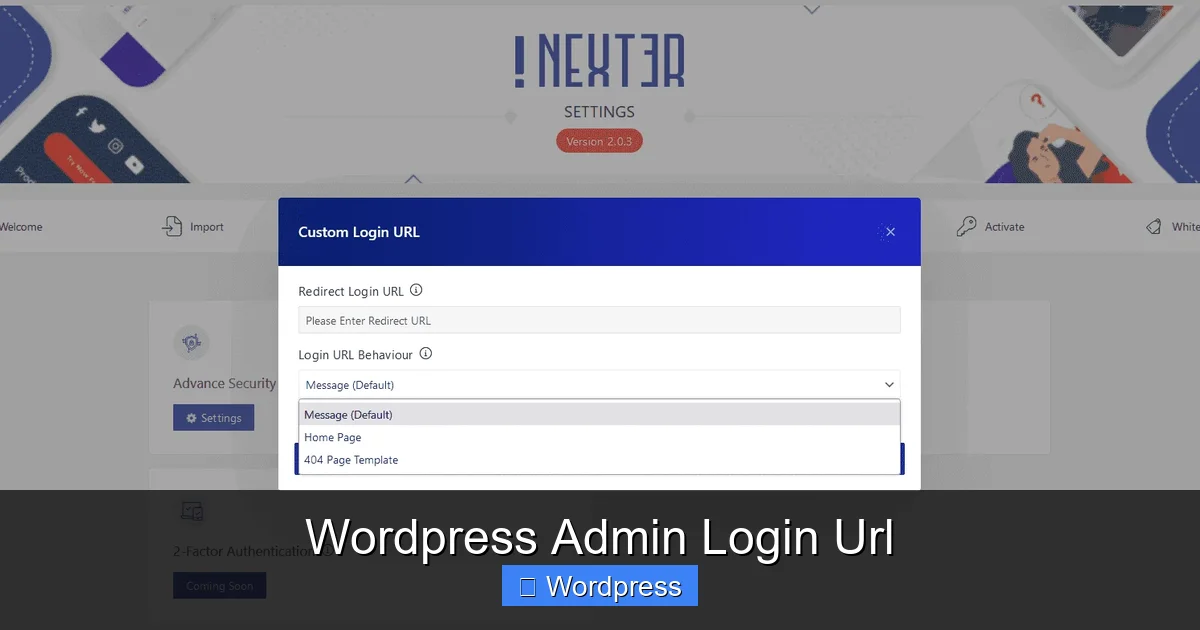
Visual guide about WordPress Admin Login Url
Image source: nexterwp.com
There are two main ways to change your login URL: using a plugin or doing it manually. Let’s explore both.
Method 1: Using a Plugin (Recommended for Most Users)
The easiest and safest way to change your login URL is with a plugin. One of the most popular is WPS Hide Login. Here’s how to use it:
1. Go to your WordPress dashboard.
2. Navigate to Plugins > Add New.
3. Search for “WPS Hide Login” and install it.
4. Activate the plugin.
5. Go to Settings > WPS Hide Login.
6. Enter your desired login URL (e.g., /my-secret-login).
7. Save changes.
Now, your new login URL will be active. The old /wp-admin and /wp-login.php paths will redirect to a 404 page or your homepage, keeping them hidden from bots.
Pro Tip: After changing the URL, test it in an incognito browser window to make sure it works. Also, bookmark the new link so you don’t forget it!
Method 2: Manual Change via .htaccess (Advanced)
If you’re comfortable editing server files, you can modify the .htaccess file to redirect the default login paths. This method requires caution—mistakes can break your site.
1. Access your site via FTP or your hosting file manager.
2. Locate the .htaccess file in your root directory.
3. Add the following code (replace “secretlogin” with your custom slug):
RewriteEngine On
RewriteRule ^secretlogin$ wp-login.php [NC,L]
RewriteRule ^wp-admin$ secretlogin [R=301,L]
4. Save the file.
Now, visiting /secretlogin will take you to the login page, while /wp-admin will redirect to your custom URL.
Warning: Always back up your site before editing .htaccess. If something goes wrong, you can restore it quickly.
Best Practices for Securing Your WordPress Login
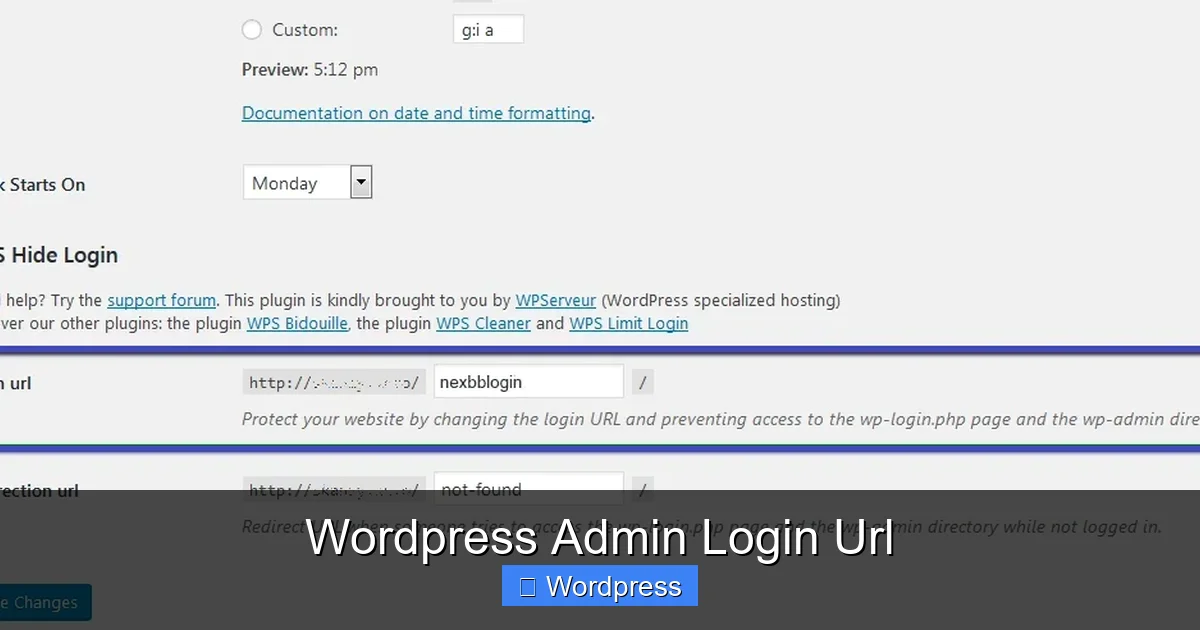
Visual guide about WordPress Admin Login Url
Image source: help.vernalweb.com
Changing your login URL is just one piece of the puzzle. Here are additional steps to keep your admin area safe:
Use Strong Passwords
A custom URL won’t help if your password is “password123.” Use a mix of uppercase, lowercase, numbers, and symbols. Consider a password manager to generate and store complex passwords.
Enable Two-Factor Authentication (2FA)
Plugins like Google Authenticator or Wordfence add a second verification step—usually a code from your phone. Even if someone gets your password, they can’t log in without the code.
Limit Login Attempts
Plugins such as Limit Login Attempts Reloaded block IP addresses after a set number of failed login tries. This stops brute-force attacks in their tracks.
Keep WordPress Updated
Always update WordPress core, themes, and plugins. Updates often include security patches that fix known vulnerabilities.
Use a Security Plugin
Consider tools like Sucuri Security or Wordfence. They offer firewall protection, malware scanning, and real-time threat detection.
Choose Reliable Hosting
Your hosting provider plays a big role in security. Services like Bluehost or WP Engine offer built-in security features and regular backups.
What to Do If You Get Locked Out
Accidentally locking yourself out after changing the login URL is a common fear—but it’s usually fixable.
If you can’t access your site:
1. Use FTP or your hosting file manager to access your site.
2. If you used a plugin like WPS Hide Login, rename the plugin folder (e.g., from “wps-hide-login” to “wps-hide-login-disabled”).
3. This will deactivate the plugin and restore the default login URL.
4. Log in, then reactivate and reconfigure the plugin carefully.
Alternatively, if you edited .htaccess, simply remove or correct the code you added.
Prevention Tip: Always test your new login URL in a private browsing window before closing your current session. And keep a backup of your original .htaccess file.
Conclusion
Your WordPress admin login URL is more than just a web address—it’s a critical part of your site’s security. While the default /wp-admin and /wp-login.php paths are convenient, they’re also low-hanging fruit for attackers. By changing your login URL, you add a simple but effective layer of protection that can deter most automated threats.
Whether you use a plugin like WPS Hide Login or go the manual route, the key is to act thoughtfully and test thoroughly. Pair your custom URL with strong passwords, two-factor authentication, and a reliable security plugin for maximum protection.
Remember, security isn’t about making your site unhackable—it’s about making it harder to hack than the next guy’s. And changing your login URL is one of the easiest ways to get ahead.
So take a few minutes today to secure your admin area. Your future self—and your website—will thank you.
Frequently Asked Questions
Is changing the WordPress admin login URL necessary?
It’s not mandatory, but highly recommended for security. It helps prevent brute-force attacks by hiding the login page from bots.
Can I use any name for my custom login URL?
Yes, as long as it’s unique and doesn’t conflict with existing pages or posts. Avoid common words like “admin” or “login.”
Does changing the login URL affect SEO?
No. Search engines don’t index admin pages, so changing the URL has no impact on your site’s search rankings.
Will my users be affected by a custom login URL?
Only administrators need to know the new URL. Regular visitors and subscribers won’t notice any difference.
Can I revert back to the default login URL?
Yes. Simply deactivate the plugin or remove the custom code from .htaccess, and the original paths will work again.
Are there free plugins to change the login URL?
Yes, WPS Hide Login is a popular free plugin that lets you change the login URL with just a few clicks.