
WordPress cache settings can dramatically boost your site’s speed and performance. By storing static versions of your pages, caching reduces server load and delivers content faster to visitors. This guide walks you through everything you need to know to set up and manage caching effectively on your WordPress site.
If you’ve ever noticed your WordPress site loading slowly—especially during traffic spikes—you’re not alone. Millions of site owners face this issue, and the solution often lies in one powerful but underused feature: **WordPress cache settings**.
Caching might sound technical, but it’s actually quite simple. Think of it like keeping a photocopy of your favorite recipe instead of flipping through the whole cookbook every time you cook. When someone visits your site, instead of rebuilding the page from scratch (which takes time), WordPress serves a pre-saved “snapshot” of that page. This makes your site faster, reduces strain on your server, and improves the overall user experience.
Whether you run a blog, an online store, or a business website, optimizing your cache settings is one of the easiest ways to boost performance—without touching a line of code.
Key Takeaways
- What is caching? Caching saves static versions of your web pages so they load faster on repeat visits.
- Types of caching: Browser, server, object, and page caching each serve different roles in speeding up your site.
- Popular plugins: WP Super Cache, W3 Total Cache, and LiteSpeed Cache are top choices for managing WordPress cache settings.
- Hosting matters: Some hosts like Bluehost and WP Engine offer built-in caching—check your plan before installing plugins.
- Clear cache regularly: Always clear your cache after updating content, themes, or plugins to avoid showing outdated pages.
- Test your speed: Use tools like GTmetrix or Google PageSpeed Insights to measure improvements after adjusting cache settings.
- Avoid over-caching: Too many cache layers can cause conflicts—stick to one reliable method for best results.
Quick Answers to Common Questions
What is the best free WordPress cache plugin?
WP Super Cache is widely regarded as the best free option for most users. It’s easy to set up, reliable, and developed by the WordPress team.
Should I use multiple cache plugins?
No. Using more than one caching plugin can cause conflicts and slow down your site. Choose one and configure it properly.
How often should I clear my WordPress cache?
Clear your cache after publishing new content, updating themes or plugins, or making design changes. Otherwise, let it run based on your expiration settings.
Does caching affect SEO?
Yes—faster load times improve user experience and can boost your search rankings. Google rewards sites that load quickly.
Can caching break my website?
Rarely, but it can happen if misconfigured. Always test after enabling caching, and keep a backup. Most issues are fixed by clearing the cache.
📑 Table of Contents
What Is WordPress Caching?
At its core, caching is the process of storing copies of files or data so they can be accessed more quickly in the future. In WordPress, this usually means saving static HTML versions of your dynamic PHP-powered pages.
When a visitor lands on your site, WordPress typically runs several processes: querying the database, loading themes and plugins, applying styles, and generating the final page. This takes time—especially on shared hosting. But with caching enabled, WordPress skips most of that work and delivers a ready-made version of the page instantly.
There are four main types of caching used in WordPress:
Browser Caching
This tells visitors’ browsers to store certain files (like images, CSS, and JavaScript) locally. When they revisit your site, their browser loads these files from their device instead of downloading them again.
Page Caching
This creates static HTML files of your entire pages. It’s the most common and effective form of caching for WordPress sites. Plugins like WP Super Cache generate these files automatically.
Object Caching
This stores database query results in memory (like Redis or Memcached). It’s especially useful for complex sites with lots of dynamic content.
Server-Level Caching
Many hosting providers—including Bluehost and WP Engine—offer built-in server caching. This happens before WordPress even loads, making it extremely fast.
Understanding these layers helps you choose the right caching strategy for your site.
Why Caching Matters for Your WordPress Site
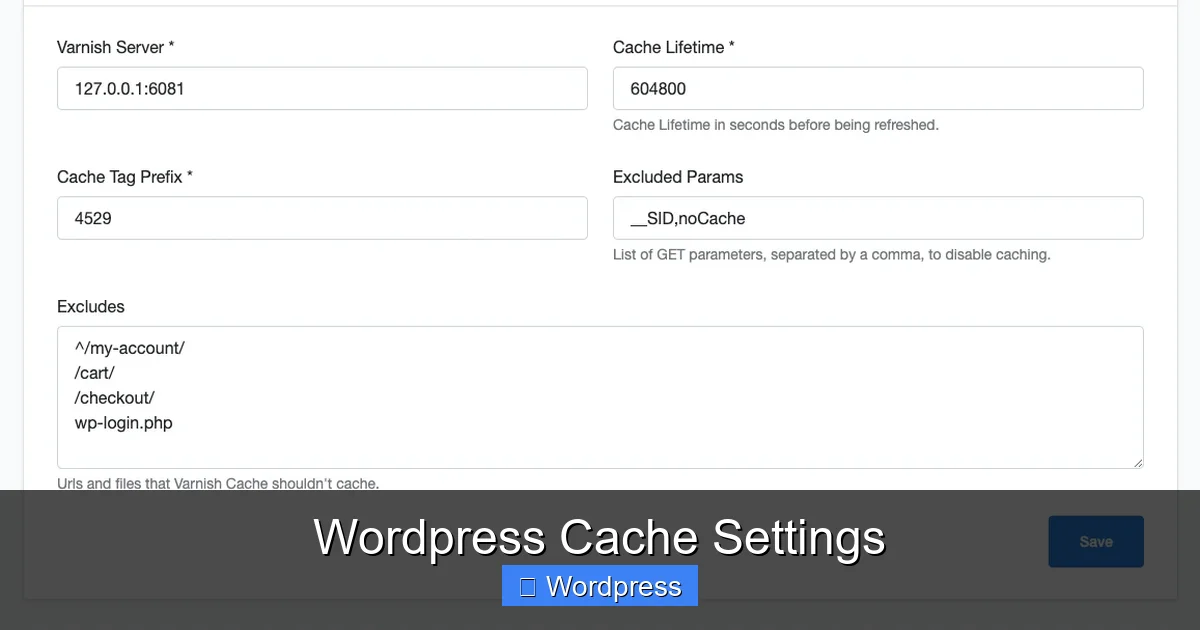
Visual guide about WordPress Cache Settings
Image source: cloudpanel.io
Speed isn’t just about user experience—it directly impacts your search engine rankings. Google considers page load time as a ranking factor, so a faster site can climb higher in search results.
But the benefits go beyond SEO:
– **Better conversion rates**: Visitors are more likely to stay and buy if your site loads quickly.
– **Lower bounce rates**: Slow sites frustrate users, who often leave within seconds.
– **Reduced server costs**: Caching reduces CPU and memory usage, which is crucial on budget hosting plans.
– **Handles traffic spikes**: During promotions or viral content, cached pages keep your site online even under heavy load.
For example, a blog using a lightweight, speed-optimized theme combined with proper cache settings can load in under 1 second—even on shared hosting.
Best WordPress Cache Plugins
While some hosts provide caching out of the box, most WordPress sites benefit from a dedicated caching plugin. Here are three of the most trusted options:
WP Super Cache
Developed by Automattic (the team behind WordPress), this free plugin is simple and effective. It generates static HTML files and serves them to visitors, drastically reducing server load. It’s ideal for beginners and small to medium-sized sites.
W3 Total Cache
A more advanced option, W3 Total Cache supports page, object, database, and browser caching. It also integrates with CDNs and minification tools. While powerful, its settings can be overwhelming for new users—so take time to configure it carefully.
LiteSpeed Cache
If your host uses LiteSpeed servers (like Hostinger or Cloudways), this plugin is a game-changer. It offers server-level caching, image optimization, and even built-in SEO tools. It’s fast, efficient, and increasingly popular.
When choosing a plugin, consider your hosting environment, technical comfort level, and site size. Avoid installing multiple caching plugins—they can conflict and cause errors.
How to Configure WordPress Cache Settings
Once you’ve installed your chosen plugin, it’s time to tweak the settings. Here’s a step-by-step approach:
Step 1: Enable Page Caching
This is the most important setting. Make sure it’s turned on in your plugin’s dashboard. Most plugins do this by default after activation.
Step 2: Set Cache Expiration
Decide how long cached pages should be stored. For most sites, 1–2 hours is fine. For news or rapidly changing content, reduce it to 30 minutes.
Step 3: Exclude Certain Pages
Avoid caching pages that need to stay dynamic, such as:
– Shopping carts
– User account pages
– Contact forms
– Admin areas
Most plugins let you exclude URLs or user roles.
Step 4: Enable Browser Caching
This tells browsers to store static assets locally. Look for options like “Leverage browser caching” or “Set expires headers.”
Step 5: Clear Cache After Updates
Always purge your cache after:
– Publishing new posts
– Updating themes or plugins
– Changing site design
Most plugins have a “Delete Cache” button in the WordPress toolbar for quick access.
Step 6: Test Your Site
Use tools like GTmetrix or Google PageSpeed Insights to check your load time before and after enabling caching. You should see a noticeable improvement.
Common Caching Mistakes to Avoid
Even with the best tools, it’s easy to go wrong. Here are pitfalls to watch out for:
Using Multiple Caching Plugins
Installing both WP Super Cache and W3 Total Cache can cause conflicts. Stick to one.
Not Clearing Cache After Changes
If you update your homepage but visitors still see the old version, you likely forgot to clear the cache.
Over-Caching Dynamic Content
Caching a login page or checkout can break functionality. Always exclude sensitive or interactive pages.
Ignoring Hosting-Level Caching
If your host already provides caching (like managed WordPress hosting), adding another layer may not help—and could hurt performance.
Forgetting Mobile Users
Ensure your cache settings work well on mobile. Some plugins offer separate mobile caching—enable it if your theme isn’t fully responsive.
Monitoring and Maintaining Your Cache
Caching isn’t a “set it and forget it” task. Regular maintenance keeps your site running smoothly.
Check your cache settings monthly. Review excluded pages, update expiration times, and ensure your plugin is up to date.
Also, monitor your site’s performance. If you notice slow loading or errors, temporarily disable caching to see if it’s the cause.
Finally, educate your team. If multiple people manage your site, make sure everyone knows to clear the cache after making changes.
Conclusion
Optimizing your WordPress cache settings is one of the most impactful steps you can take to improve your site’s speed, reliability, and user experience. Whether you use a plugin like WP Super Cache or rely on your host’s built-in tools, caching helps your site load faster, rank better, and handle more traffic.
Start simple: pick one reliable method, configure it properly, and test the results. Over time, you’ll see faster load times, happier visitors, and stronger performance across the board.
Remember, a fast site isn’t just a nice-to-have—it’s essential in today’s competitive digital landscape. So take a few minutes today to check your cache settings. Your future self (and your visitors) will thank you.
Frequently Asked Questions
Do I need a cache plugin if my host offers caching?
It depends. Many managed hosts like WP Engine include server-level caching, which may be enough. Check with your provider before adding a plugin.
How do I know if caching is working?
Use tools like GTmetrix or Pingdom to test your site speed. You can also check response headers for cache-related tags like “X-Cache: HIT.”
Can I cache WooCommerce pages?
Yes, but avoid caching cart, checkout, and account pages. Most plugins let you exclude specific URLs to keep these dynamic.
What’s the difference between page caching and object caching?
Page caching saves entire HTML pages. Object caching stores database query results in memory, speeding up dynamic content generation.
Is browser caching the same as WordPress caching?
No. Browser caching happens on the user’s device, while WordPress caching occurs on your server. Both improve speed but work differently.
Will caching slow down my site updates?
Not if you clear the cache after changes. Most plugins let you purge cache instantly from the WordPress dashboard or toolbar.